Packing List
The packing lists are as follows.
①Scanner Body ②Power Adapter ③Power Cable ④Manual ⑤Handle ⑥USB Flash Drive ⑦USB-C to A Adapter ⑧Memory Card Case
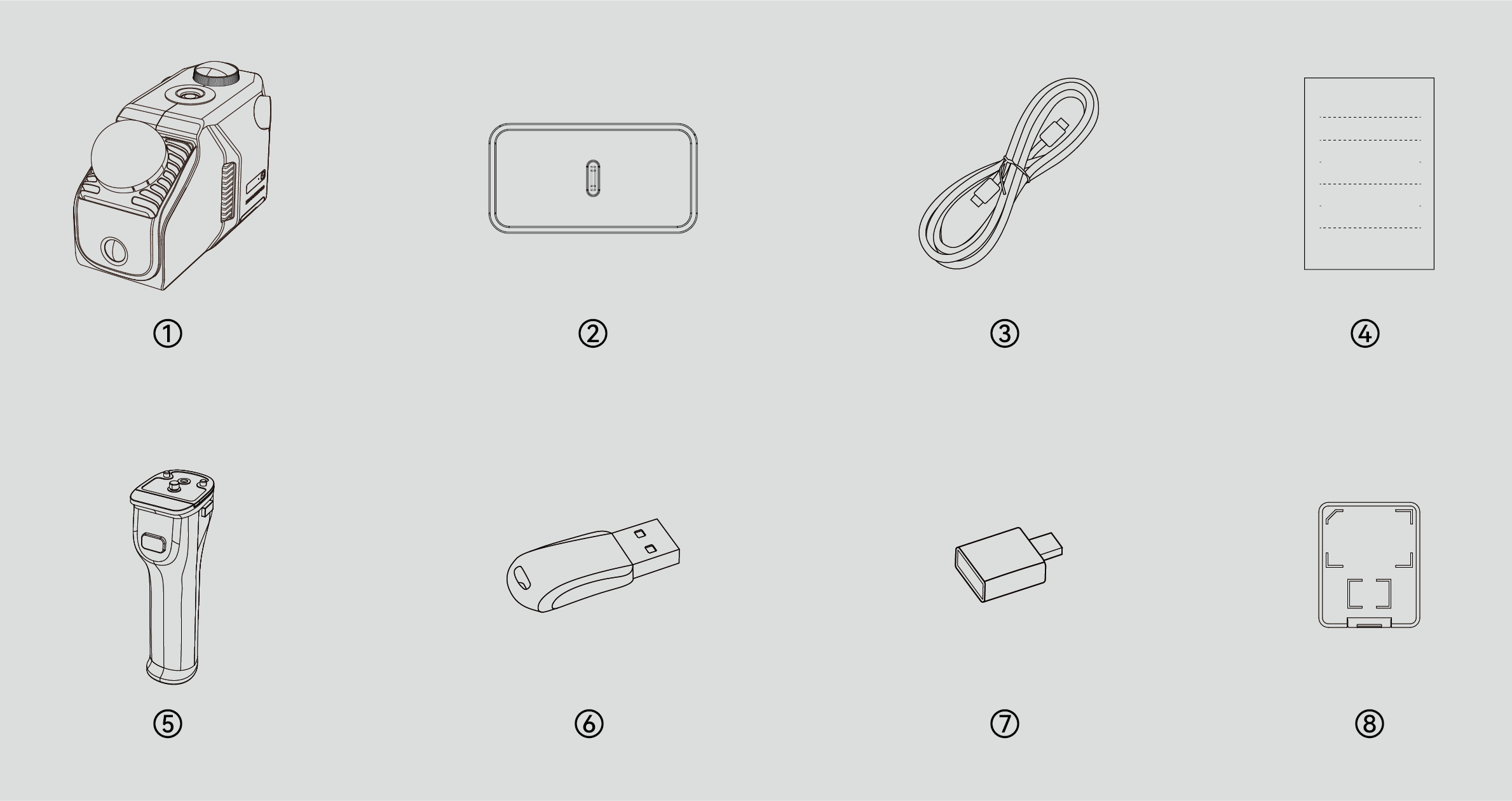
*The appearance of the product isn't standard across all specifications and editions. Product images are for illustrative purposes only!
*The memory card has been installed in the device before leaving the factory. The memory card case is only for storing the card.
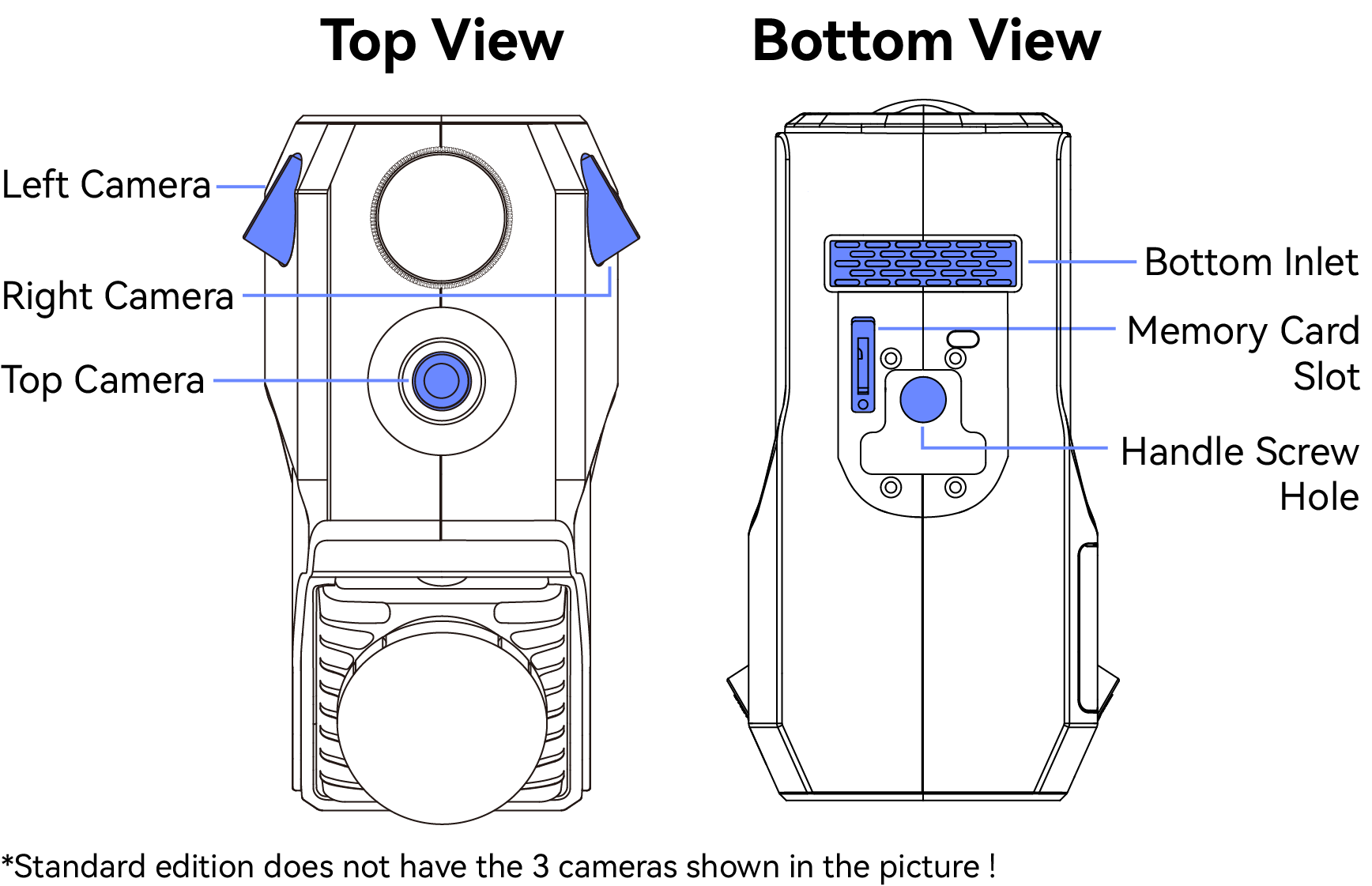
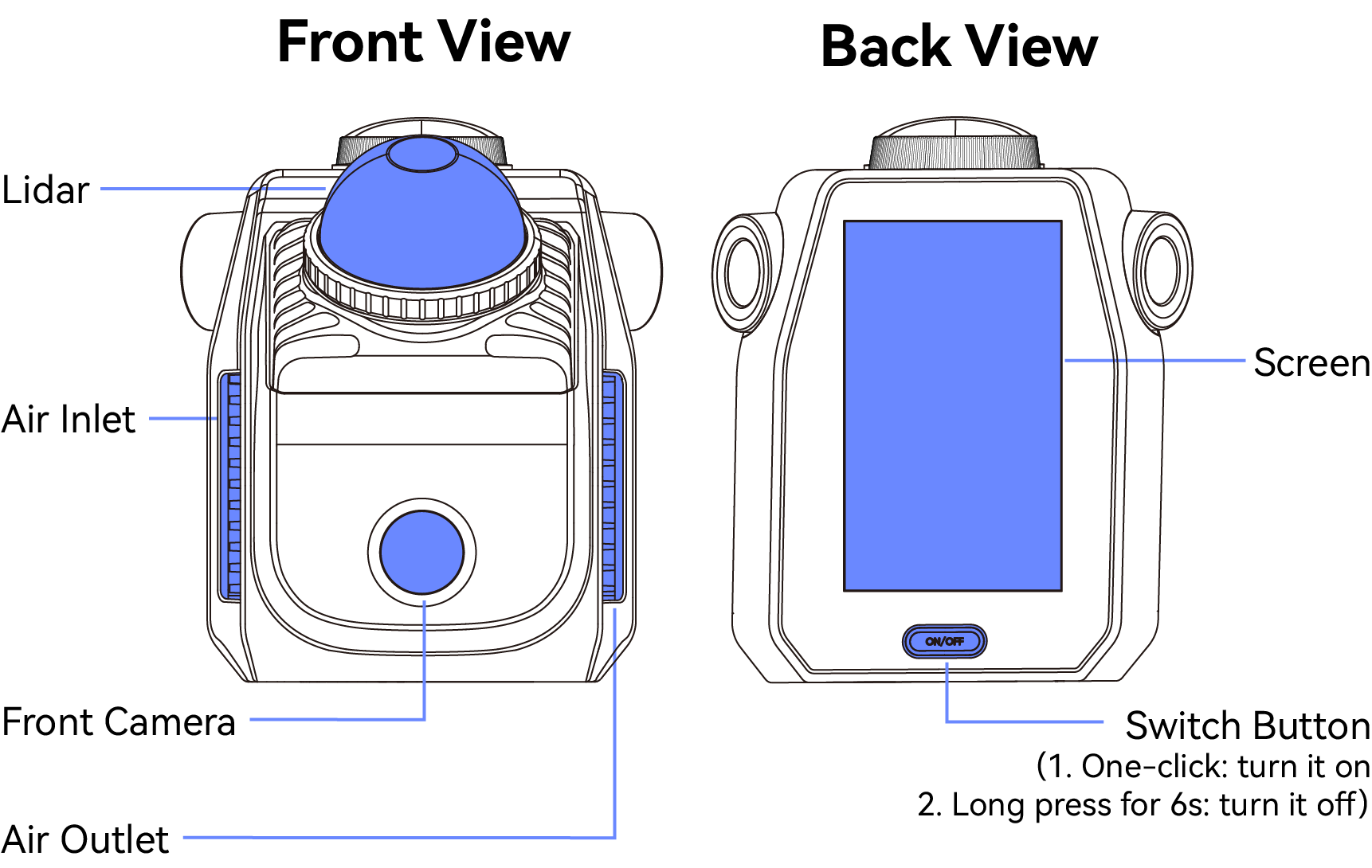
Main Structures
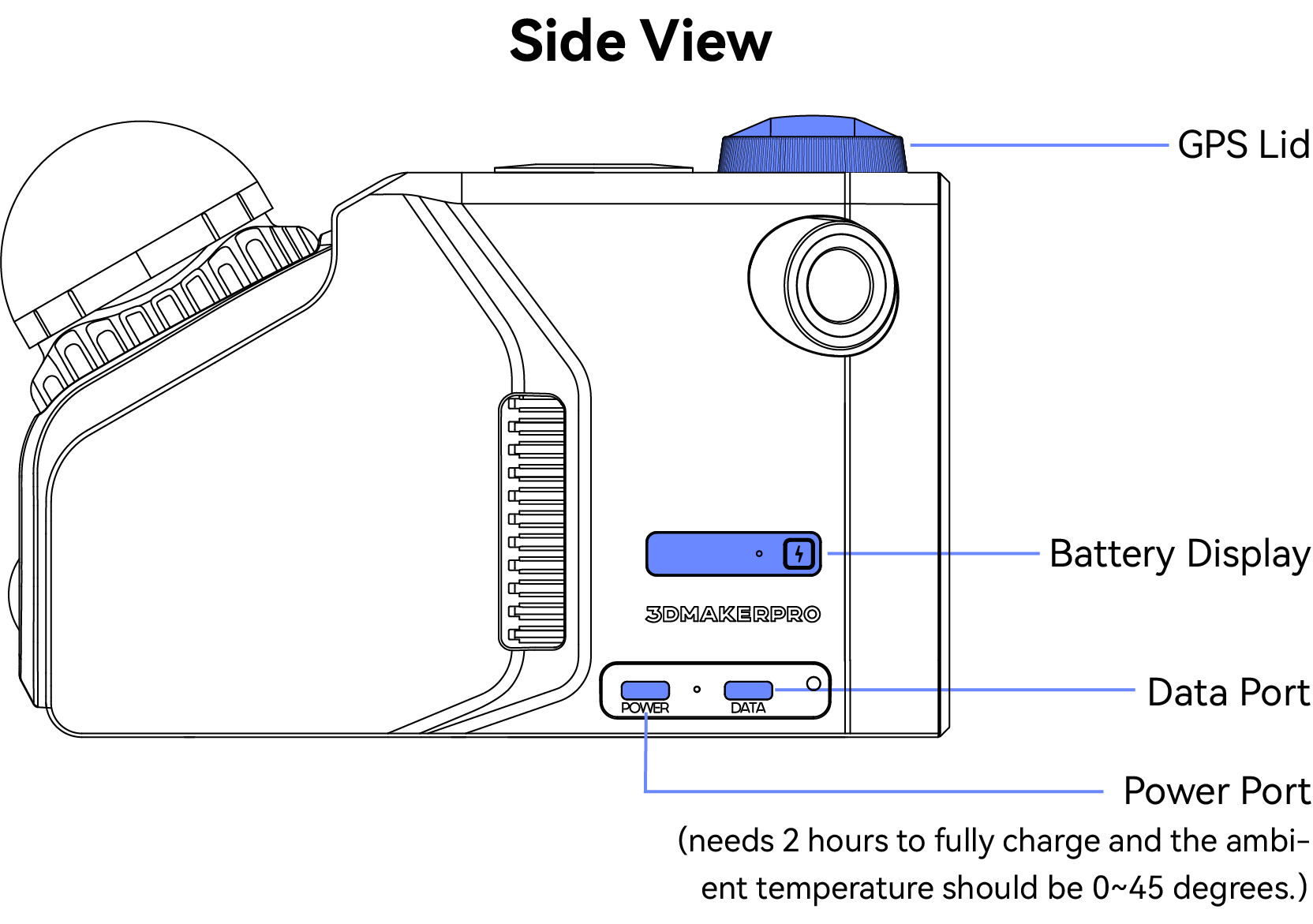
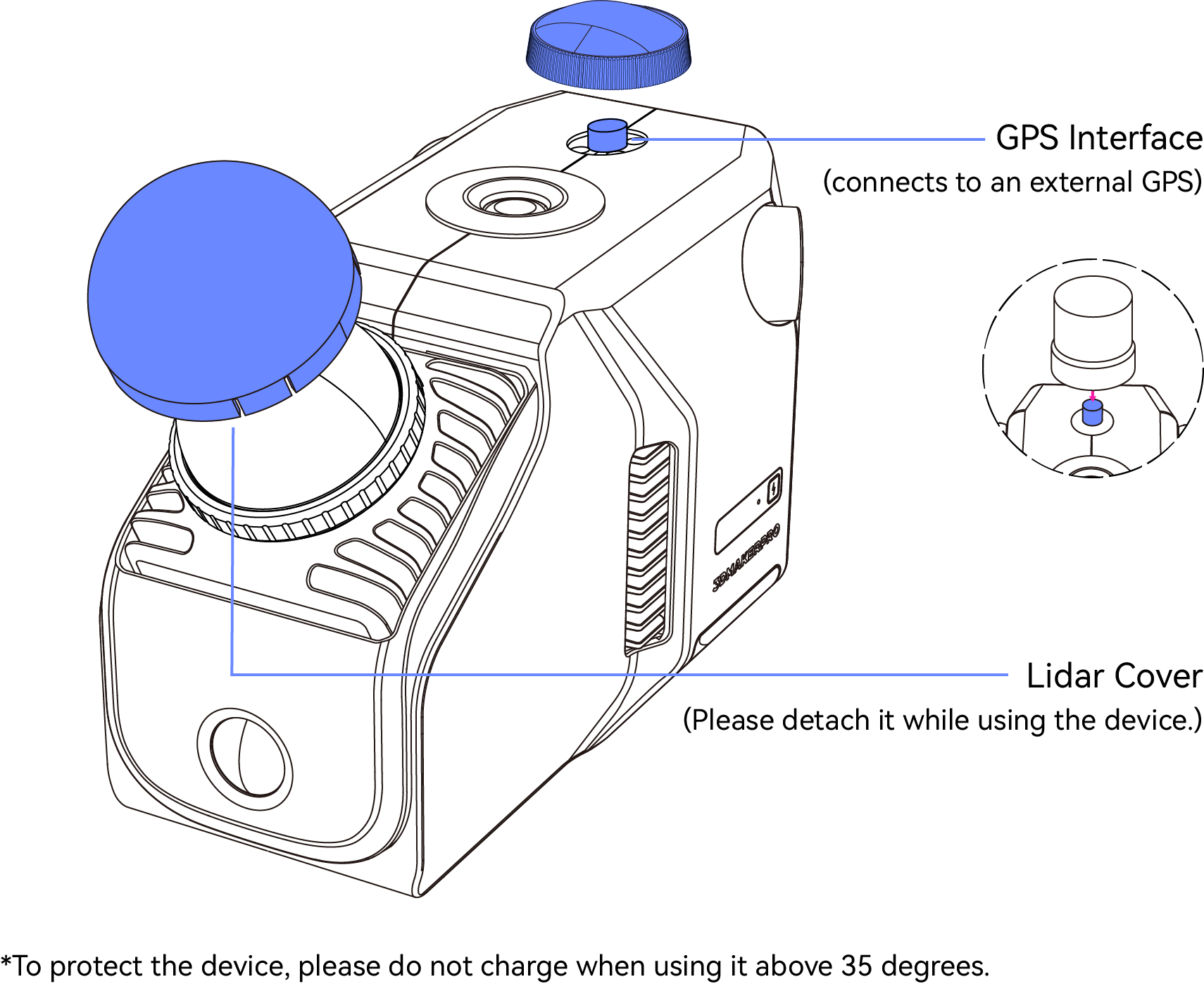
Hardware Connection
*1.Insert the Memory Card
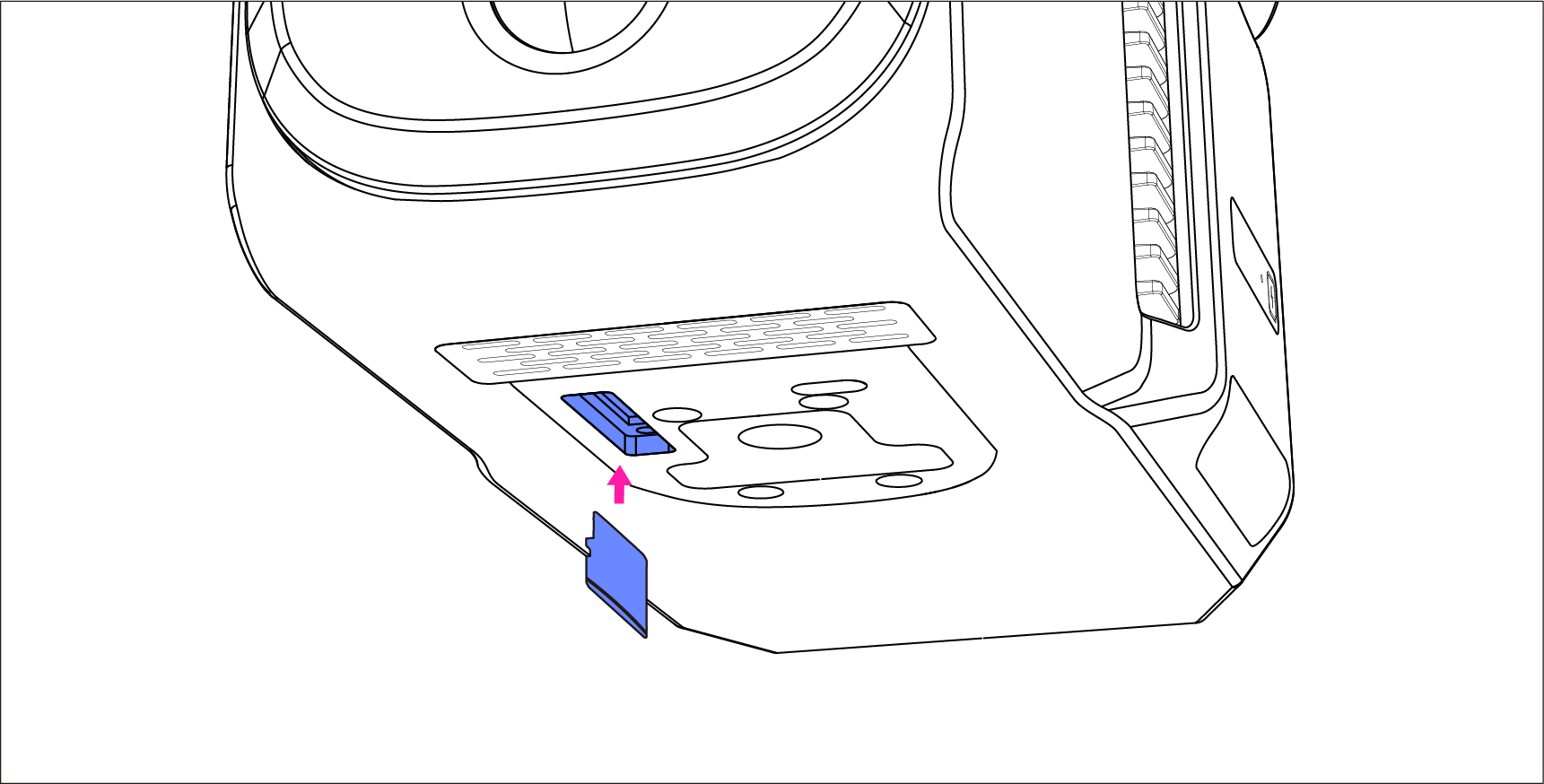
The memory card has been installed in the device before leaving the factory. If you need to unplug and reinsert it for other operations, you can refer to the following operations:
Insert the memory card into the device through the slot at the bottom.
2.Connect to the Handle
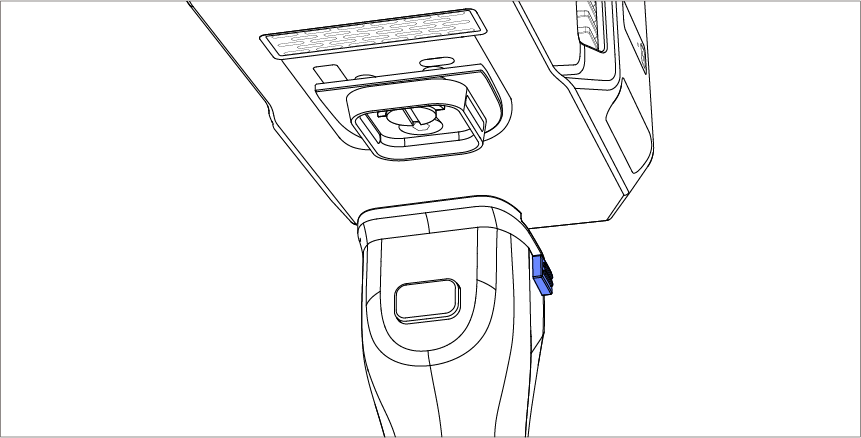
a.Press the two side buttons to release the mounting plate from the handle.
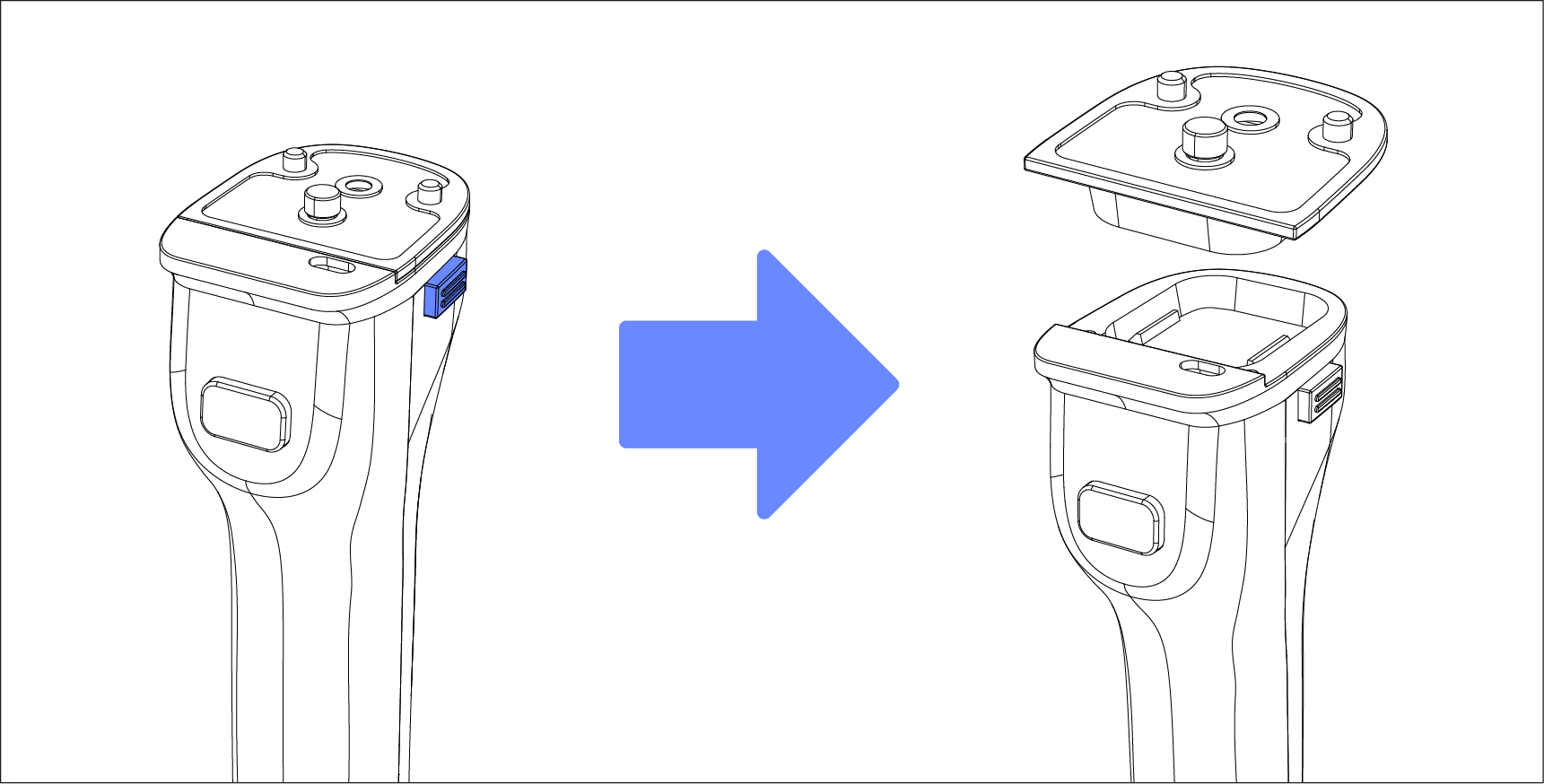
b.Fit the mounting plate into the scanner through the bottom screw hole.
Pre-fix the mounting plate into the scanner through the bottom screw hole. Once in place, tighten the ring screw on the plate.
Use a hex wrench to tighten the dispensing screw from the hole behind the ring screw to reinforce it.
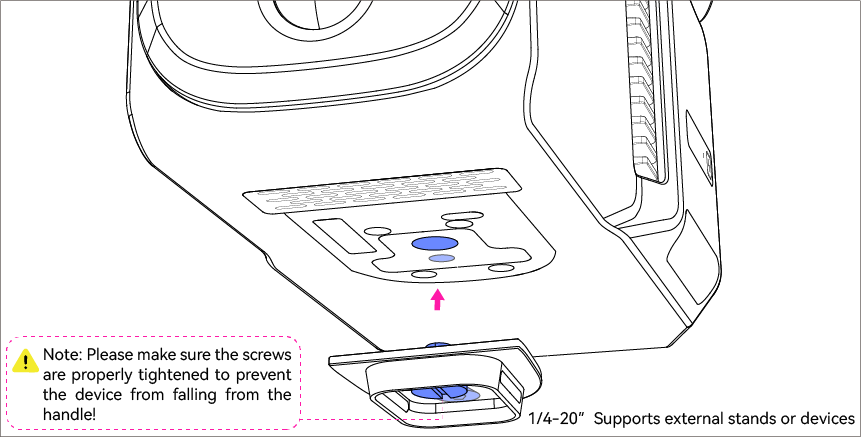
c.Press the two side buttons on the handle and sit the scanner onto it.
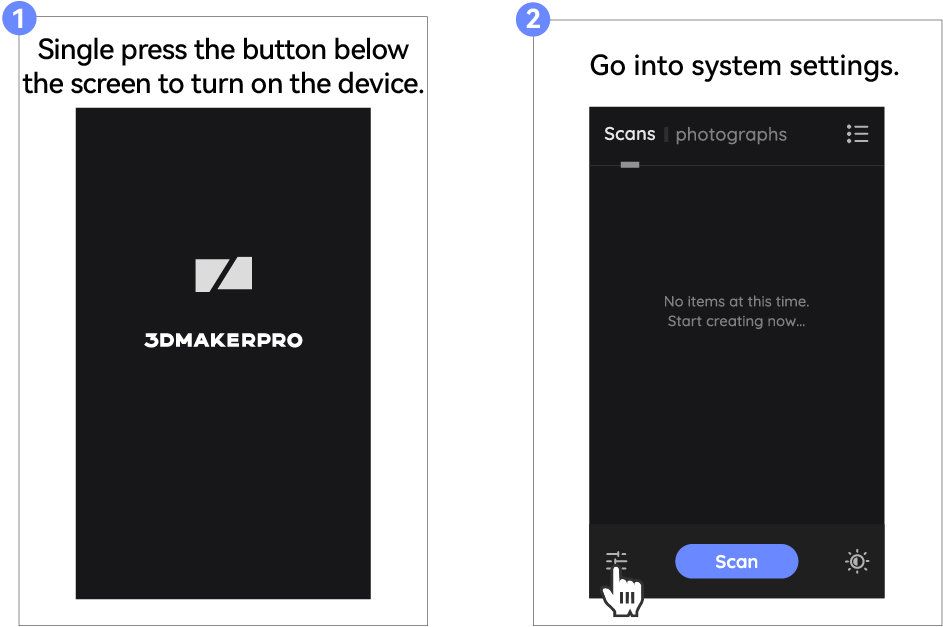
Before Scanning
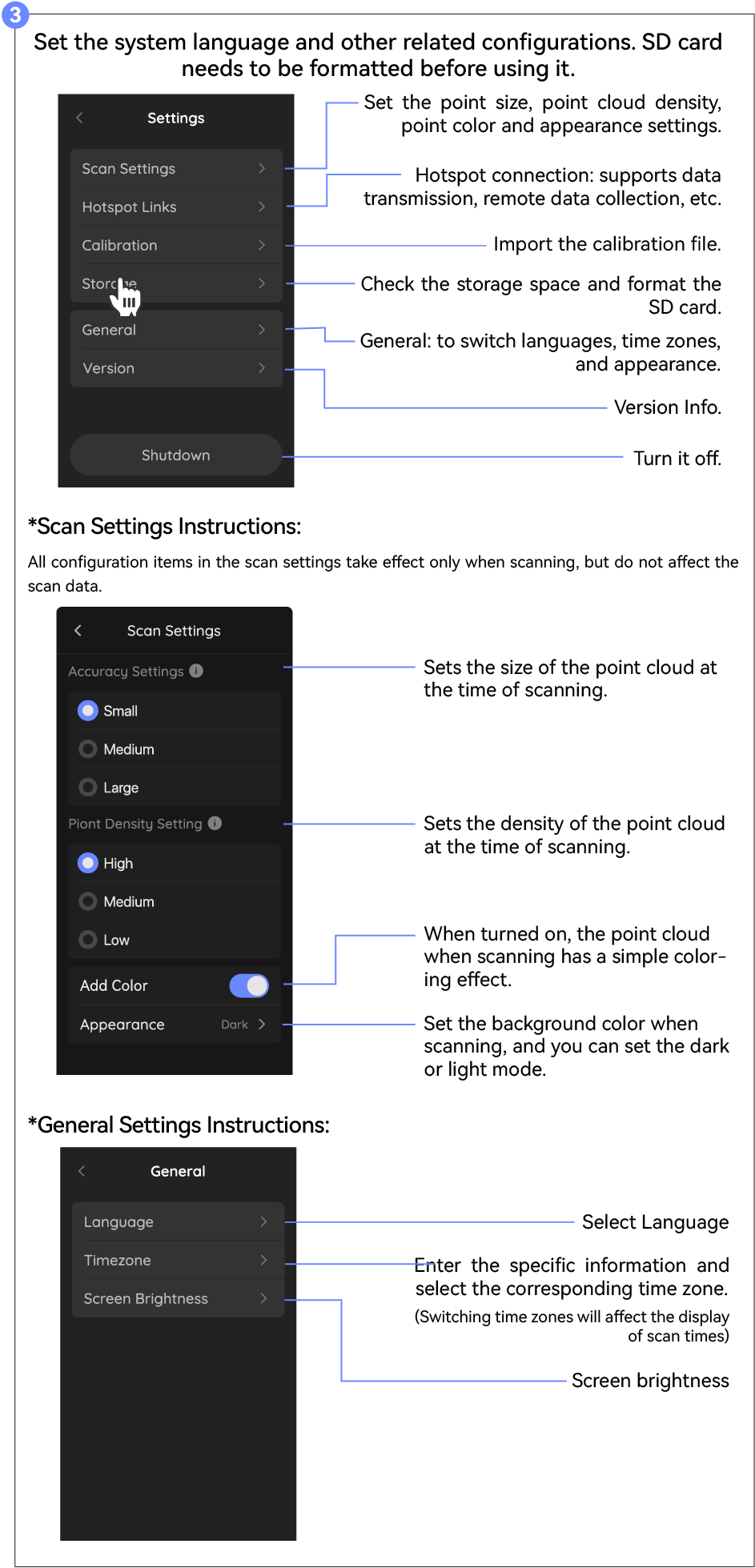
Start Scanning
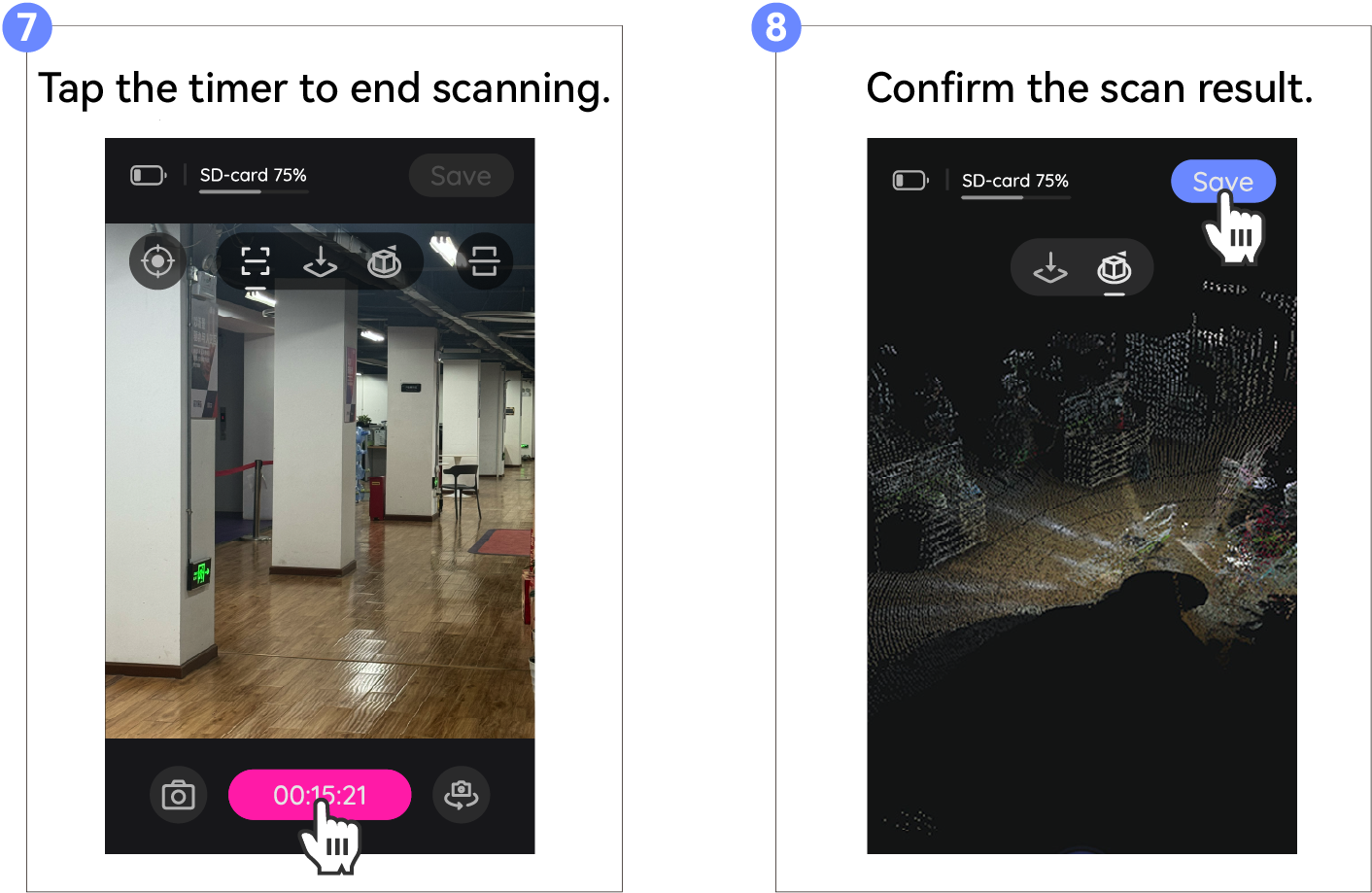
Data Export
Export the data with the provided USB drive or through a hotspot.
(*If the above methods do not work, you can export it with the card reader.)
Export using USB drive
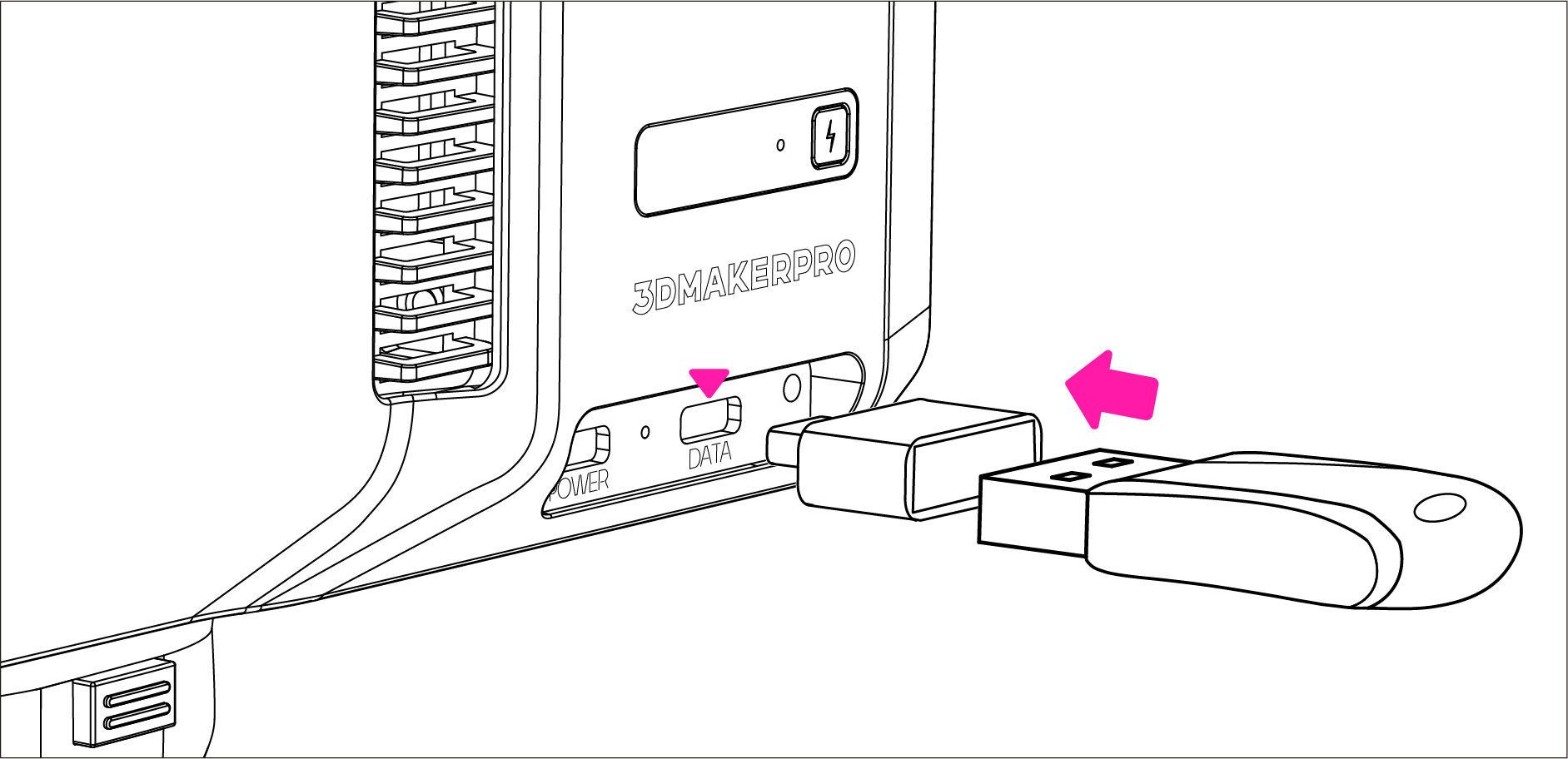
Connect the USB drive with the adapter, and insert them into the device via data port.
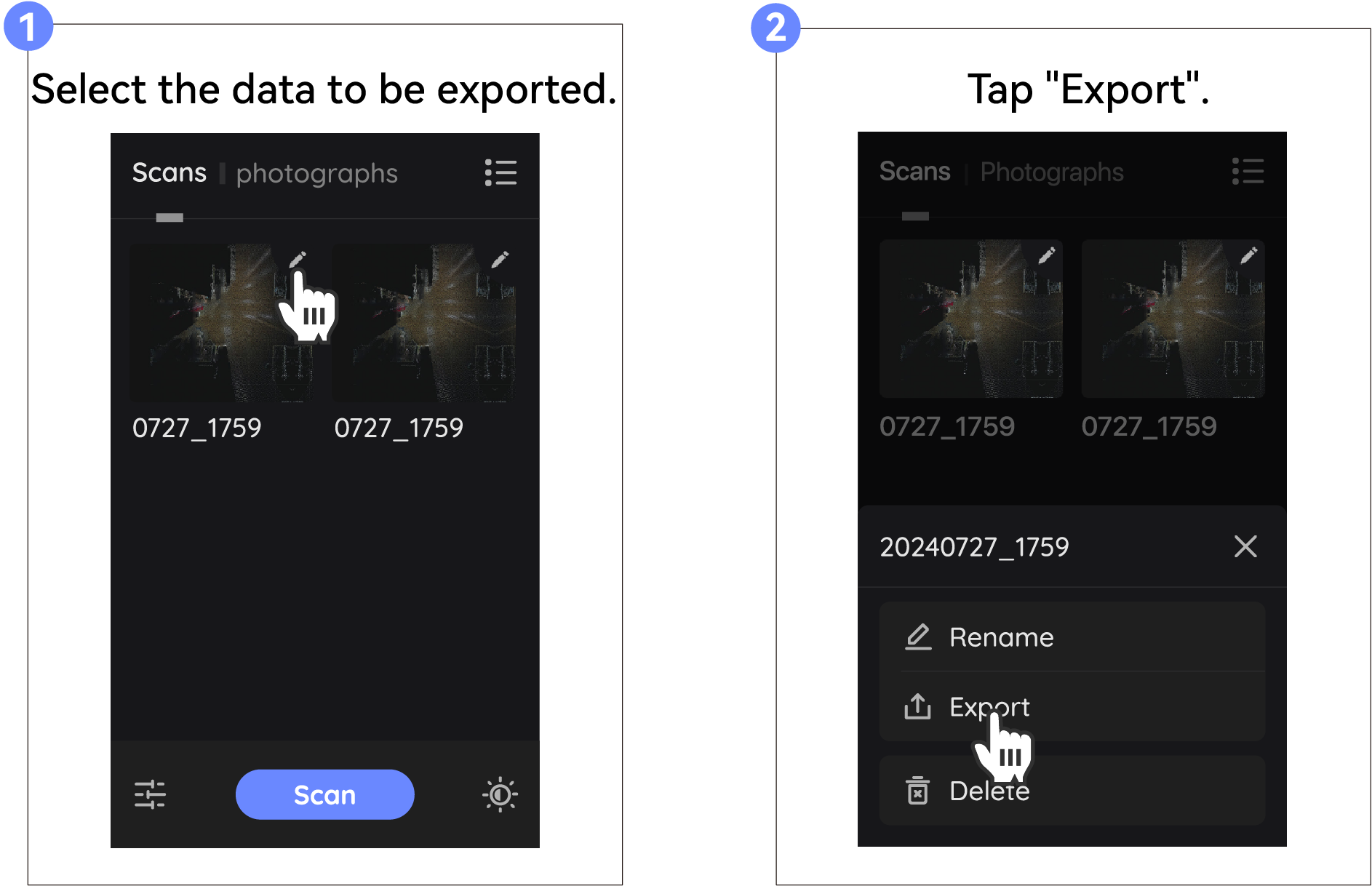
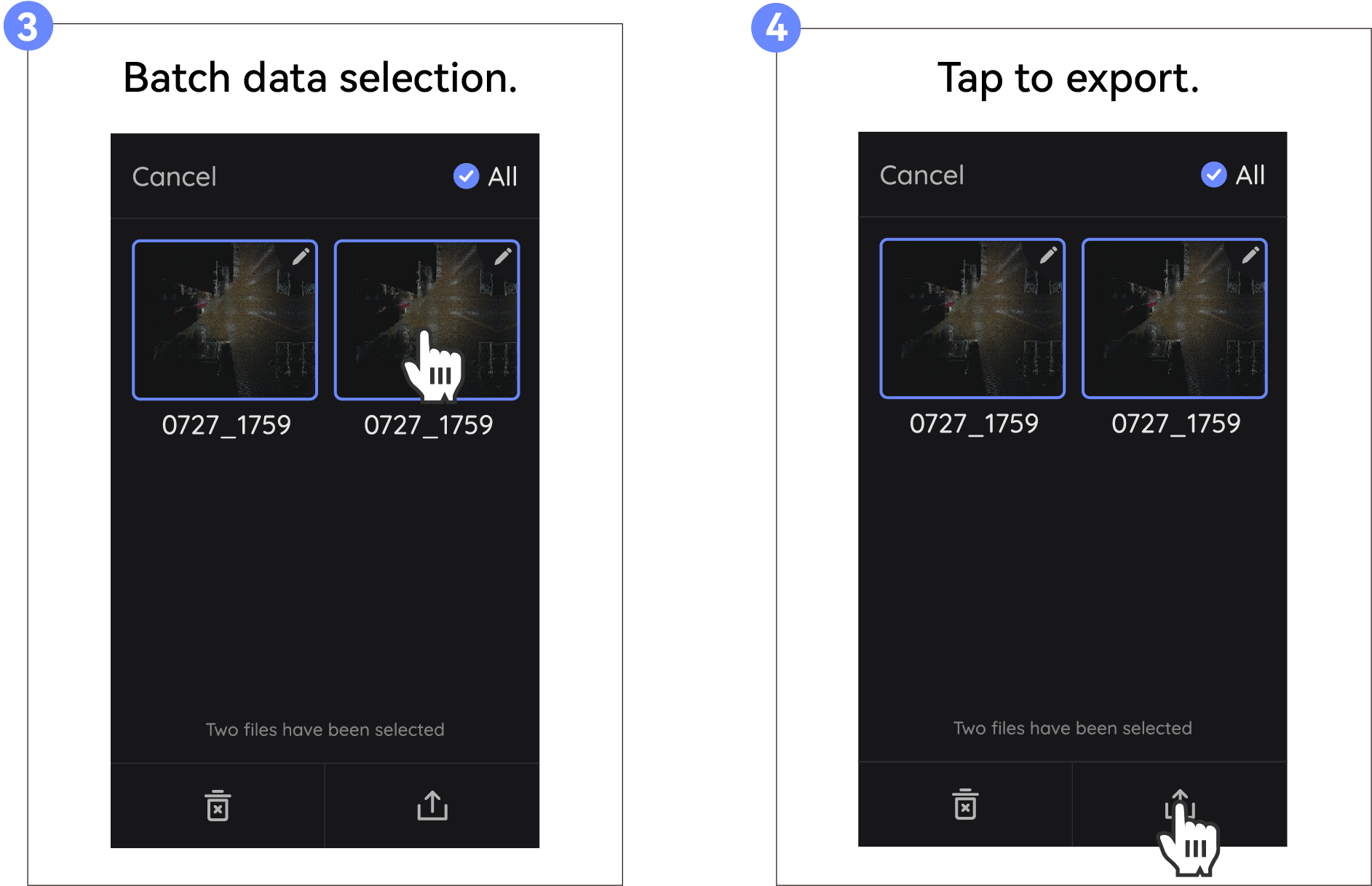
Single Data Export
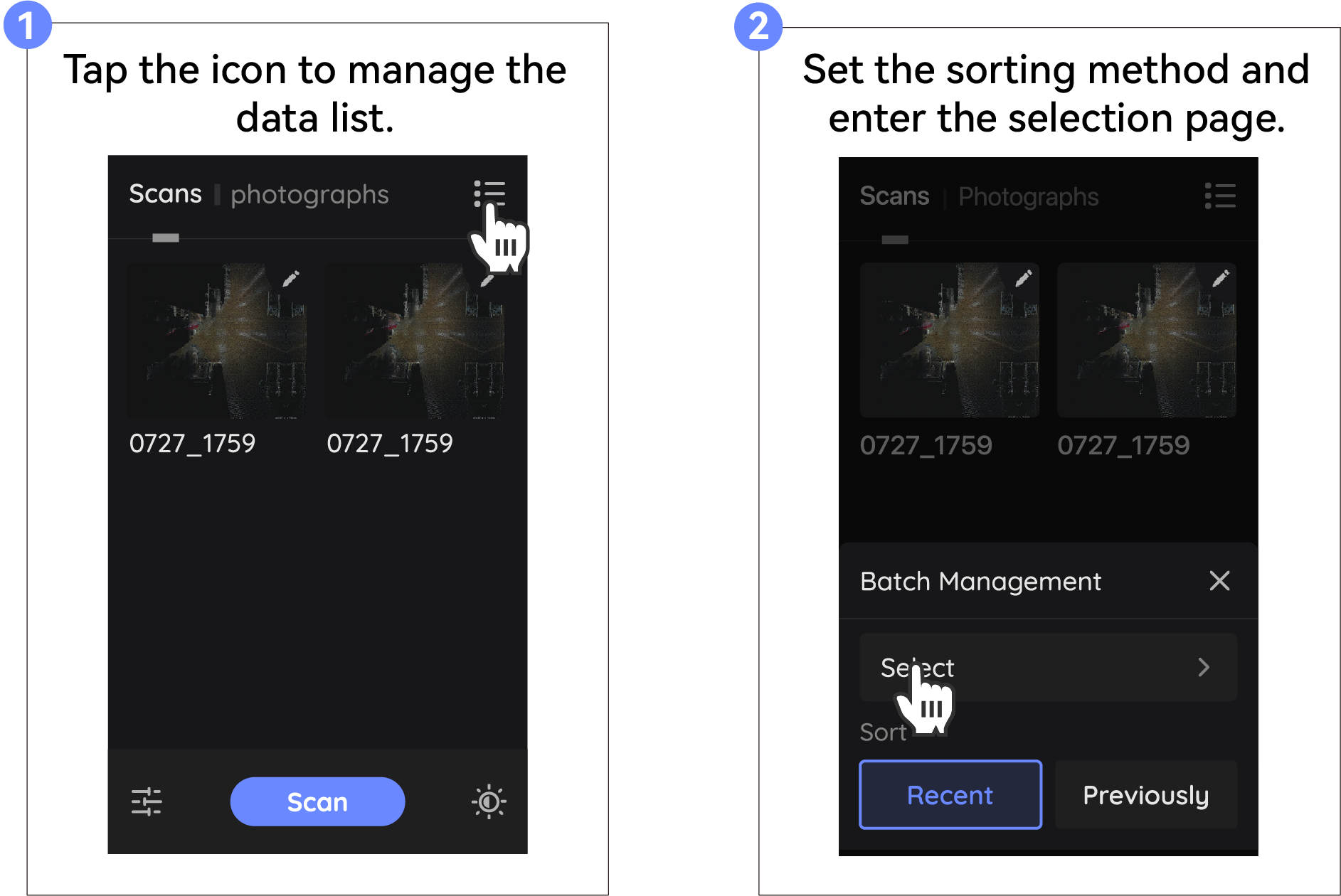
Batch Export
Export through a hotsopt
For detailed instructions, please refer to the following link:
Export using a card reader
Preparation Before Export
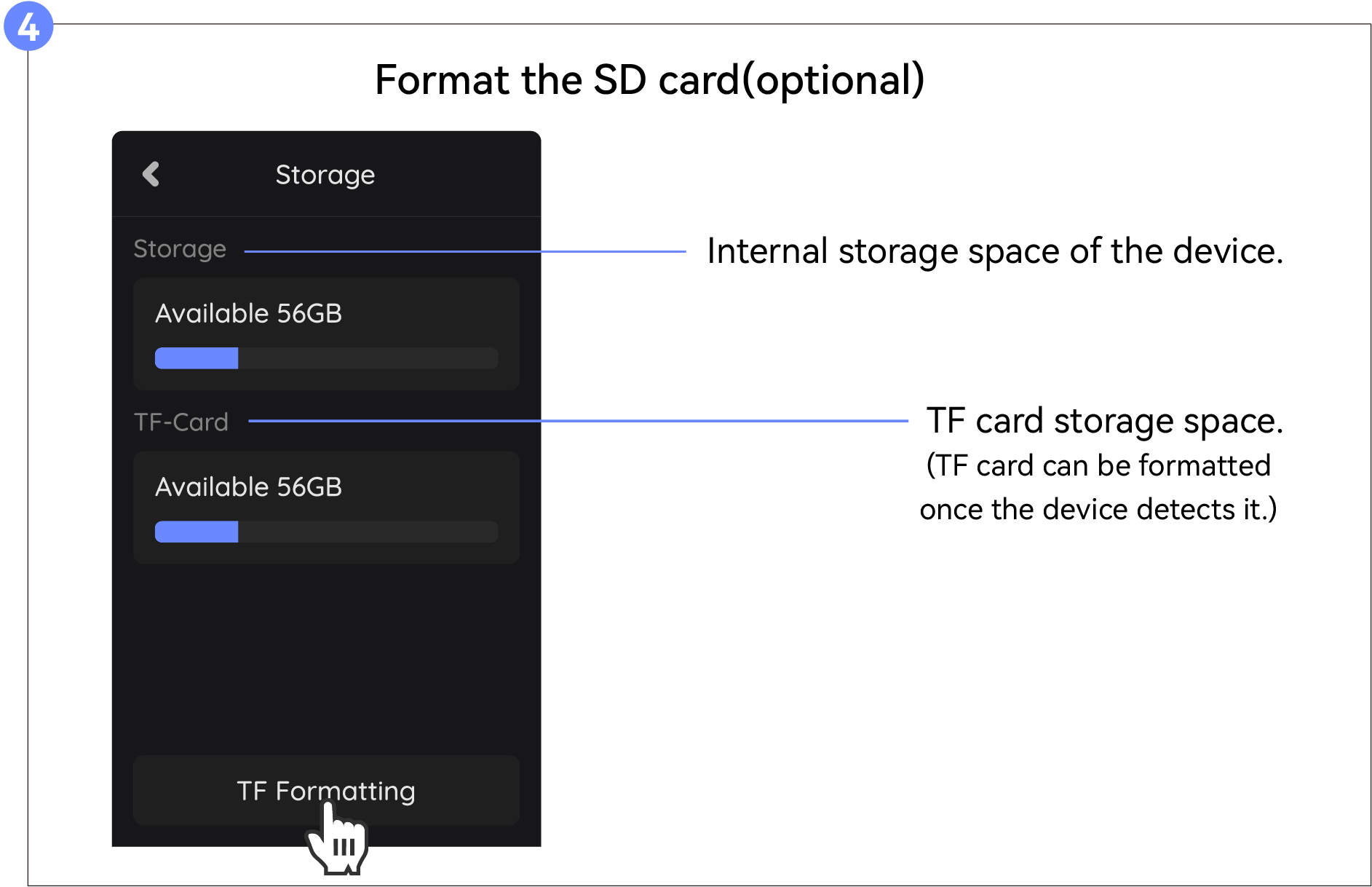
Please prepare your own card reader (USB 3.0 or USB 3.2 is recommended, with a read/write speed of 100MB/s).
When using the card reader to export data for the first time, if you cannot read the data in the data directory, please upgrade your device to the latest version first. After upgrading, you will also need to format the memory card (if there is scanning data on the device, it is recommended to export it first using a hotspot or USB drive before formatting, as formatting will erase all data).
Export
- Pull the memory card out from the bottom of the device and use your own card reader to transfer the data to your computer. Simply copy the data from the 'data' directory.
*The card reader shown is for reference only; please refer to the actual purchased product for use.
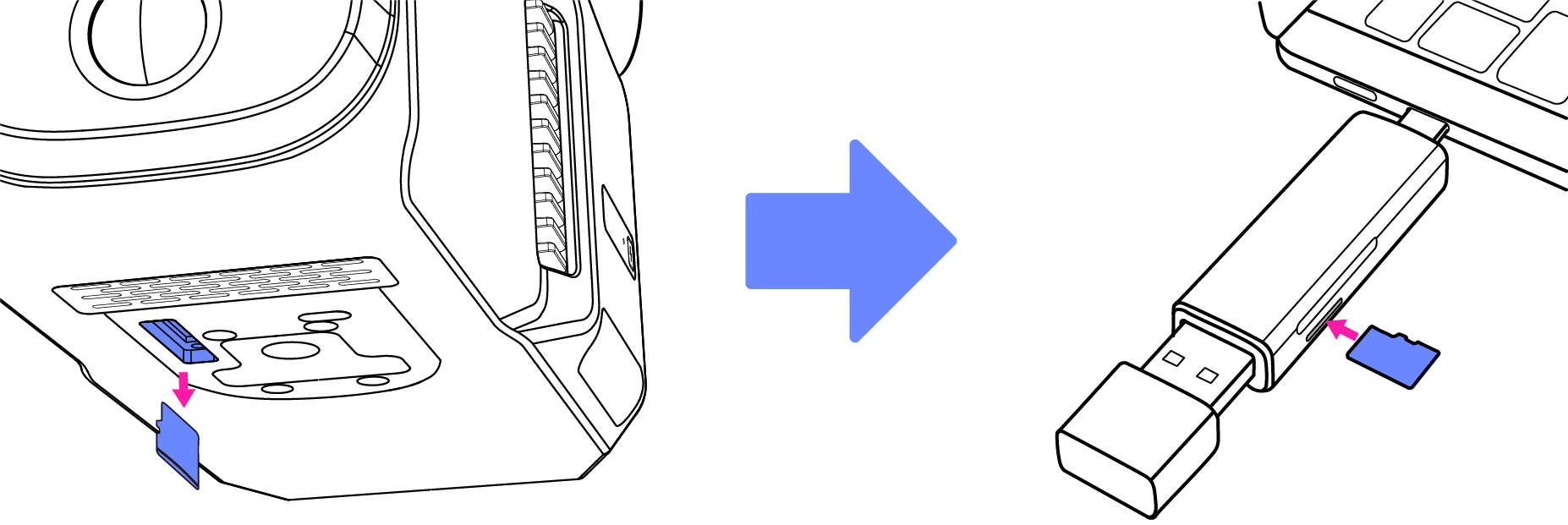
- After the export is complete, insert the memory card into the device and restart the device.
Upgrade to Latest Version
Preparing for Upgrade
- Download the latest firmware from our JMMeta community(https://forum.jimumeta.com/home/help/download2.html?id=89ce7b9ffff54351bd89dc31c66253f4) to the USB flash drive, keep it as an zip file and save it in the folder named upgrade.
Note: The upgrade folder needs to be created manually if there's no such folder in the USB.
- Turn on the device first, then connect the USB flash drive to the converter and insert it into the data transmission port of the device.
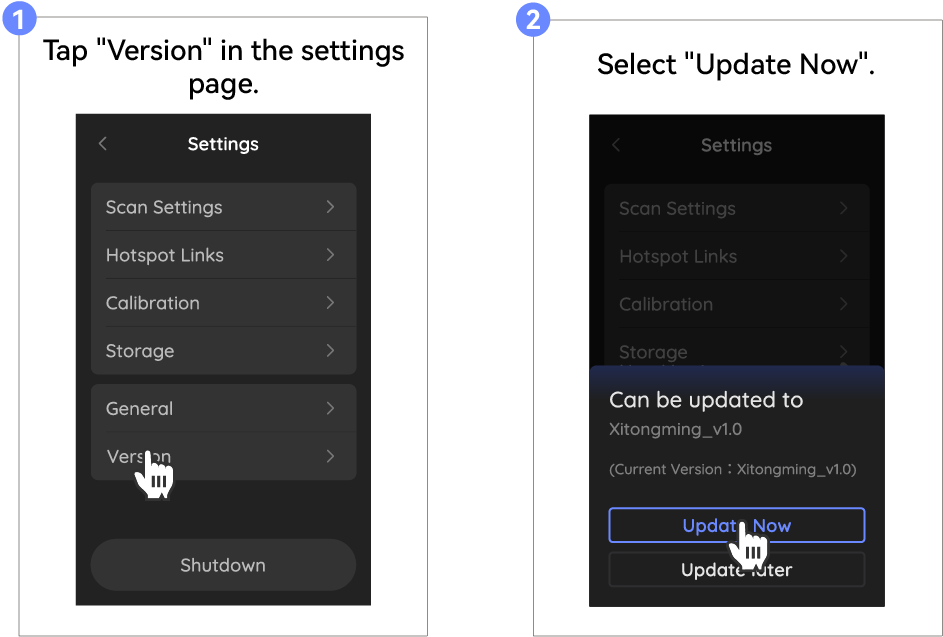
Upgrade
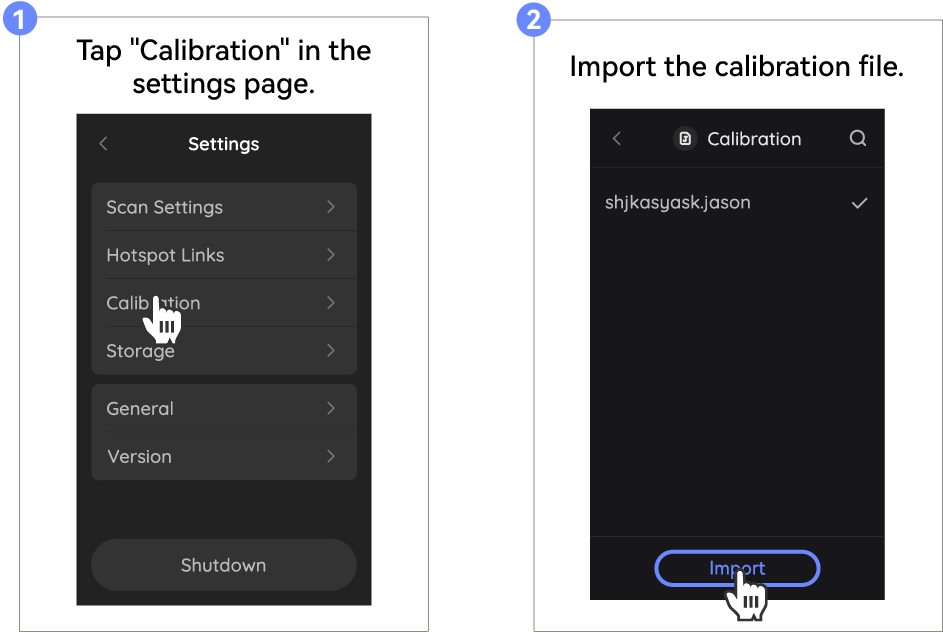
Import the Calibration File
The device has been calibrated before leaving the factory. If your device needs to be re-calibrated, please follow the steps below to re-import the calibration file.
Preparation before importing the file
- Enter the device SN number in the PC software and download the calibration file.
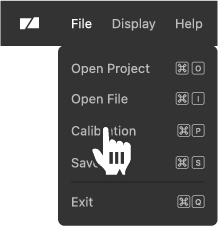

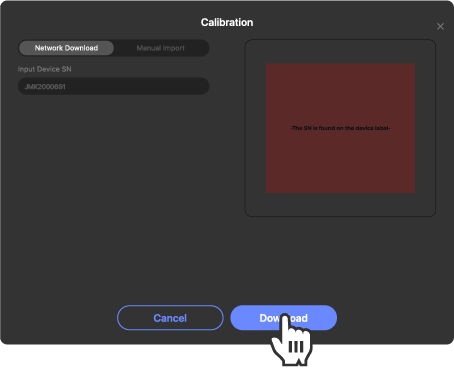

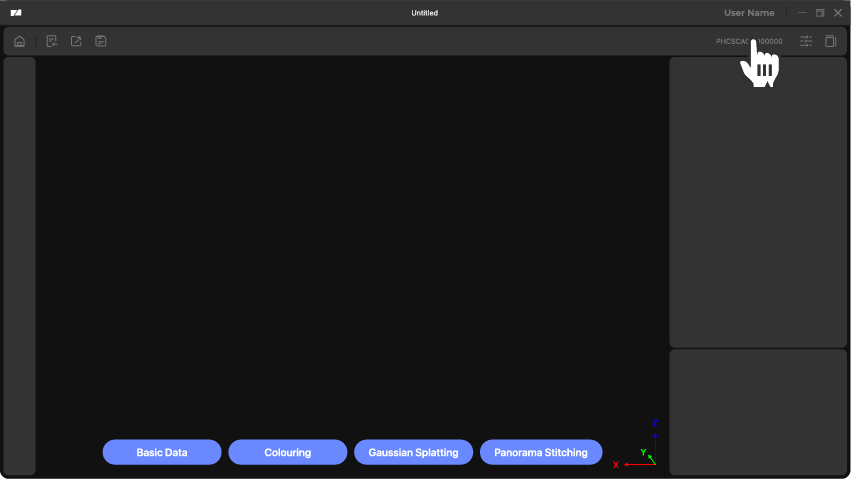
- Click the top right corner of the PC software to get the path of the calibration file, and download the corresponding calibration file to the 'calibration' folder on the USB drive.
Note: The Calibration folder needs to be created manually if there's no such folder in the USB.
- Connect the USB flash drive to the adapter and insert them into the the device via data port.
Import
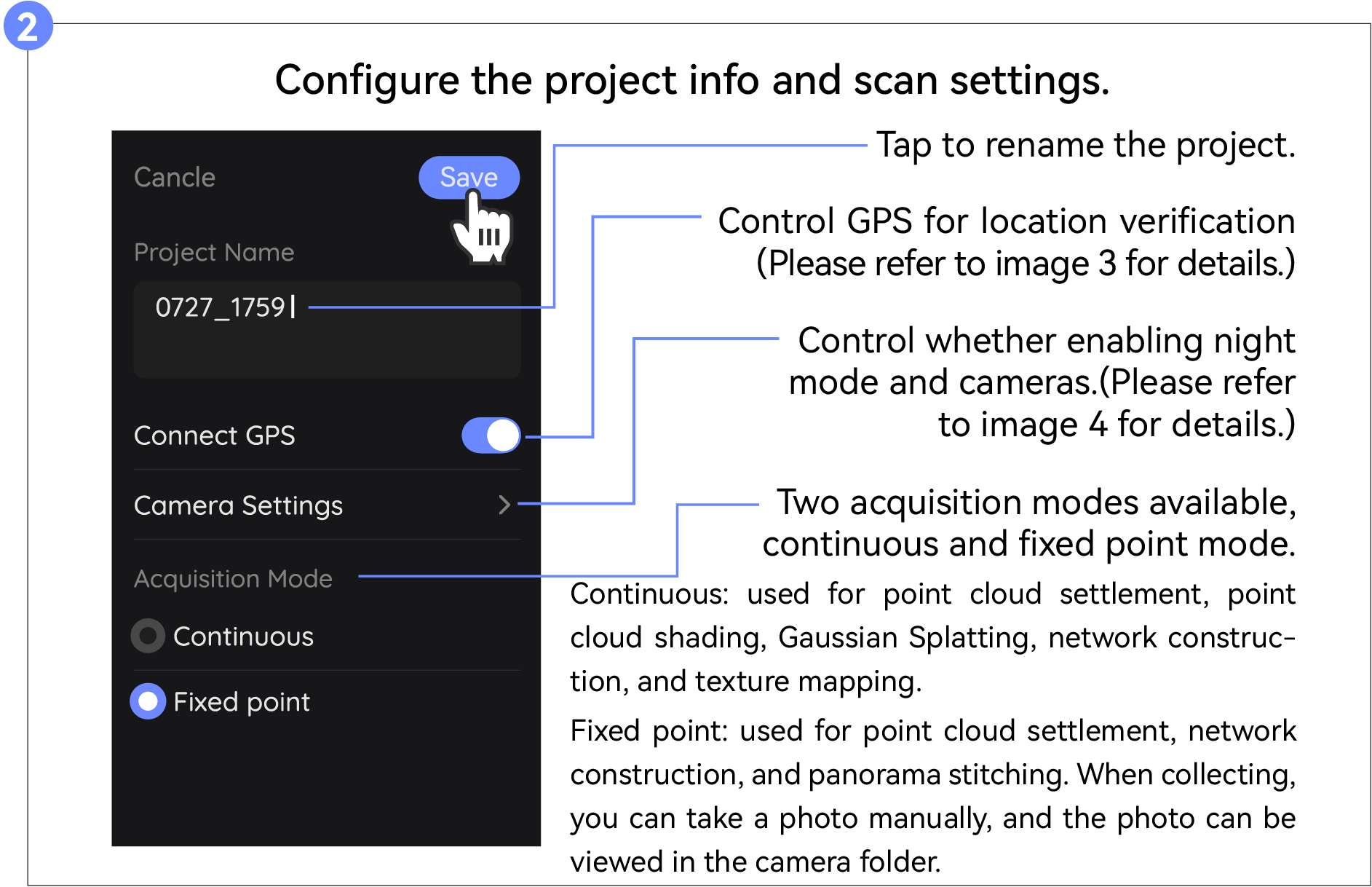
Fixed-point shooting
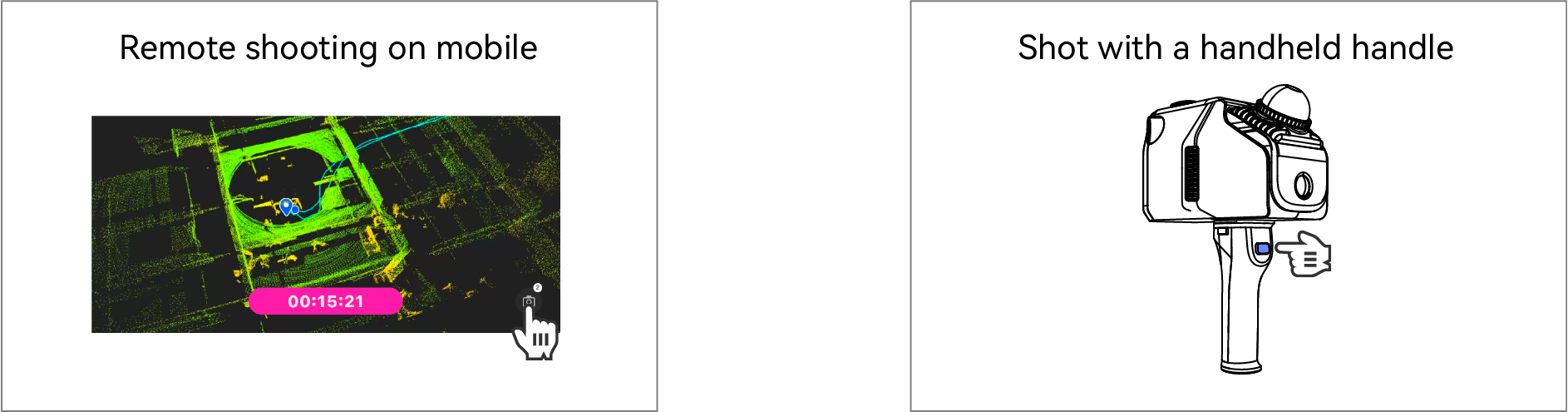
When shooting at a fixed point to prevent the user from being photographed, if using a tripod to assist shooting, pay attention to the fixed equipment, and recommend that the user stay away from the equipment; If shooting with a handheld device handle, the user will need to hold the device up. To keep your shots stable, it is recommended to use a tripod.
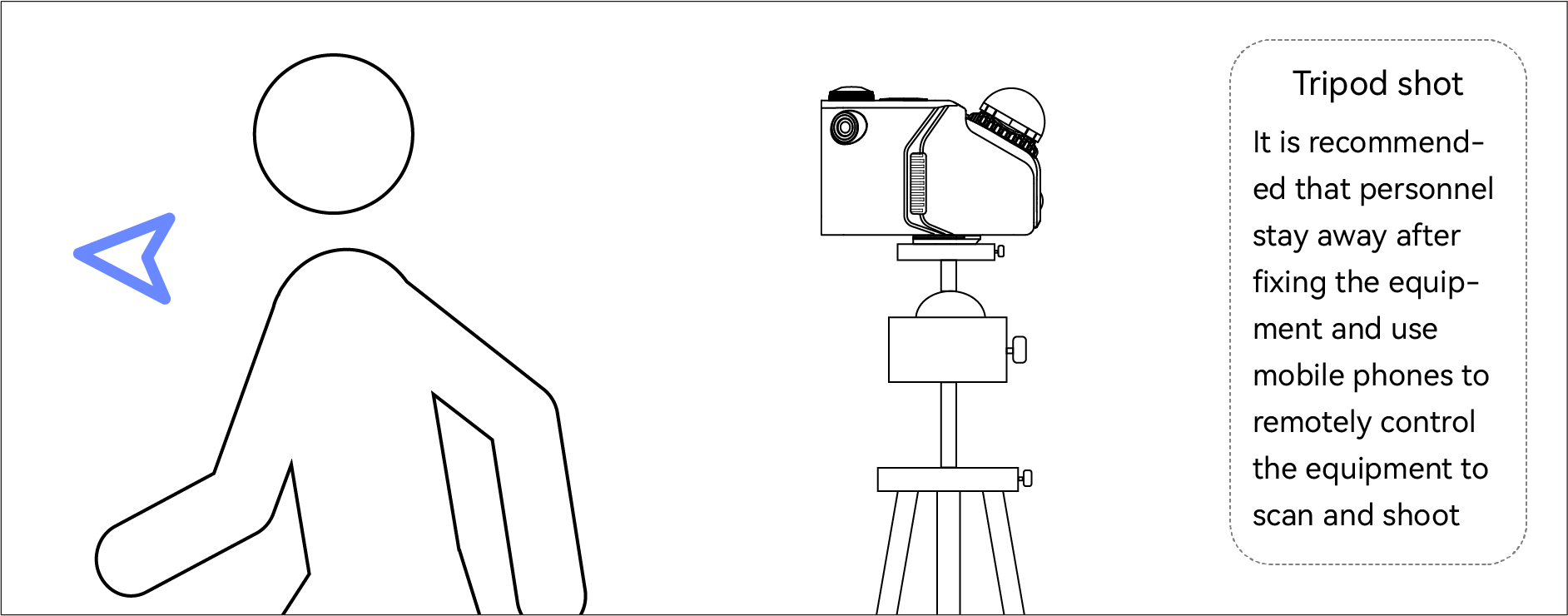
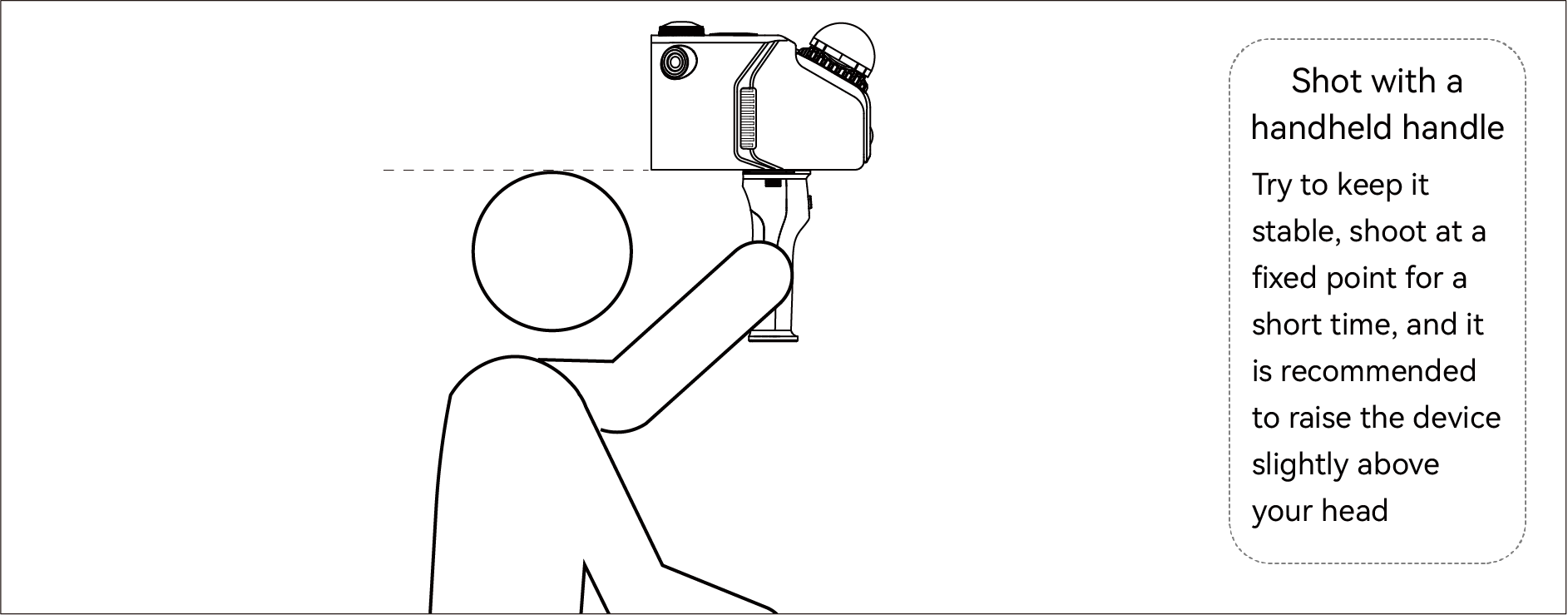
When shooting at a fixed point, it is recommended to control the photo in the following ways. Every time you click to shoot, you can shoot 1-2 times at the same position and angle, and it is recommended to shoot again at intervals of about 3-5 meters.