Software Installation
Operating System Requirement
Recommended Computer Configurations
Intel Core i7, 64GB RAM, NVDIA4060 GPU 16G
Minimum Computer Configurations
Intel Core i7, 32GB RAM, NVDIA3060 GPU 12G
Software downloads
You can acquire the application file by visiting our website: Click here to download
How to Install
Follow the steps below to install the software.
For Windows
Click on the application file, follow the intallation wizard and click Next to install the software.
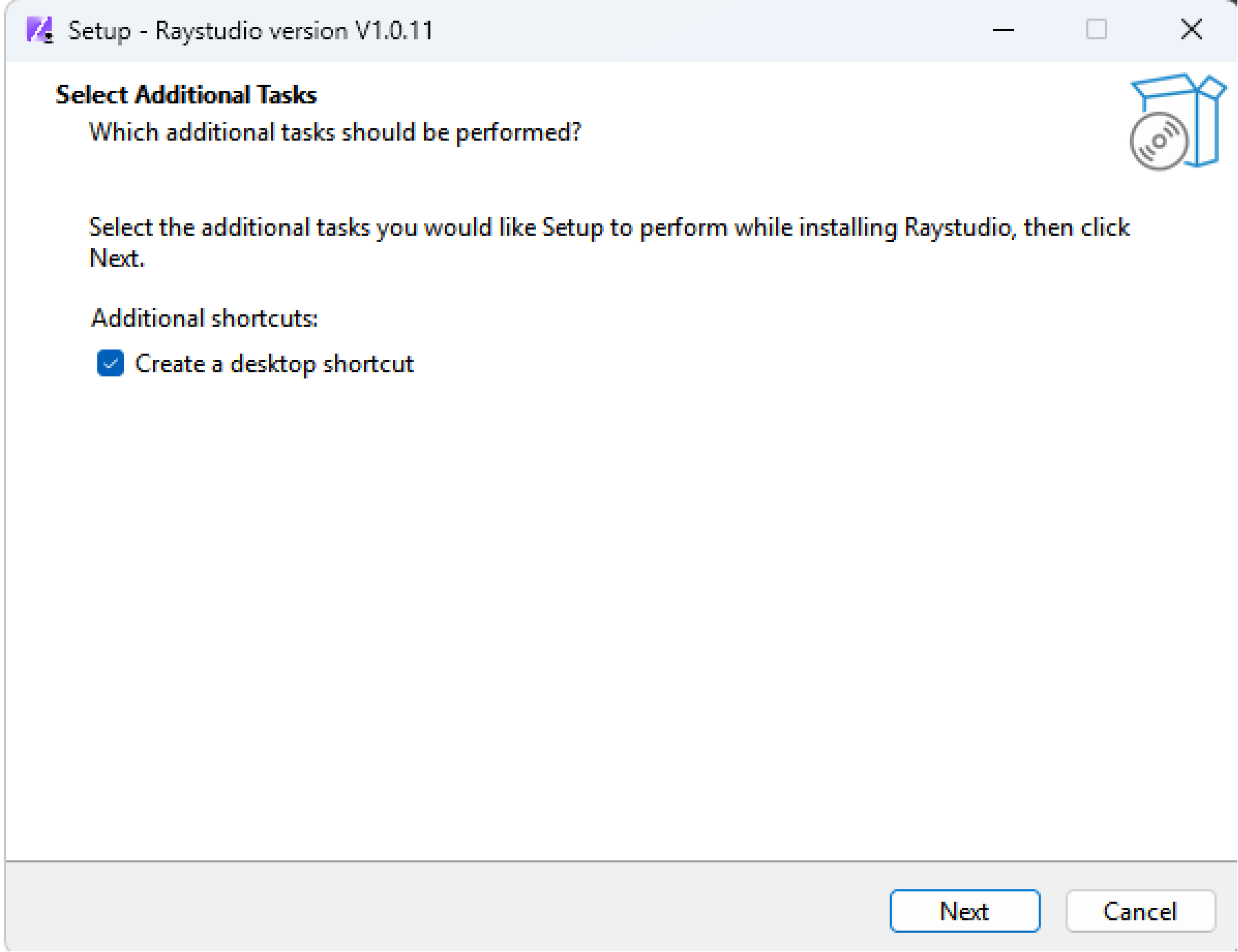

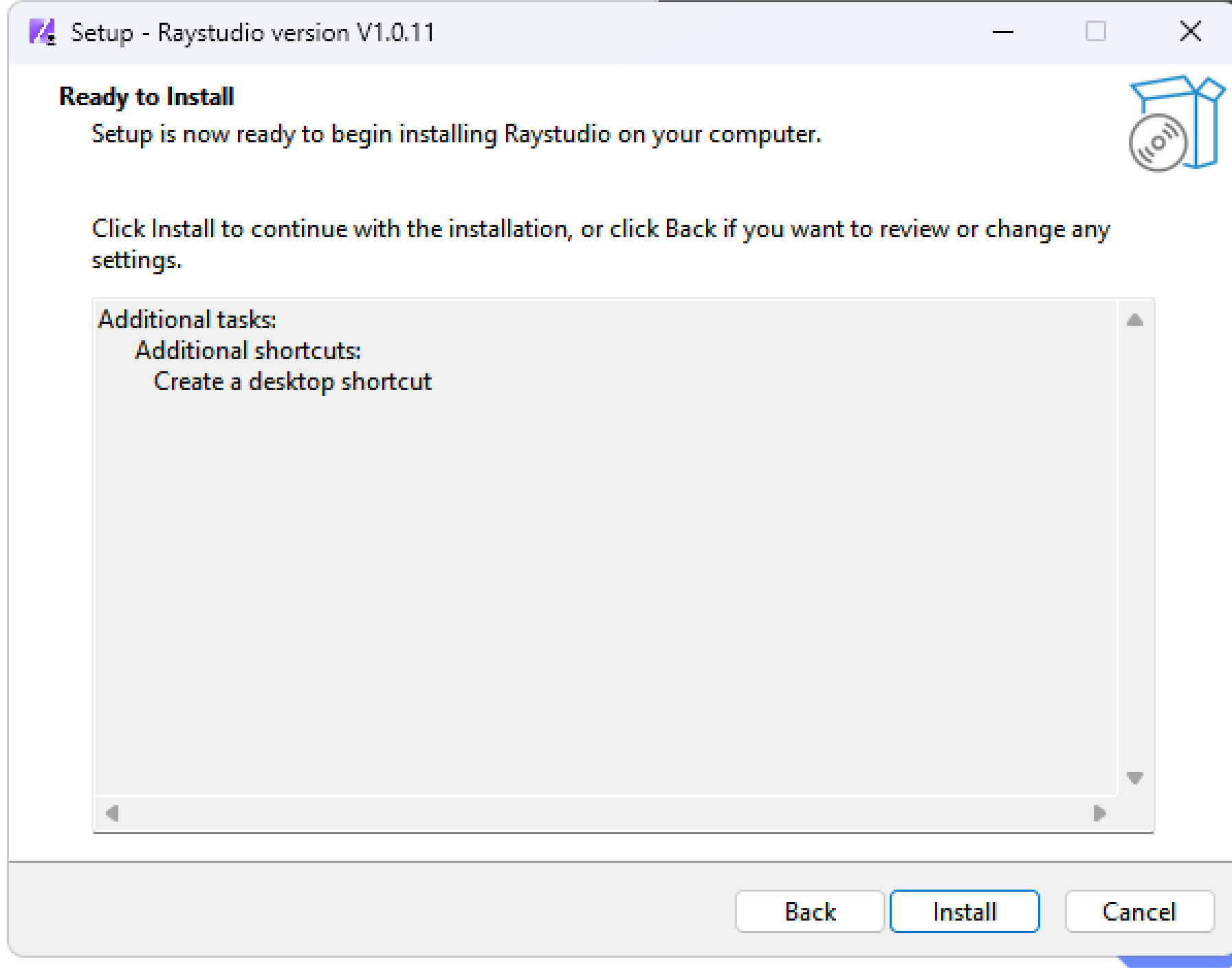
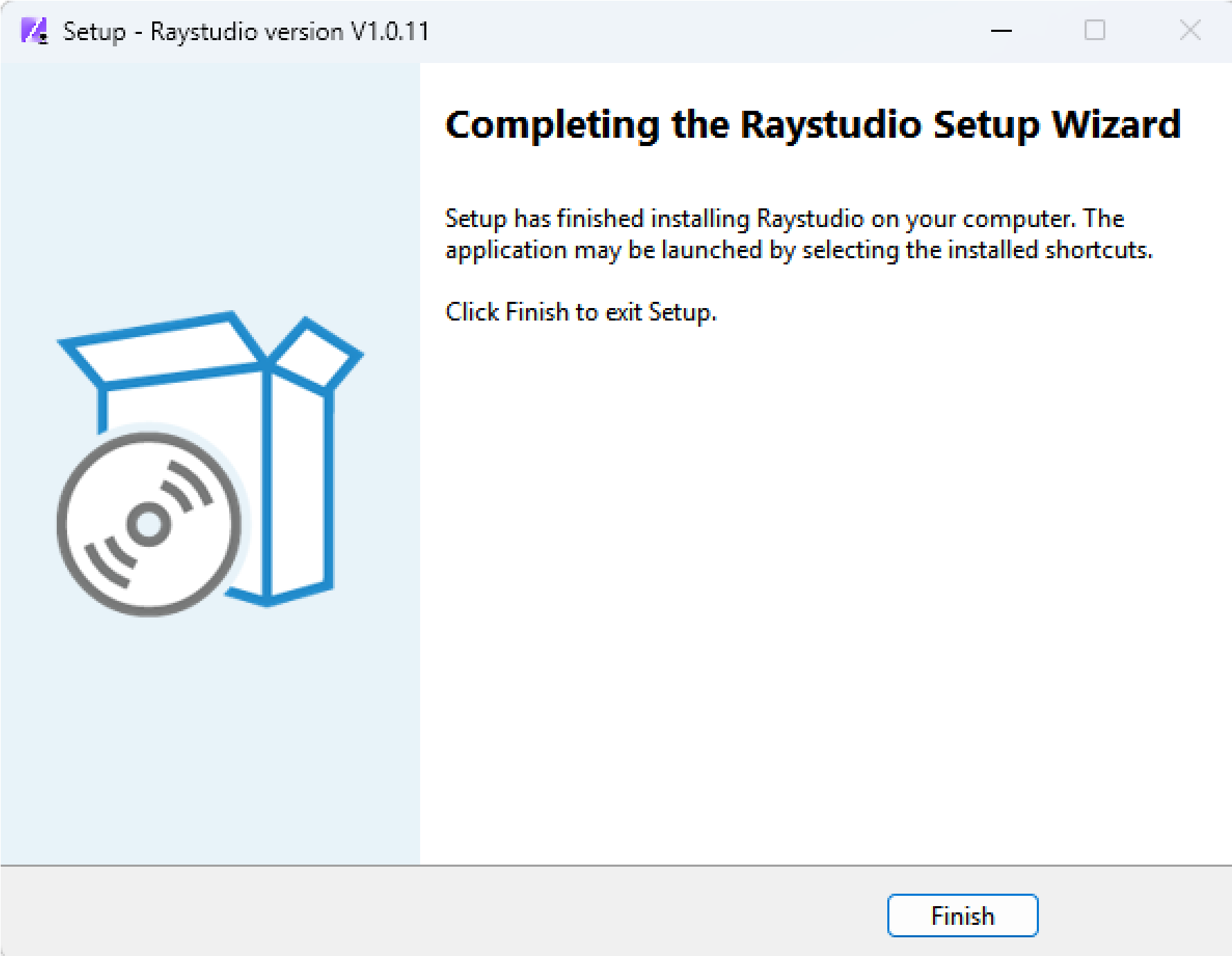
Start page
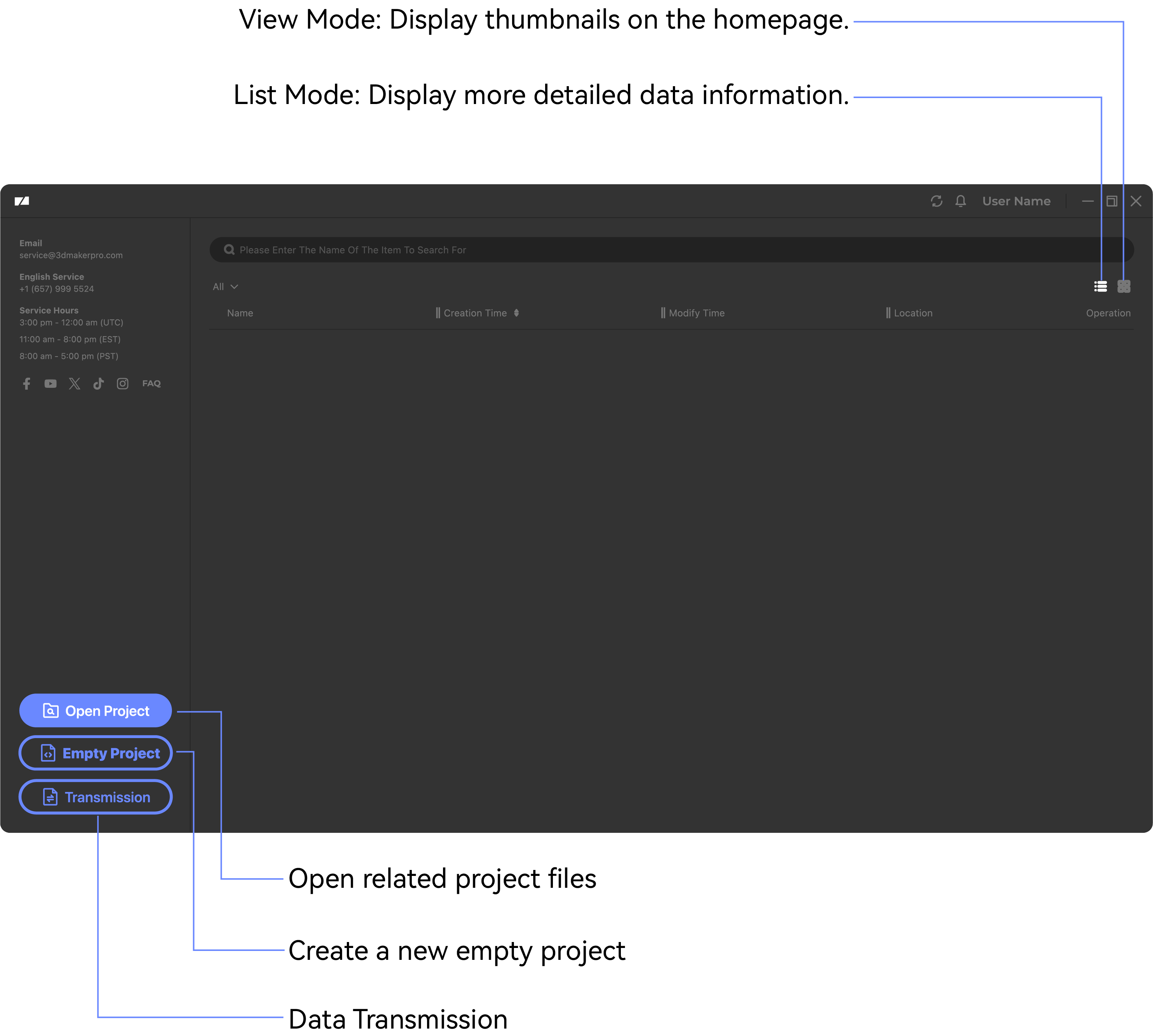
Download the project
Three download methods are currently supported.
1.Use a USB flash drive and adapter to export files from the device to the USB drive, then download the files from the USB drive to the PC.
2.Directly remove the memory card from the device and use a card reader to download the files to the PC.
3.Connect the PC to the device's hotspot to download files directly.
USB Flash Drive Download
Insert the USB flash drive into the PC, then directly copy the files from the USB drive to the local computer.
Card Reader Download
Operating methods vary by device model and version. Please carefully confirm your device model and version information before operation to prevent scan file damage or loss.
●Hawk (versions before 5.0.6) & Eagle
Insert the card reader (with memory card) into the PC, then directly copy the files from the memory card to the local computer.
●Hawk (versions 5.0.6 and later) & Raven
Insert the card reader (with memory card) into the PC, then directly copy the files from the memory card to the local computer.
① On the software homepage, enter the Data Transmission page. After the card reader (with memory card) is detected, the scan files in the device will be displayed.
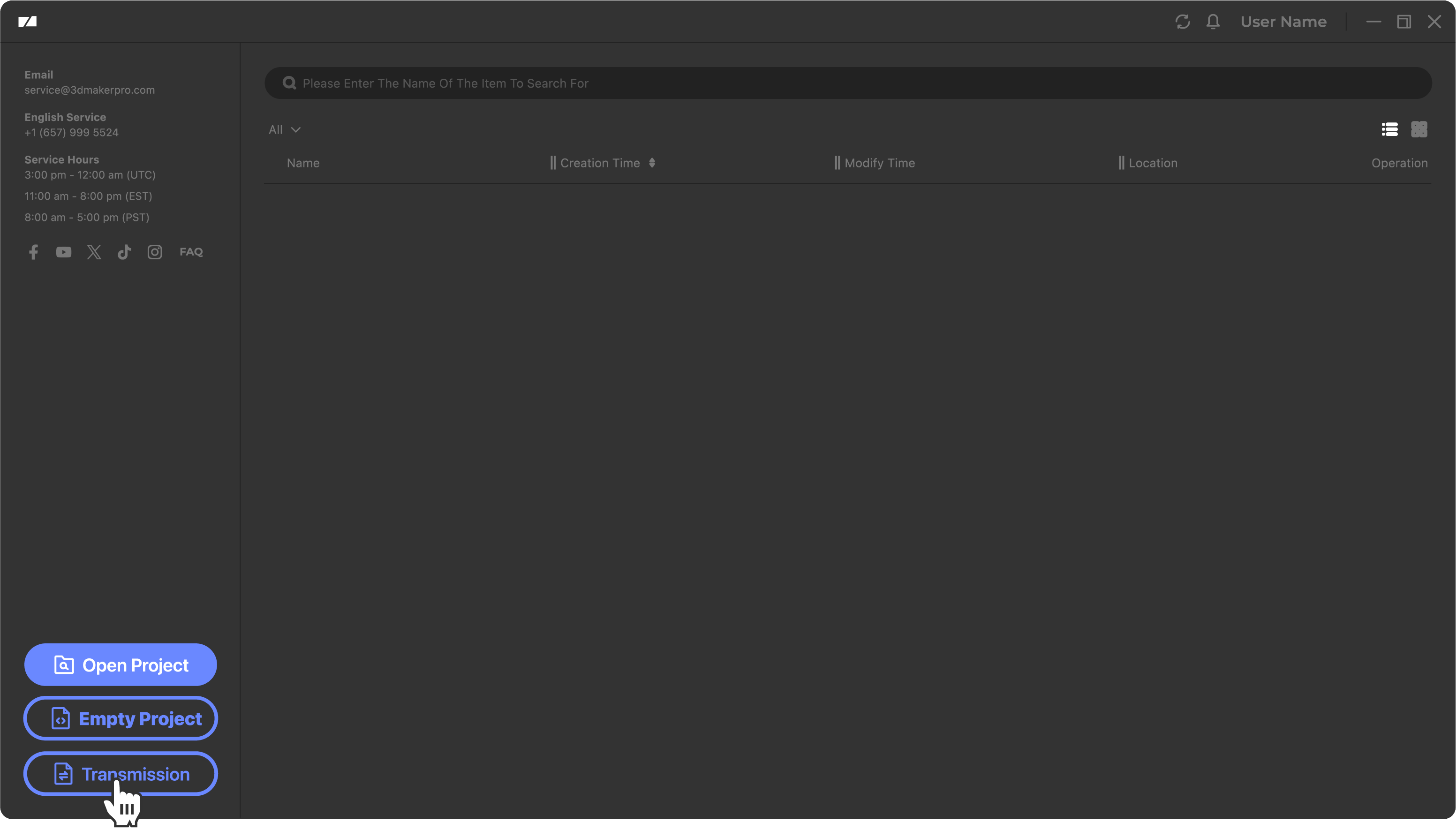
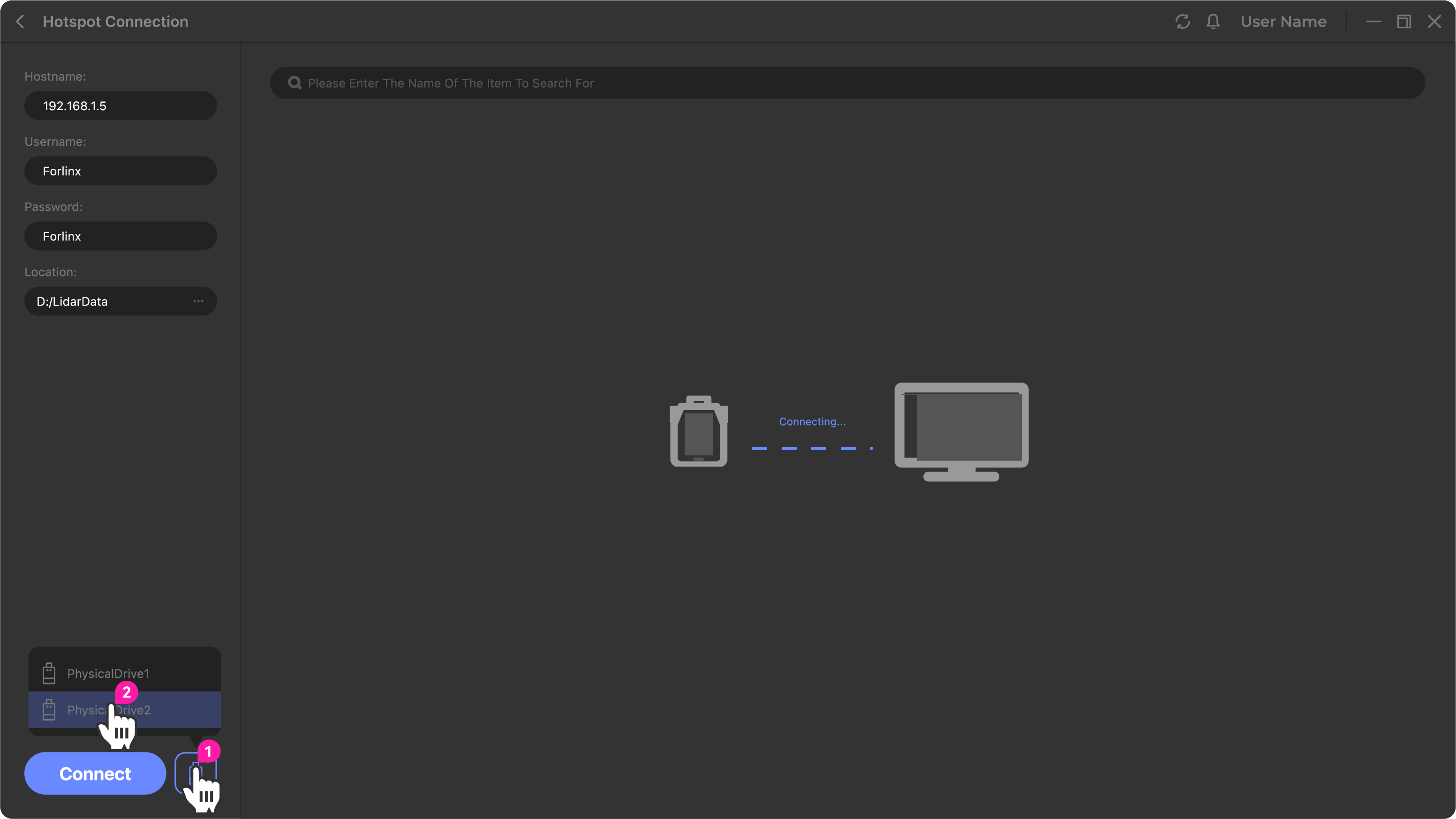
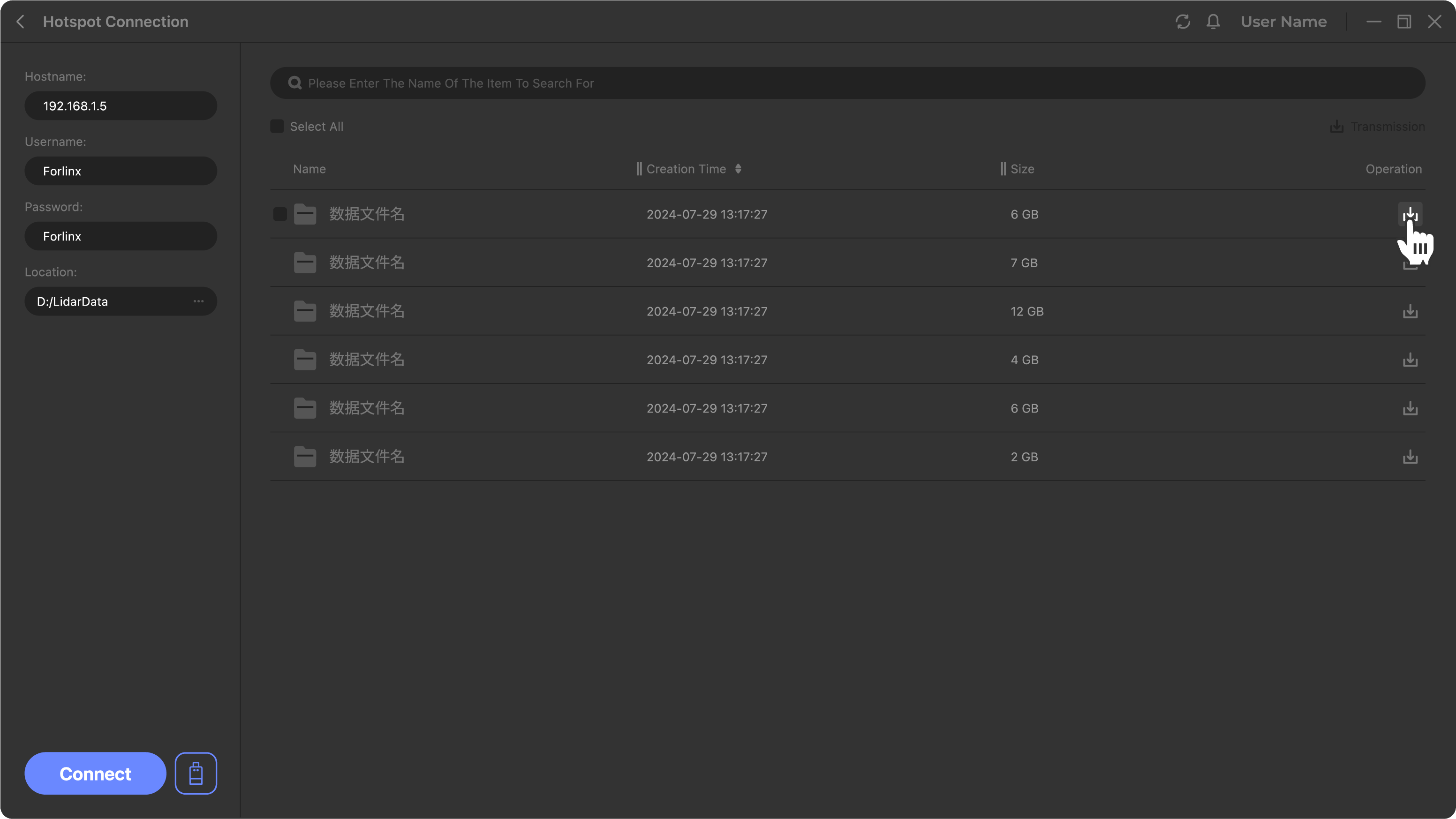
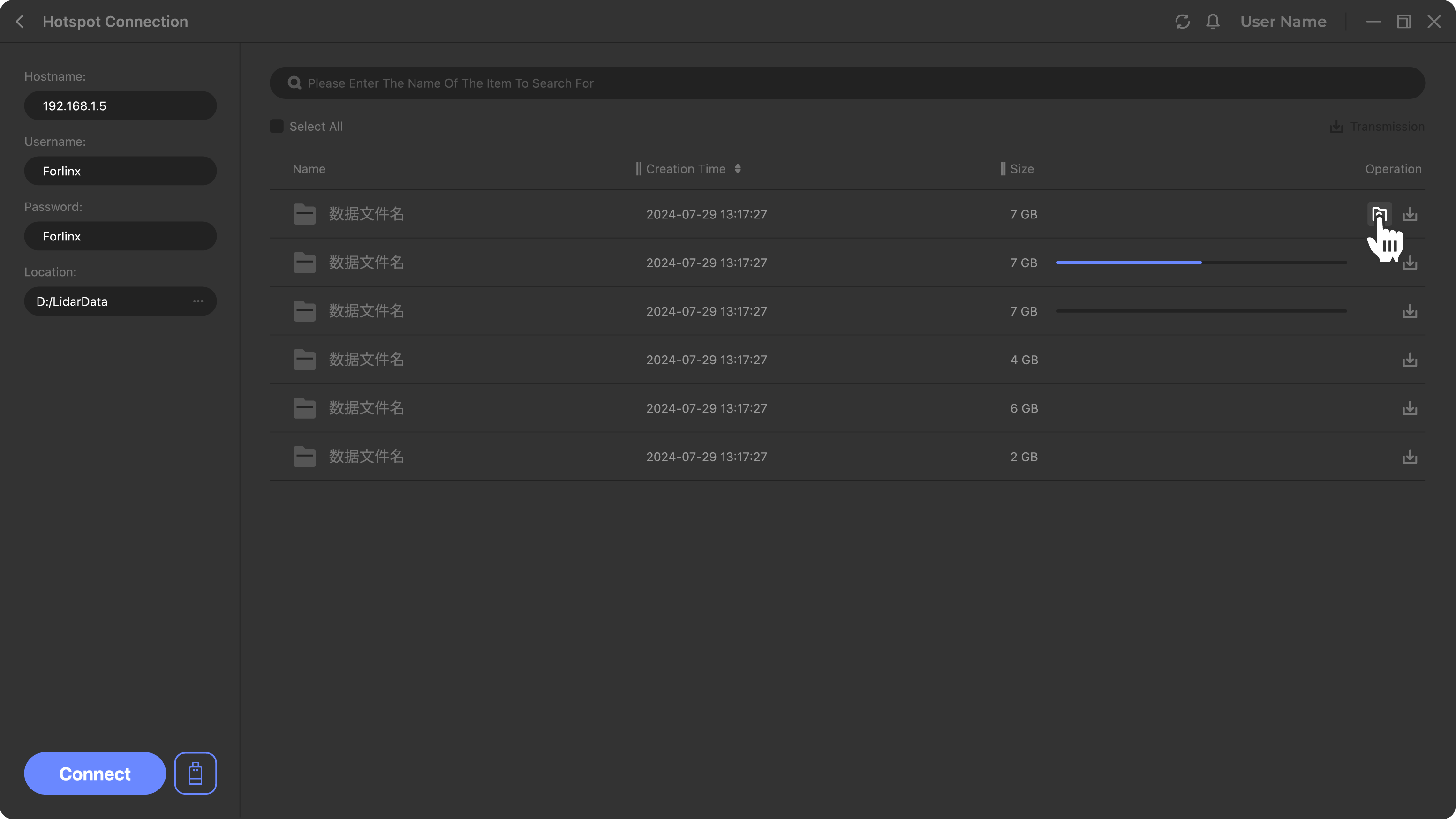
② You can click the download icon on the right side of the file to download it. After the download is complete, click the folder icon to open the containing directory.
Hotspot Connection Download
①Enable WiFi settings on the scanner:
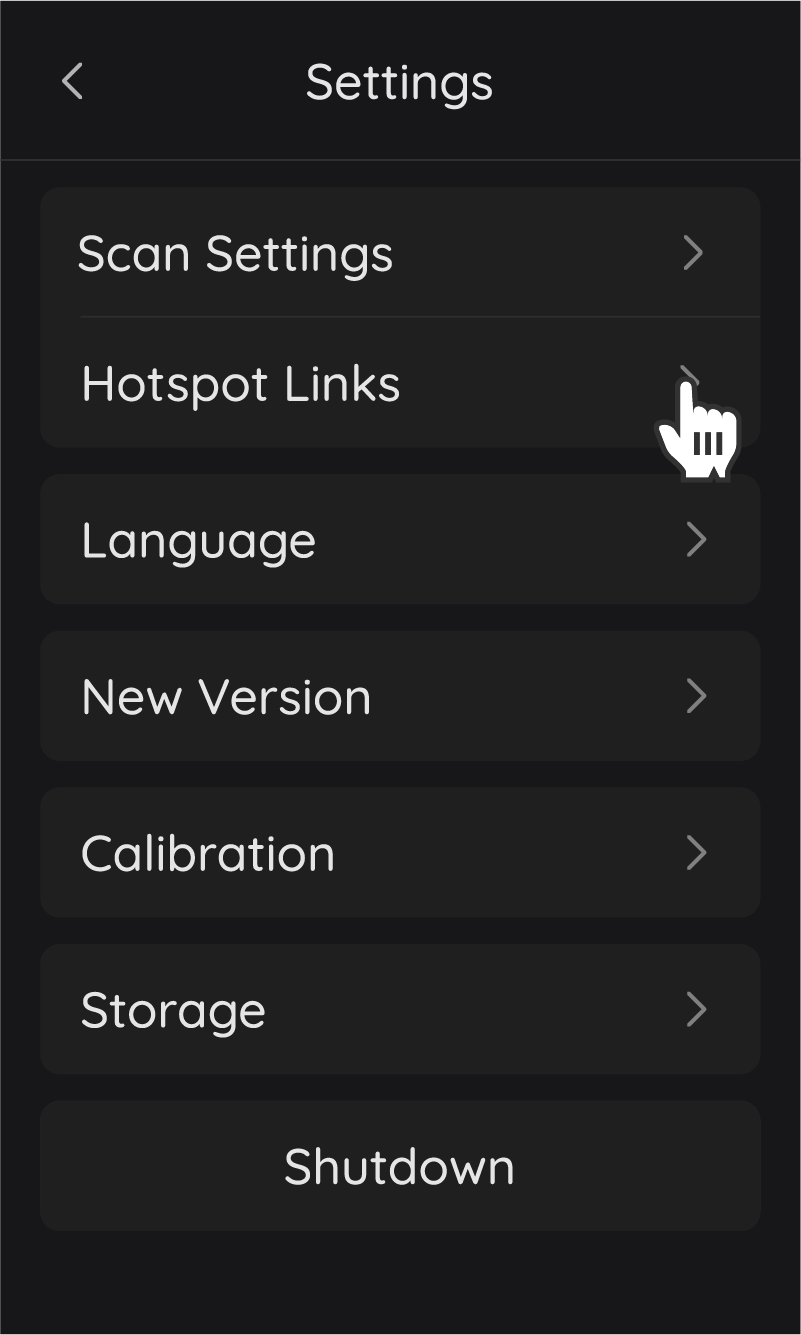

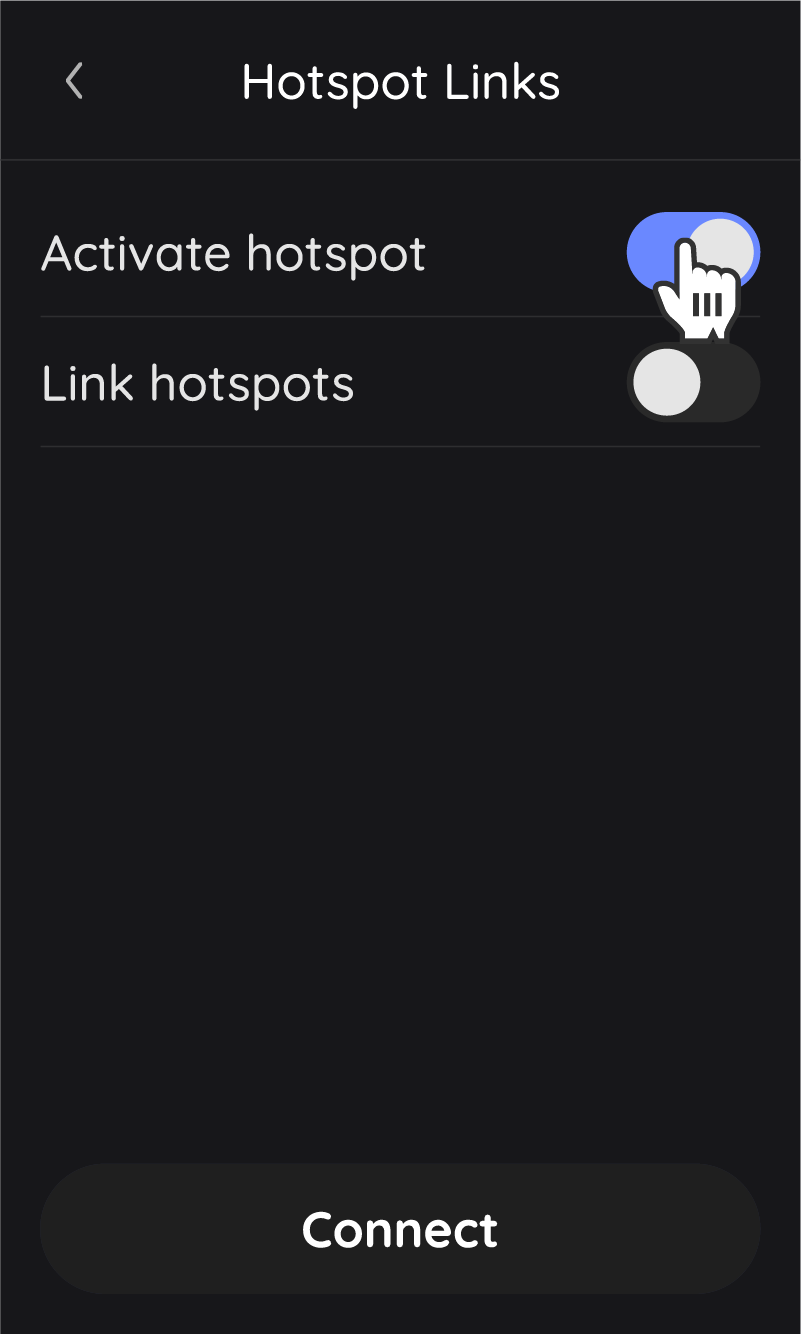
②Open the network connection on the PC, find the device WiFi, and connect to it.
Eagle Hawk Raven WiFi Name Rayzoom G100 Rayzoom G200 JMK6XXXXXX JMK7XXXXXX Password 12345678 12345678 12345678 *Note: The WiFi name for Raven is the device serial number.
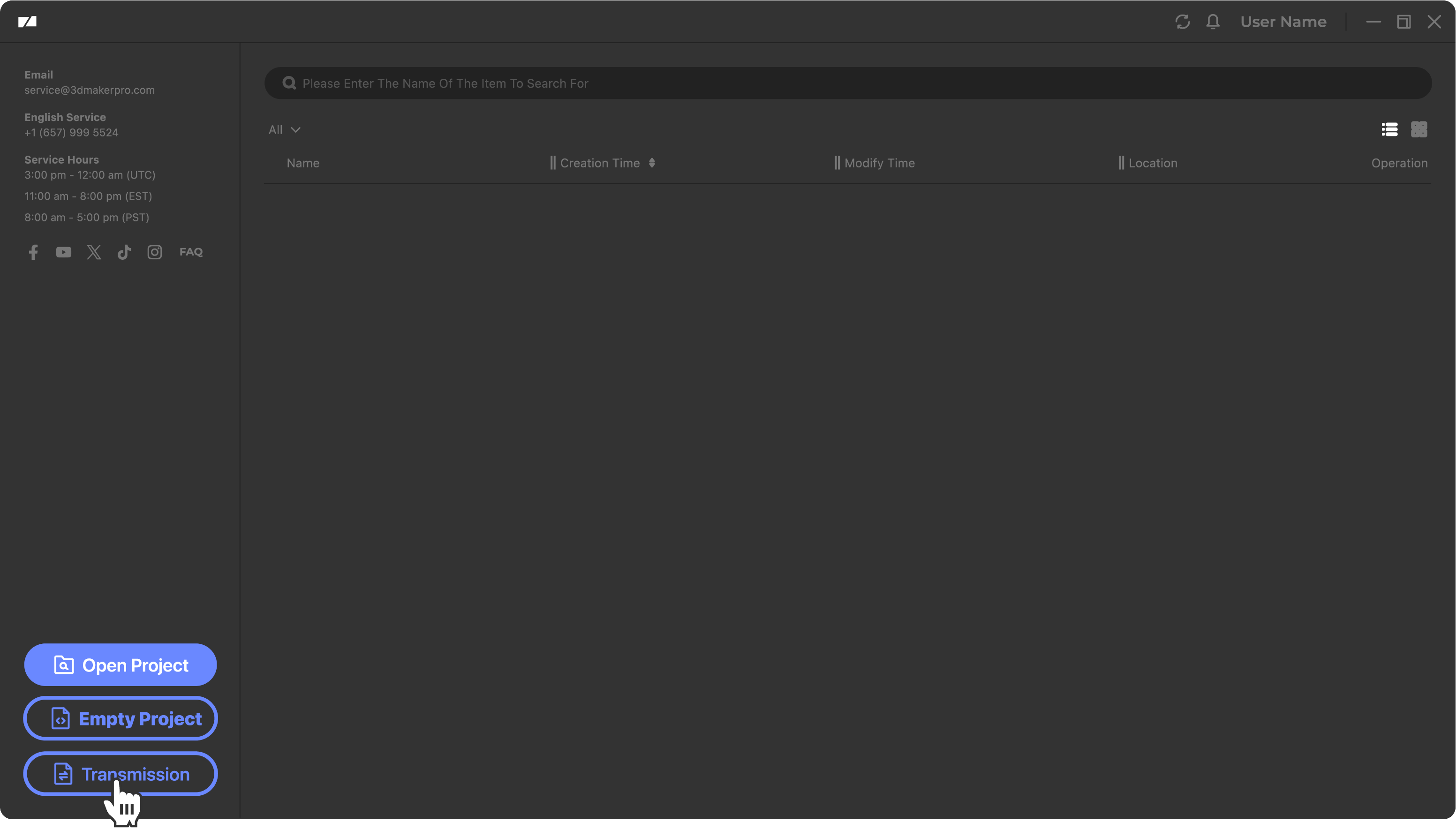
③On the software homepage, enter the Data Transmission page, and click Connect. After the connection is successful, the scan files in the device will be displayed.

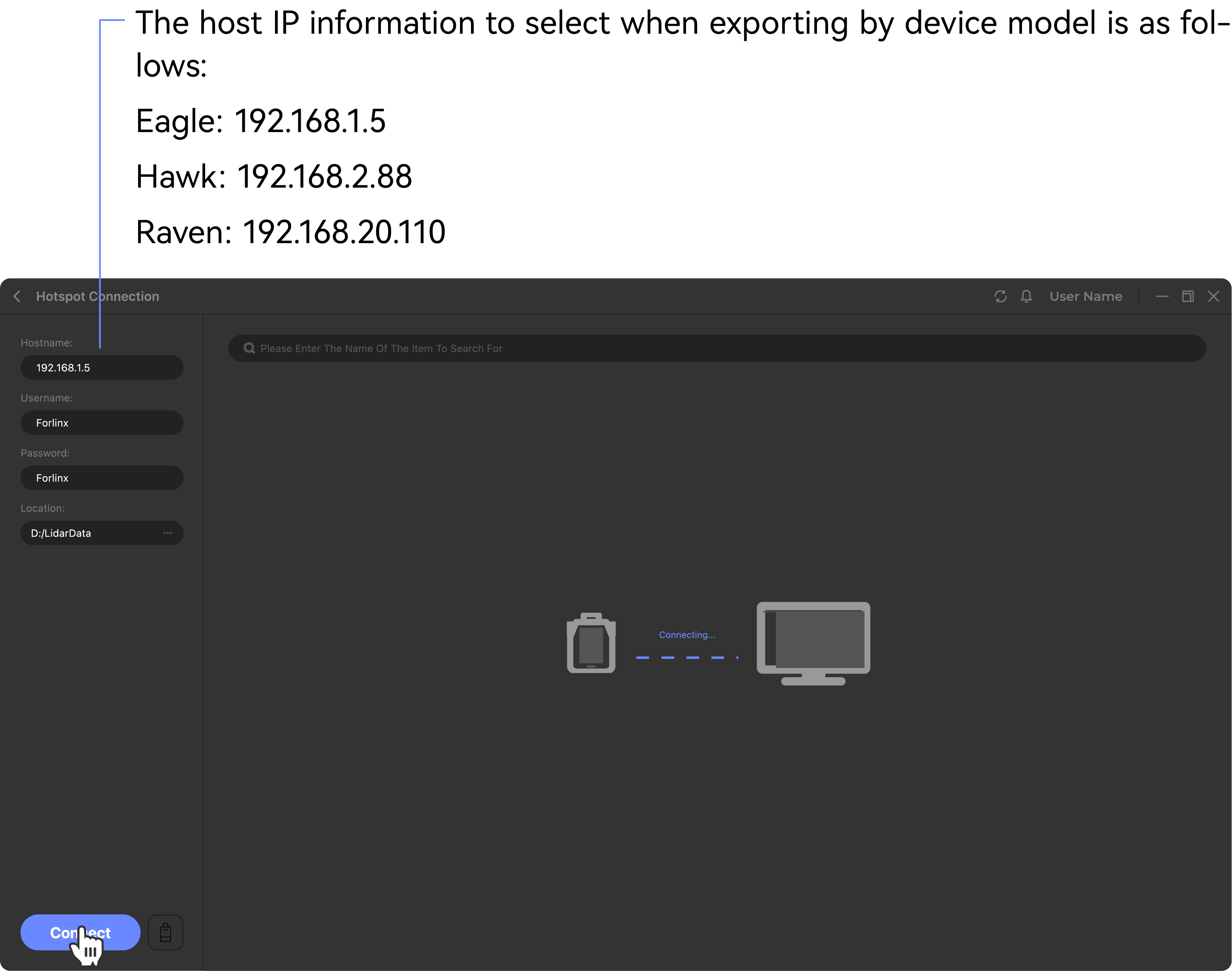
④You can click the download icon on the right side of the file to download it. After the download is complete, click the folder icon to open the containing directory.
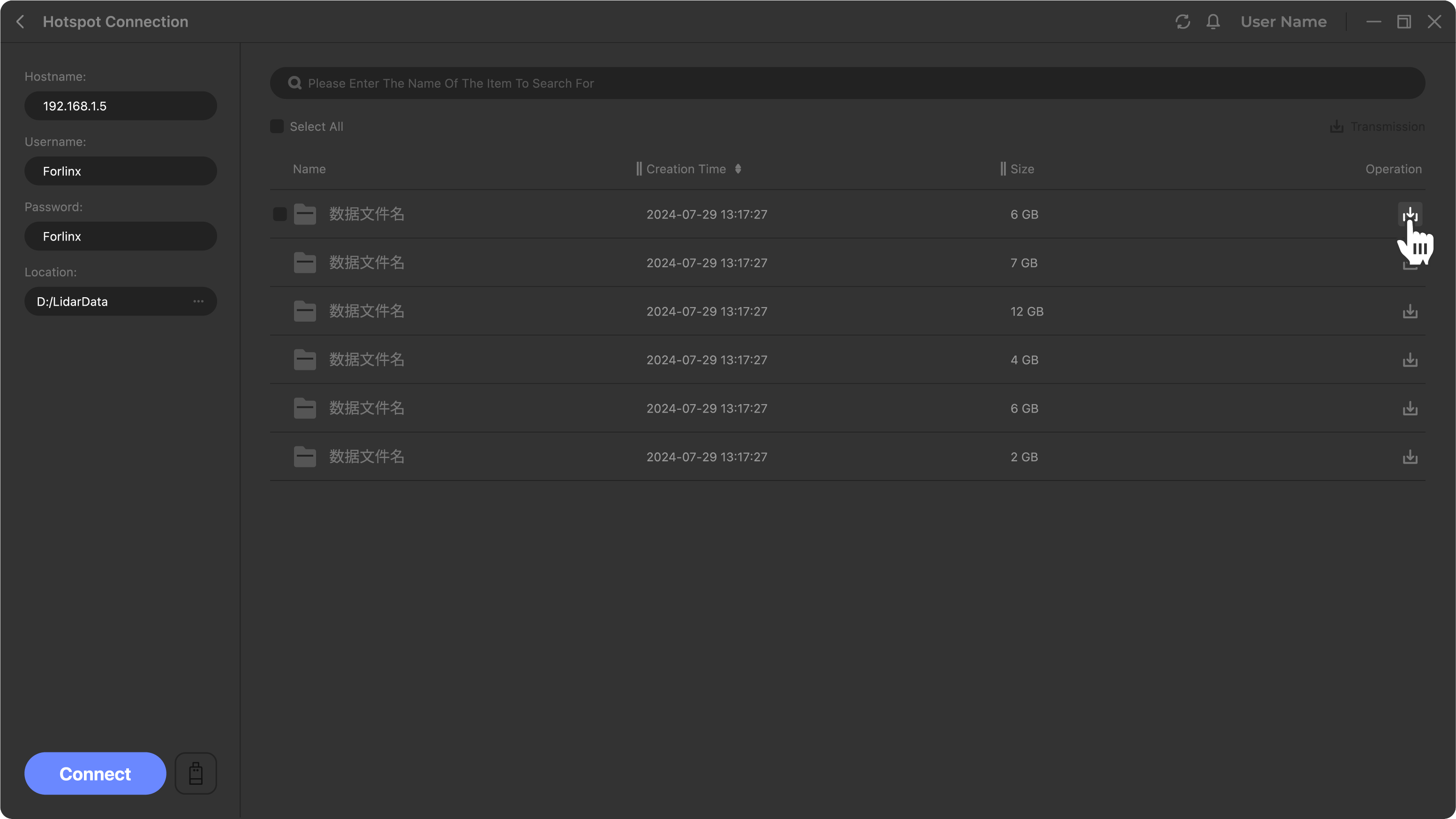
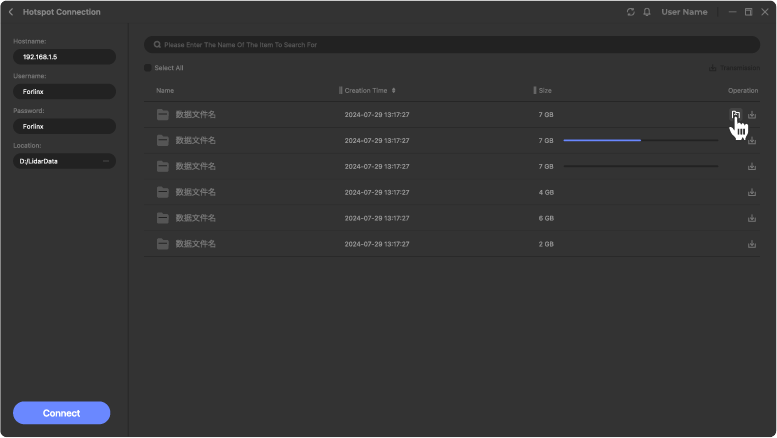
*Note: If data transmission fails after clicking Connect, try enabling the location service on the local PC and reconnecting.
Import the project
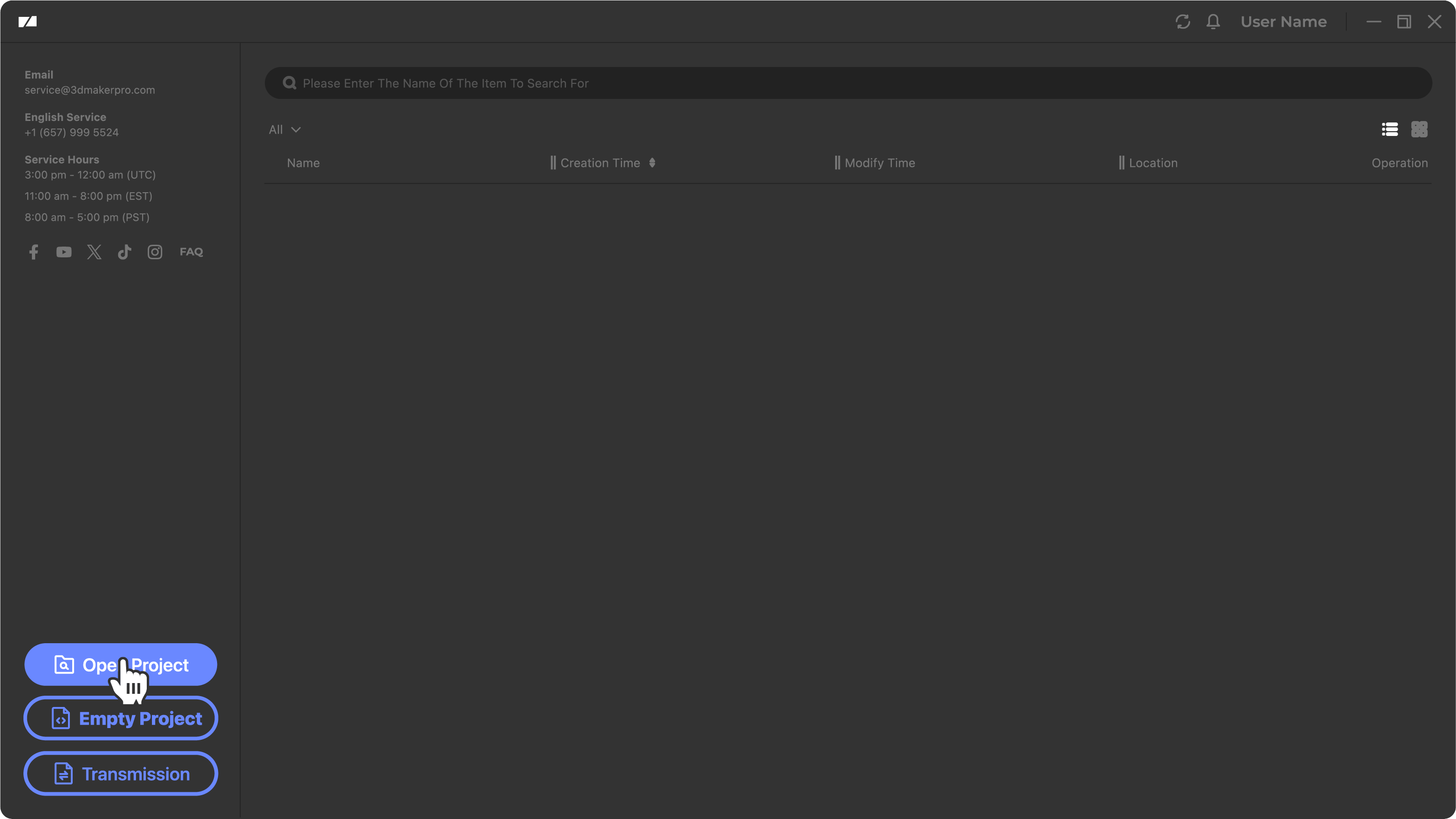
You need to open the local scanned file before you can process the file.
Main interface
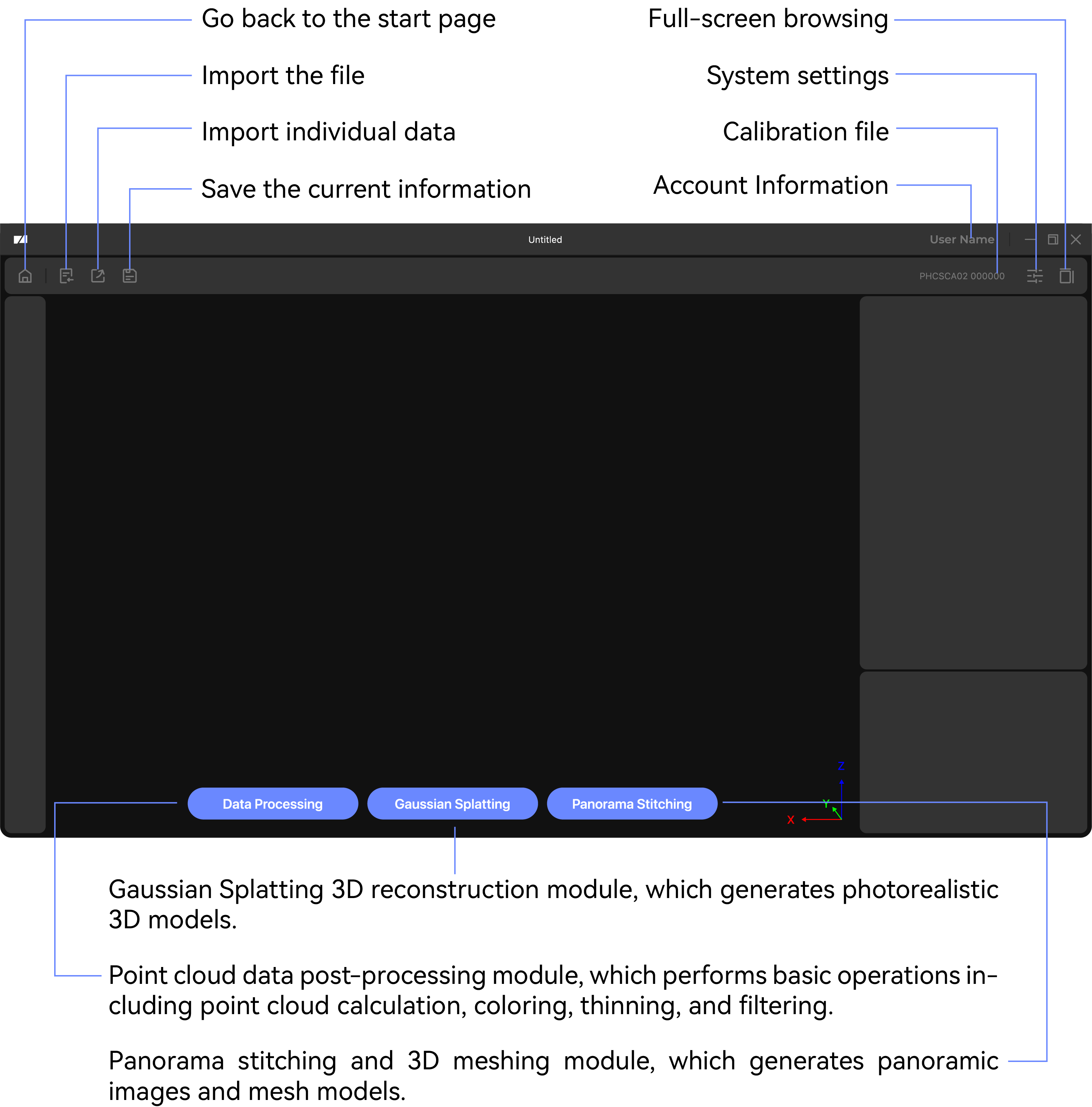
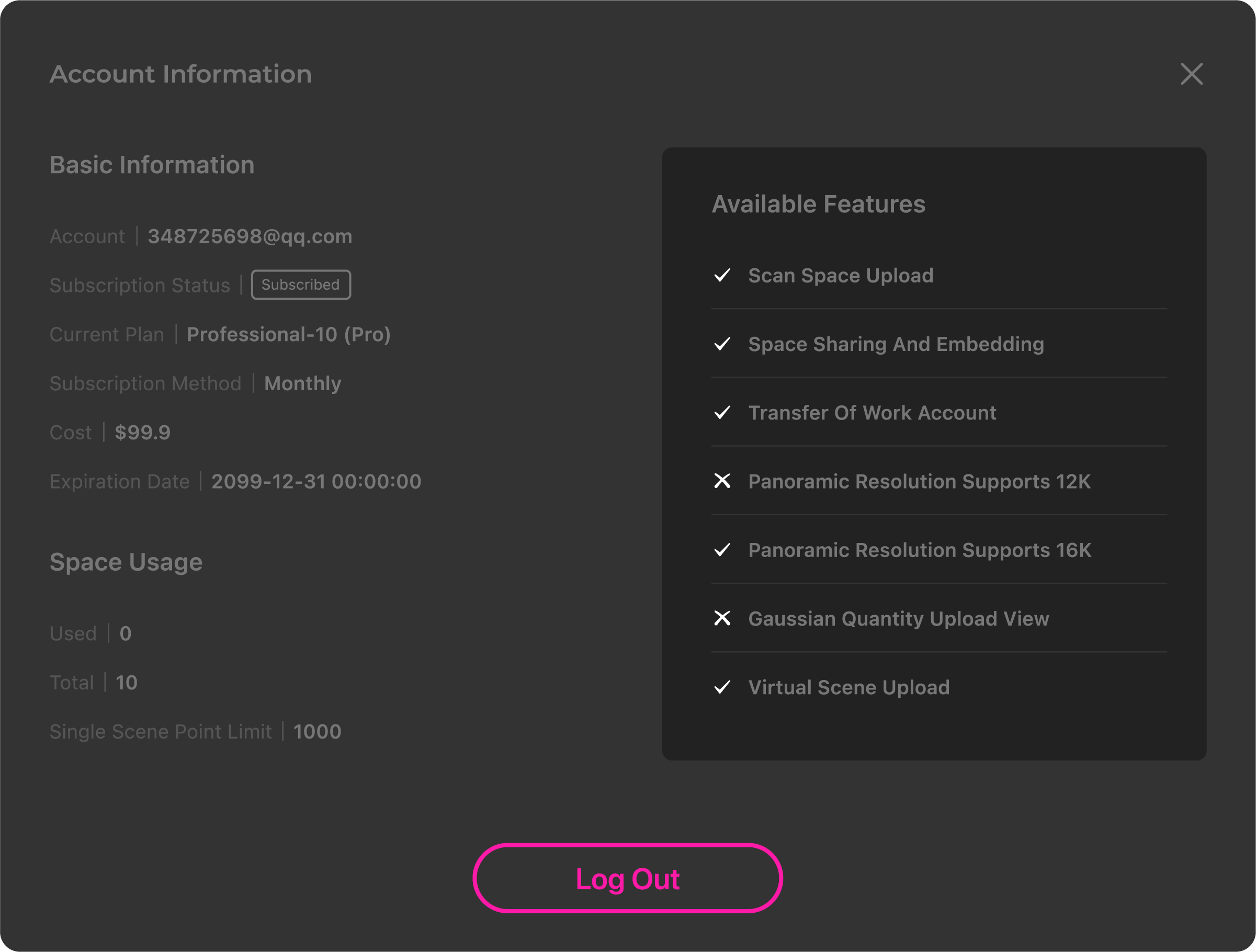
Account Information
In the account information, you can view the basic information of the current account and the related services you have purchased.
Data Processing
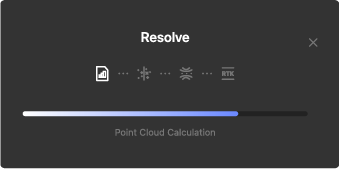
①Click the Data Processing button at the bottom of the interface to open the configuration window.

②Select the operations you wish to perform:
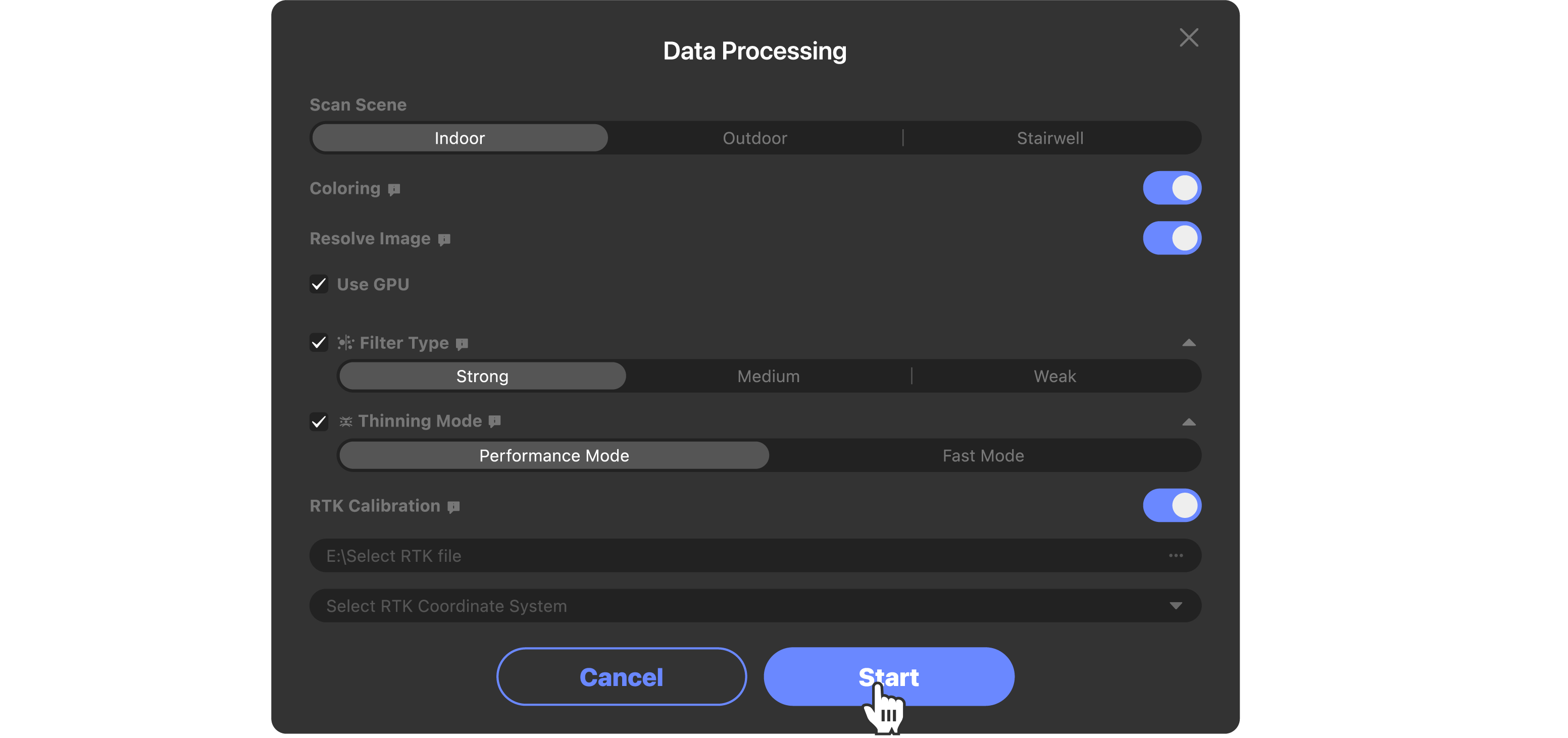
Configuration Description Scan Scene Automatically matches the optimal point cloud processing algorithm parameters based on the environmental characteristics of the scanned scene. ● Indoor: Optimized for enclosed spaces and close-range scanning to improve detail accuracy and suppress noise. ● Outdoor: Optimized for open spaces and long-range scanning to improve point cloud integrity and anti-interference capabilities for large scenes. ● Stairwell: Optimized for vertical structures such as staircases and elevator shafts to solve point cloud misalignment and missing scan issues in multi-level structures. Point Cloud Coloring Applies the true color captured by the camera to each point, transforming the point cloud from monochrome to color, thus restoring the real appearance, texture, and color of the scanned object/scene. ● When enabled: The point cloud appears in color, allowing for intuitive object distinction, modeling assistance, and result presentation. ● When disabled: The point cloud is monochrome, processing is faster, suitable for scenarios requiring only geometric data. *Generate Depth Map: Only displayed for data scanned by Eagle devices. Generates spatial depth information corresponding to each pixel. *Use GPU: Only displayed for data scanned by Hawk devices. ● When enabled: Uses a new coloring algorithm that leverages the GPU's parallel computing power to significantly speed up coloring. ● When disabled: Uses the old coloring algorithm that only uses the CPU for calculation, resulting in slower speeds. Resolve Image Parses images captured by the camera. ● When enabled: Parses images captured during scanning, which can be viewed in local project files. ● When disabled: Does not parse captured images, resulting in faster processing speeds. Filtering Reduces or eliminates unwanted noise points in the signal. Select Medium for common scenarios; Strong for severe noise; Weak for high-precision detail retention. ●Strong: Maximum filtering strength, thoroughly removes noise but may filter out some details. Suitable for high-noise, complex environments. ●Medium: Balances noise removal and detail retention, the default optimal choice for most scenarios. ●Weak: Minimum filtering strength, retains maximum detail. Suitable for high-precision, low-noise scanning scenarios. Thinning Reduces point cloud density while preserving the shape and geometric features of the original point cloud. ●Fast Mode: Fast thinning speed, suitable for rapid processing of large-scene data, prioritizing efficiency. ●Performance Mode: More intelligent thinning algorithm, maximizing the retention of geometric details and features while reducing the number of point clouds. Suitable for high-precision modeling scenarios. RTK For scanning devices with RTK functionality, fuses and calibrates high-precision positioning data collected by RTK with point cloud data to improve the absolute geographic coordinate accuracy of the point cloud and achieve precise georeferencing. ●When disabled: The point cloud only retains relative coordinates, suitable for indoor or no-RTK-signal scenarios. ●When enabled: The point cloud has real geodetic coordinates, which can be directly used for surveying, GIS, engineering stakeout, etc.
③Some data is hidden by default after processing. Click the  icon in the data list to change it to
  to show the data.
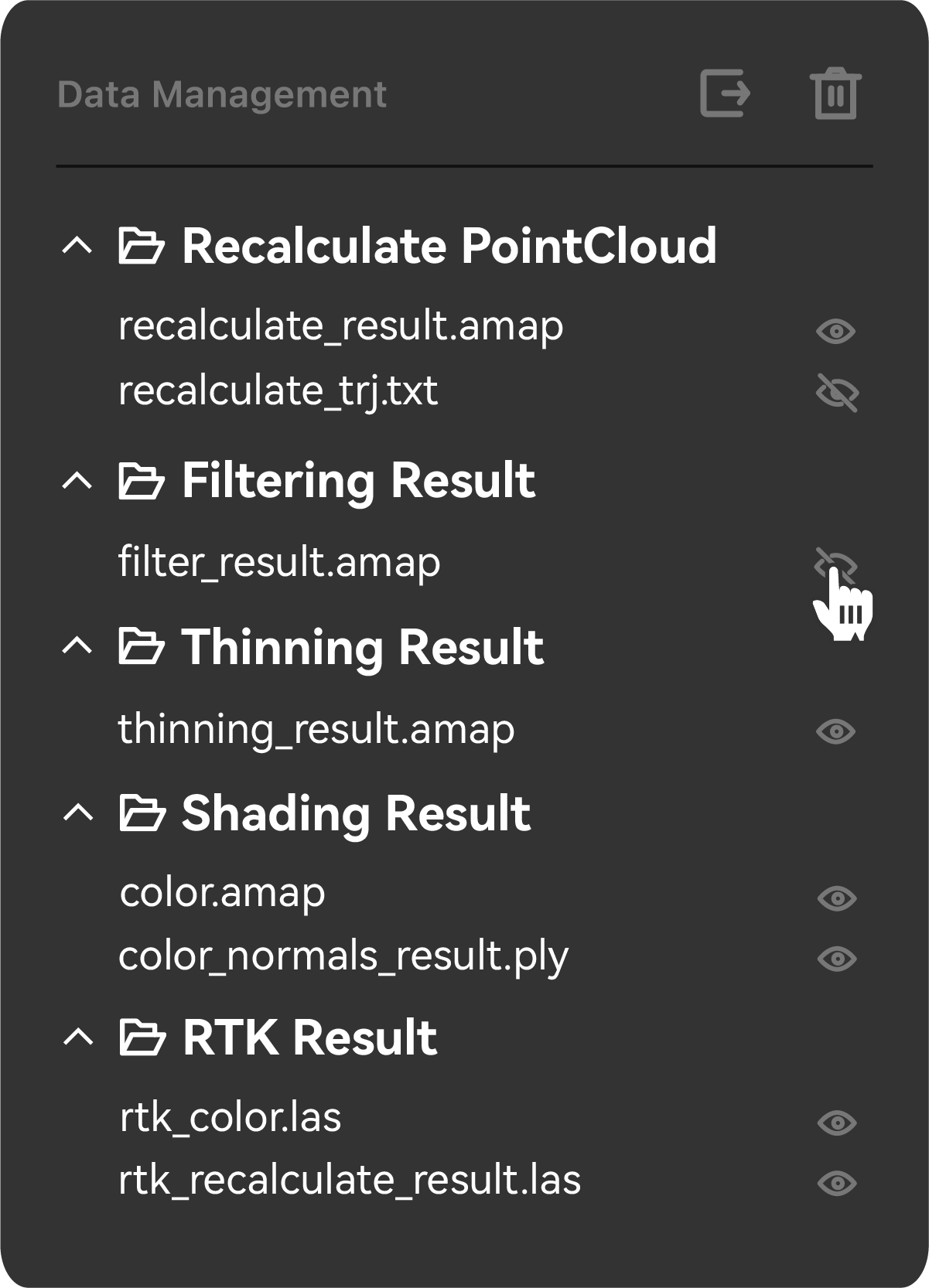
Folder Generated Result Data Recalculate PointCloud recalculate_result: Processed point cloud data recalculate_trj: Camera trajectory path Filtering Result filter_result: Filtered data generated when "Filtering" is selected during processing. Generated when "Filtering" is checked without point cloud coloring. If coloring is enabled, filtering is applied directly to the colored data without generating a separate filtered file. Thinning Result thinning_result: Thinned data generated when "Thinning" is selected during processing. Generated when "Thinning" is checked without point cloud coloring. If coloring is enabled, thinning is applied directly to the colored data without generating a separate thinned file. Shading Result color: Colored point cloud data color_normals_result: Colored point cloud data with normal vector information RTK rtk_color: Point cloud data after RTK recalibration on the original colored point cloud (not thinned or filtered; may contain noise). Generated when "RTK" is checked with point cloud coloring enabled. rtk_recalculate_result: Point cloud data after RTK recalibration on the original point cloud. Generated when "RTK" is checked without point cloud coloring.
Gaussian Splatting
①Click the Gaussian Splatting button at the bottom of the interface to open the configuration window.

②Select the processing scene (this may take some time, please be patient):
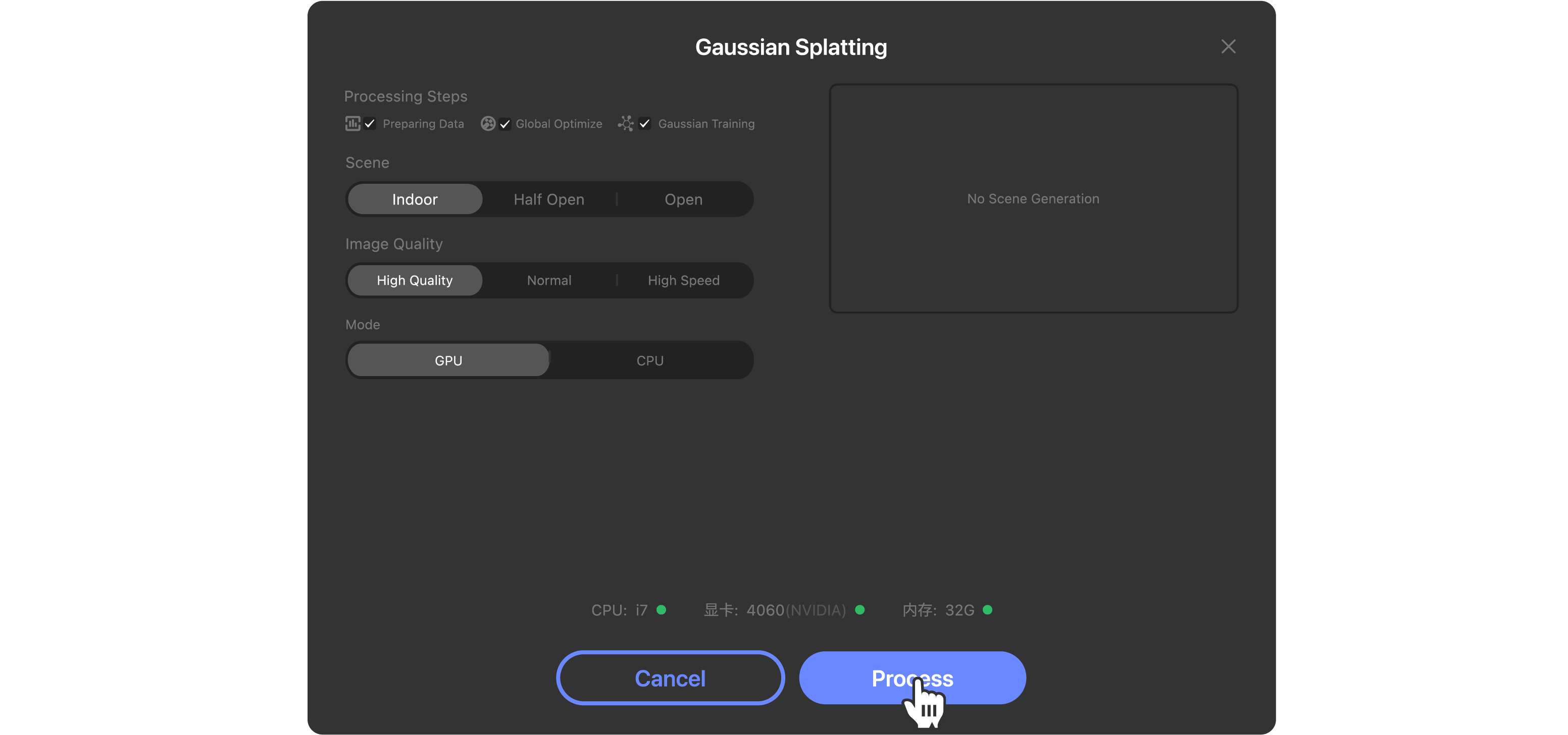
Configuration Description Processing Steps Select the steps to perform: ● Data Preprocessing: Parses data, removes portraits captured by left/right cameras, and generates undistorted images. ● Global Optimization: Determines positions and outputs pose data for photos and point clouds. ● Gaussian Training: After processing, view in Raystudio or upload to Jimumeta for viewing/sharing; supports exporting Gaussian data in.ply format. Scene Type Automatically matches optimal Gaussian reconstruction algorithm parameters and strategies based on the scanned environment characteristics. ● Indoor: Optimized for enclosed or small-scale spaces (rooms, exhibition halls, interior renovations), focusing on detail, occlusion relationships, and spatial scale to ensure accurate indoor structures. ● Open: Optimized for large-scale open spaces with complex lighting changes (building exteriors, campuses, streets), enhancing large-scene stitching stability, mitigating glare/shadow interference, and preventing distant point cloud drift. ● Half open: Compatible with scan data from specific semi-open or transitional scenes, providing an intermediate reconstruction strategy. Image Quality Select 3D model reconstruction detail precision and processing time based on requirements. ● High Quality: Higher sampling rate, increased Gaussian point cloud density, and more training iterations. Clearer model edges, richer details, and enhanced realism. ● Normal: Default choice balancing quality and efficiency, suitable for most common scenarios. ● High Speed: Reduced computational complexity and fewer point clouds. Accurate overall model outline but relatively coarse details, suitable for quick previews or large-scene rapid output. Mode Select the processing mode assigned by the system to the software. GPU mode is recommended. ●GPU:Uses the parallel computing power of NVIDIA dedicated graphics cards for point cloud rendering and optimization, resulting in faster processing speeds. ●CPU:Uses the central processing unit (CPU) for calculations, resulting in slower speeds but allowing other device operations to continue.

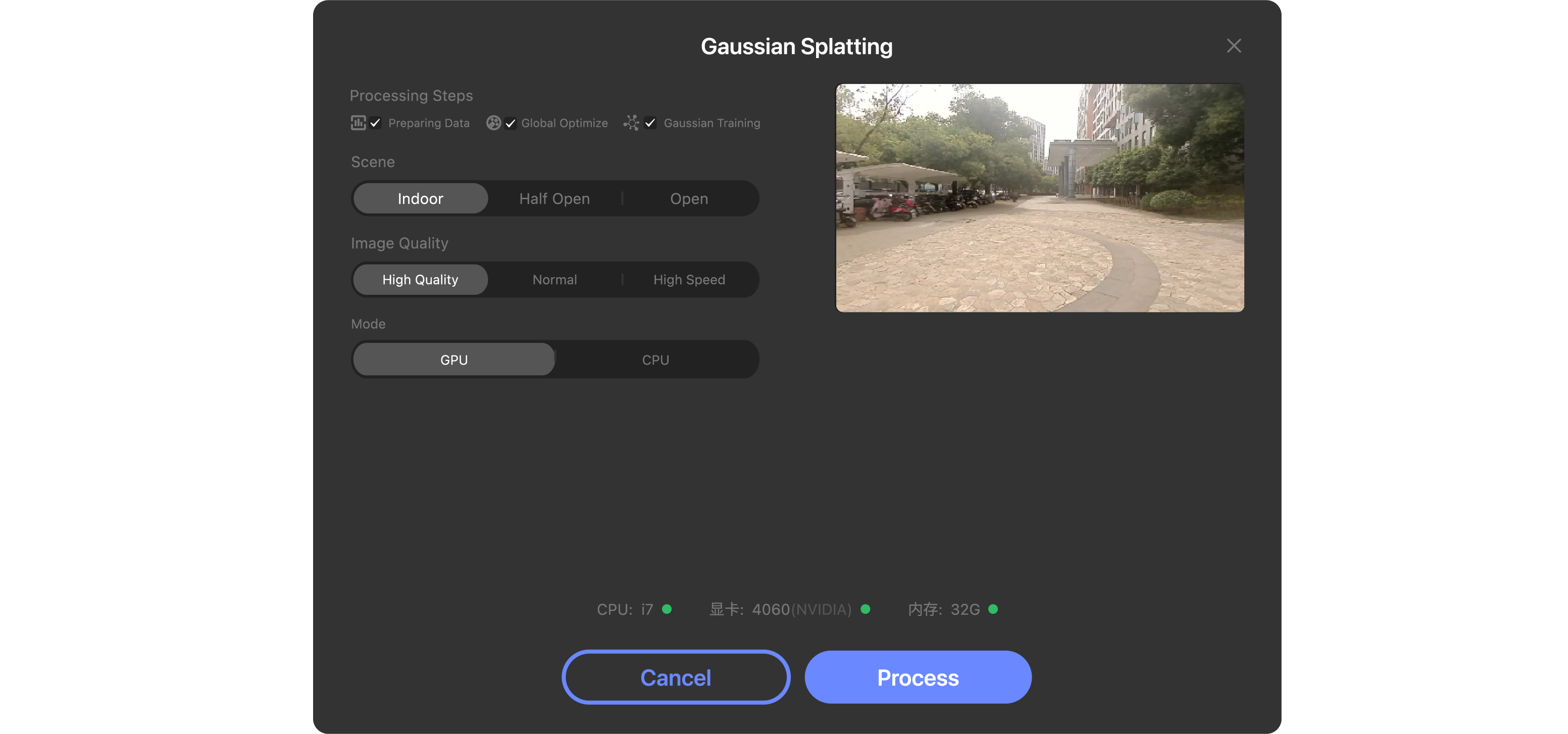
③ You can select Preview, Export, or Upload from the top-right corner of the preview image:
After processing is complete, first use Preview to confirm the effect. For local data backup, use Export; for long-term storage or cloud access, use the Upload function.
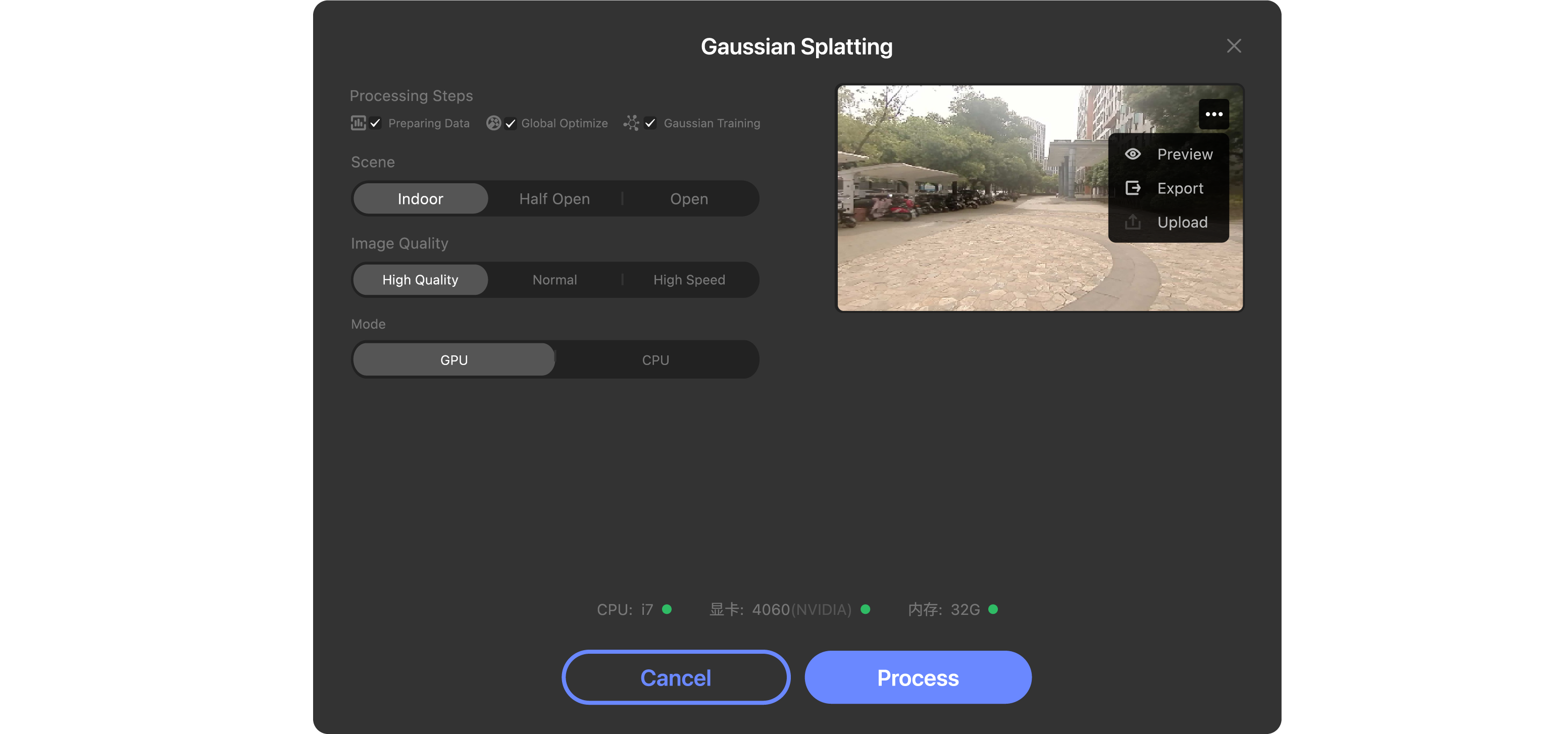
Operation Description Preview Enter the preview interface to view the current Gaussian Splatting processing results and confirm if the model effect meets expectations. Export Export current Gaussian Splatting data. ● Tourist/Free users: Can download data with watermarks. ● Basic/Enterprise subscribers: Can download original watermark-free data. Upload To prevent data loss or for better storage, it is recommended to upload the current Gaussian Splatting data to the cloud space. The number of uploadable files varies by user plan; purchase as needed. ● Free:Can upload up to 2 files. ● Basic:Can upload up to 100 files. ● Enterprise:Unlimited uploads.
Panorama Stitching
① Click the Panorama Stitching button at the bottom of the interface to open the configuration window.

② Select the operations you wish to perform:
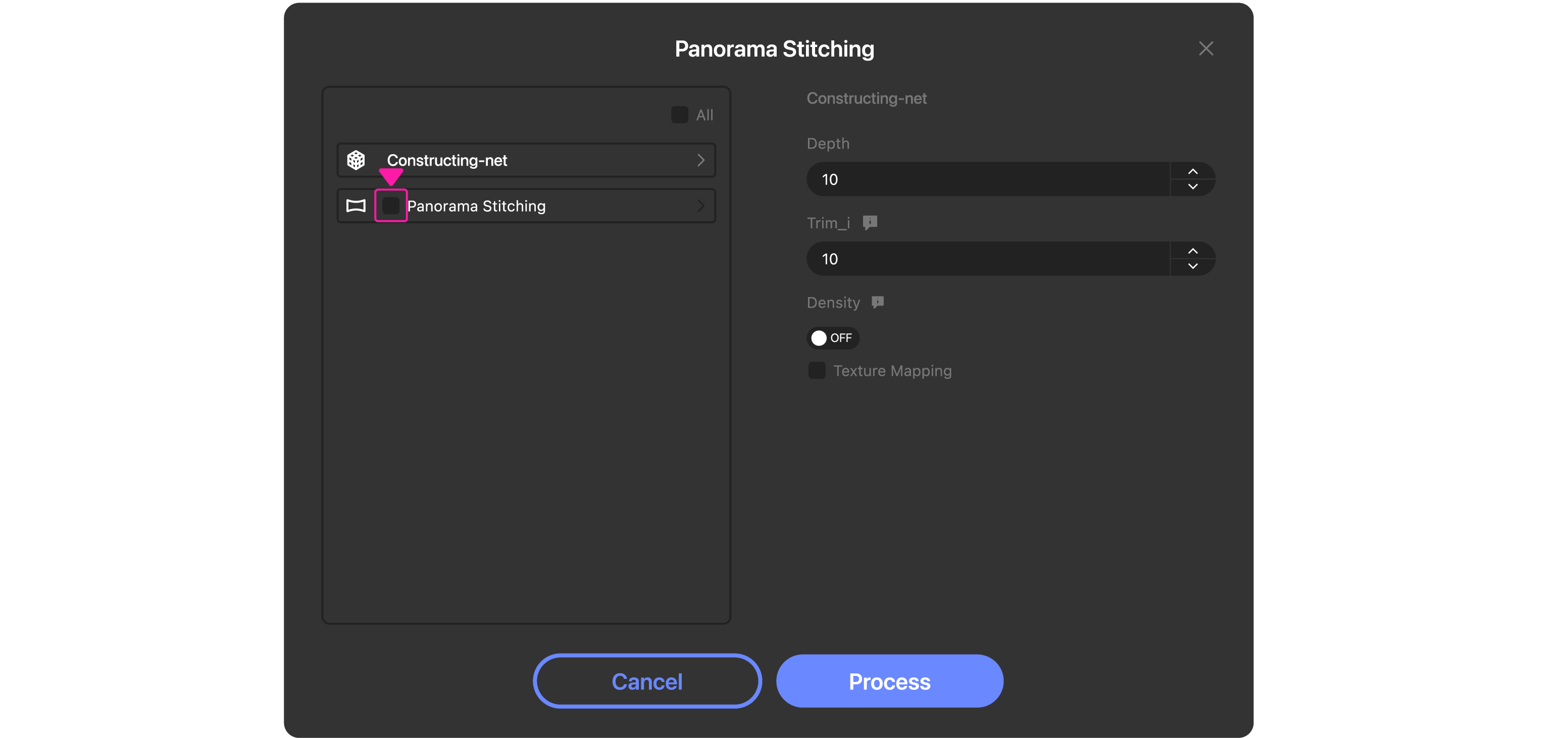
Configuration Description Constructing-net Generates a 3D mesh model from point cloud data, converting discrete point clouds into continuous surface models for 3D modeling, visualization, and further processing. Panorama Stitching Only available in fixed-point scanning mode. Stitches multiple 2D images into a complete panorama / 3D scene, suitable for pure visual reconstruction without laser point cloud assistance. Constructing-net Detailed Configuration:
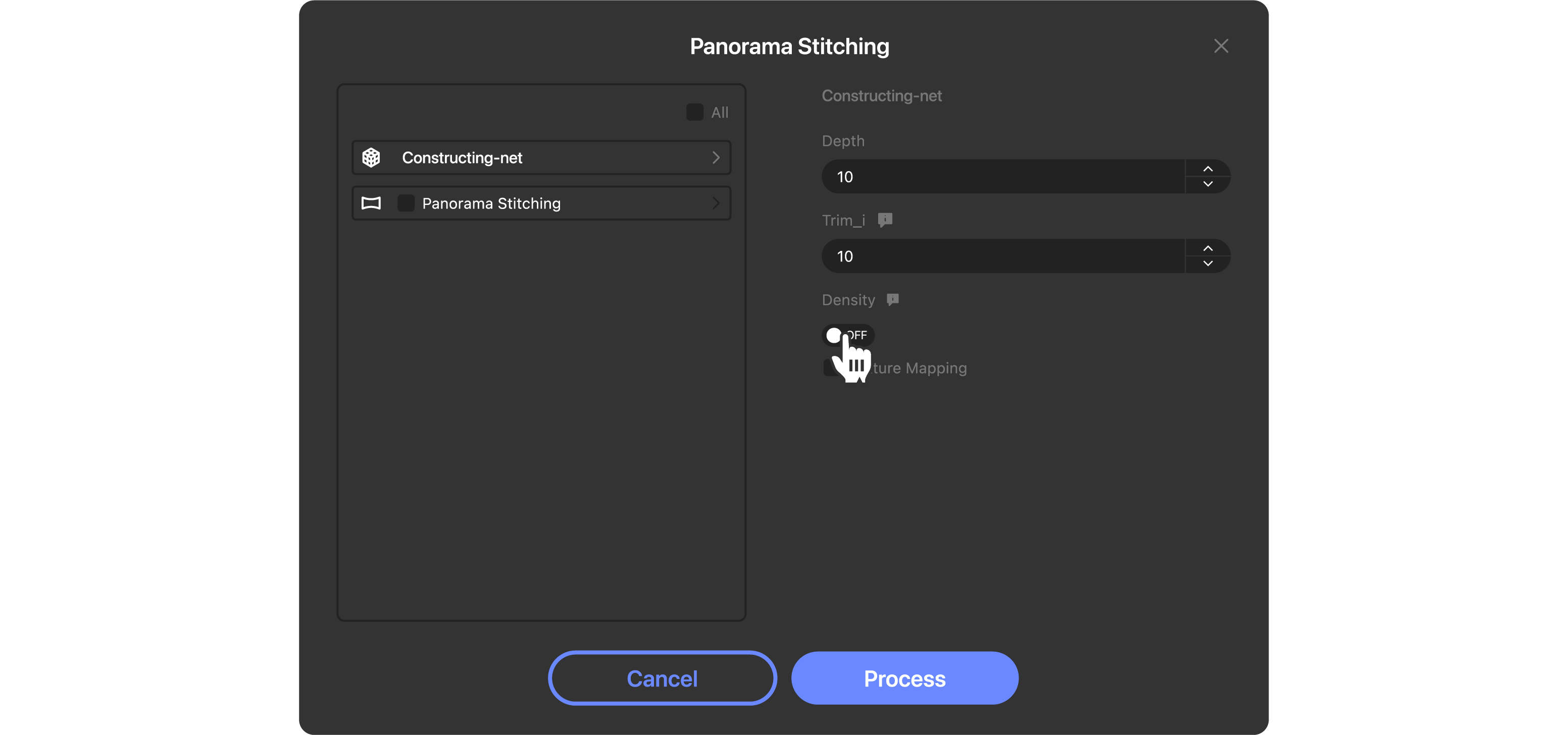
Configuration Description Depth Controls the depth level of mesh reconstruction. Larger values produce richer mesh details and higher model accuracy, but increase computation time. Smaller values produce simpler meshes with faster processing speeds. Increase the value for high-precision modeling with detailed requirements; decrease it for quick previews or simplified large scenes. The default value of 10 works for most scenarios. Trim Used to trim redundant and noisy areas at the mesh edges. Larger values increase the trimming range to remove outliers and distortions for a cleaner model. Smaller values preserve more original data. Increase the value for models with noisy edges that require cleanup; decrease it to preserve the full original scene data. The default value of 10 works for most scenarios. Density Controls the topology of the mesh model. When enabled, the model can have open holes and openings, suitable for indoor or architectural scenes with natural openings. When disabled, the algorithm fills all holes to create a fully watertight mesh, suitable for applications requiring a solid model. Enable for standard architectural and indoor scenes to preserve realistic structures; disable when a closed solid model (e.g., for 3D printing) is needed. Texture Mapping Maps image textures captured by the camera onto the generated mesh model, giving the model realistic color and texture information for enhanced realism. When disabled, the model retains only its geometric structure with no texture information. Enable for standard visualization and result delivery; disable when only geometric structure is needed or to prioritize processing speed. Panorama Stitching Detailed Configuration:
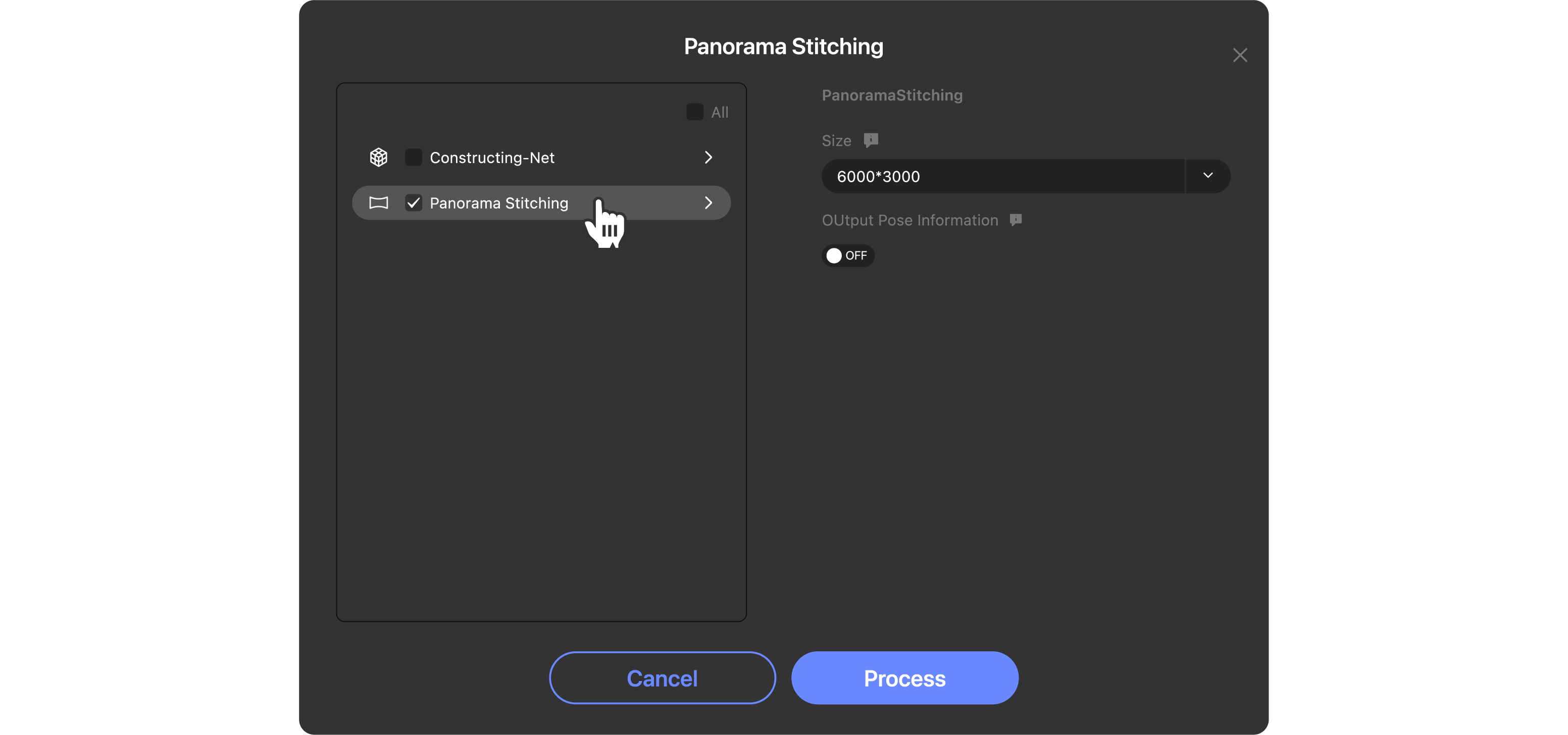
Configuration Description Size Controls the pixel dimensions of the final panorama. Larger values produce higher-resolution images with clearer details, but larger file sizes, longer processing times, and higher hardware requirements. Smaller values produce smaller files with faster processing speeds. ●4000 * 2000: Low resolution, ideal for quick previews and web distribution with the fastest processing speed. ●6000 * 3000: Standard resolution, balancing detail and efficiency, the default optimal choice for most scenarios. ●9000 * 4500: High resolution, ideal for high-precision display and print-quality output with richer details. ●12000 * 6000: Ultra-high resolution, ideal for very large scenes and professional-grade result delivery, requiring high hardware performance. Output Pose Information Controls whether to output camera pose information for each image during panorama stitching. When enabled, camera pose data is retained for subsequent 3D reconstruction and pose analysis. When disabled, only the panorama is generated with no pose data output. Enable for scenarios requiring subsequent 3D modeling or pose tracking; disable when only the panorama is needed to prioritize processing efficiency.
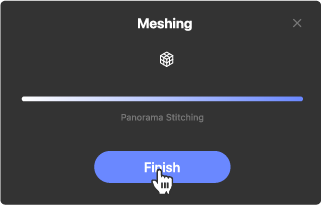
③ The meshing processing results can be viewed in the data list:
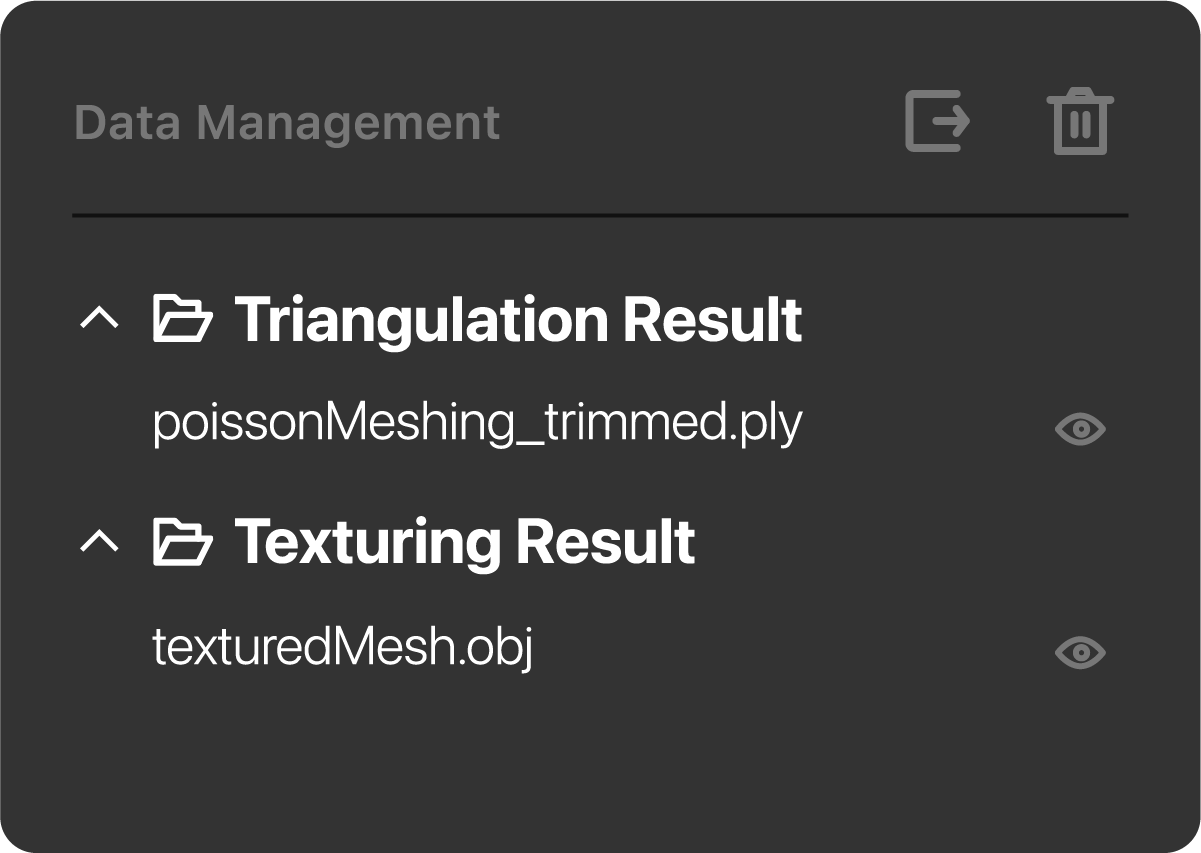
Folder Generated Result Data Triangulation Result poissonMeshing_trimmed:Meshed data after processing Texturing Result texturedMesh: Mesh data with texture mapping generated when "Texture Mapping" is enabled during meshing ④ Panorama stitching results can be viewed in the current window:
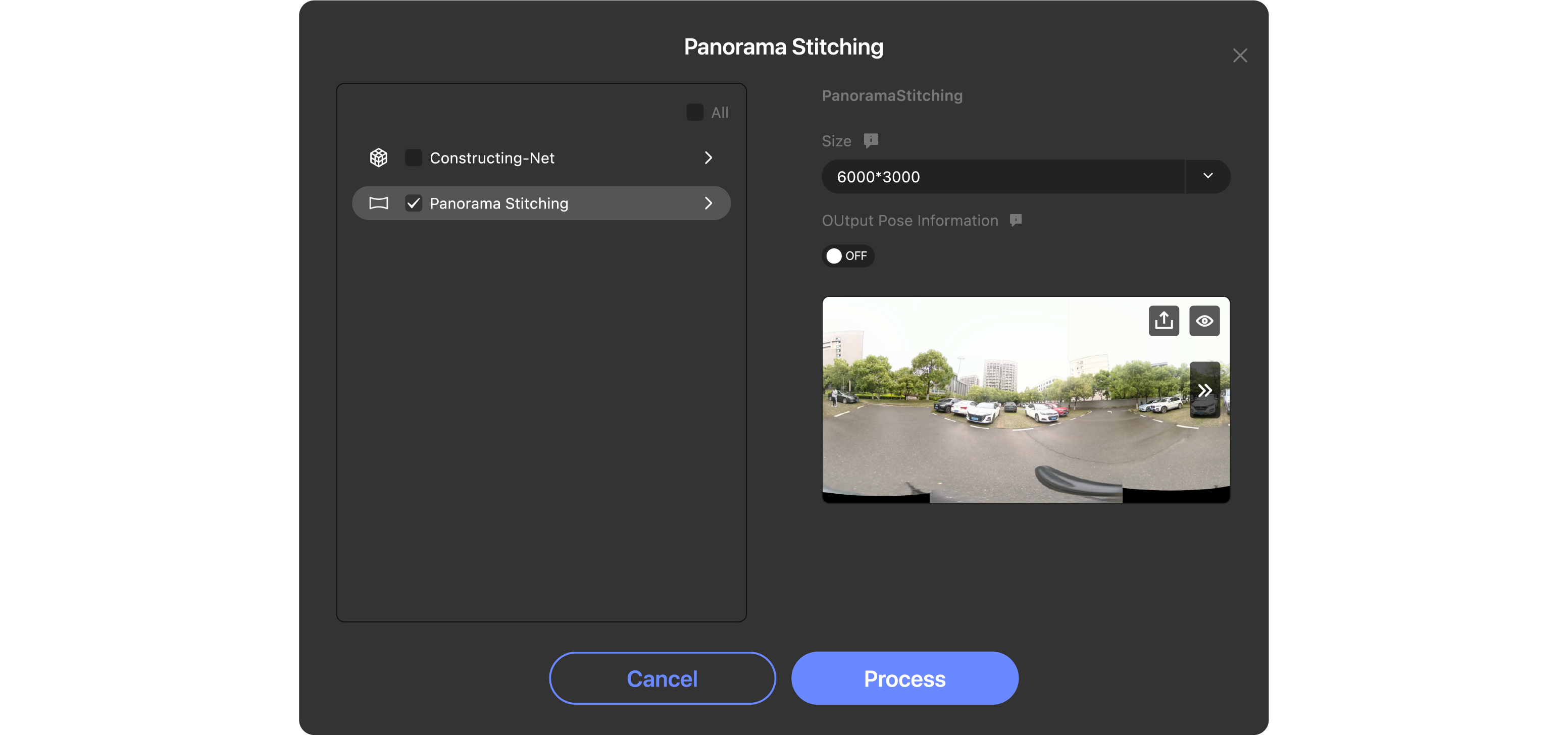
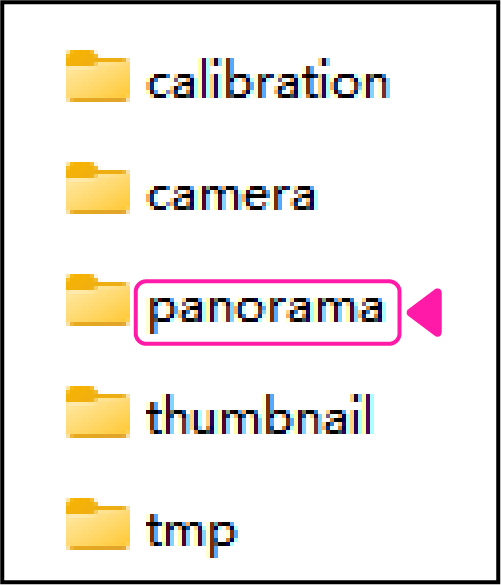
Operation Description Preview Enter the preview interface to view the current panorama stitching results and confirm if the effect meets expectations. Upload To prevent data loss or for better storage, it is recommended to upload the current data to the cloud space. The number of uploadable files varies by user plan; purchase as needed. ●Free: Can upload up to 2 files. ●Basic: Can upload up to 100 files. ●Enterprise: Unlimited uploads. Switch Images When multiple panorama images are available, click the icons to the left or right of the photo to switch between them. Photos generated by panorama stitching can be obtained in local project files:
Edit
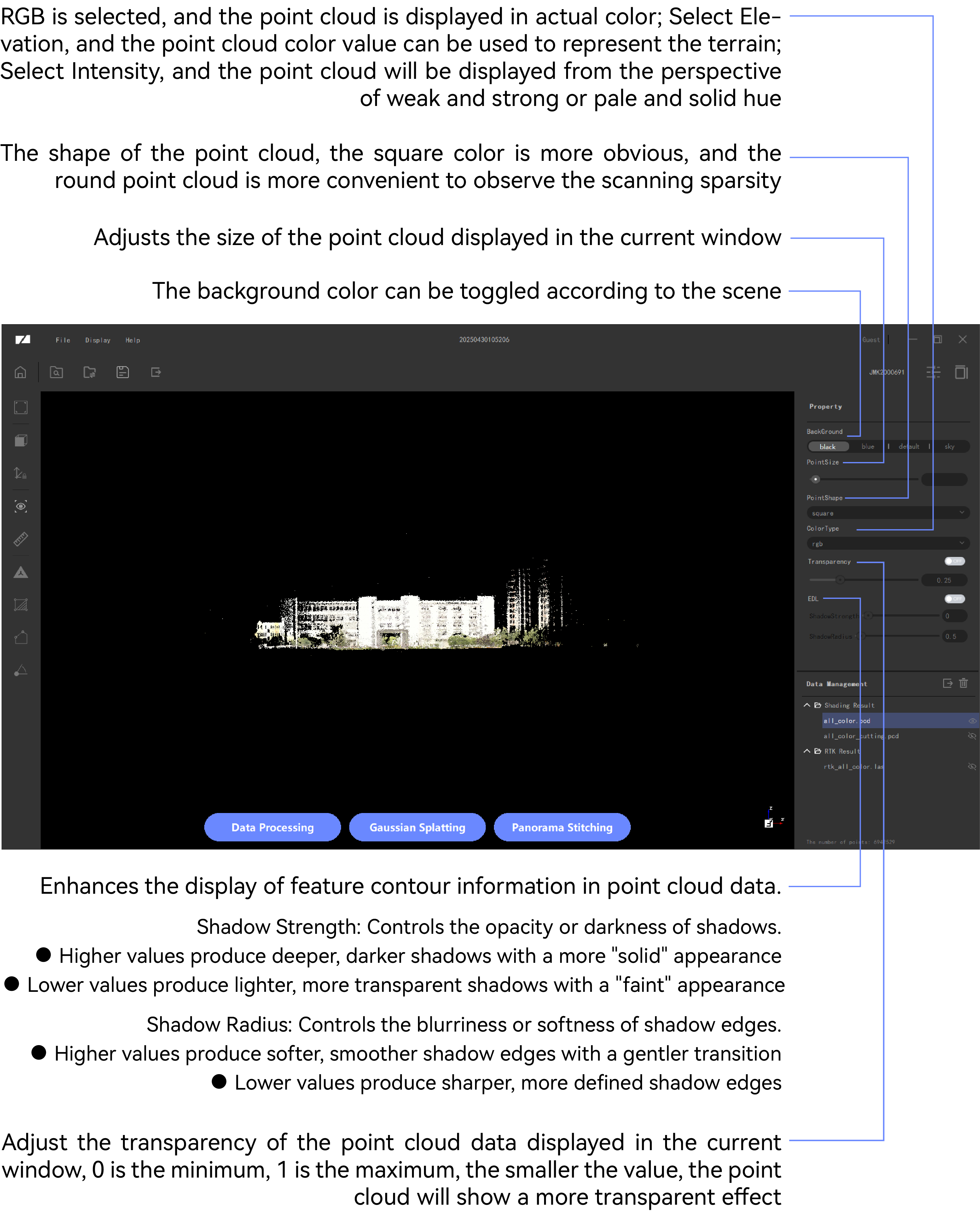
Adjustments can be made to the point cloud and mesh data.
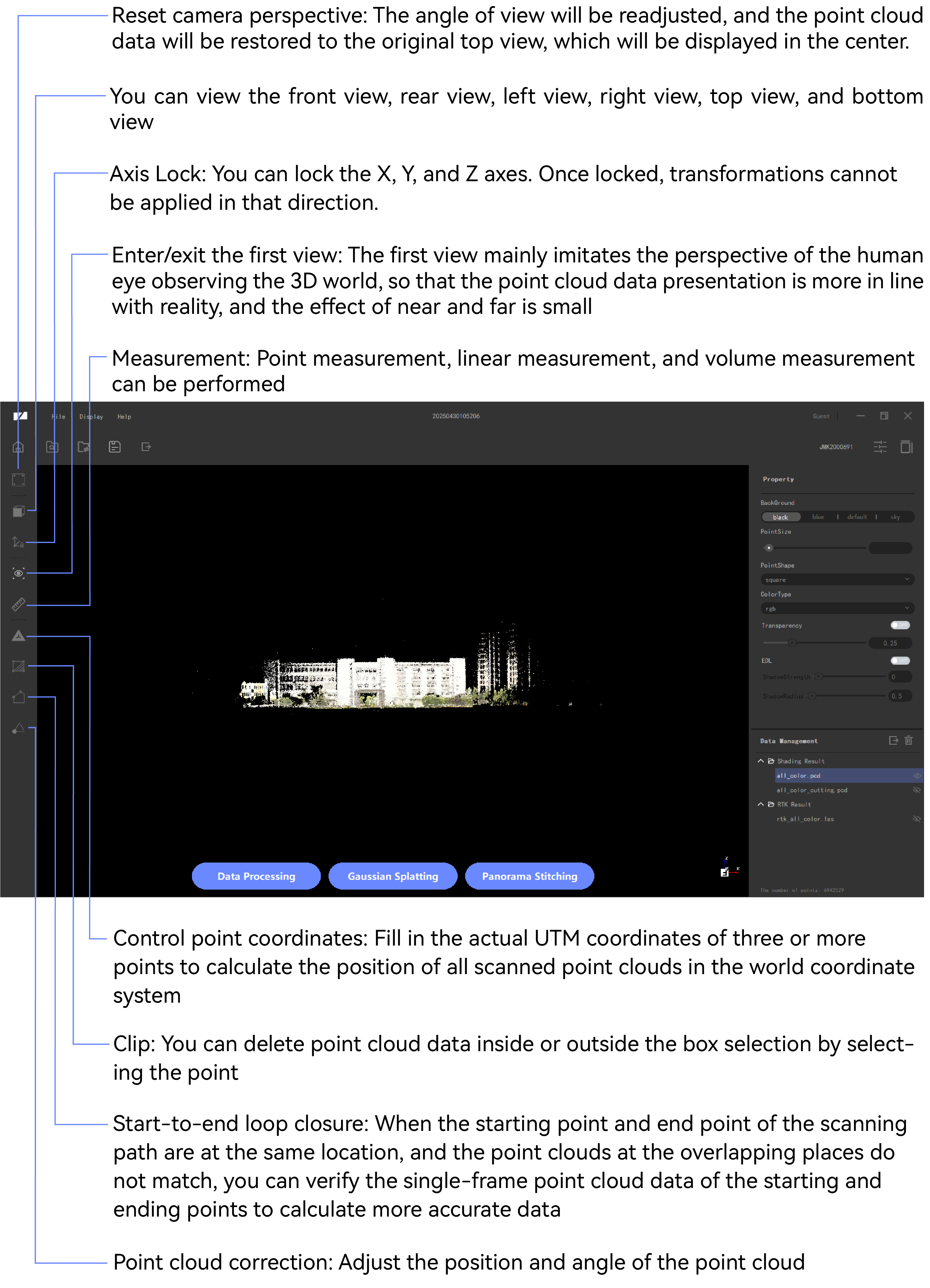
Control point coordinates
You can change the position of the scanned point cloud in the world coordinate system by inputting the locations of at least three points.
Prerequisites
You first need to obtain the actual UTM coordinate information of the relevant point cloud in the world coordinate system.
• While scanning to add marker points, use other auxiliary devices (such as an RTK measuring instrument) to obtain the actual UTM coordinate information of the points.
• By selecting point clouds at the same location, obtain the actual UTM coordinate information of that location in the world coordinate system. The method of obtaining this information varies across different software and is for reference only (using Google Earth Pro as an example).
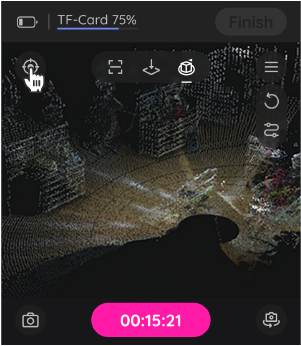
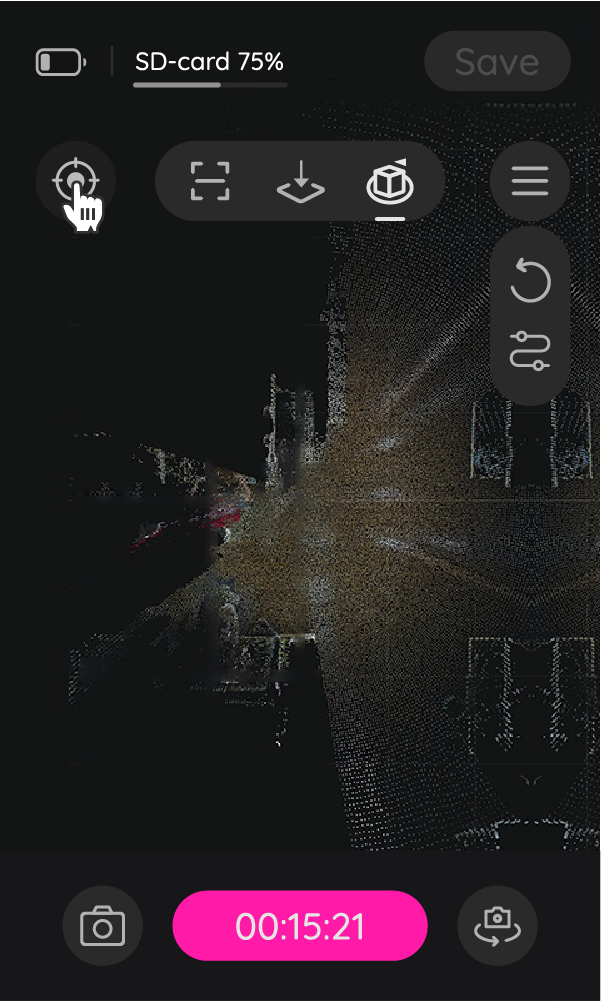
- During scanning, you can manually add marker points (taking JMK5 as an example); clicking once will automatically record the current position.
*When scanning and adding reference points, you can simultaneously obtain the actual UTM coordinate information of those points using devices such as an RTK survey instrument at the same locations, making the data more accurate.
The Hawk & Raven interface is as follows:
The Eagle interface is as follows:
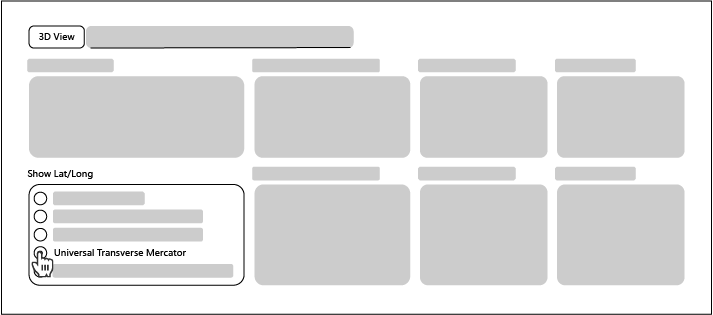
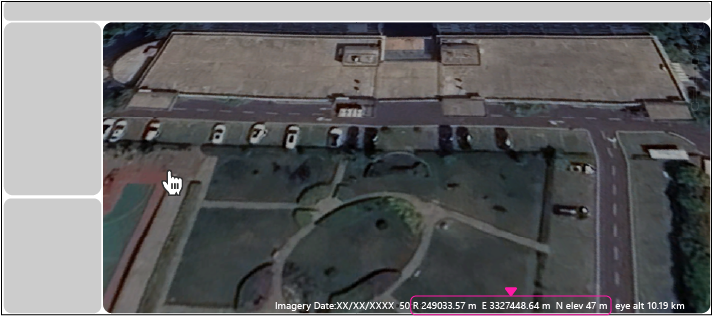
- If there are no other auxiliary tools such as an RTK measuring instrument, it can be obtained through the world coordinate system (taking Google Earth Pro as an example).
a. Configure the UTM in "Tools > Options..."
b. Place the mouse over a point with feature points (or over a point with markers added during shooting) to obtain the actual UTM coordinate information of the corresponding point. You need to obtain information from at least three feature points.
Procedure
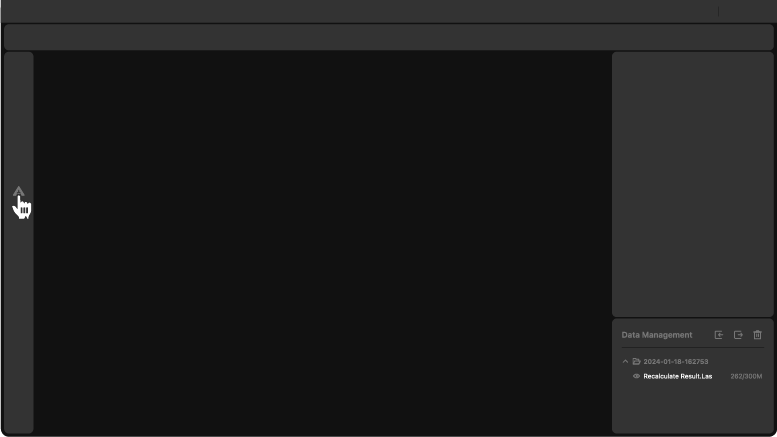
① Click  under filtering, thinning, or point cloud coloring data (colored data requires data settlement before the marker points added during scanning can be obtained) to enter the operation interface (using colored data as an example).
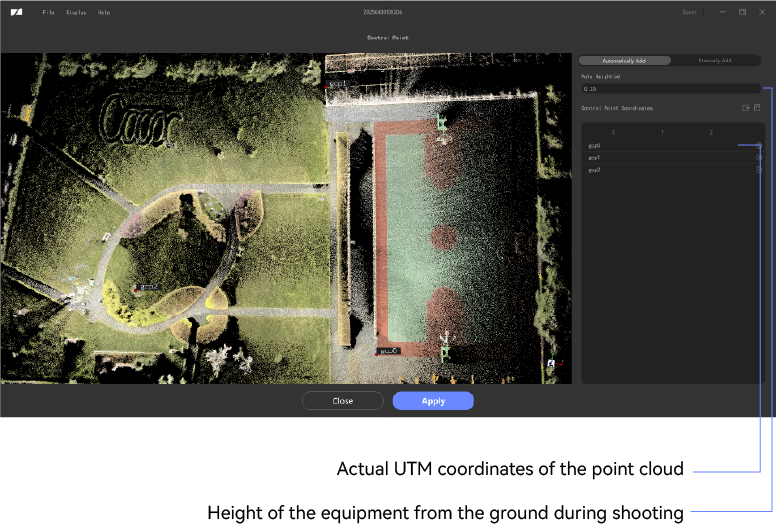
② The coordinates of control points can be calculated either by manually selecting special points or by the points added during shooting.
• Added points during shooting: Mark points have already been added during shooting. Enter the actual UTM coordinates of the point cloud at the point cloud position (fill in the obtained actual location information from left to right).
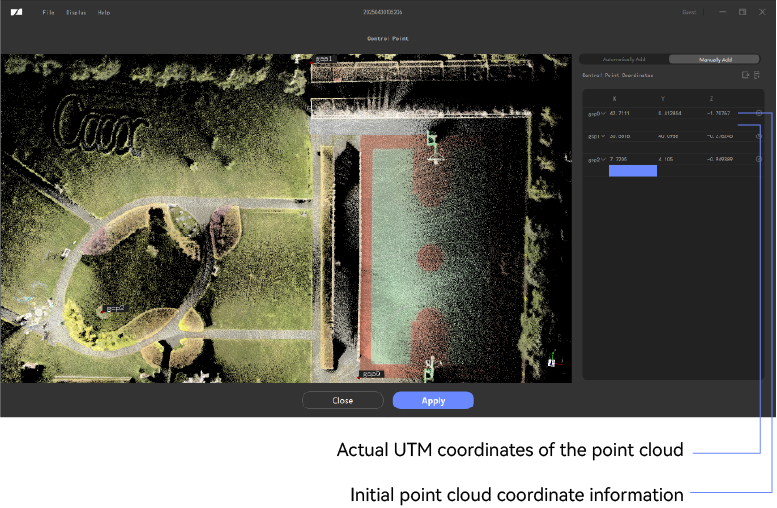
• Manually select special points: Double-click on the feature point cloud with acquired actual coordinate information, and you can directly input the actual UTM coordinates of the point cloud below the original data (fill in the obtained actual location information from left to right).
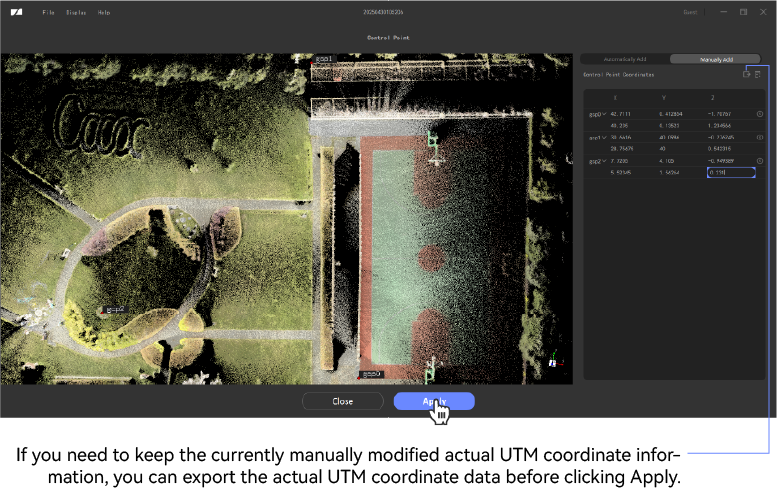
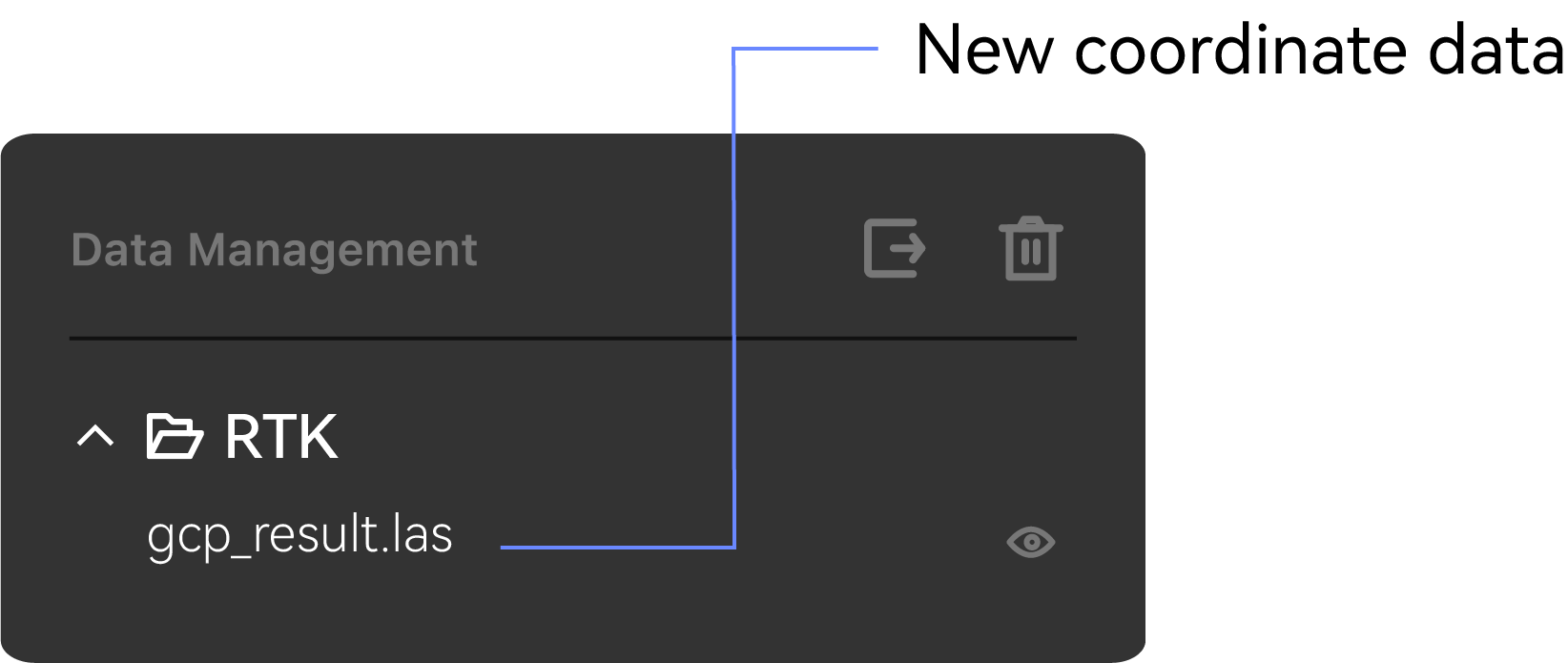
③At least input the positions of 3 point clouds, and after completing the input, you can confirm to generate new coordinate data.
④ The processing results can be viewed in the data list:
Import
Supports directly modifying location information by importing a file with the actual coordinates of the selected points.
①First time use, you need to export a blank file first
•Points added during shooting: Markers have already been added during shooting, and you can directly click export to get a blank txt file.
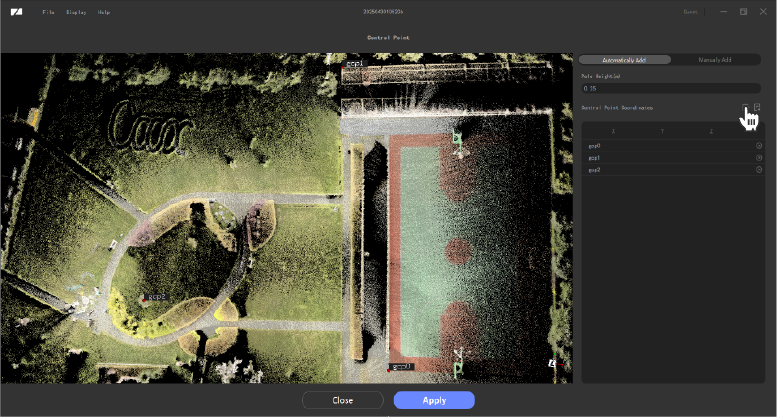


•Manually select special points: Double-click to select the feature point clouds with actual coordinate information (at least 3 points), then click Export to get a blank txt file.
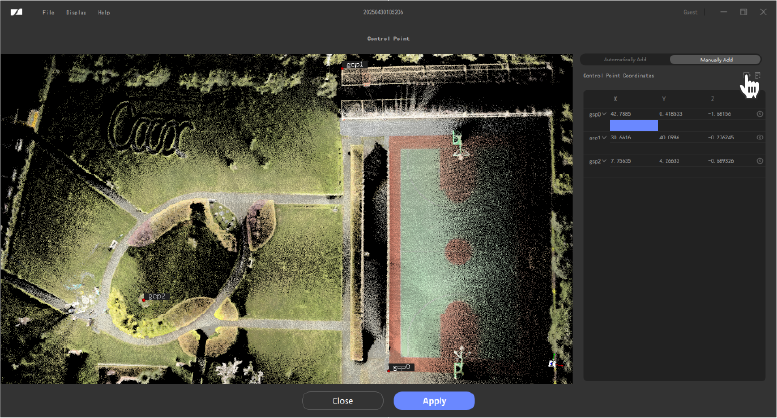
②In the exported blank txt file, sequentially enter the actual UTM coordinate information of the corresponding points according to X, Y, Z (separated by spaces), and save it.

③Click import and select the completed txt file; the information in the txt will automatically fill in the corresponding points.
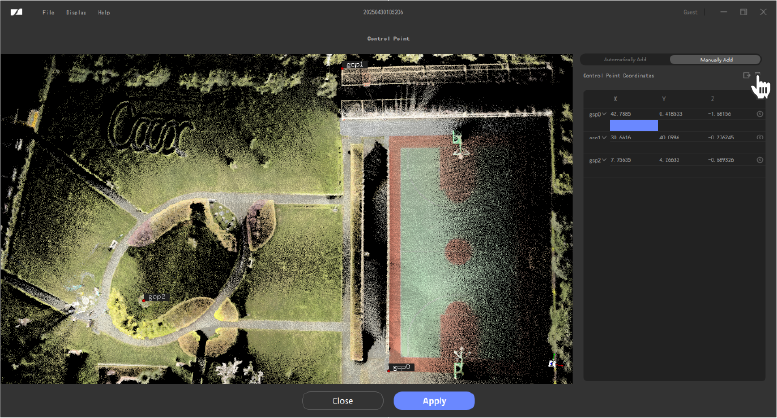
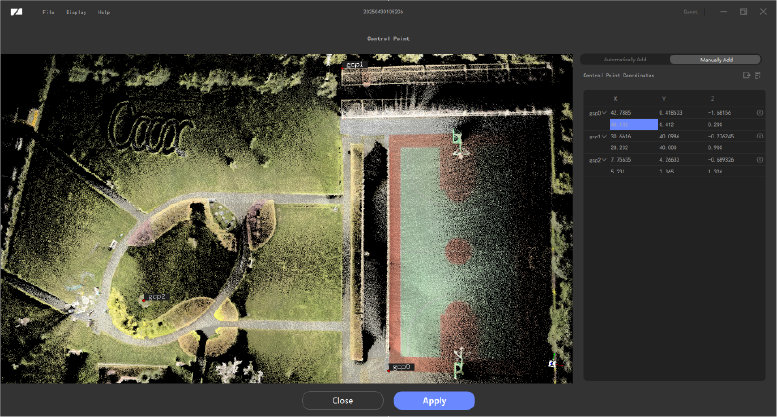
④After confirming that the entered information is correct, you can click confirm to generate new coordinate data.
Clip
① Select the point cloud data to be processed through polygon cropping or rectangular cropping (take polygon cropping as an example)
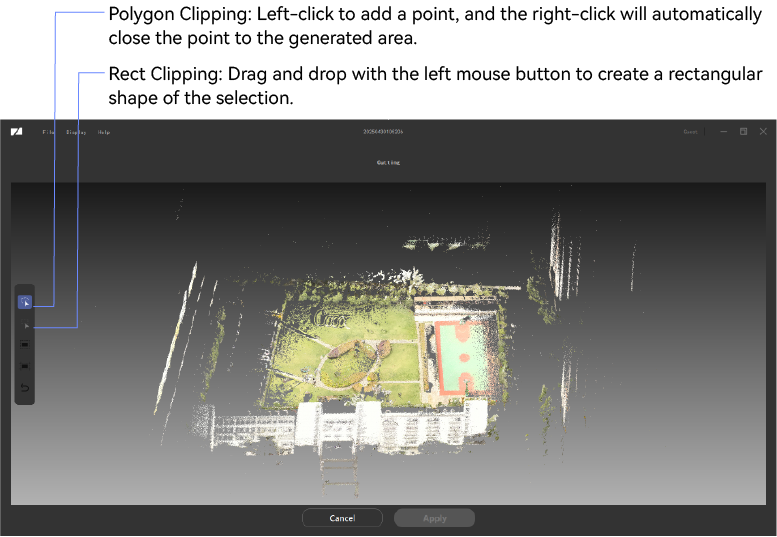
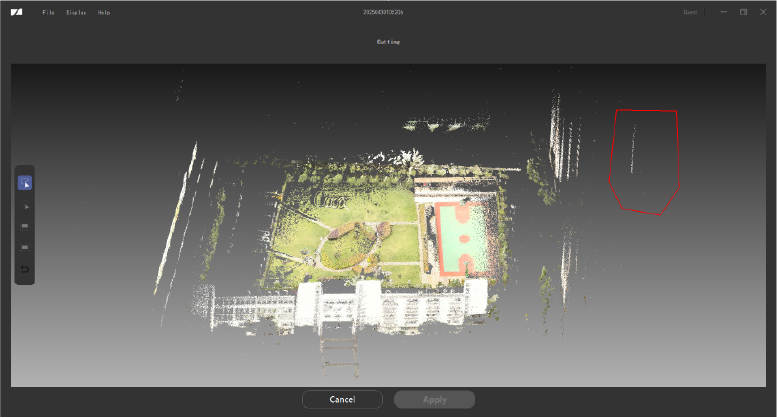
② You can choose to delete the point cloud data in or out of the box selection (take deleting the data in the box selection as an example)
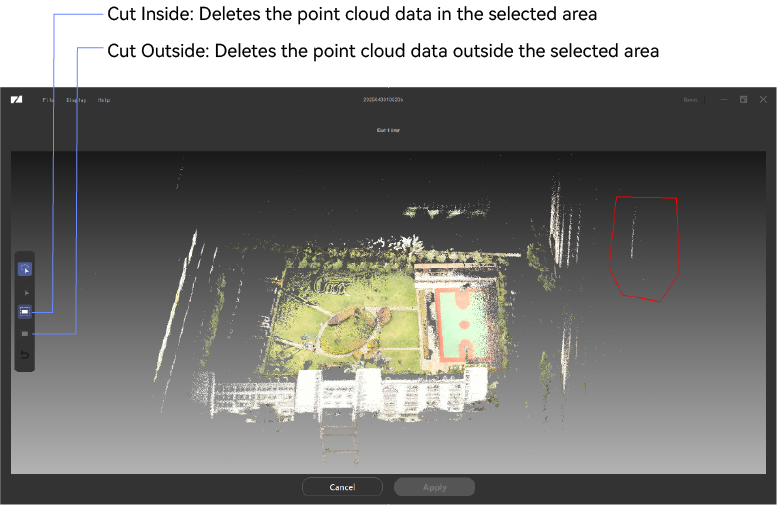
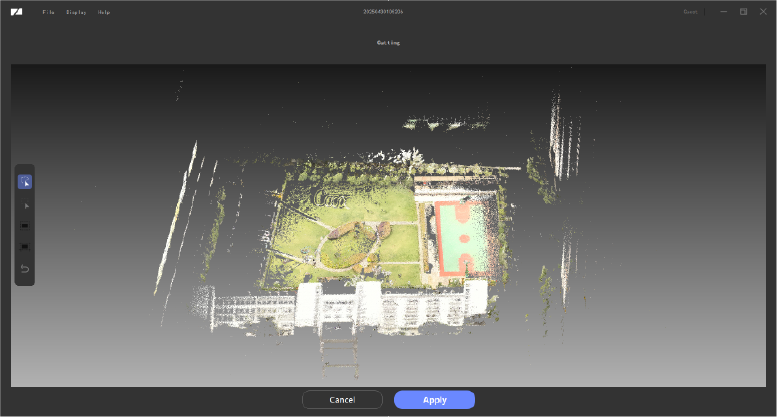
Optional: ③ The deleted data can be revoked
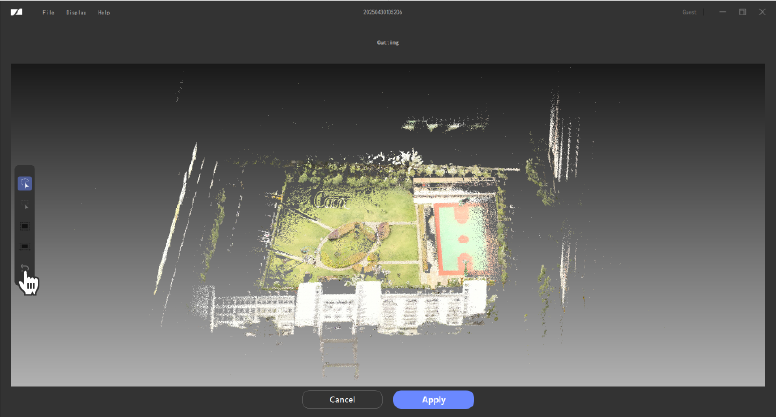
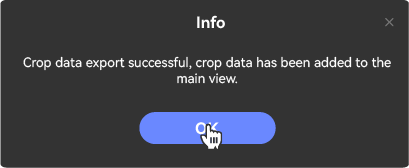
④ If you keep the current cropping data, you can click "Apply" to generate a new cropping data

⑤ Click "Cancel" to exit the cropping interface

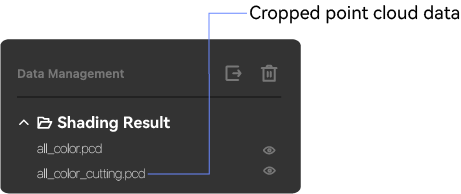
⑥ The cropped data can be viewed in the data list:
Measurement
Measurements include point measurement, line measurement, height measurement, and volume measurement.
Point measurement refers to displaying the relative coordinates of the selected point (if using RTK coordinates, UTM coordinates are displayed).
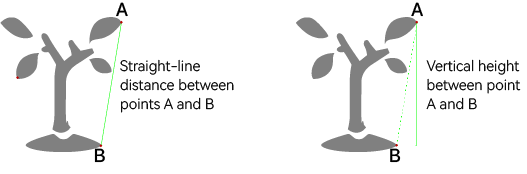
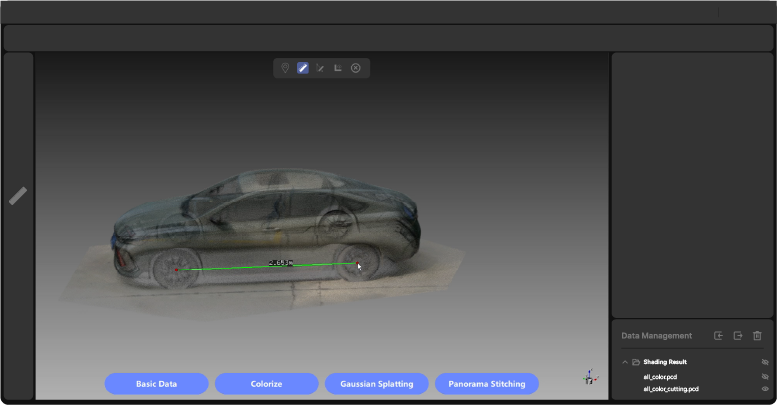
Line measurement refers to measuring the distance between two points (at least two points).
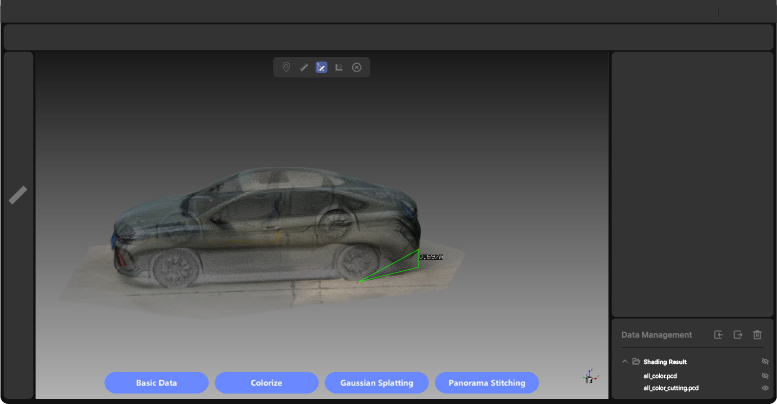
Height measurement refers to the vertical height between two points.
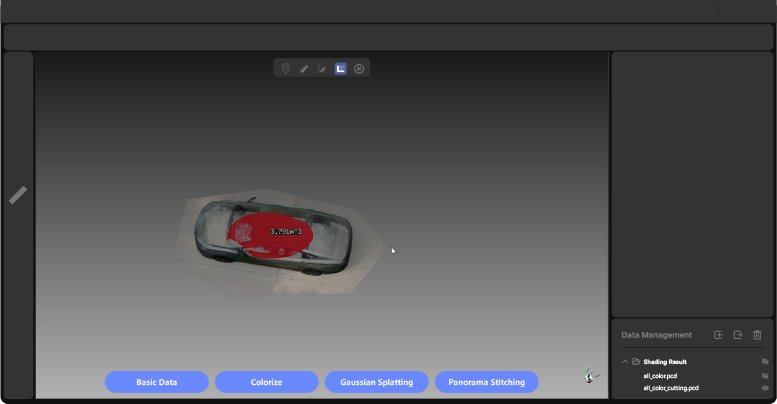
Volume measurement refers to selecting a point cloud and automatically calculating the volume of the selected point cloud.
*The specific distinctions between linear measurement and height measurement are explained as follows:
Prerequisites
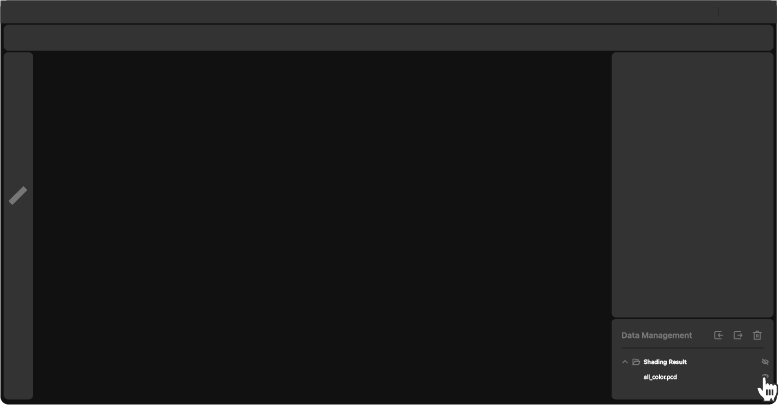
- First, open the colored point cloud data, do not display other data.
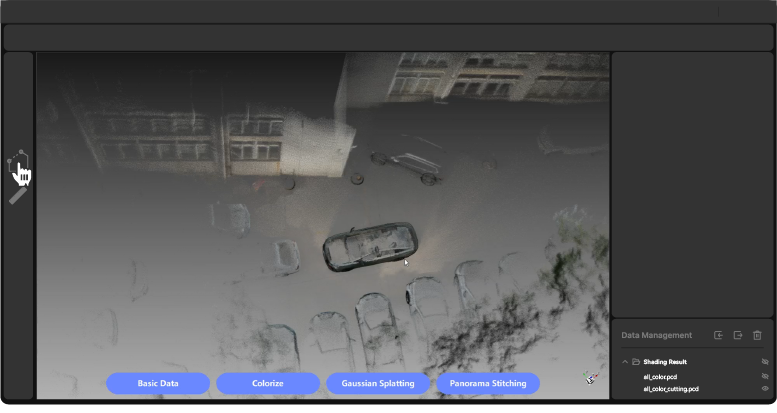
- It is recommended to use the point cloud clipping function to cut off the point clouds outside the measured object (for detailed operation, please refer to the point cloud clipping section).
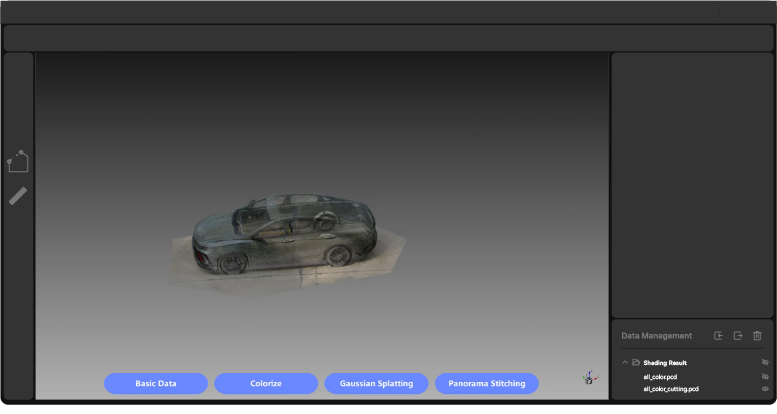
- According to the scanning scene, the point cloud size in the attribute bar can be appropriately increased to facilitate point selection (to avoid incorrect selections or selecting points behind the point cloud).
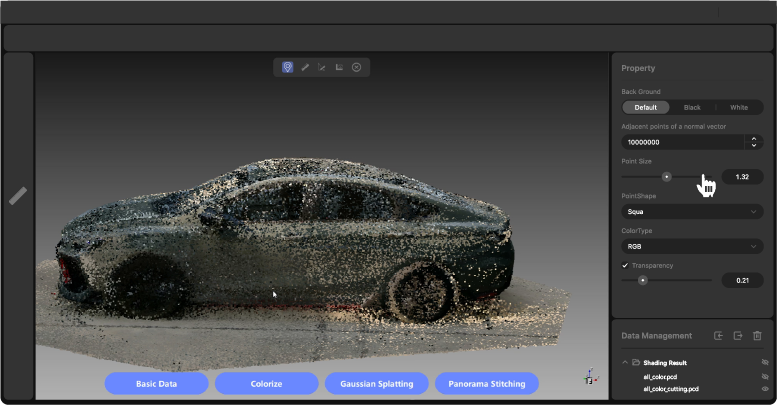
Procedure
① Click  under the point cloud coloring data to enter the operation interface (using coloring data as an example)
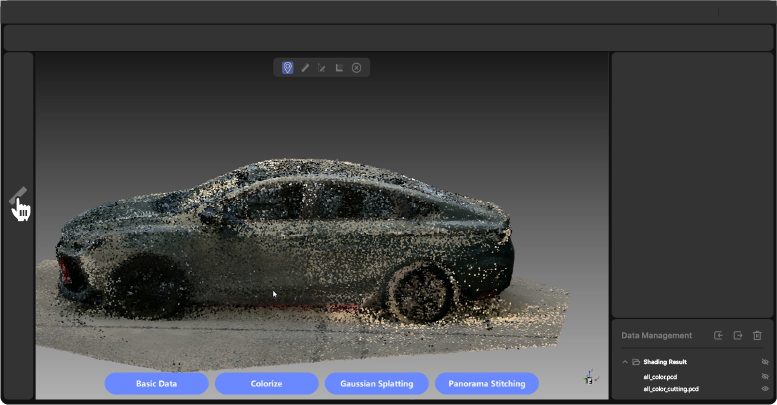
② Choose the measurement method according to actual needs.
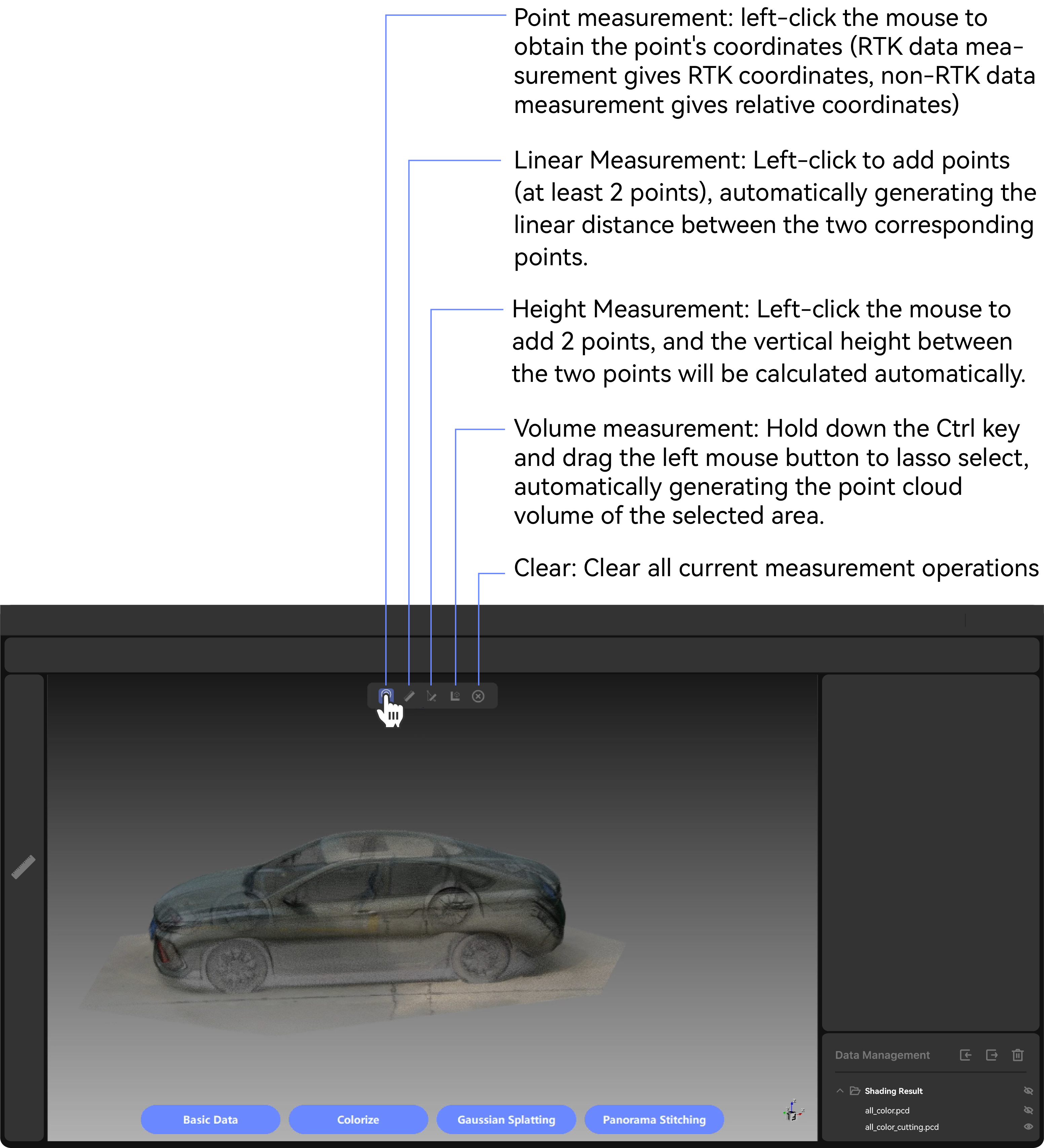
Point measurement
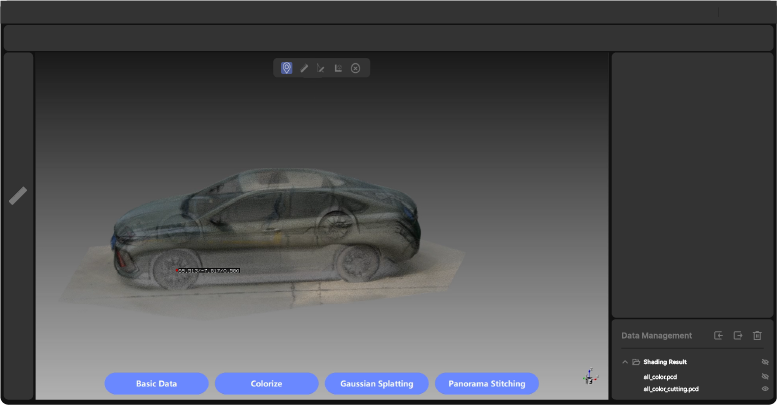
Linear measurement
Height Measurement
Volume measurement
Start-to-end loop closure
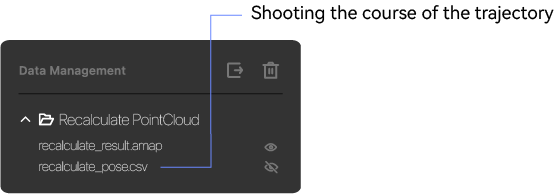
Obtain more accurate data by verifying the single-frame point cloud data at the start and end points of the same location. Before performing this operation, it is necessary to perform data calculation to obtain the trajectory and route of the shooting process.
Prerequisites
It is necessary to perform data calculation to obtain the trajectory route file of the shooting
Procedure
① Click  under filtering, thinning, or point cloud coloring data to enter the operation interface (take coloring data as an example).
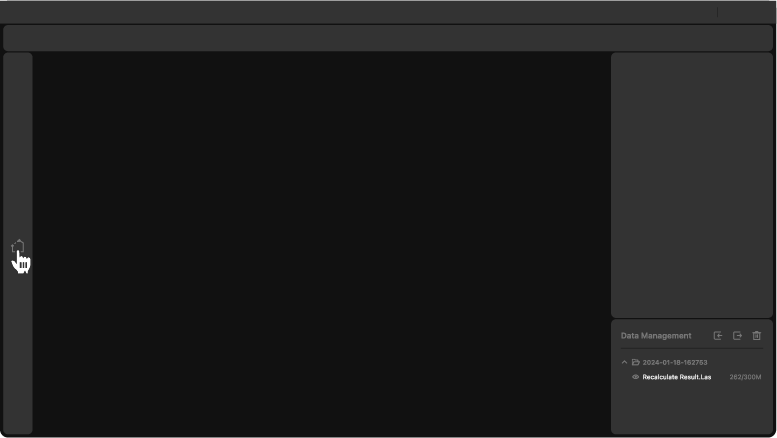
②Double-click the selected start and end points (click "Q" to unselect the points), and click "Next" to get the point cloud data of a single frame of the start and end points.
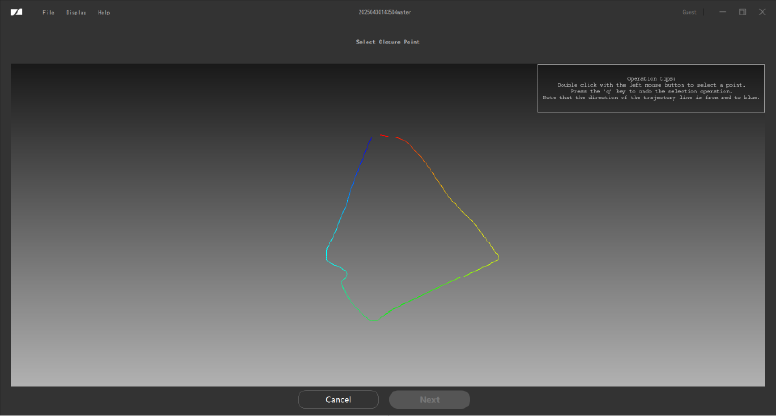
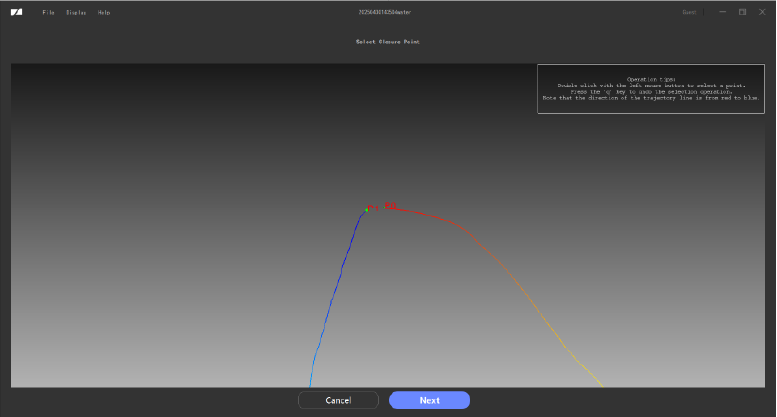
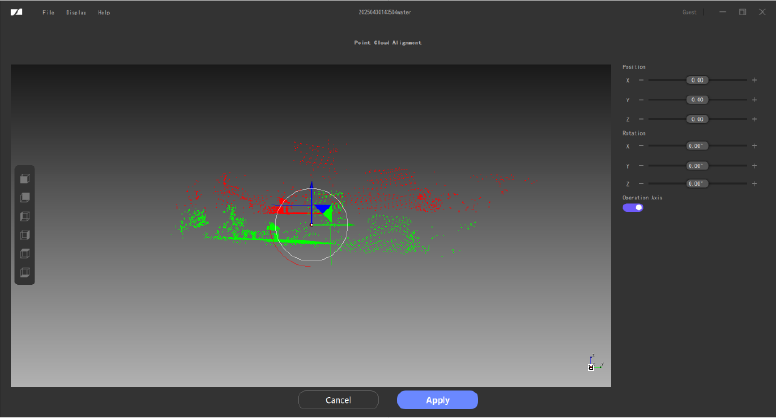
③ You can adjust the position of the green point cloud data so that the point cloud data of the two points are roughly consistent.
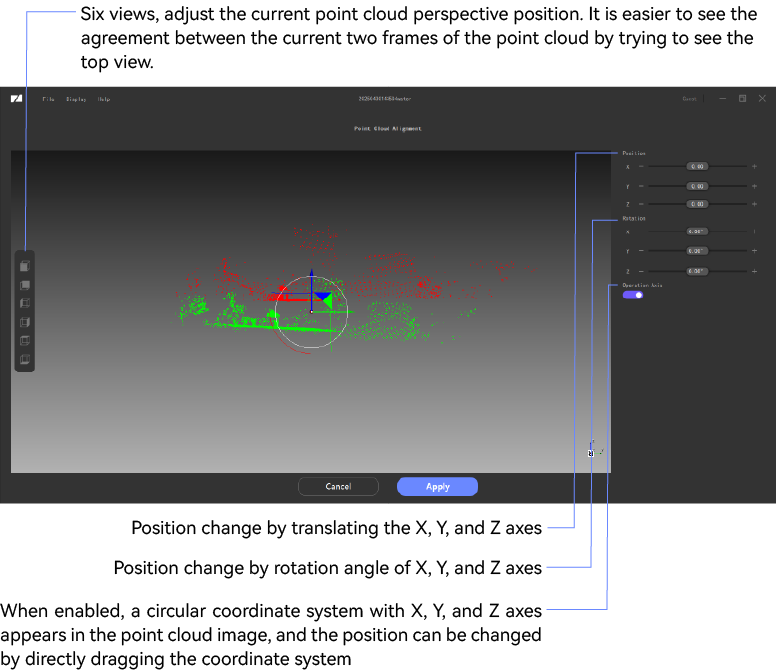
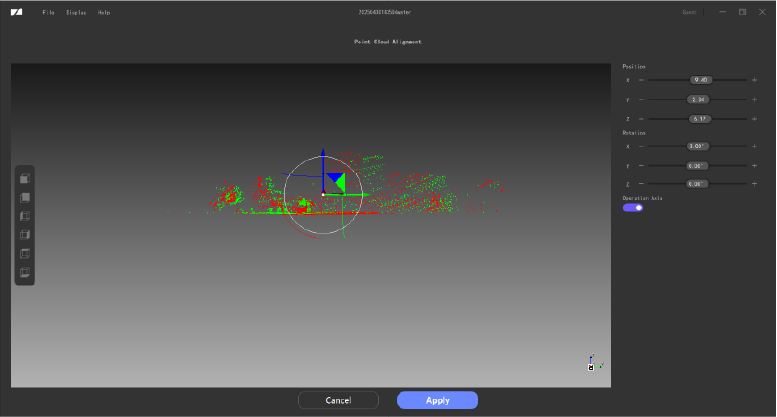
④Click "Apply" to generate the data after the point cloud is closed.
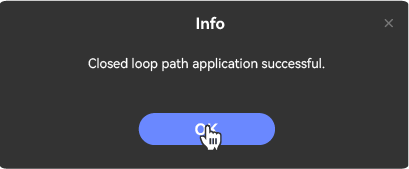
⑤ Click "Cancel" to exit the path closure screen
⑥ The processed data can be viewed in the data list:
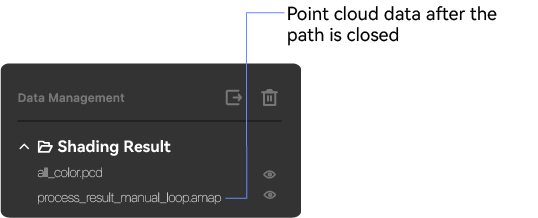
Point cloud correction
① Click  to enter the point cloud angle correction interface.
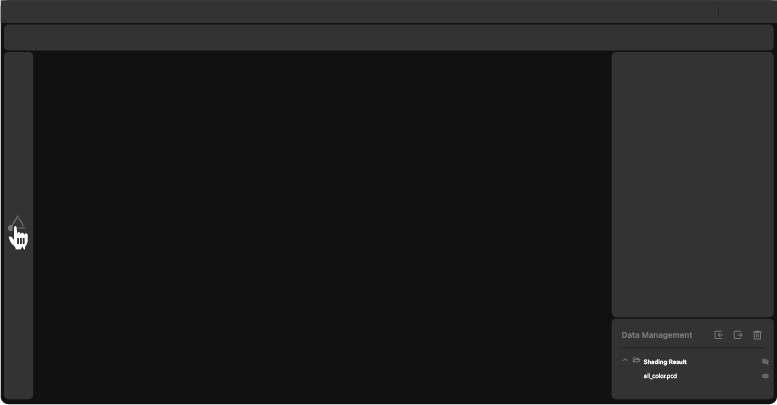
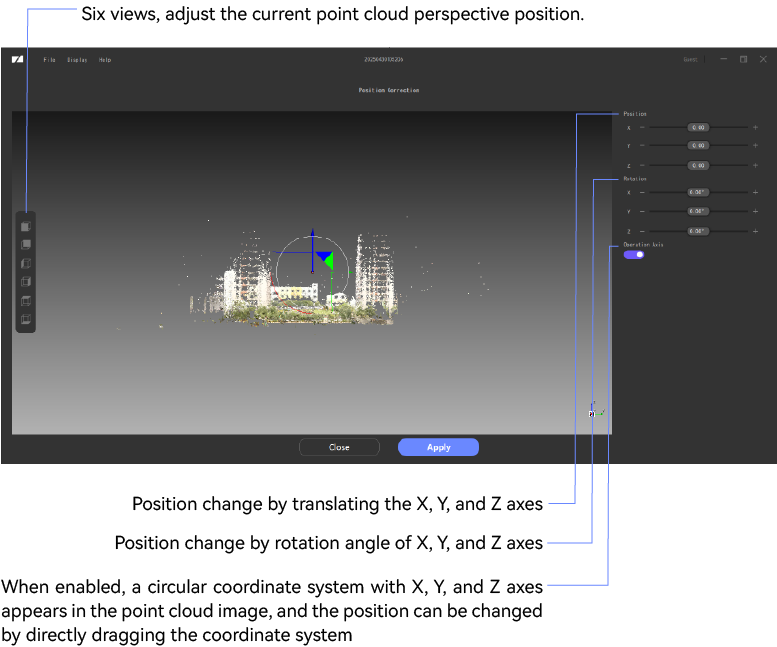
② Adjust the data location according to the requirements.
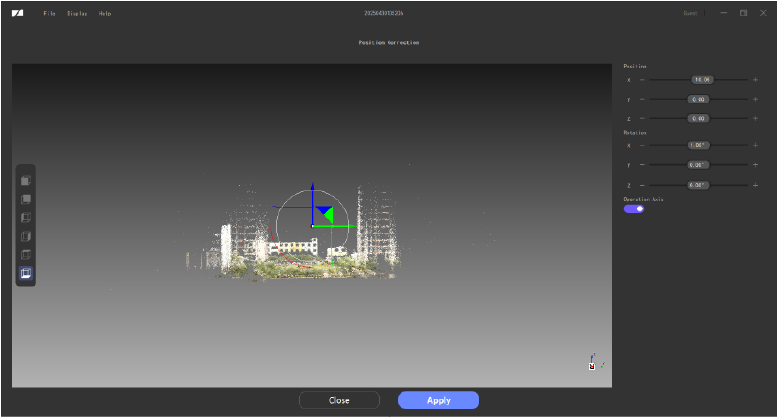
③ Click 'Apply' to generate the modified data.
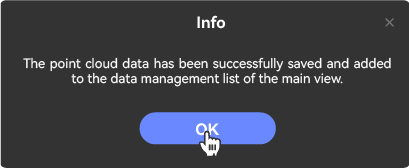
④Click 'Close' to exit the point cloud correction interface.

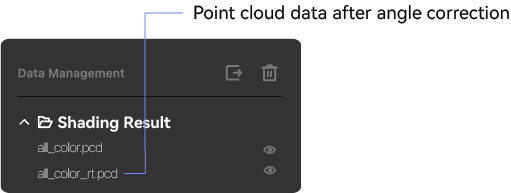
⑤The processed data can be viewed in the data list.
RTK
Three methods are supported for obtaining world coordinates:
Positioning using only the built-in GPS.
Positioning using base station.25o observation data files (Observation Data) and.25p parameter files or position data (Parameters/Position Data). (File names.25o and.25p are for reference only; use the actual file names in your application.)
3.High-precision positioning via RTK differential data services.
Both base station and RTK differential data are only available for devices with a built-in RTK chip that are connected to an external GPS.
Built-in GPS
Scan requirements
- GPS needs to be turned on when scanning
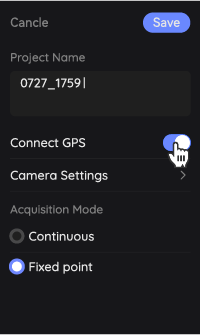
- The exported model has the data with the name of GPS_XXXXXX.bag (if GPS is enabled during scanning, the exported scan data file will automatically generate the data with the name of GPS_XXXXXX.bag)

Procedure
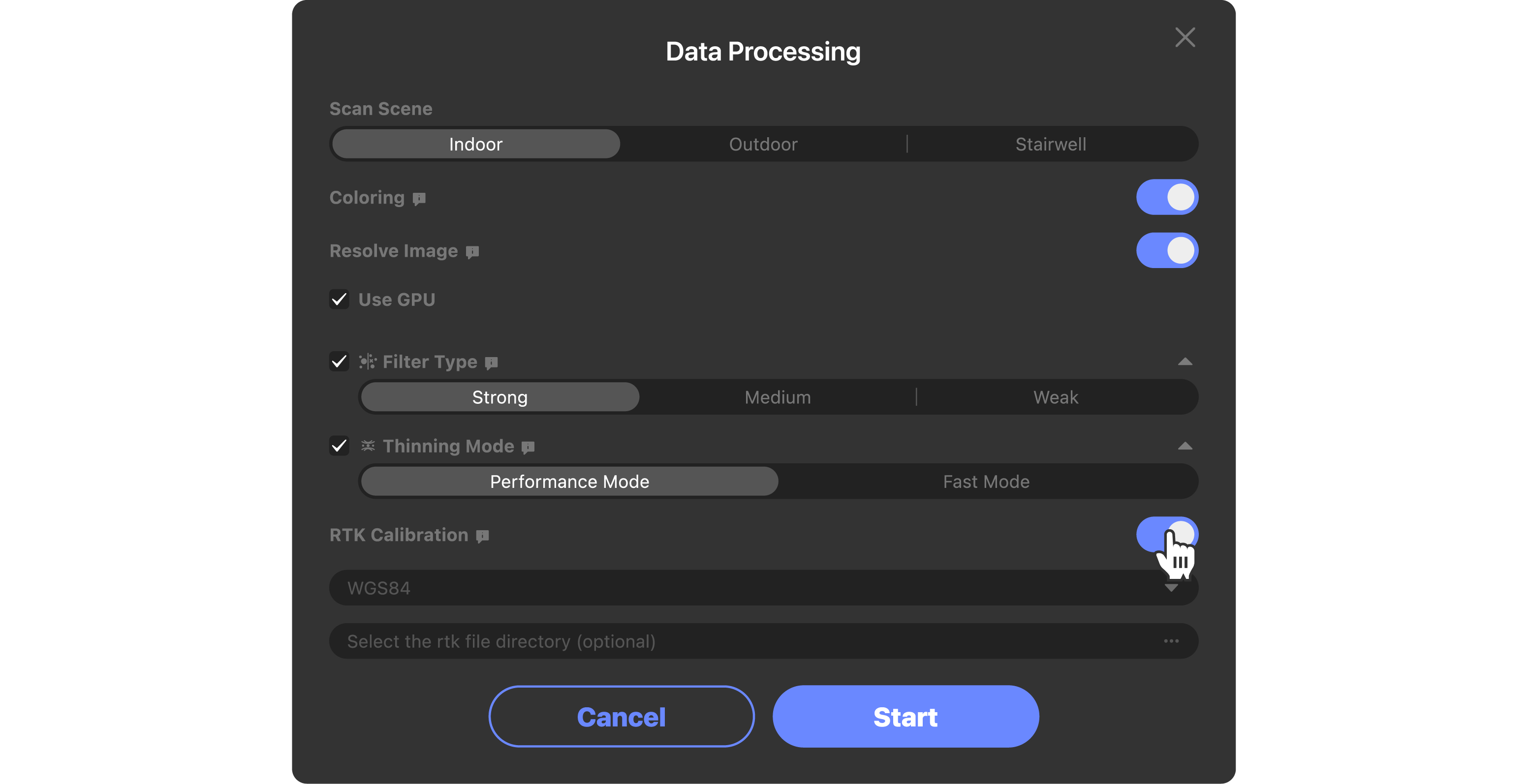
After importing the scan data with the name of GPS_XXXXXX.bag, you can process it directly if you select RTK configuration, as follows:
① Check the RTK configuration during data processing.
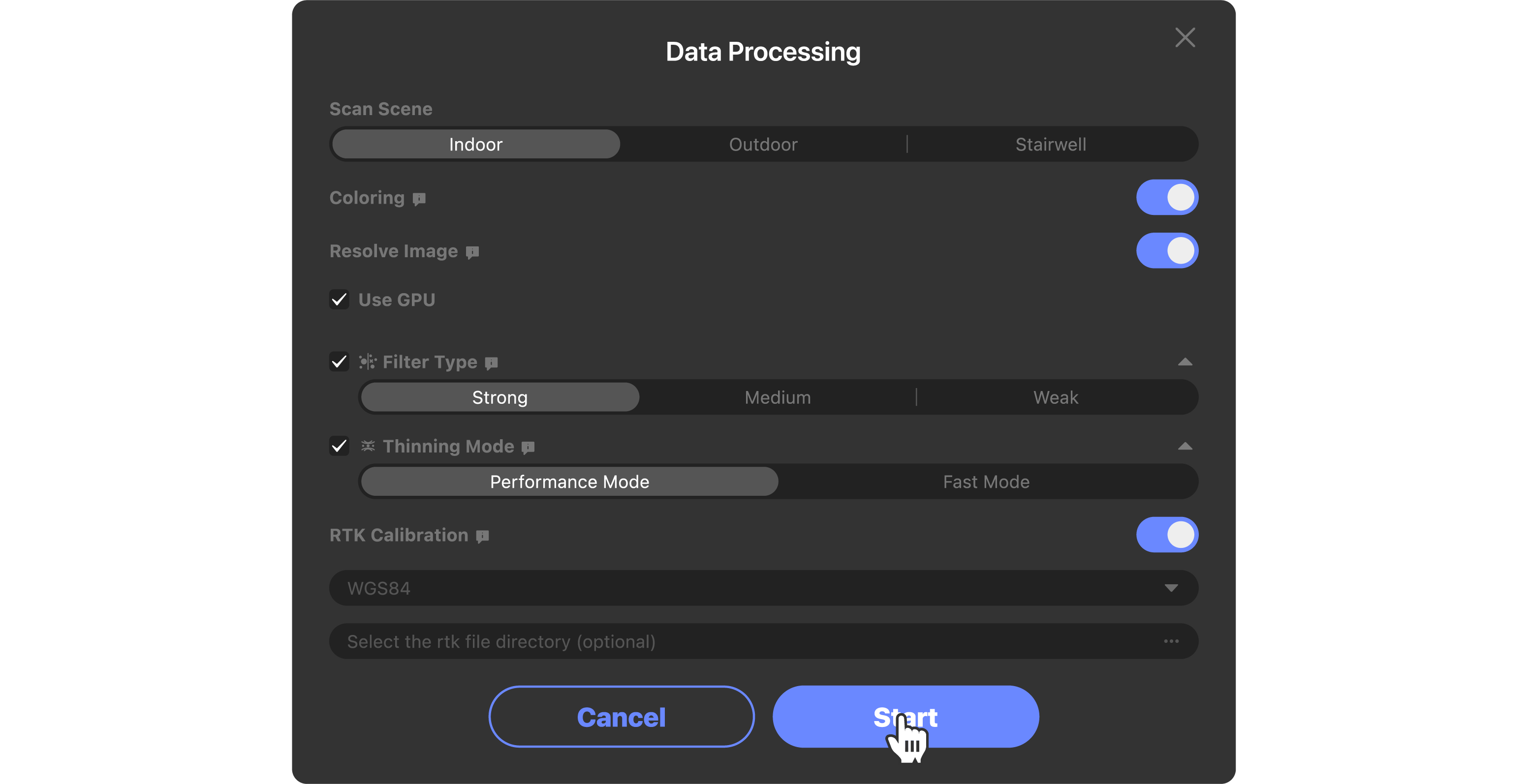
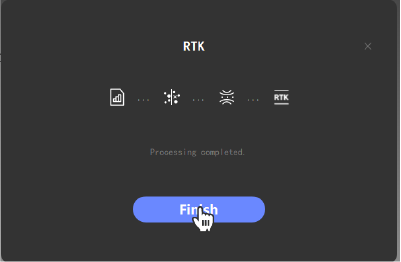
②RTK data is generated in the data list

Base station high accuracy
Scan requirements
The scanning device needs to be a device with RTK accessories (including built-in chip and external GPS)
Turn on the base station before scanning
a. Turn on the base station host and keep it stationary
b. Connect the base station handbook with the host
c. Select a static station (you can refer to the following operations, different brands of equipment are different, for reference only)

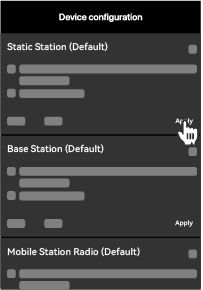
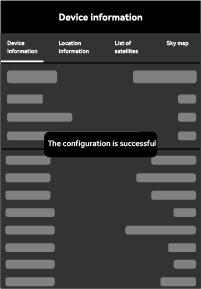
- GPS needs to be turned on when scanning
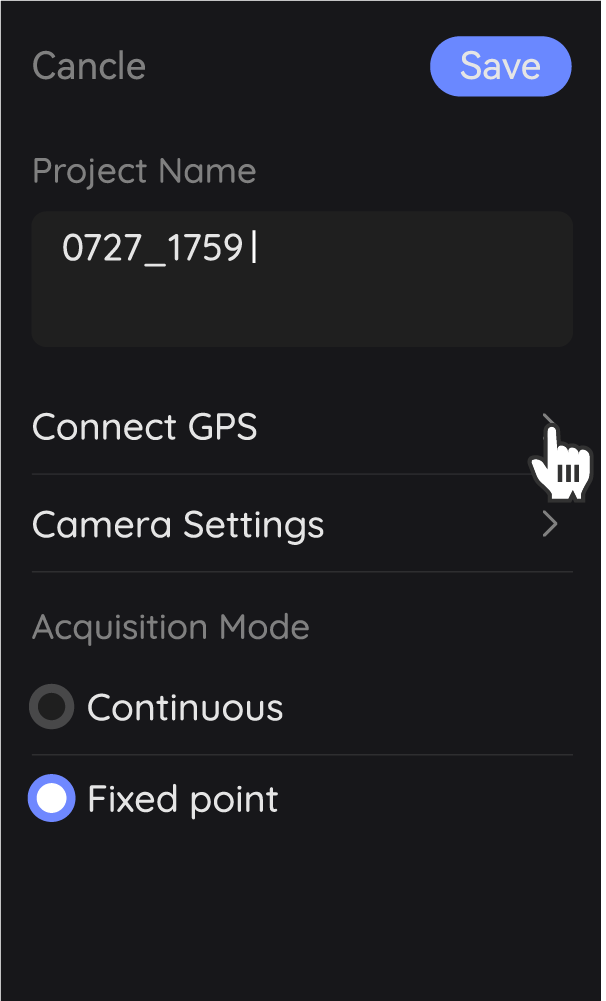
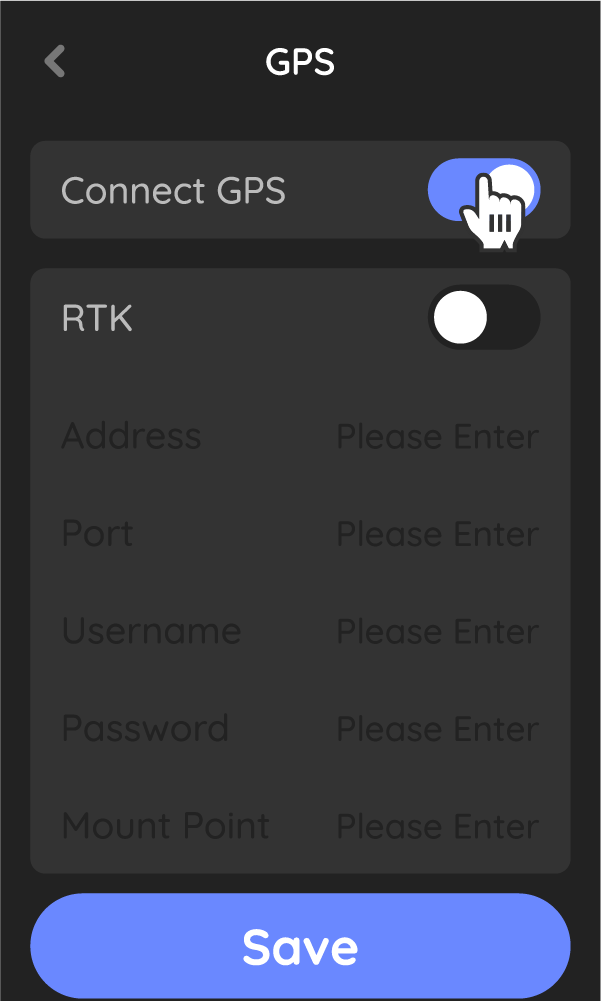
- The exported model has the data with the RTK_XXXXXX.bin name (for specific RTK devices, if GPS is turned on during scanning, the exported scan data file will automatically generate data with RTK_XXXXXX.bin name)

Other requirements
Relevant files including the Observation Data file and the Parameters/Position Data file need to be obtained from the RTK base station.
Naming conventions vary by year. For example, the observation data file for the year 2025 is named.25o, and the parameters/position data file is named.25p; for the year 2026, the files are named.26o and.26p
(Connect the base station to a computer and export the files from the "Static Record Files". Procedures may vary slightly depending on the device model in use.)
Procedure
After importing the scan data with the RTK_XXXXXX.bin name, if you select RTK Configuration, you can import the file path obtained from the RTK base station to perform RTK-related processing, as follows:
①Check the RTK configuration during data processing.
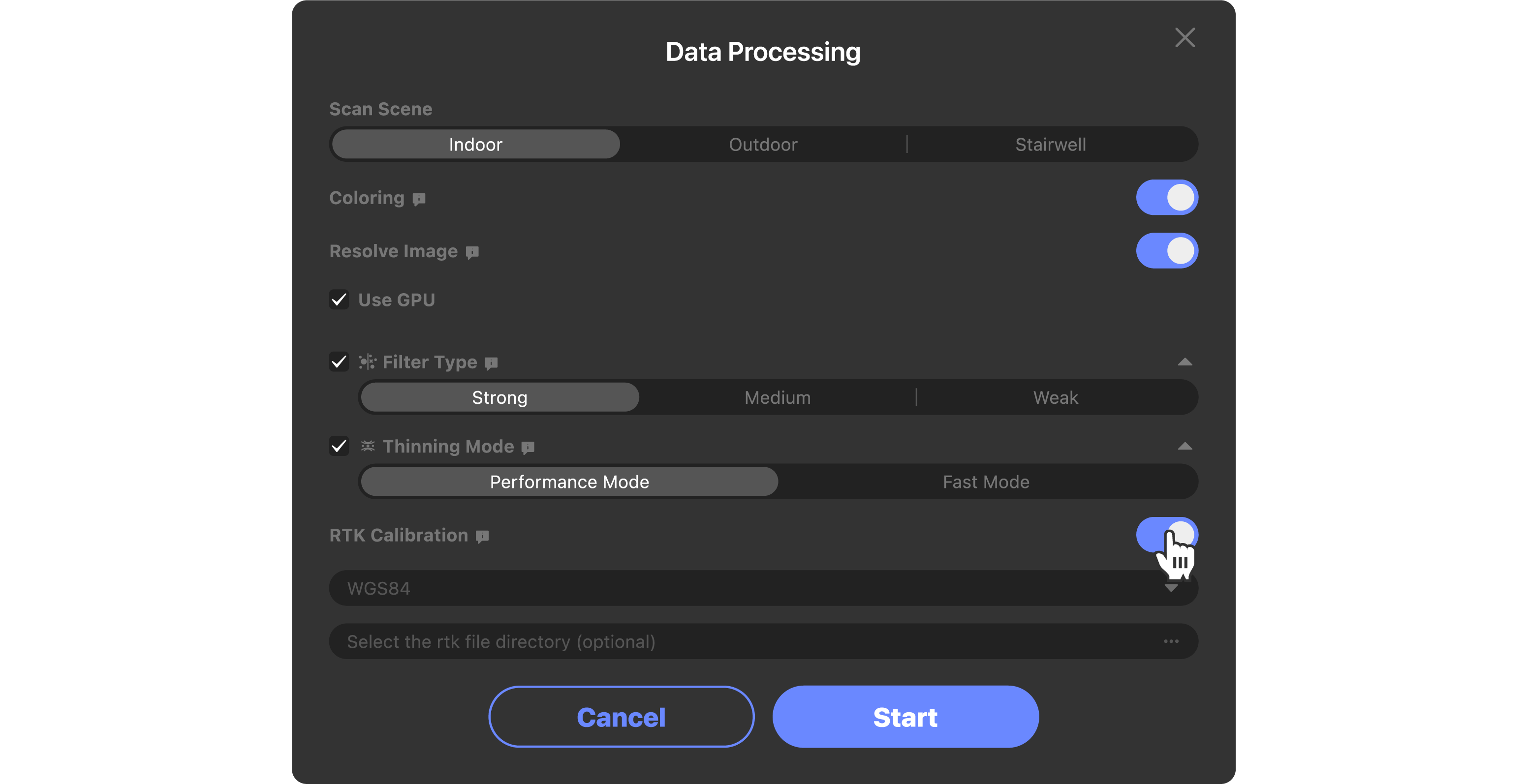
②Select the folder corresponding to the local RTK base station (containing.25o and.25p data) and click to start data processing
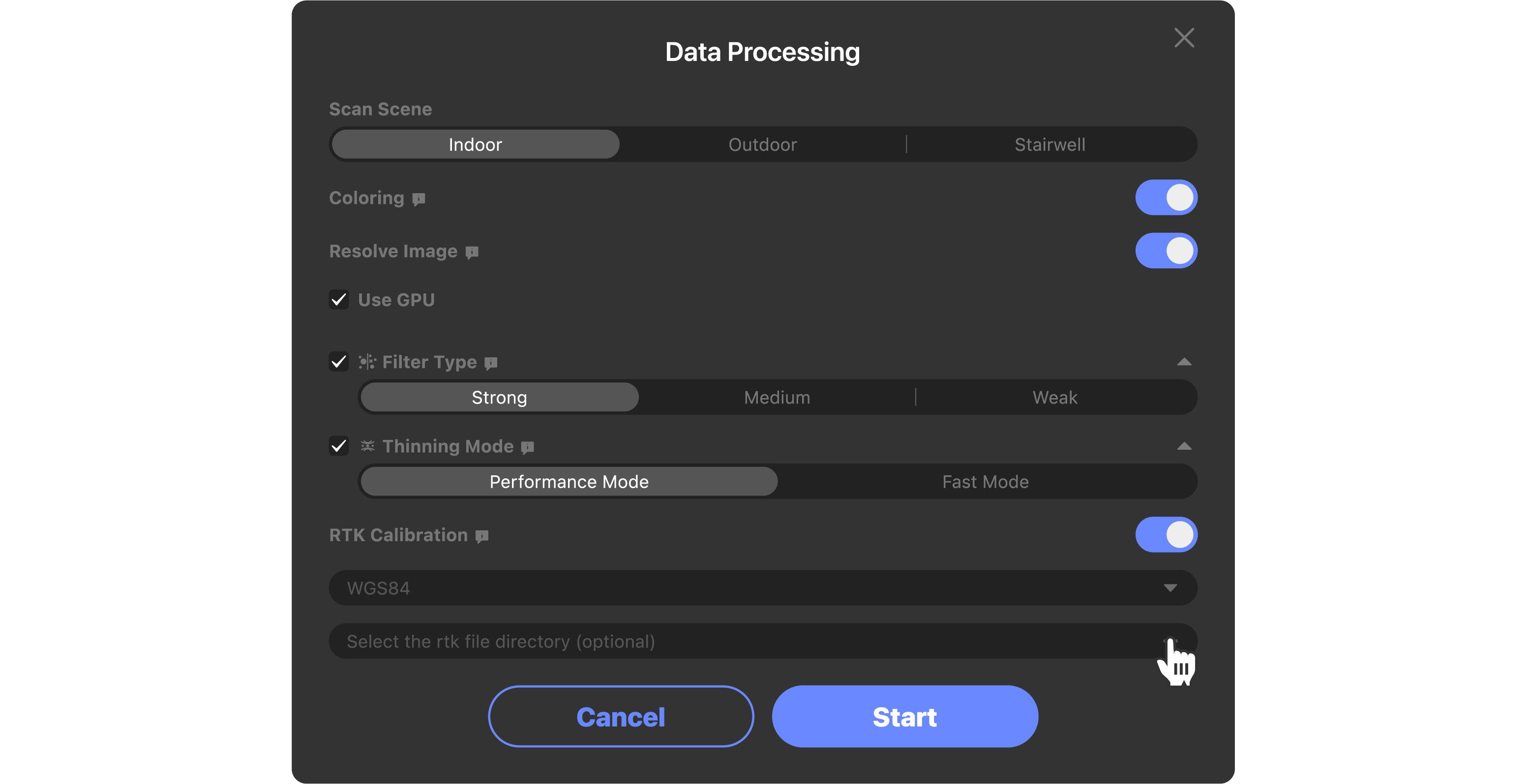
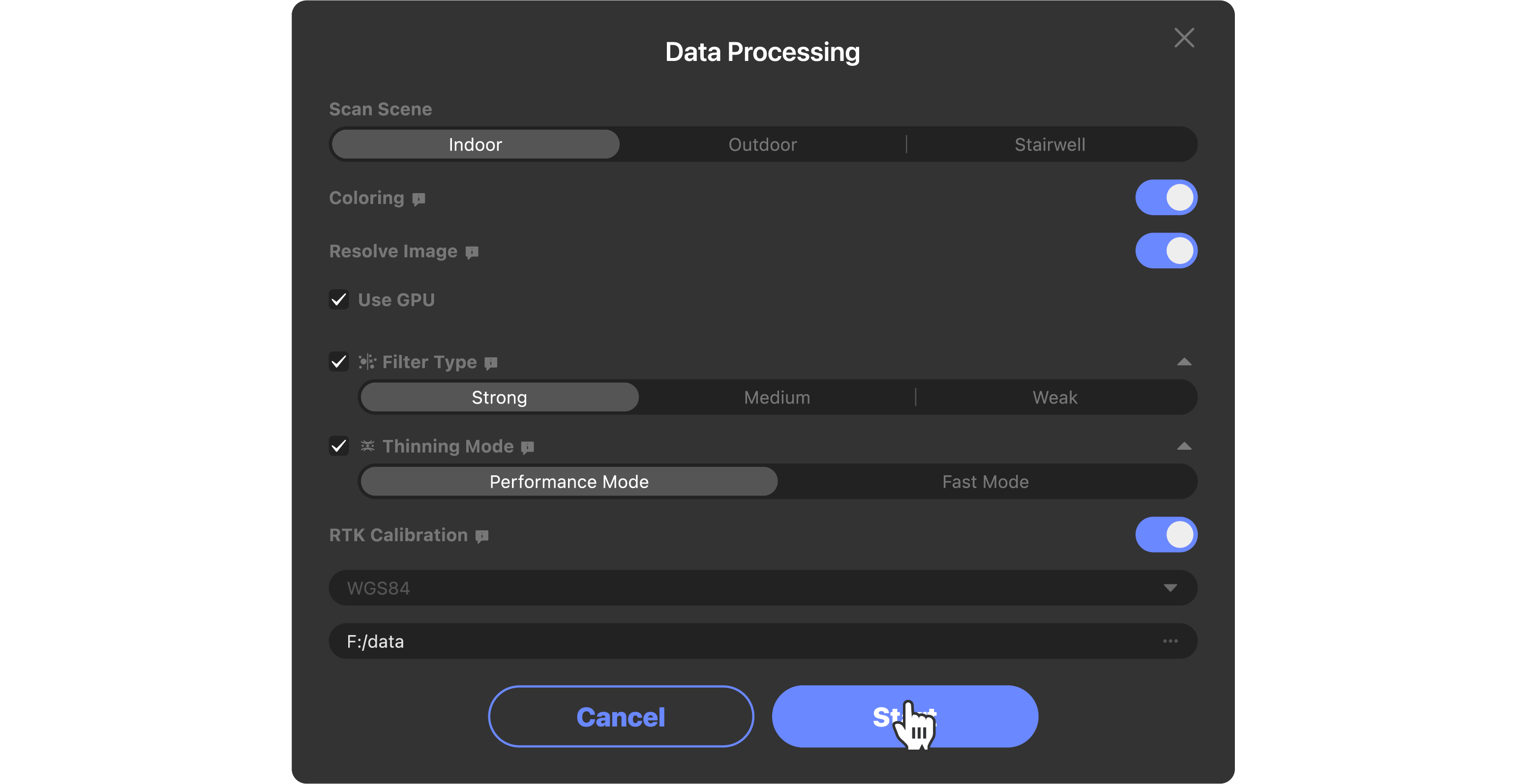
③RTK data is generated in the data list
RTK differential service
The actual positioning accuracy is affected by various factors, such as whether there are obstructions in the surrounding environment, whether it is a high-speed dynamic scenario, and whether the ionosphere is active or the satellites are functioning properly.
Scan requirements
The scanning device needs to be a device with RTK accessories (including built-in chip and external GPS)
Before scanning, the device needs to be connected to the network. During scanning, differential data is obtained through the network (for outdoor scanning, it is recommended to connect to a mobile network).
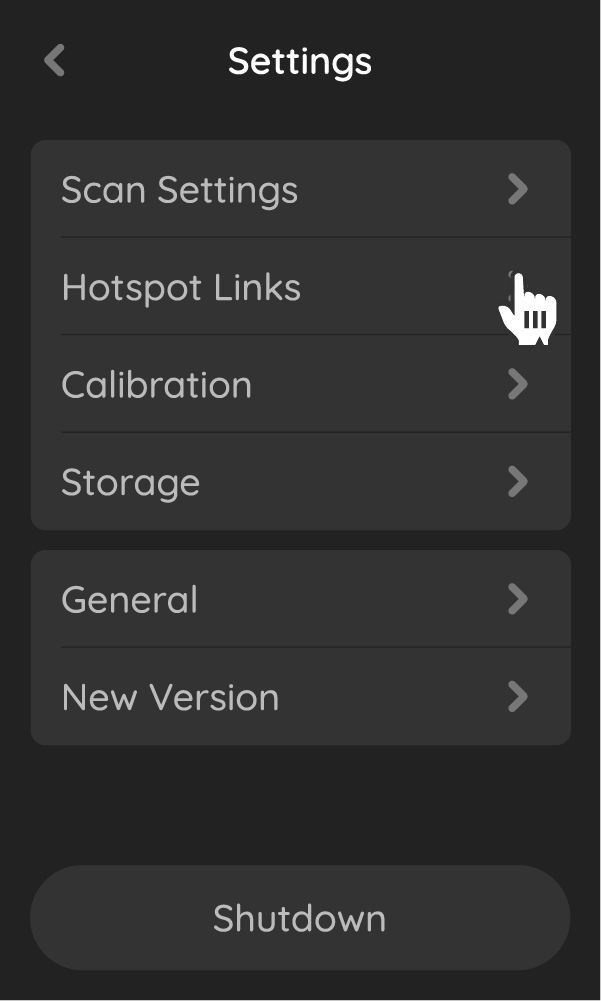
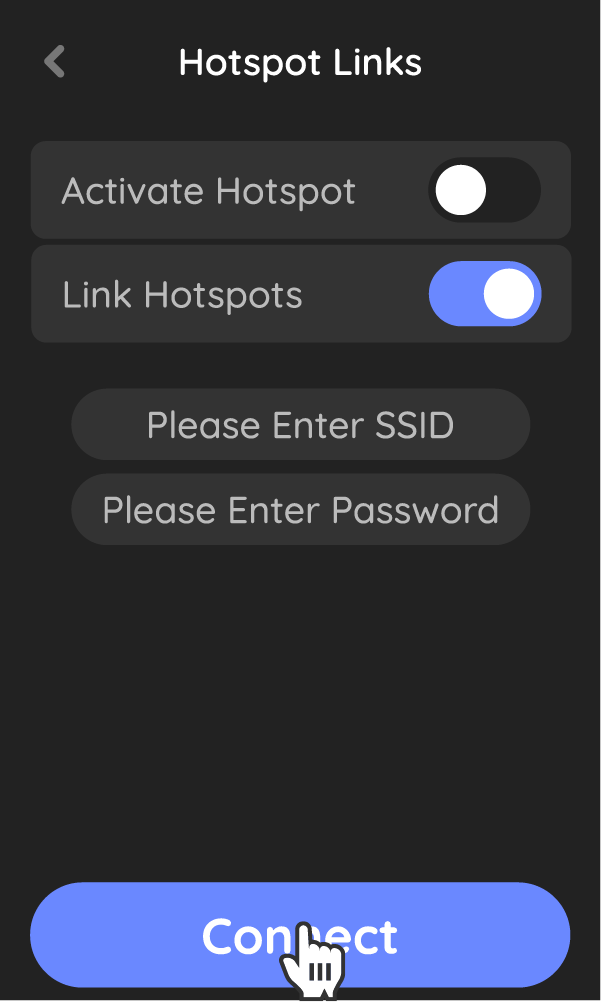
Purchase RTK differential data services from a third-party provider and obtain information such as domain name, port, username, and password.
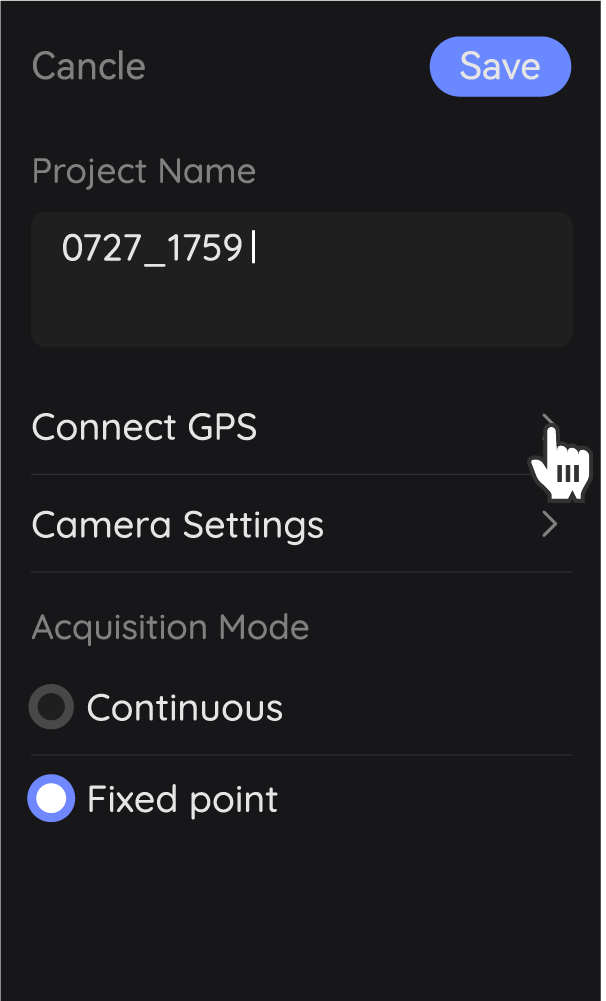
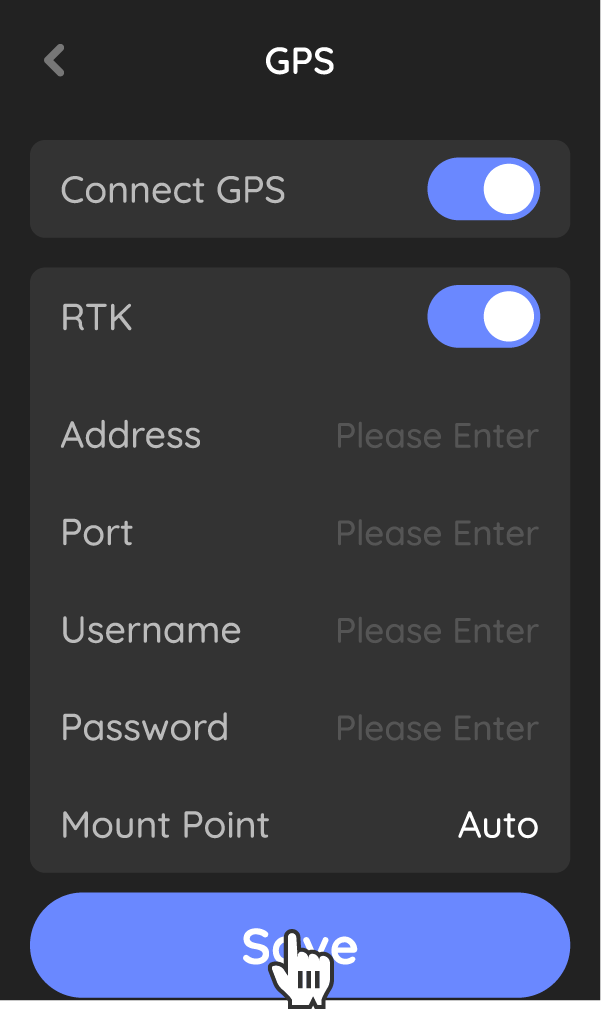
When scanning, GPS and RTK need to be enabled, and the domain name, port, username, and password for the RTK differential data must be entered.
- The exported model contains data named RTK_XXXXXX.bin
Procedure
After importing the scan data with the name RTK_XXXXXX.bin, you can directly process it by selecting the RTK configuration. The specific steps are as follows.
①Check the RTK configuration during data processing.
②RTK data is generated in the data list
Export the Model
Click "Export" in the "Data Layer List" at the bottom right:
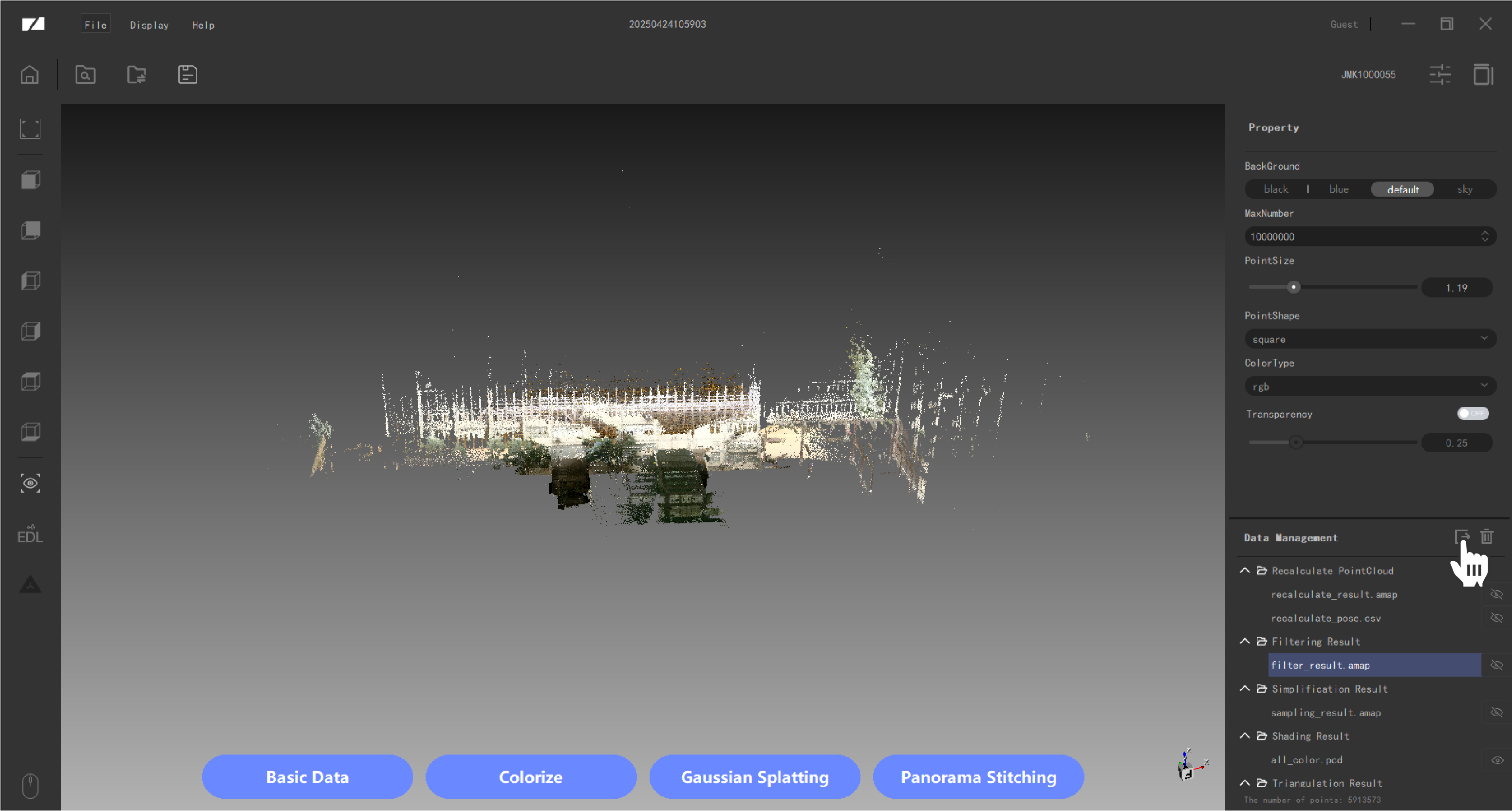
At present, the software point cloud data supports the export of LAS, PCD, PLY,e57, xyz formats, and more model formats will be added in the future, thank you for your attention!