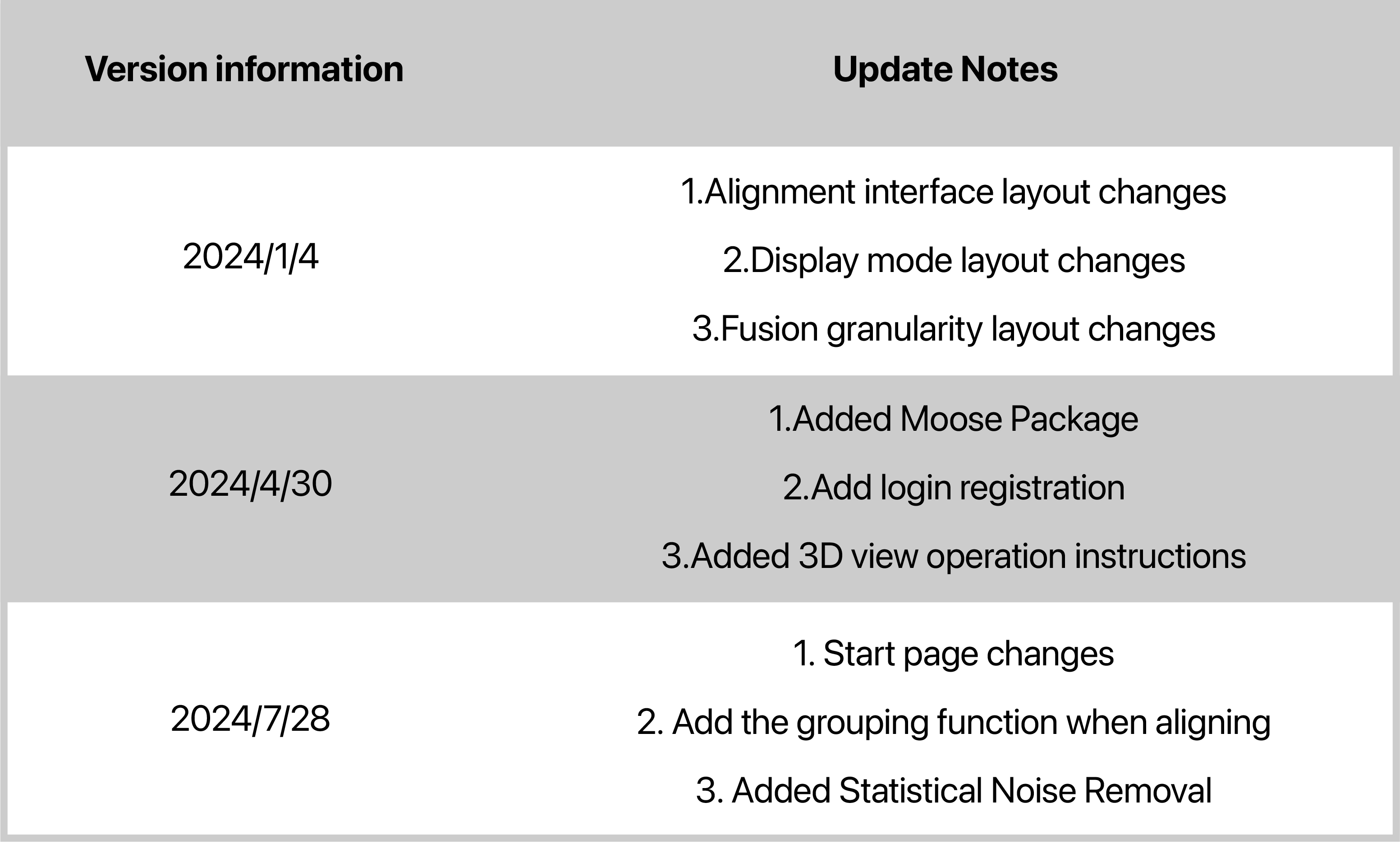
Update Notes
The version information is as follows:
Software Installation
JMStudio, as the exclusive built-in software for 3DMakerpro 3D scanning equipments, comprehensively handles multi-mode data acquisition, high-definition real-time preview and texture mapping, as well as 3D model generation and processing. Furthermore, it also supports the export of 3D models in OBJ, STL, PLY and other common formats.
Operating System Requirement
Recommended Computer Configurations
Intel Core i7 8th, 16GB RAM, NVDIA1060 GPU with 4GB VRAM
Minimum Computer Configurations
Intel Core i5 8th, 16GB RAM, MX250 GPU with 2GB VRAM
How to Install
You can acquire the application file by visiting our website: Click here to download
Follow the steps below to install the software.
For macOS
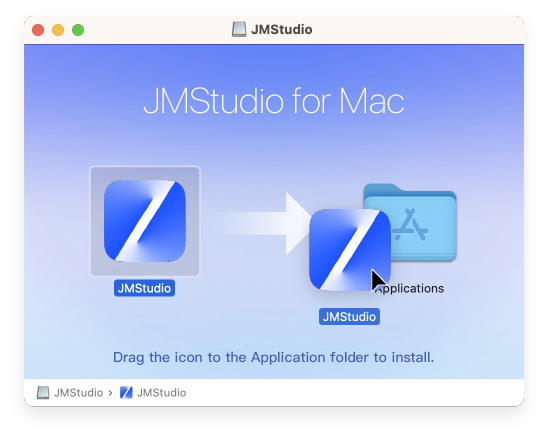
①Double-click the application file and drag it to the Applications folder.
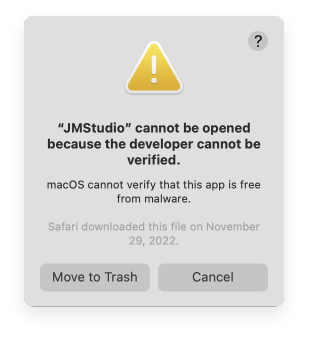
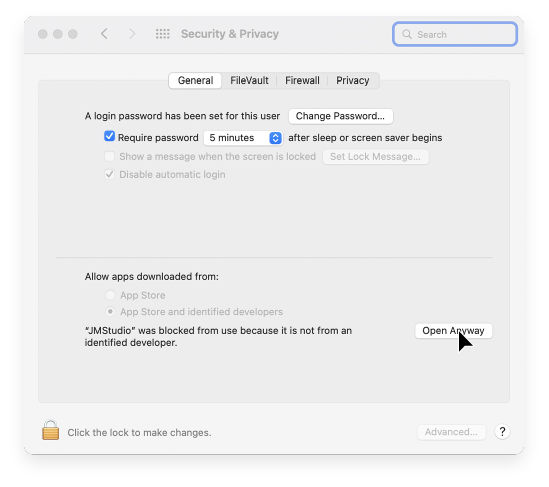
②When this erro occurs, please go into your Security & Privacy,check the App Store and Identified Developers radio button, and click Open Anyway.

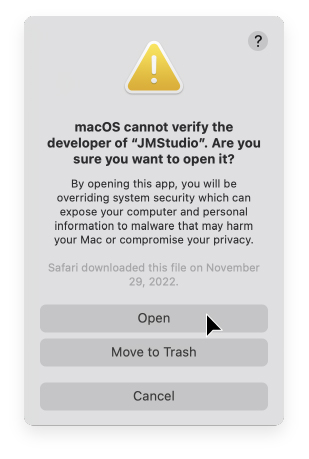
③Allow JMStudio to access files in your Desktop folder.
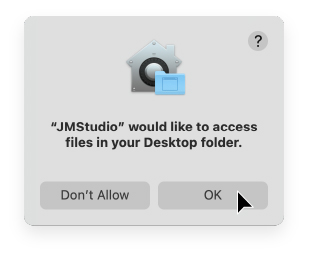
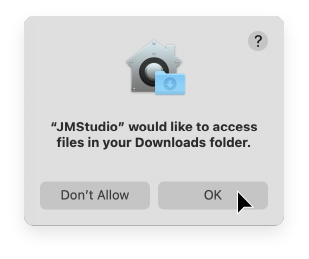
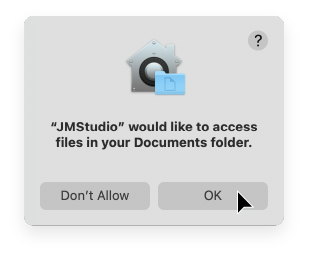
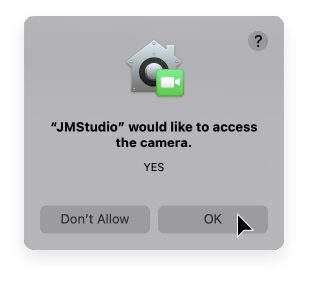
④Run JMStudio, allow it to access the camera, now the installation is completed.
For Windows
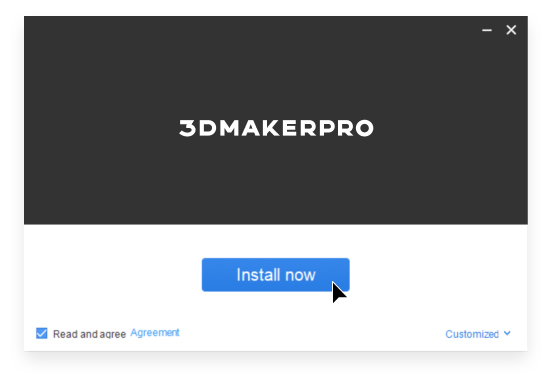
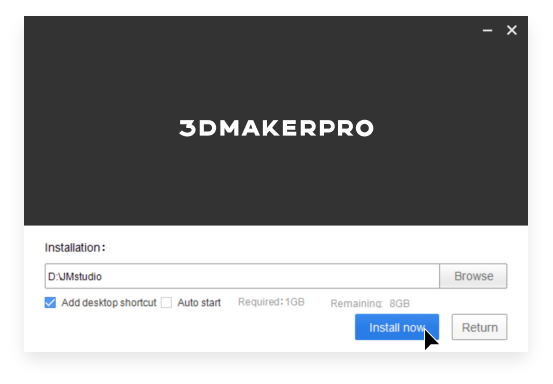
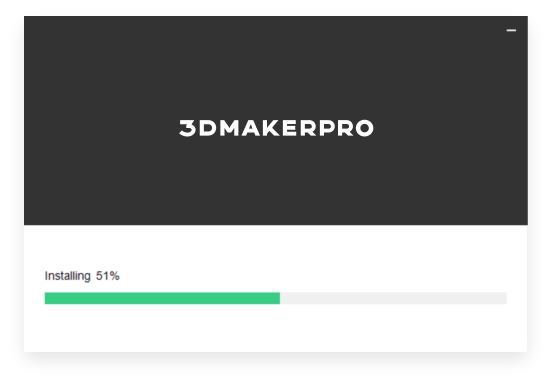
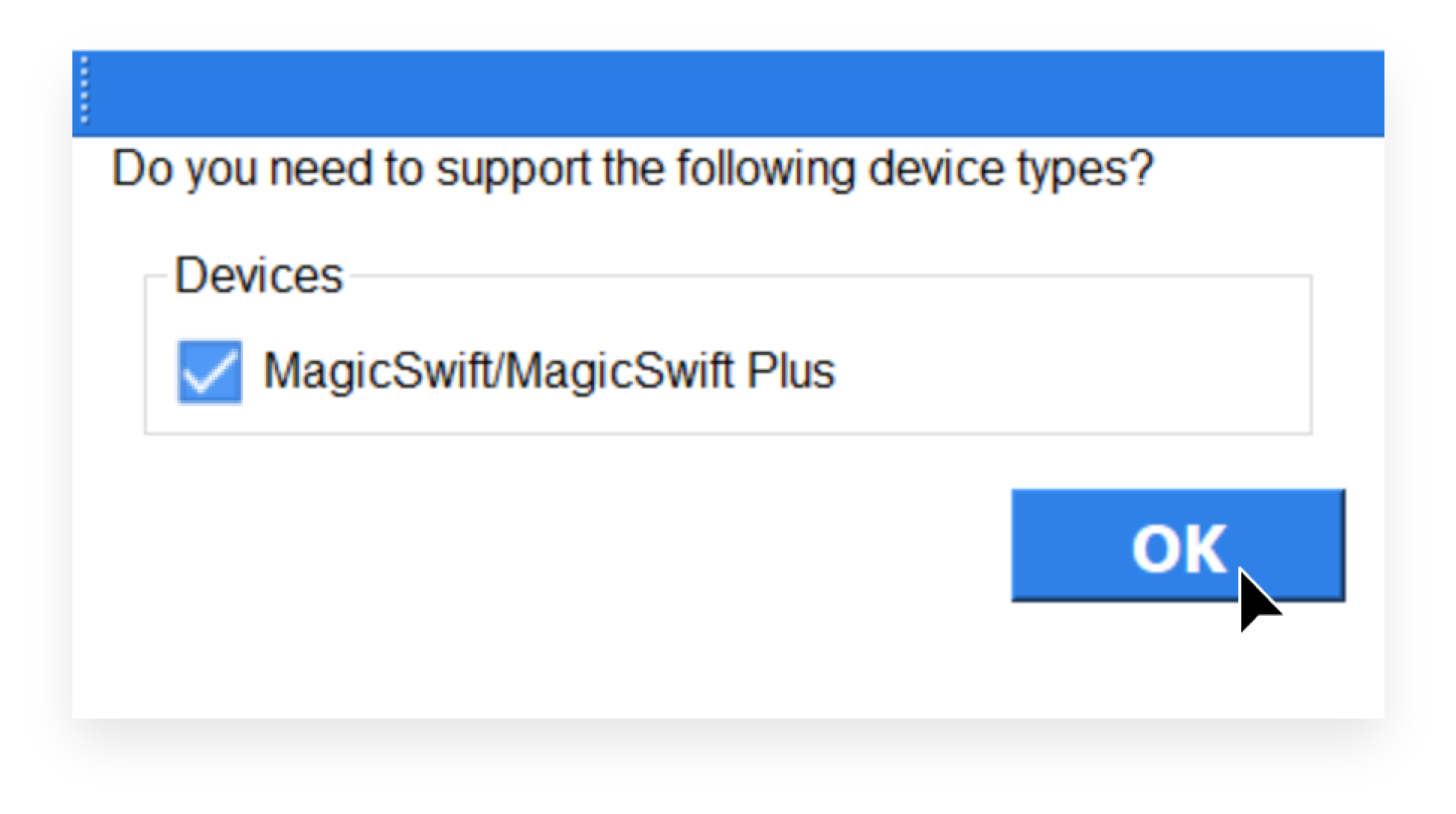
①Click on the application file, follow the intallation wizard and click Next to install the software.
Software Upgrade
Please make sure you're running the lastest version of software, or visit here to get one: Click here to download
Log in to register
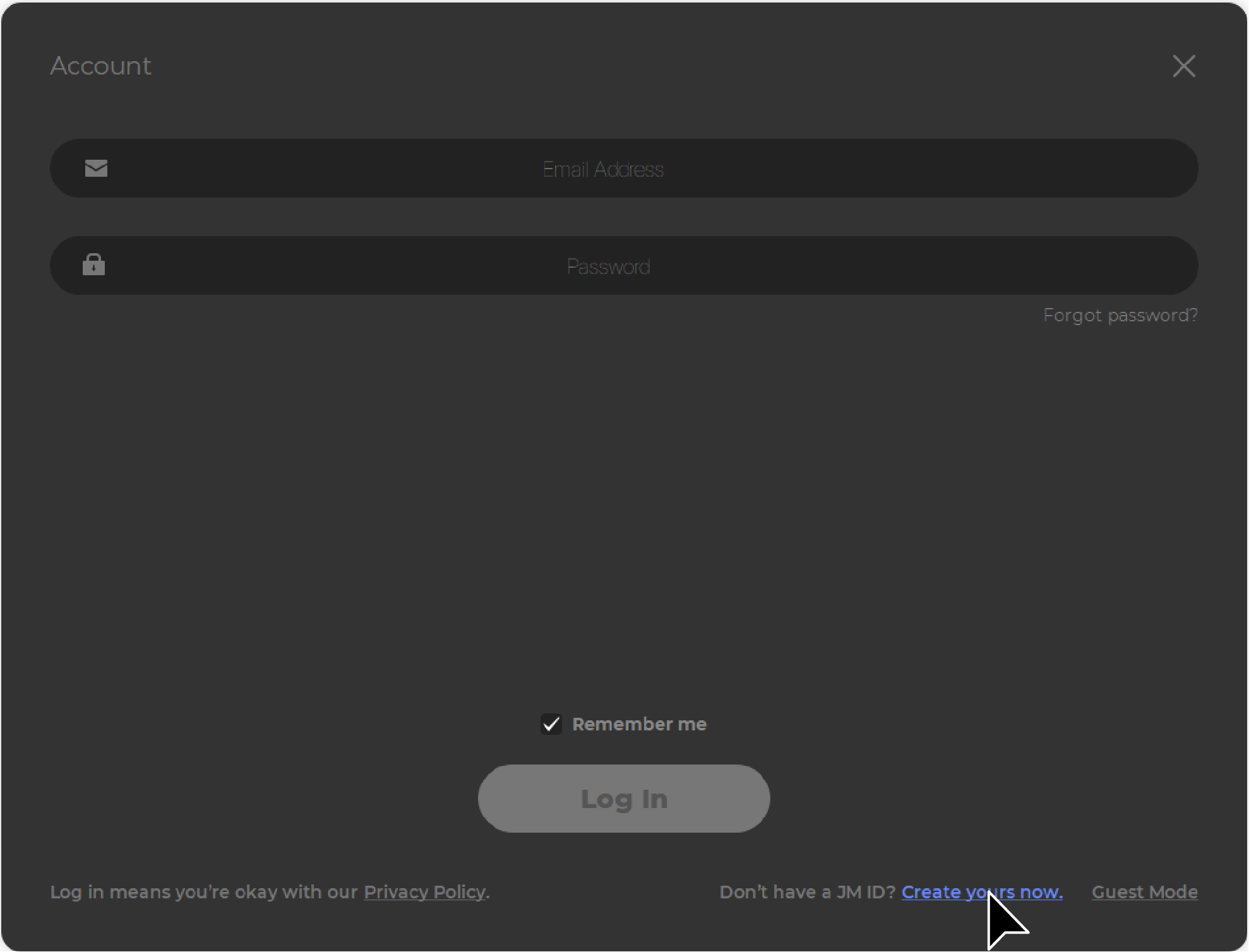
Log in with the account you have registered with us. If you have not registered, you can click "Create yours now." in the lower right corner to jump to the official website to register.
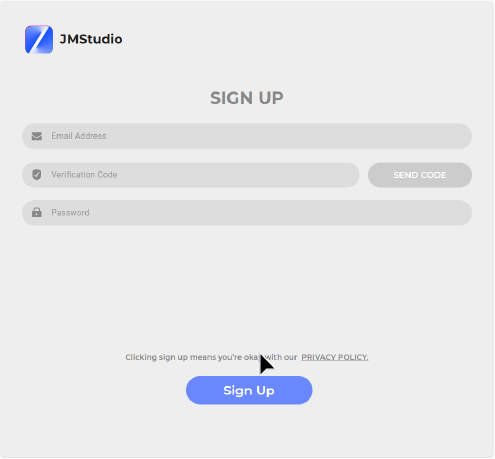
Enter the email information, click "SEND CODE", enter the verification code in the email and set the account password to register.
- Log in to your JM ID in JMStudio and connect your device, which will be automatically bound to your JM ID.
Maintenance of equipment information
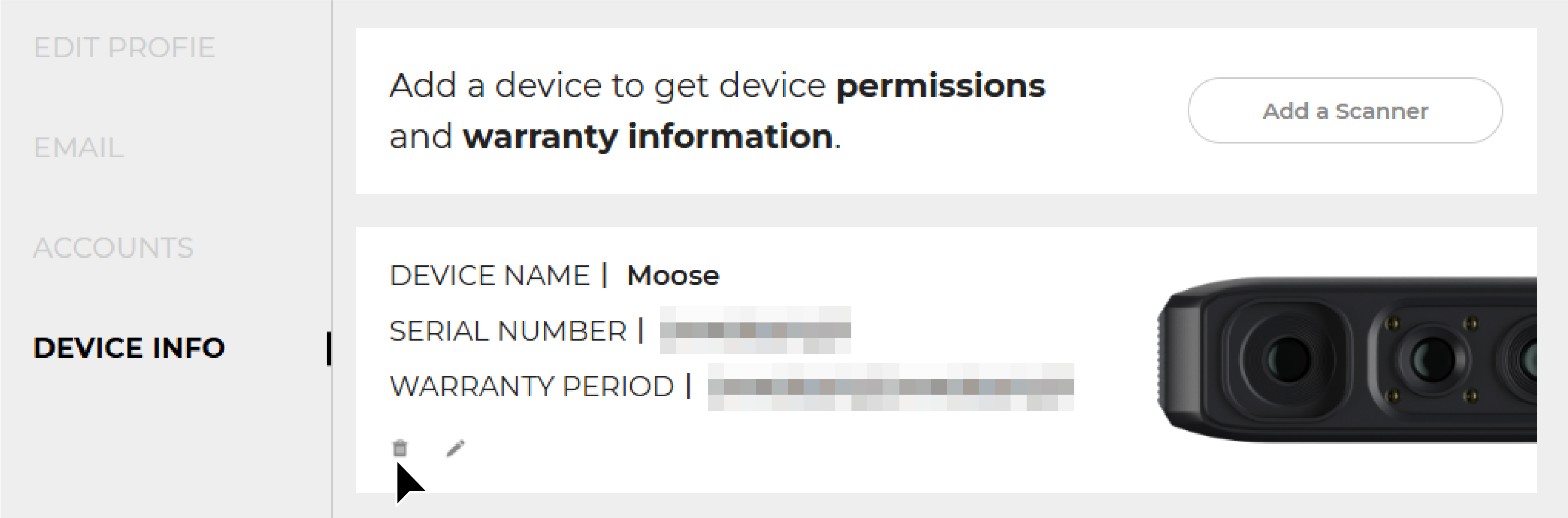
Open JMMeta in your browser (https://forum.jimumeta.com/home.html),log in to your JM ID, expand your login account information in the top right corner, and click "SETTING".
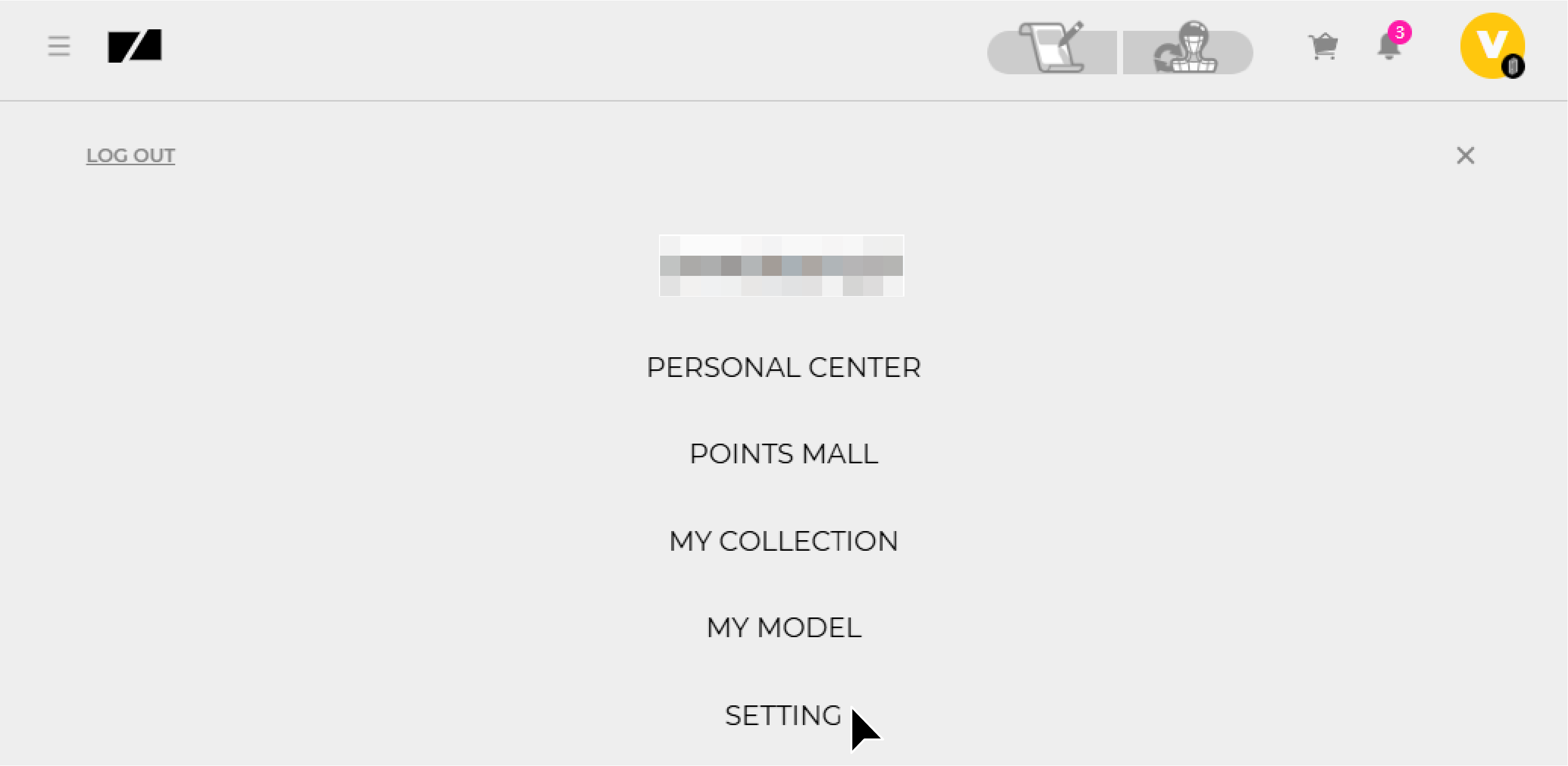
In "DEVICE INFO", check the devices under your name. If you need to unbind the device, click the delete button at the bottom of the device.
User Interface
Start page
The start page is divided into two parts: Home and Learn, and you can directly understand the general operation content in "Learn" before entering the operation from "Home".

Home
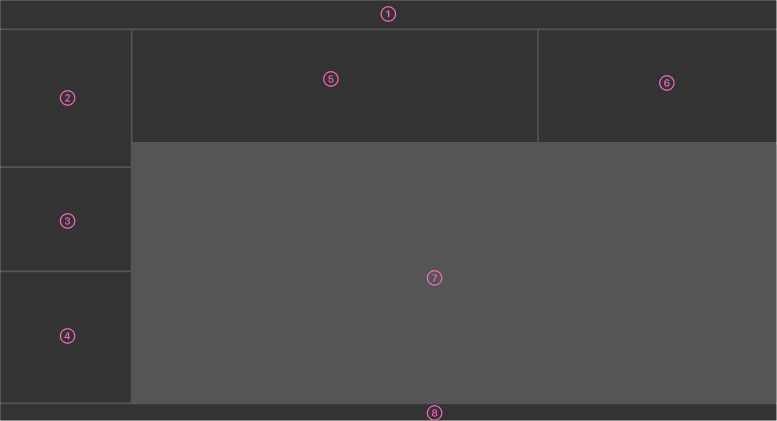
The Home function partition is as follows:
①Title Bar ②Navigation Bar ③Official Information Bar ④Main Operation Area ⑤Bulletin Board ⑥Device Status Bar ⑦File List ➇Status Bar
Learn
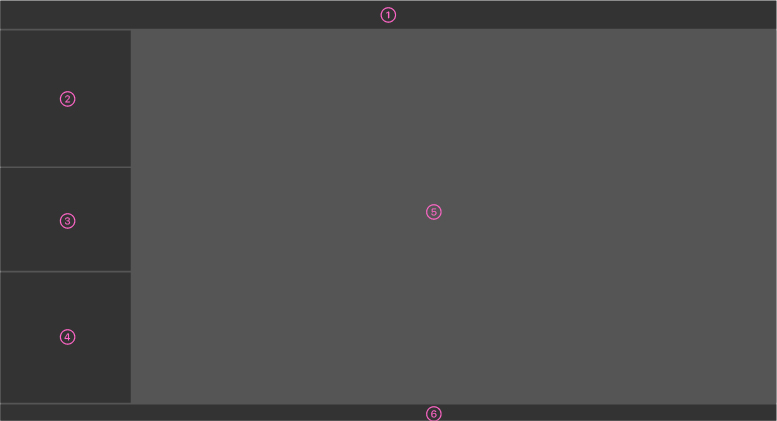
The Learn function is divided as follows:
①Title Bar ②Navigation Bar ③Official Information Bar ④Project New Construction ⑤Study Area ⑥Status Bar
The main interface of the software
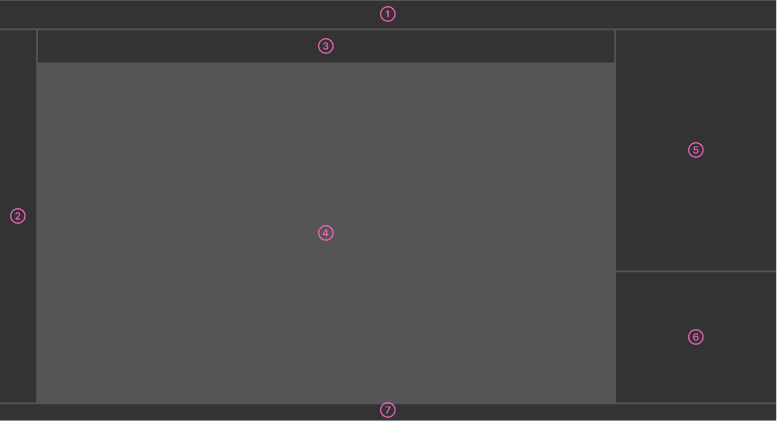
The user interface consists of the following parts:
①Title Bar ②Tool Bar ③Work Mode ④3D Viewer ⑤Work Panel ⑥Data Panel ⑦Status Bar
Title Bar
The Tools ribbon is as follows:
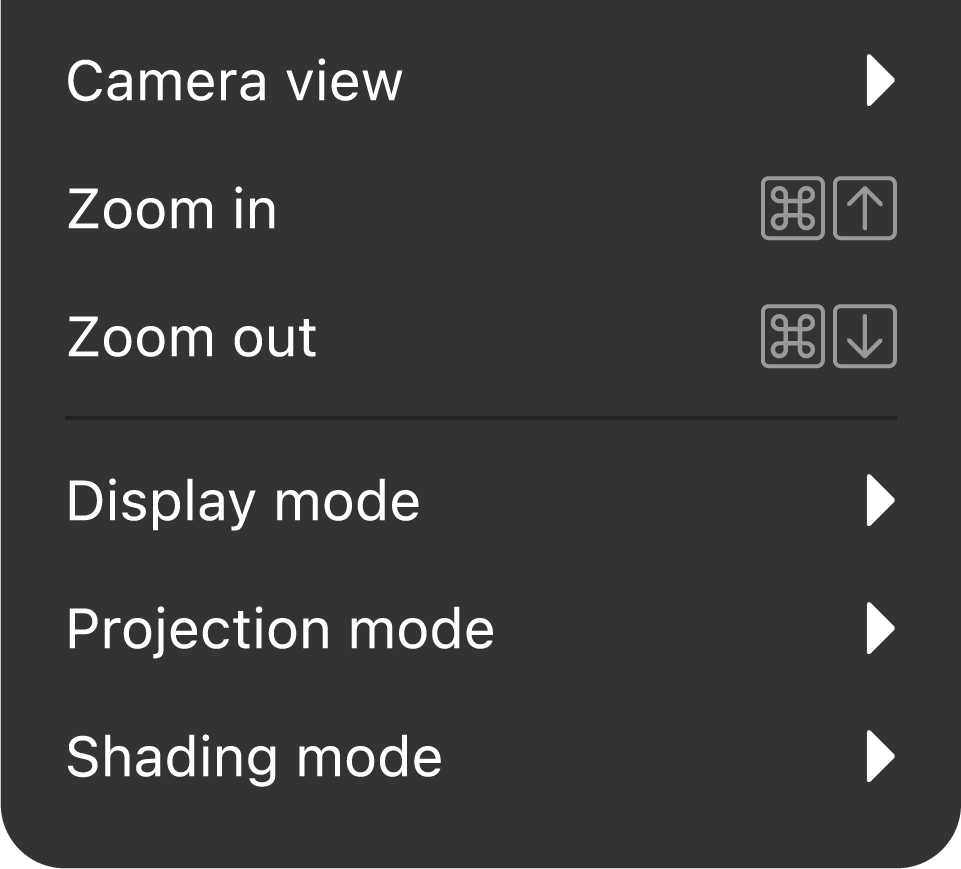
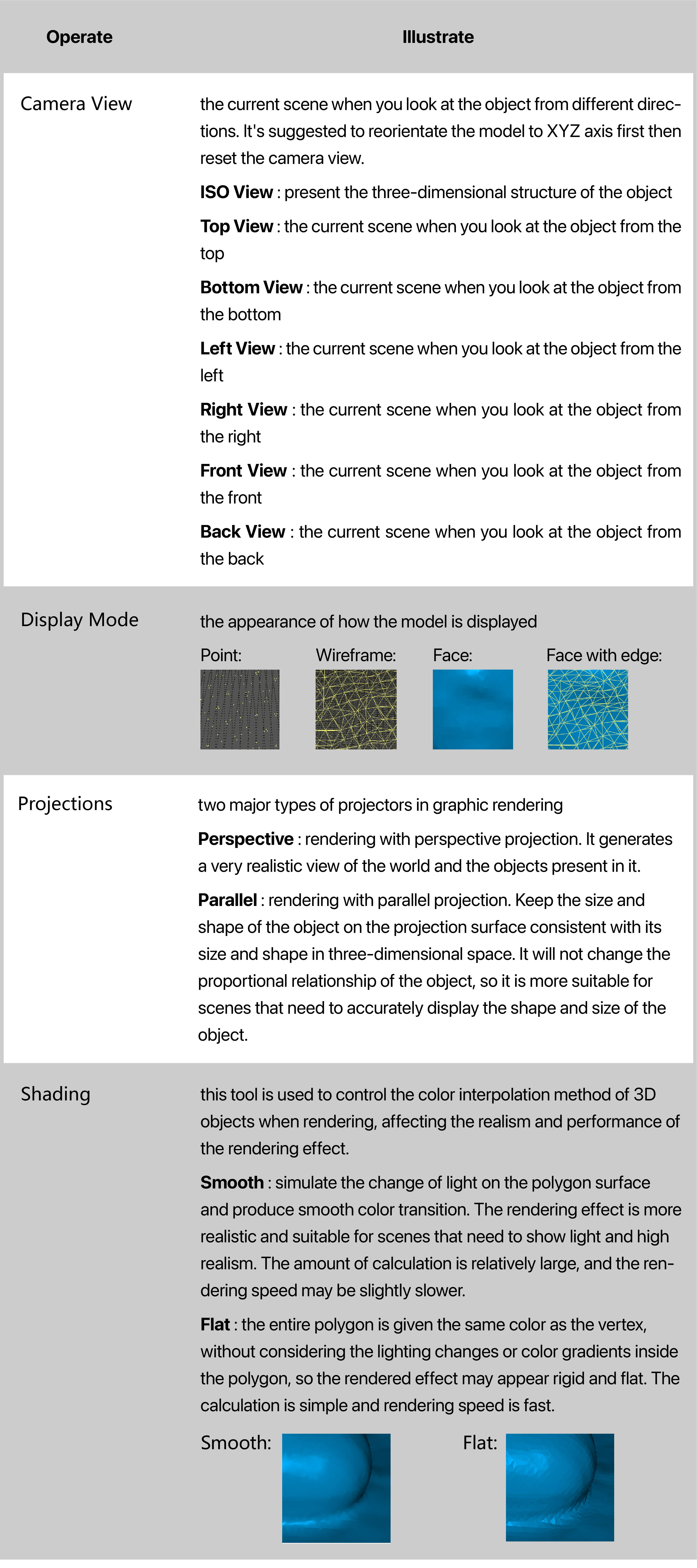
Tool Bar

3D Viewer
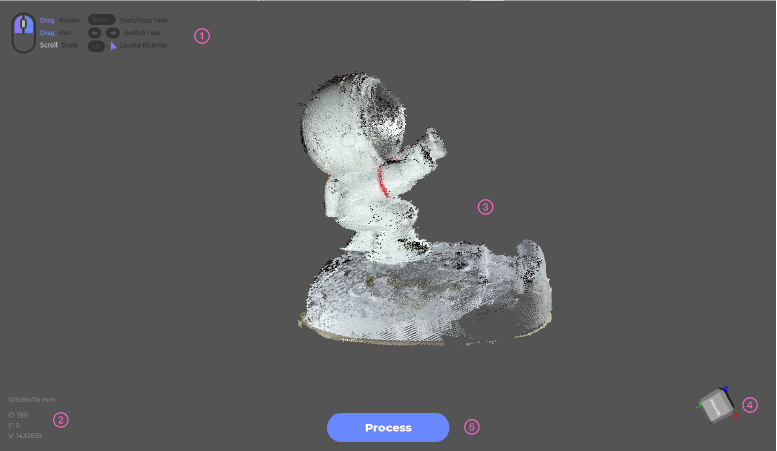
The 3D View ribbon is distributed as follows:
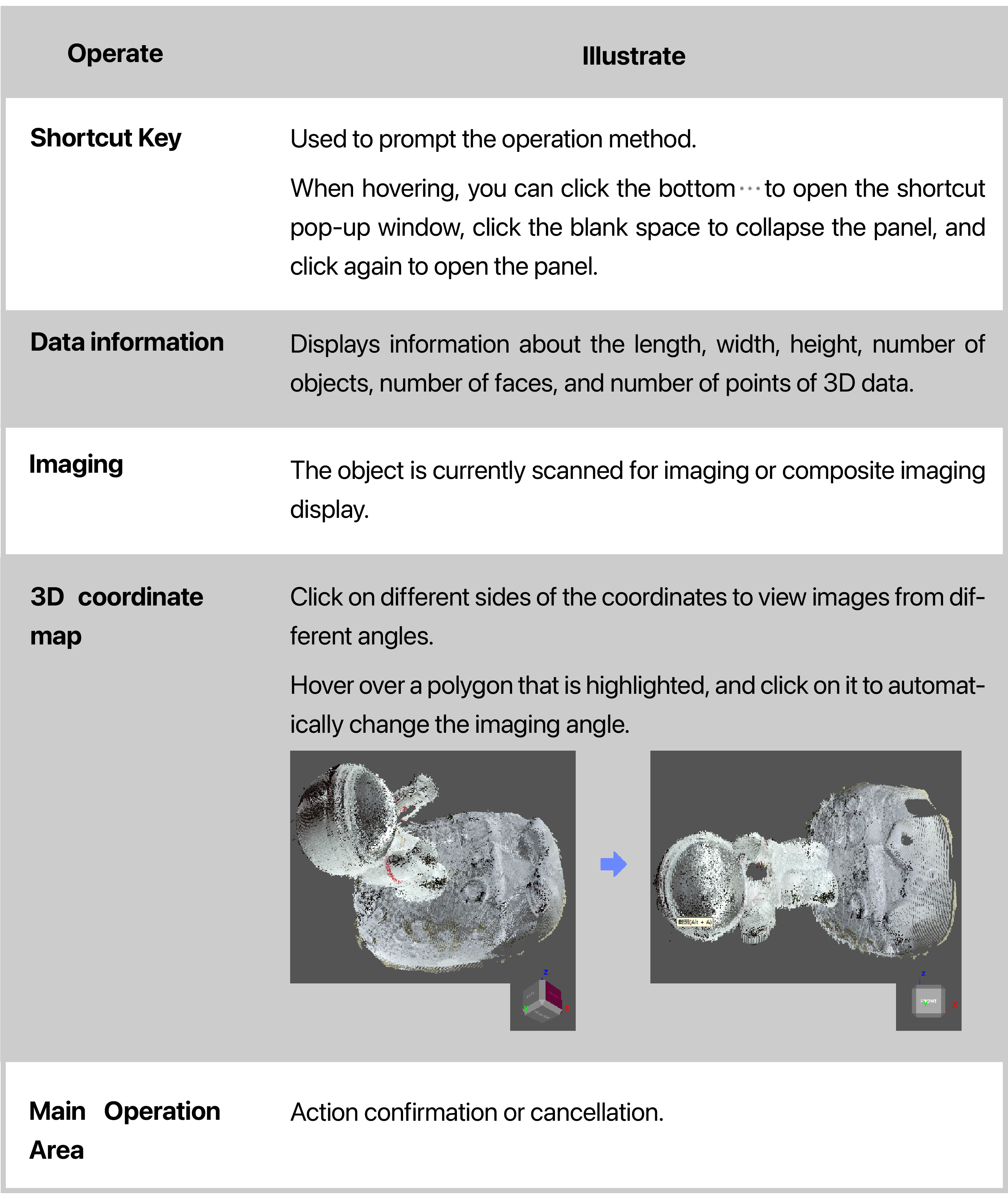
①Shortcut Key ②Data information ③Imaging ④3D coordinate map ⑤Main Operation Area
Shortcut Key
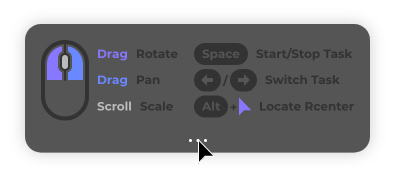
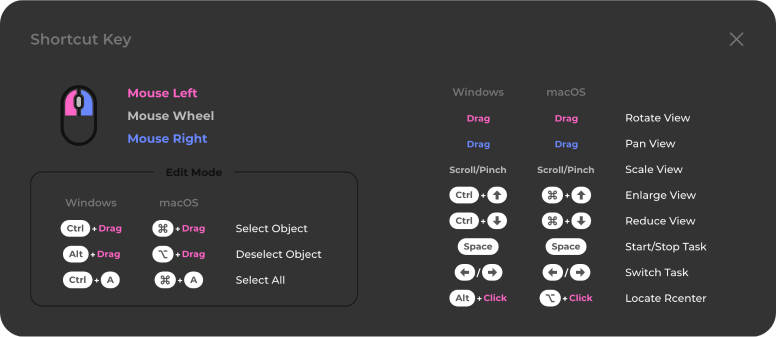
The upper-left area in the 3D viewer shows you the commonly used mouse and keyboard shortcuts; check all the shortcuts by hovering over this area and clicking the ellipsis below. You can also view or modify more shortcuts by going Settings_Shortcut Key.
Scanning Workflow
Import the Calibration File
The first-time scan requires you to calibrate the scanner by importing the calibration file. Before that, please refer to** Lynx_Hardware Connection ** 、 Mole_Hardware Connection 、 Whale_Hardware Connection 、 MagicSwift Plus_Hardware Connection 、 CR-Scan Liard_Hardware Connection to ensure the scanner is well-connected.
Make sure your PC is networked to download the calib file. For Windows, JMStudio can automatically identify your scanner and download the calib as well; for macOS, it requires you to set the scanner type first then download it.
Follow the steps below to calibrate your scanner:
For macOS
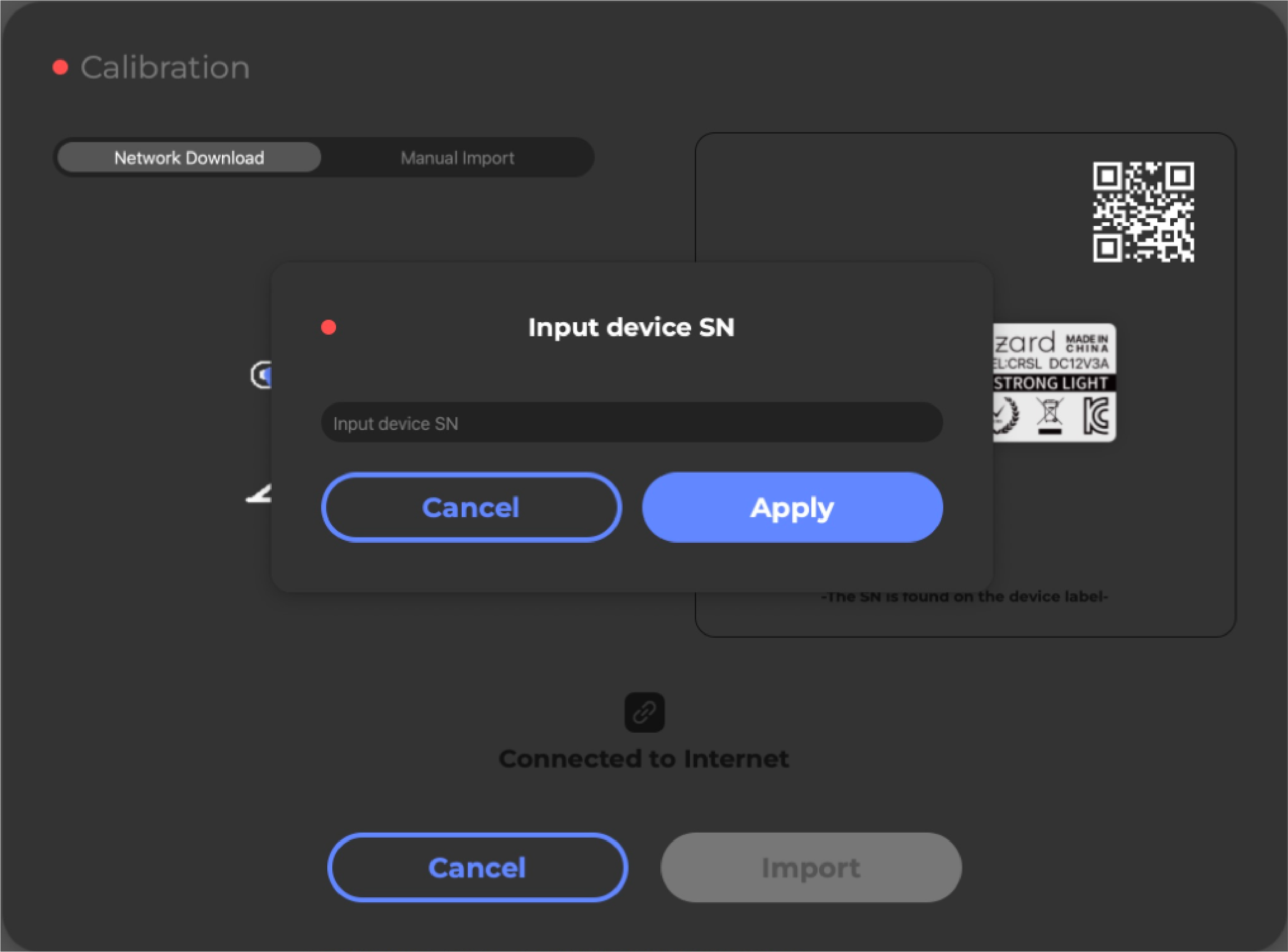
①In the Title Bar, click File_Import calib and go into Network Download, then input the device SN and click “Import”.
The device SN can be found at the buttom of the scanner body, then input the letters and numbers and apply to await the prompt “Import successfully”.
Note: Please input the last 7 numbers if you are using CR-Scan Lizard.

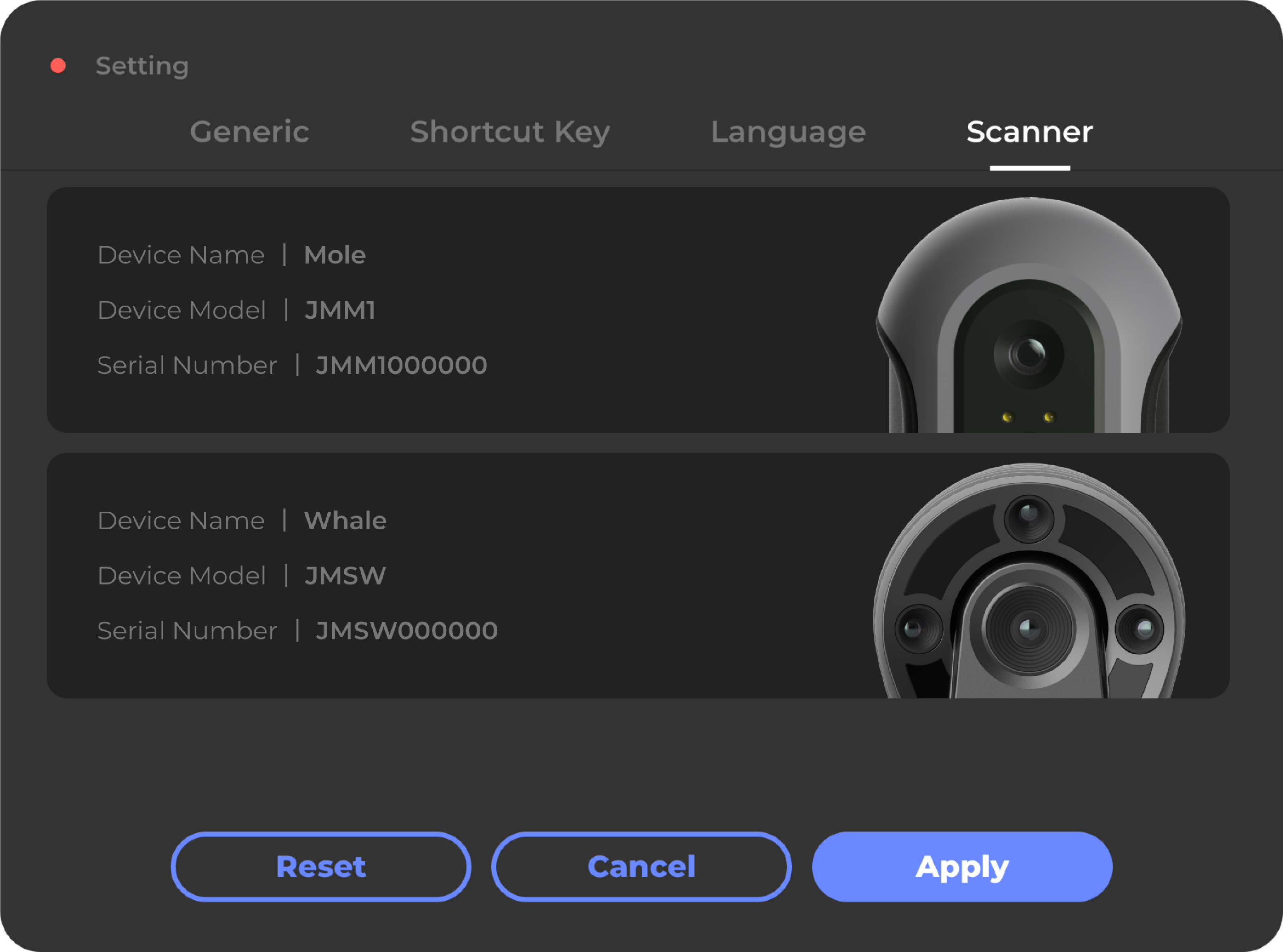
②The models that have been added and selectable will show in the Settings-Scanner menu, right corner of the Work Mode panel.You can add multiple models once and for all for future reference.
Please make sure the selected calibration file matches your connected model.
Preparation
Preparation for special objects
Moose: Moose has a standard format of 200mm and an accuracy of 0.03mm, which can capture more target features and is suitable for fine scanning of small objects.
Moose Lite: Moose Lite has a standard format of 200mm and an accuracy of 0.05mm, which can capture more target features and is suitable for fine scanning of small objects.
Seal is a micro scanner with an accuracy of up to 0.01mm and a capture range of 100mm, suitable for ultra-fine scanning of small objects.
Seal Lite is a macro scanner with an accuracy of up to 0.02mm and a capture range of 100mm, suitable for ultra-fine scanning of small objects.
Lynx: With 400mm wide capture range, lynx is capable of capturing as many as details, and scanning large sized objects in a smooth and fast manner.
Mole: Mole has a standard format of 200mm and an accuracy of 0.05mm, which can capture more target features and is suitable for fine scanning of small objects.
Whale: With two cores both in one, Whale is able to scan large-sized objects by activating its wide core; while captures the greatest details of small-sized objects with the micro core at work.
MagicSwift Plus: With 400mm wide capture range, MagicSwift Plus is capable of capturing as many as details, and scanning large sized objects in a smooth and fast manner.
CR-Scan Lizard: Lizard has a standard format of 200mm and an accuracy of 0.05mm, which can capture more target features and is suitable for fine scanning of small objects.
Please choose the right scan mode according to the size of the object, for more information: Scan Mode
Objects needing special treatment
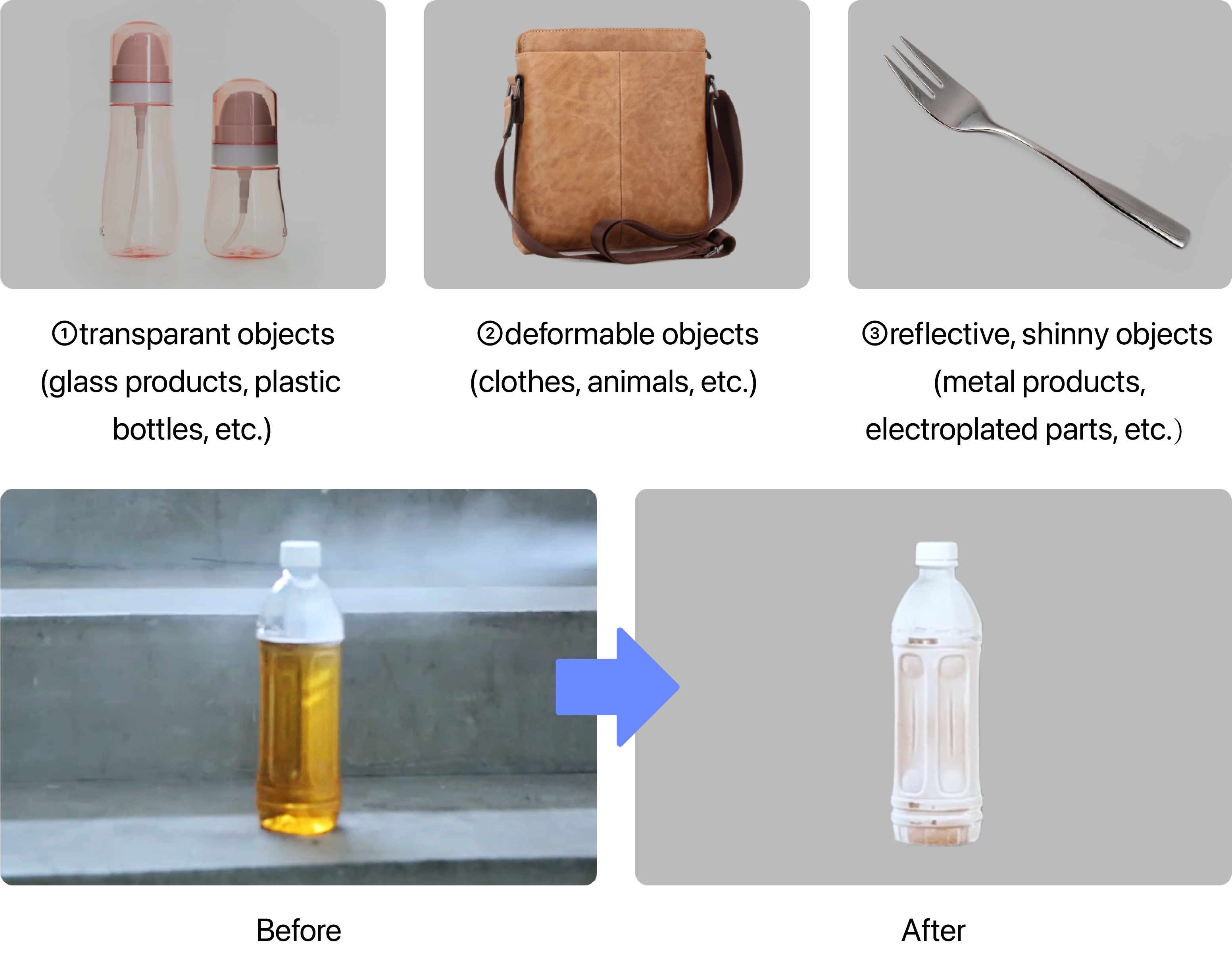
In order to get a better scanning result, please use spray, dry shampoo, powder, etc. on the following types of objects before scanning:
Preview and Adjustment
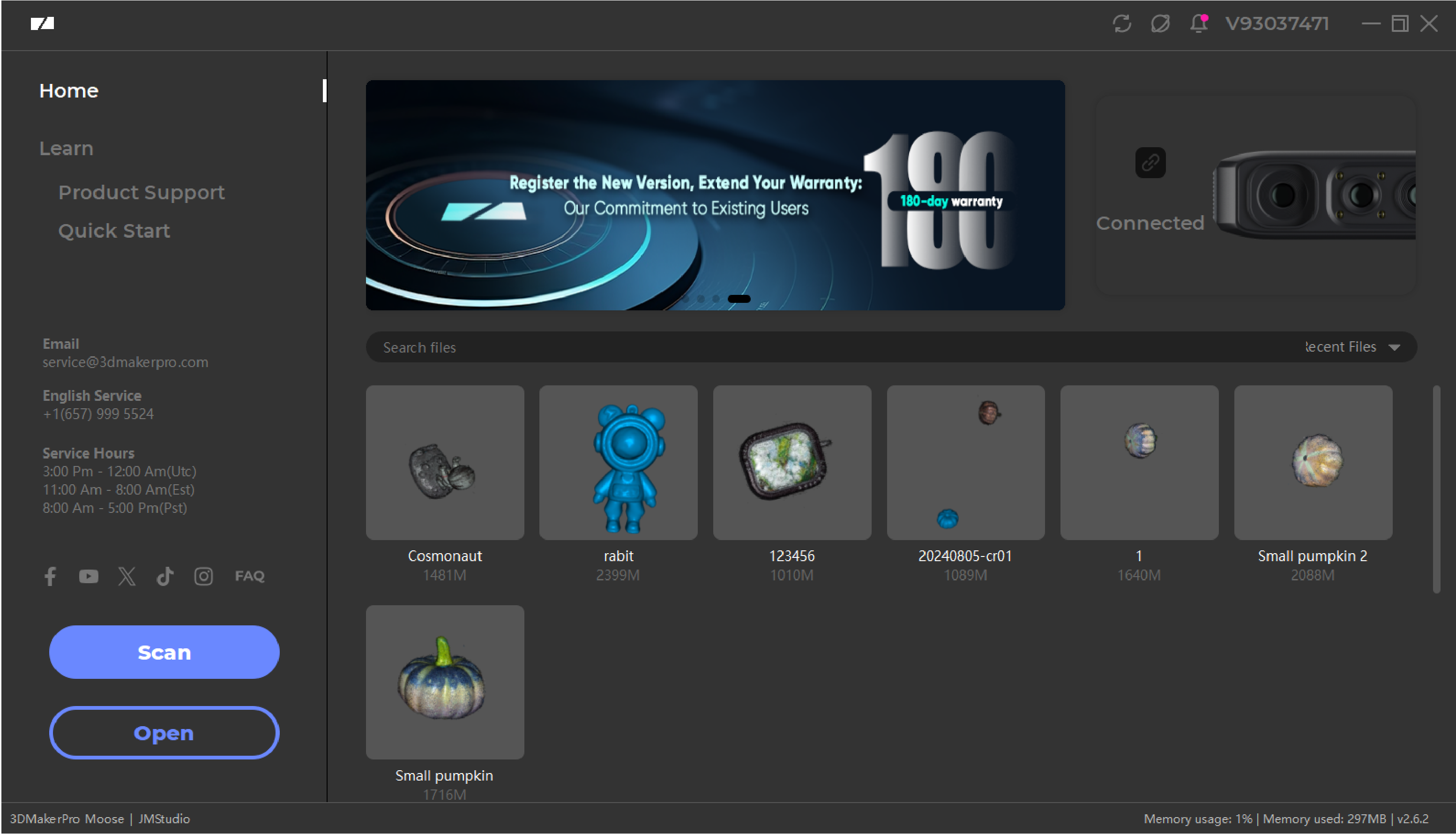
Click “Scan” in the splash screen and will go into scanning preview. In the preview, the Work Panel will switch into “Adjust” panel.
In order to get a best scanning result, please carefully read through the following instructions.
Scan Mode
In Easy Scan, you can operate the scanner flexibly to scan large sized objects in irregular shapes; In Table Scan, the scanner works with tripod and turntable to scan small sized objects and free your hands.
Please choose the right scan mode accordingly, and keep a proper working distance as follows.
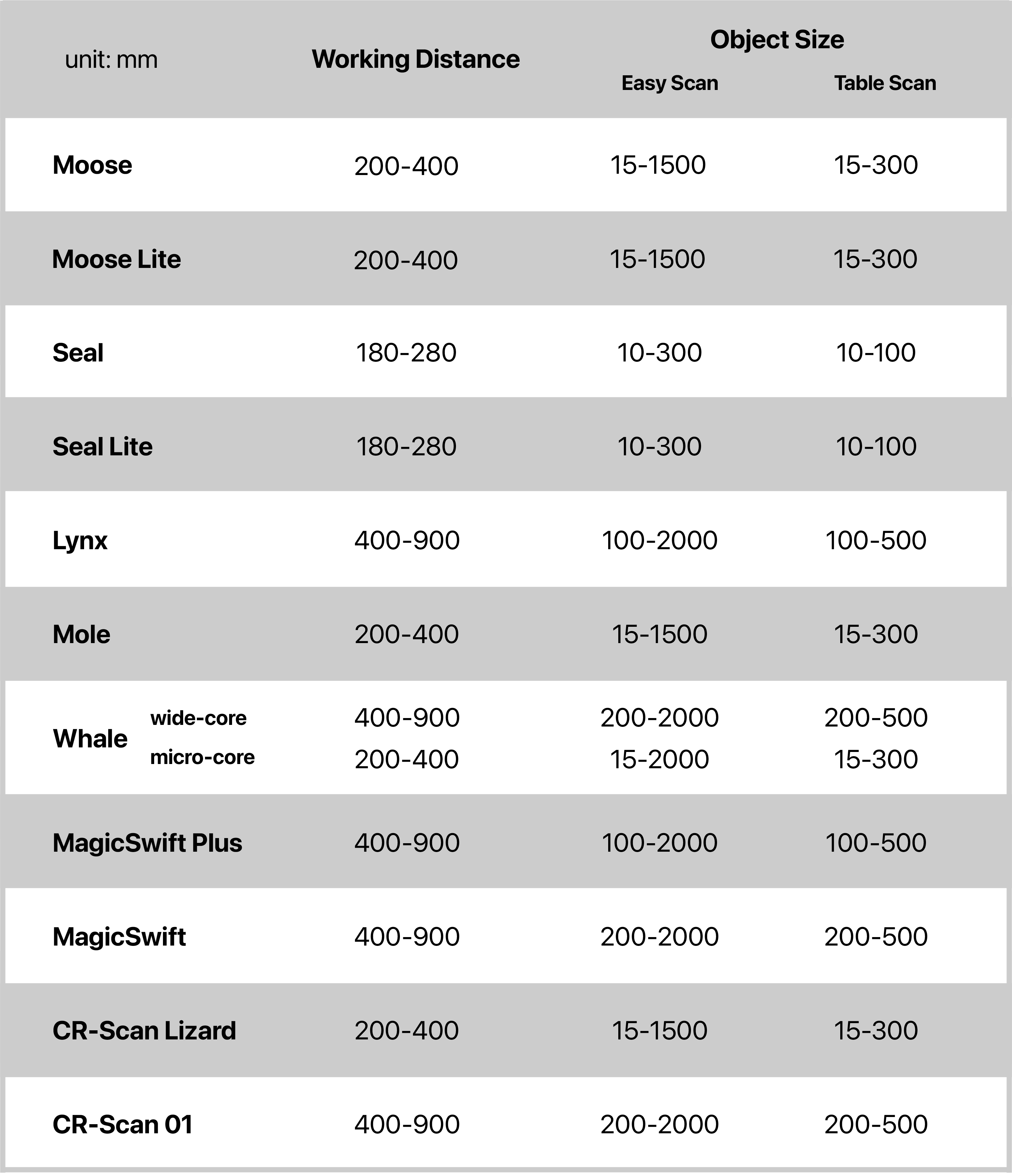
Choose “Easy Scan” or “Table Scan” in the Work Mode.

For Whale
We suggest you scan an object of arround 20x20x20cm at your first attempt.
If the data cannot be captured or the software says “tracking lost”, please follow the above sheet to adjust the distance between the scanner and the object, and make sure the latter is clear of clutter. If the scanning goes well, please adjust the scanner’s angle and confirm again; if not, please contact us here: ** Send us a message **
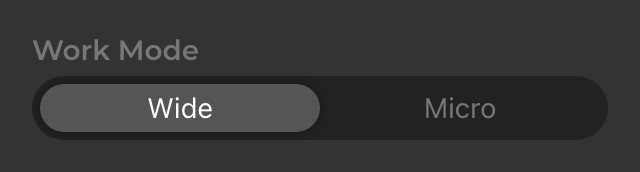
Choose “Wide” or “Micro” for the Work Mode in the Work panel_Adjust.
SLAM Mode
Choose “Geometry Mode” if the scanned object is bumpy and has great geometic features; while choose “Texture Mode” when scanning objects with vivid colors, patterns and textures.
Choose “Geometry” or “Texture” for the SLAM Mode in the Work Panel_Adjust.
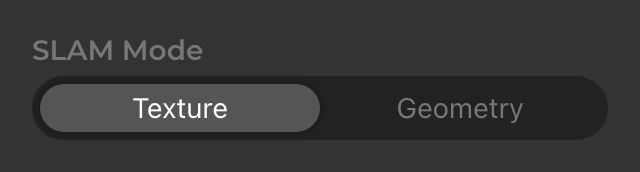
Please choose the right SLAM mode for your target objects.
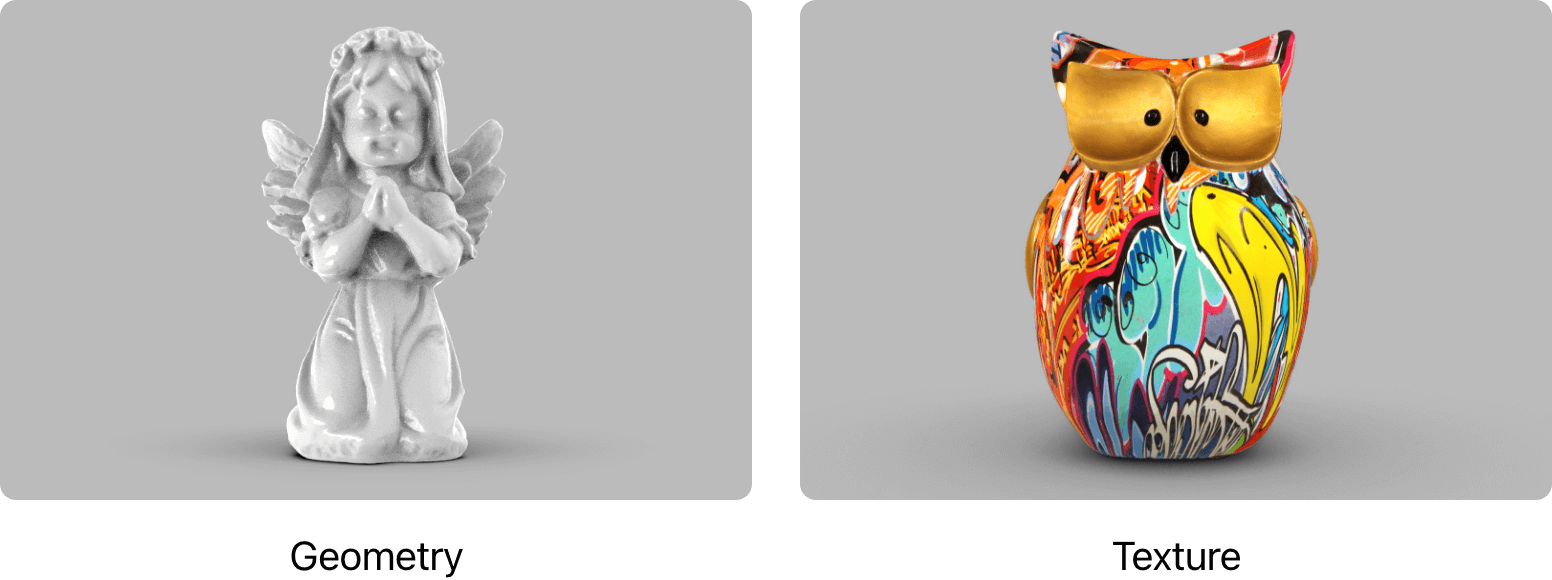
*When the stitching mode is "Geometry", you can choose to check "Color scanning" to retain the color information of the model, and you can do texture mapping; If "Color scanning" is not checked, the color information of the model will not be captured. When the stitching mode is set to "Texture", the color information is required and does not need to be checked.
Working Distance
The distance indicator on the left side of the 3D viewer can help you find the optimal woking distance.
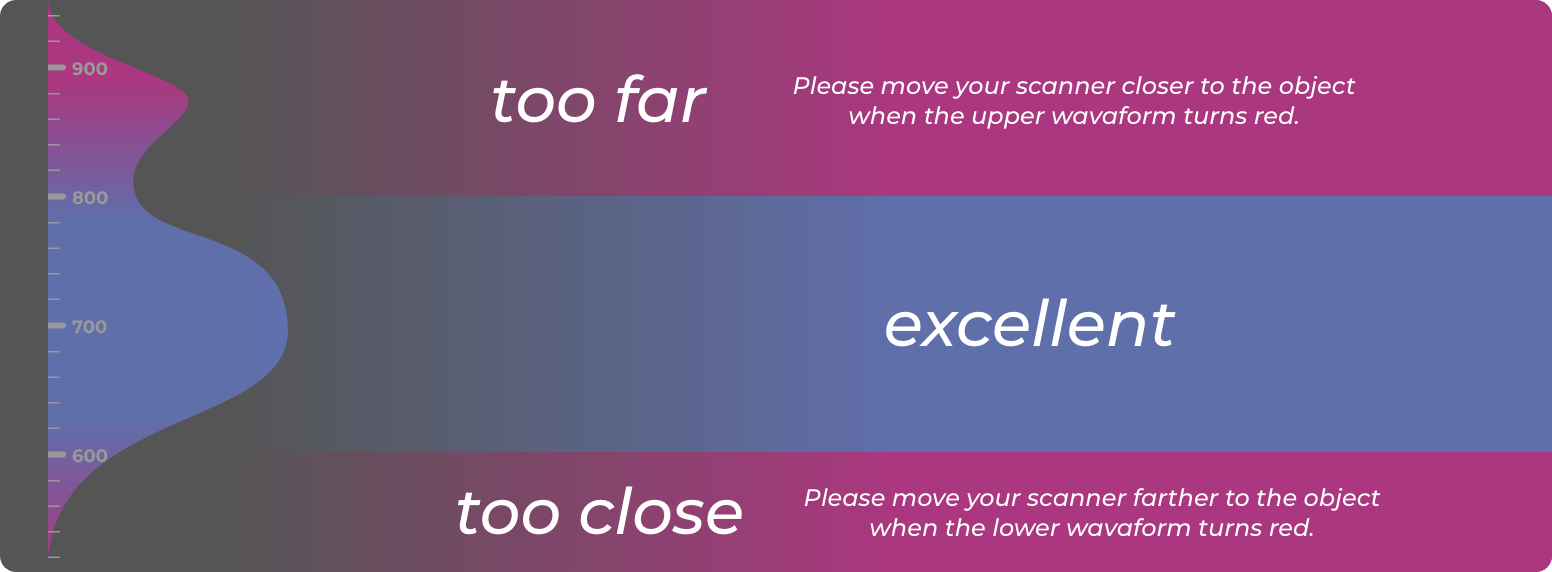
Set the depth range of data aquisition in the Work panel_Adjust_Depth of Field(This parameter option is available for Whale Wide-core, MagicSwift Plus, and MagicSwift).

Locate the Object
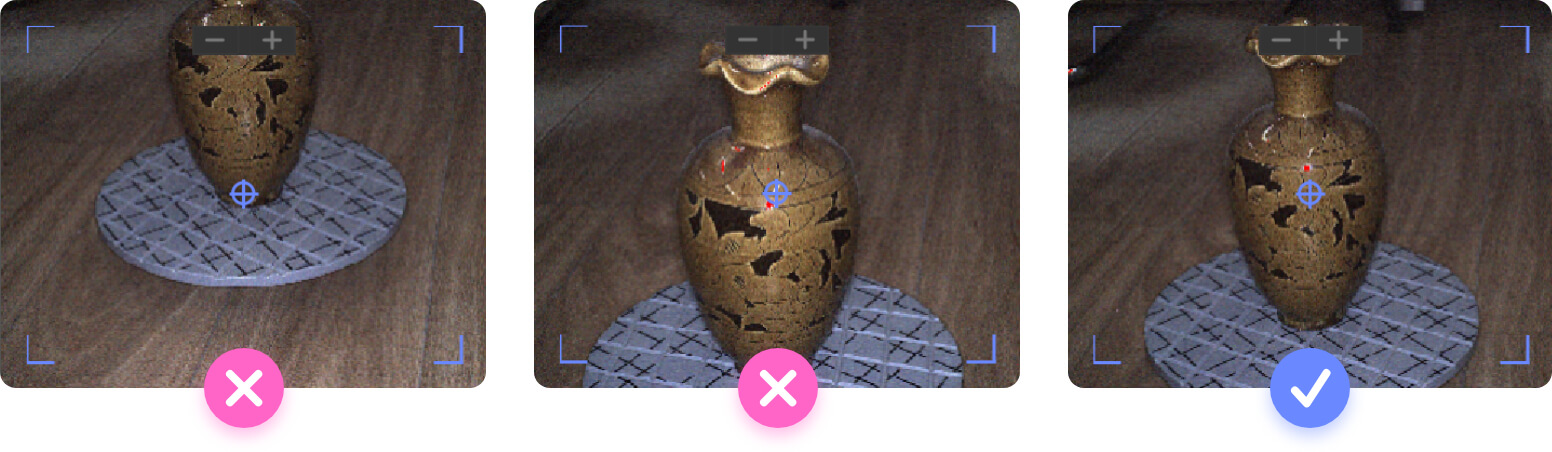
The preview window on the top right of the 3D viewer helps you locate the object. Make sure it fully exposed in the preview window.
Brightness
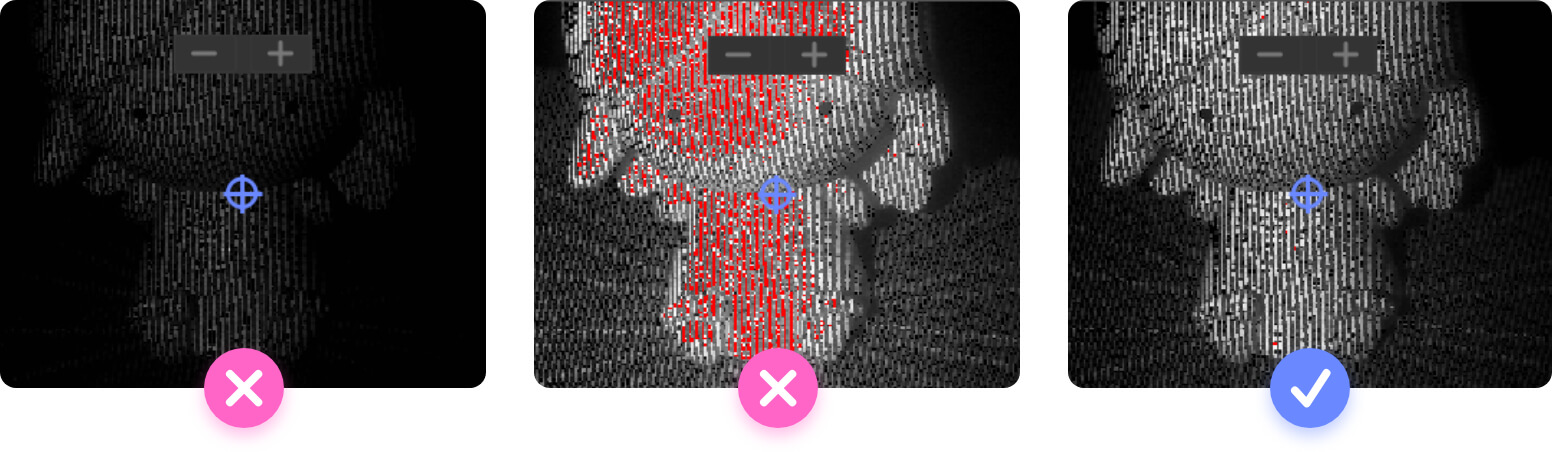
Use the slider to adjust the brightness to a proper level in the Work panel_Adjust_Brightness.

Easy Scan
Scan
Adjust the scanner’s position and angle to centre the target object in the preview window; check if they’re kept in a proper distance by focusing on the distance indicator. For more information: Working Distance, Locate the Object, Brightness
Click “Scan” on the work panel, hit the spacebar or press the start/stop button on the scanner to start scanning.

Stop
Click the red counter, hit the spacebar or press the start/stop button on the scanner to stop scanning.

*F:Frame is used to measure the pictures. The more frames you've collected, the larger and more complete data you'll get, while it requires more time and a stronger PC to process the data. It's suggested to limit the single scan within 2000F.
Append
If you want to scan at a different angle and add a new scan, click “Append”, hit the spacebar or press the start/stop button on the scanner.

Process
Click “Process”, hit the spacebar or press the start/stop button on the scanner to go into the Edit Mode and process the scan data. You can also hit right or left arrow keys to the next or last step.

Table Scan
Initial
Adjust the scanner’s position and angle to centre the target object in the preview window; check if they’re kept in a proper distance by focusing on the distance indicator. For more information: Working Distance, Locate the Object, Brightness
Remove the object from the turntable when scanner is well positioned.Click “Initial”, hit the spacebar or press the start/stop button on the scanner to scan the empty turntable until it turns red.

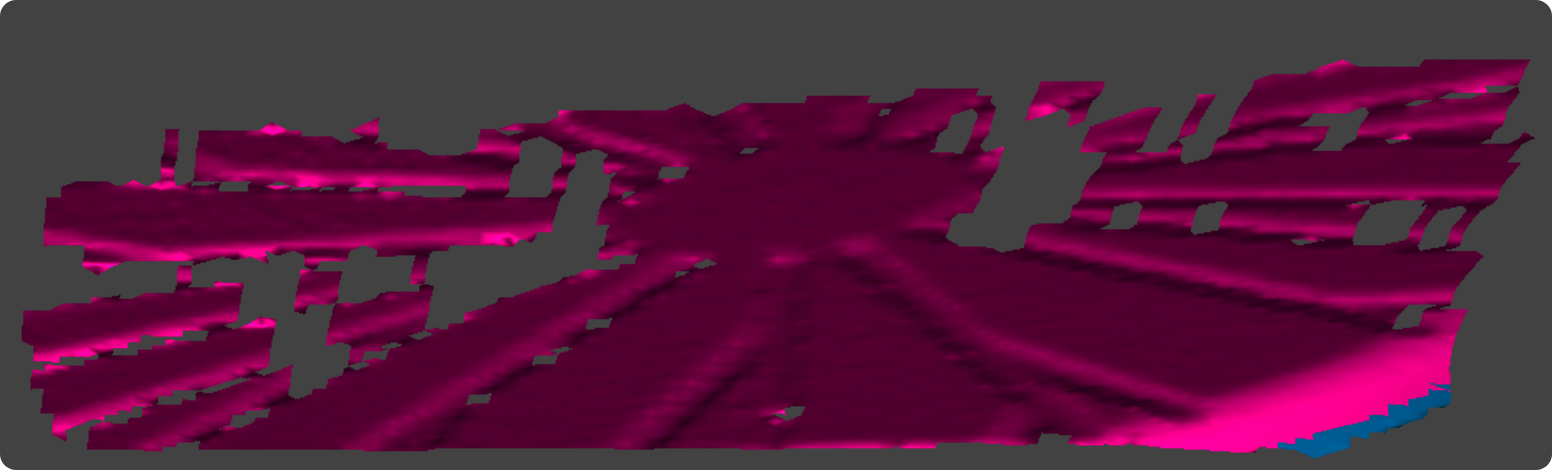
Stop initializing
Click the red counter, hit the spacebar or press the start/stop button on the scanner to stop initializing.

*F:Frame is used to measure the pictures. The more frames you've collected, the larger and more complete data you'll get, while it requires more time and a stronger PC to process the data. It's suggested to limit the single scan within 2000F.
Scan
Leave the turntable there and place the target object in the centre of it. Click “Scan”, hit the spacebar or press the start/stop button on the scanner to start scanning.
If you find the initialization result unsatisfactory, can also hit right or left arrow keys to the next or last step. Click the button “1”, hit the spacebar or press the start/stop button on the scanner to re-initialize.

Stop
Click the red counter, hit the spacebar or press the start/stop button on the scanner to stop scanning.
*F:Frame is used to measure the pictures. The more frames you've collected, the larger and more complete data you'll get, while it requires more time and a stronger PC to process the data. It's suggested to limit the single scan within 2000F.
Append
If you want to scan at a different angle and add a new scan, click “Append”, hit the spacebar or press the start/stop button on the scanner.
Process
Click “Process”, hit the spacebar or press the start/stop button on the scanner to go into the Edit Mode and process the scan data. You can also hit right or left arrow keys to the next or last step.
Reset
Click “Reset”, hit the spacebar or press the start/stop button on the scanner to initialize again. Or hit right or left arrow keys to the next or last step.

Editing
Data Editing
Before meshing the point cloud data, you can do simple editing on it to delete excess data and ensure the quality of the model.
①Select Tools
Hover your mouse over the Tool Bar on the left side of the interface, here are a few selection tools available.

②Select the Data
Hold Ctrl and press left mouse button in the 3D Viewer to select an area, the selected place will turn red.
③Process the Data
Hover your mouse in the 3D Viewer and right click or click on “Edit” in the Title Bar to show the menu then edit your data.
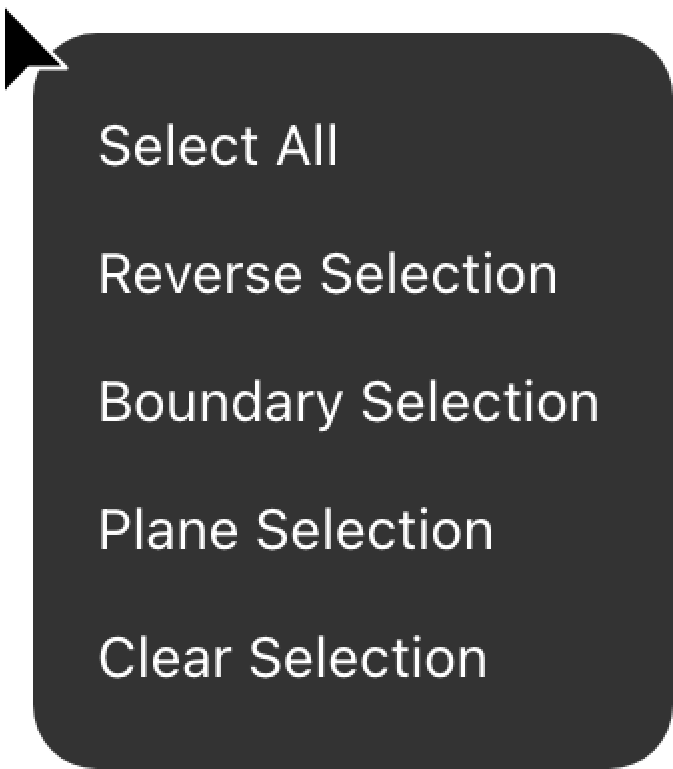
Select All: select all visible data.
Reverse Selection: select the data outside the selected area.
Boundary Selection: select an area that falls with a given region or boundary.
Plane Selection*: select all the data on one fitting plane.
Clear Selection: Deselect the data
*Plane Selection
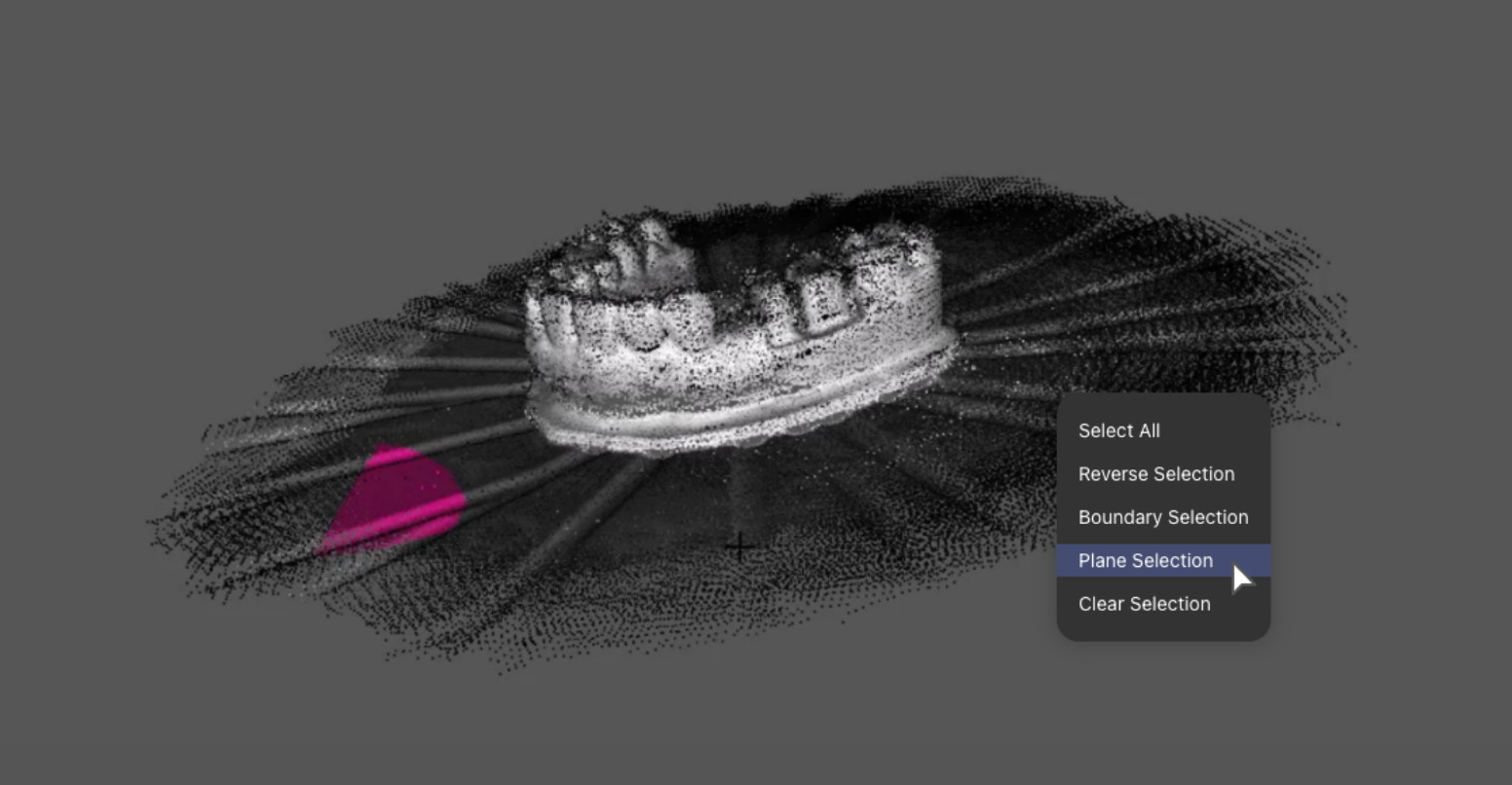
Plane Selection is for selecting and deleting the turntable top, floor, wall and other flat surfaces.
Watch the tutorials below to learn more:
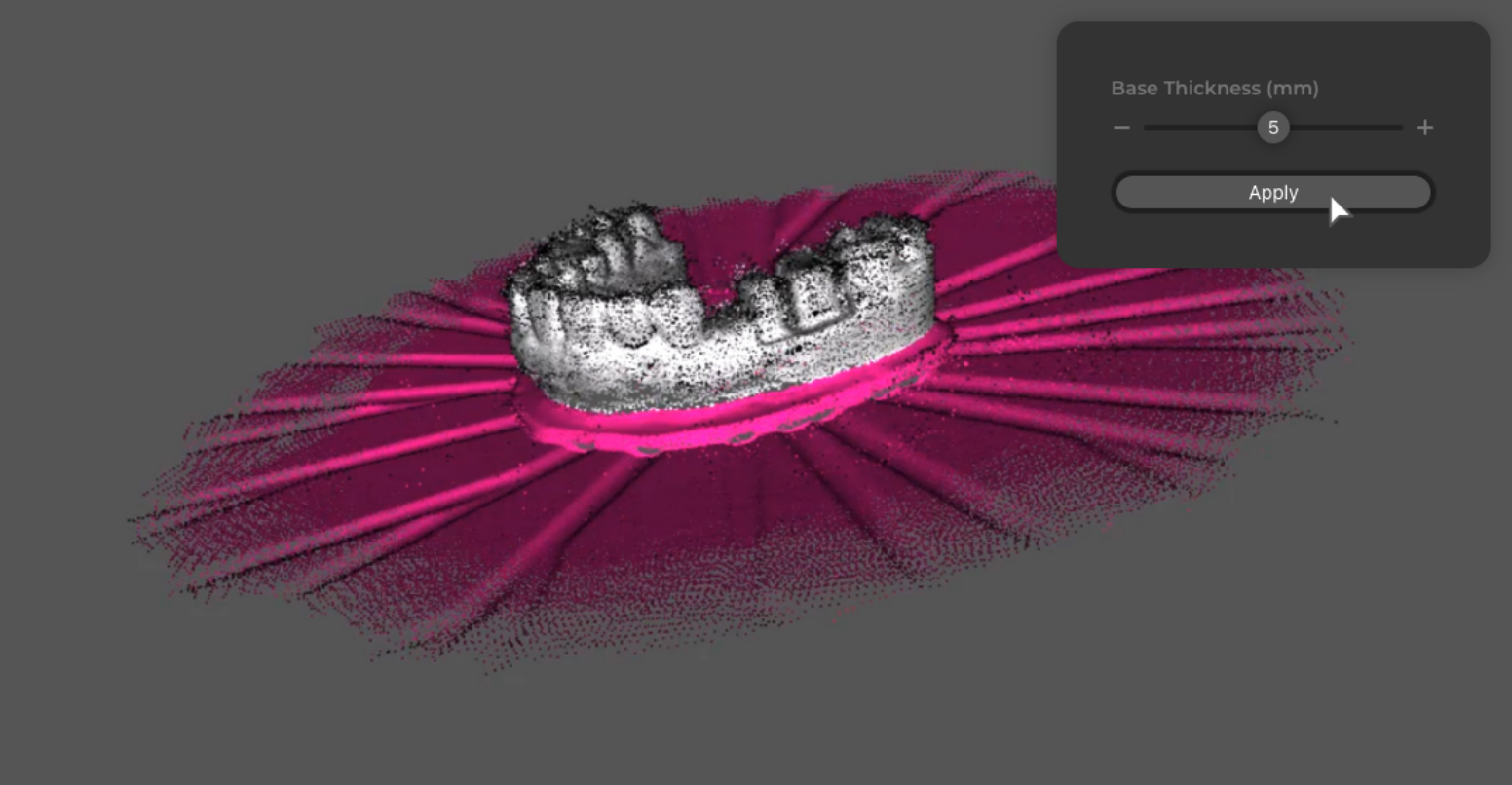
Firstly, use the Select Tools to select part of the plane (no need to select the entire plane); right click your mouse and select “Plane Selection” in the menu to automatically recognize the entire plane;
the top right pop-up window allows you to adjust the plane thickness.
Align
Watch the tutorial below to learn more about Manual Align:
Go into “Align” in the work panel and select the align mode.
If the data is not needed, it is recommended to delete the data that is marked in red.
Auto Align
Select the scans that need to be aligned to in the “Work Panel”.Click the display icon  of the data layer list, and the icon will be displayed as
  , and the checked data will be automatically added to the aligned data. Click “Align” to merge them togerther.It is recommended to remove the substrate before automatic alignment.
In Align Data, click the mouse to select a fixed layer, and the  icon will be displayed on the right side of the fixed layer, and select the more scanned data as the fixed layer for easier alignment.
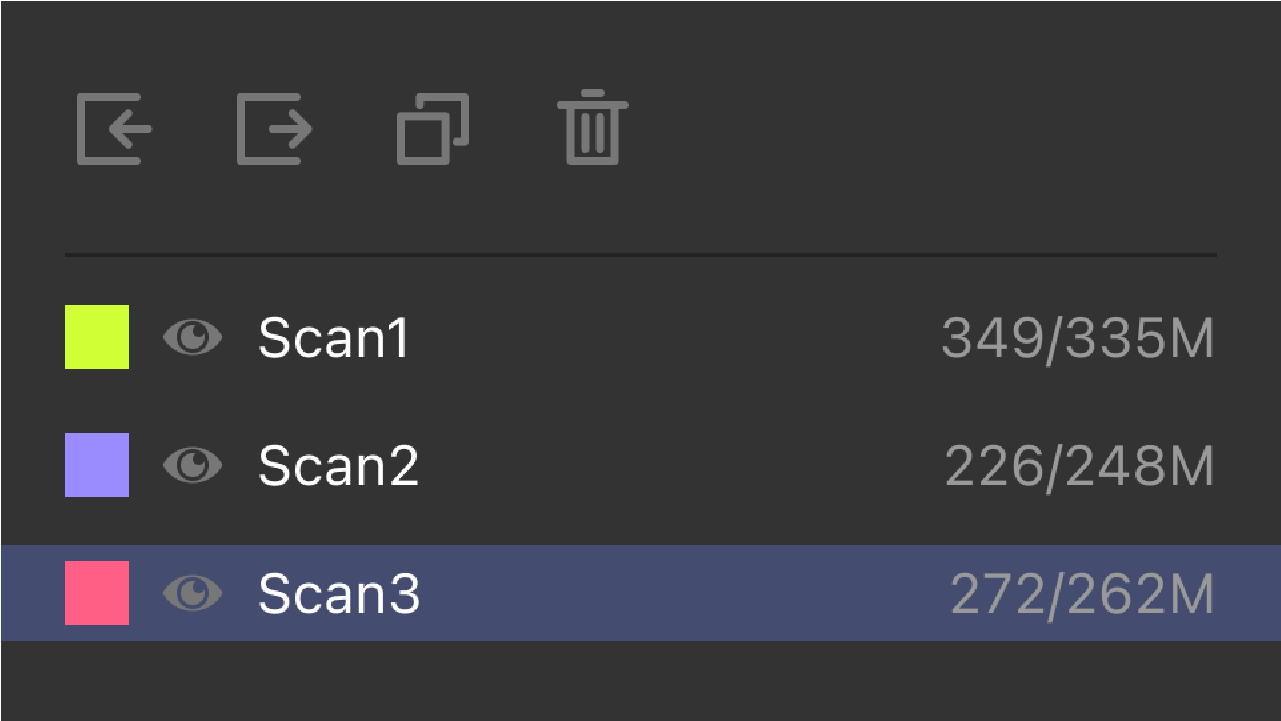
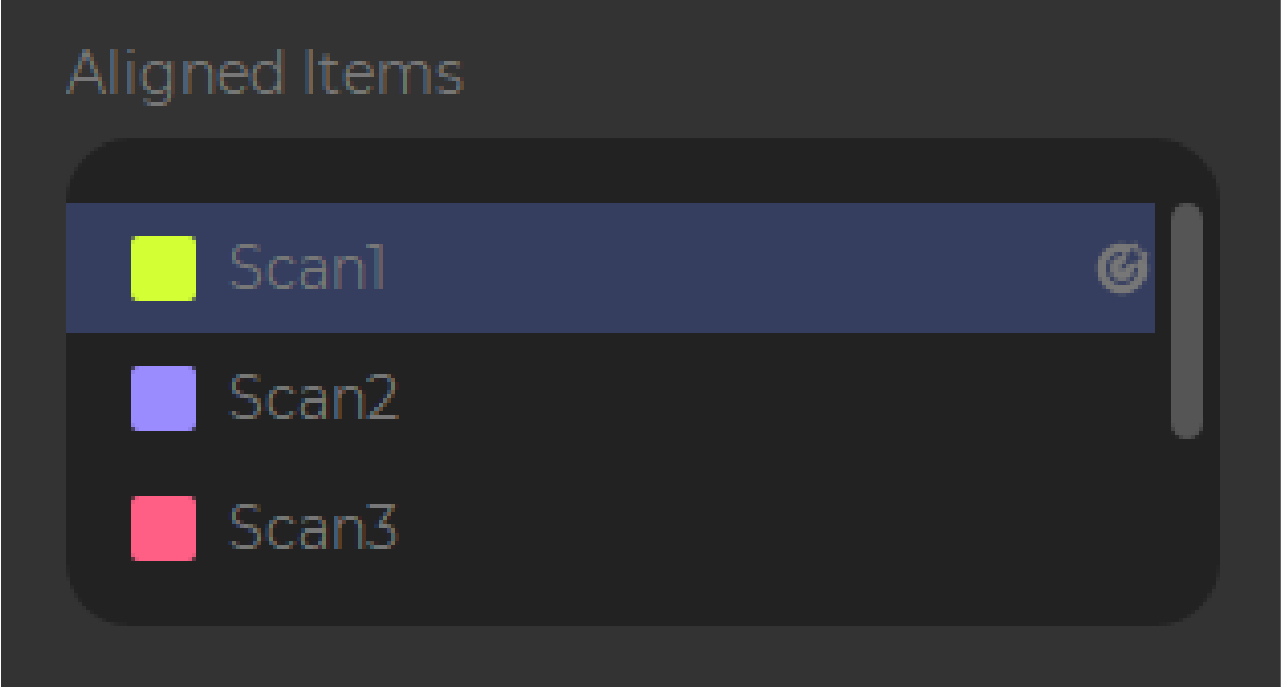
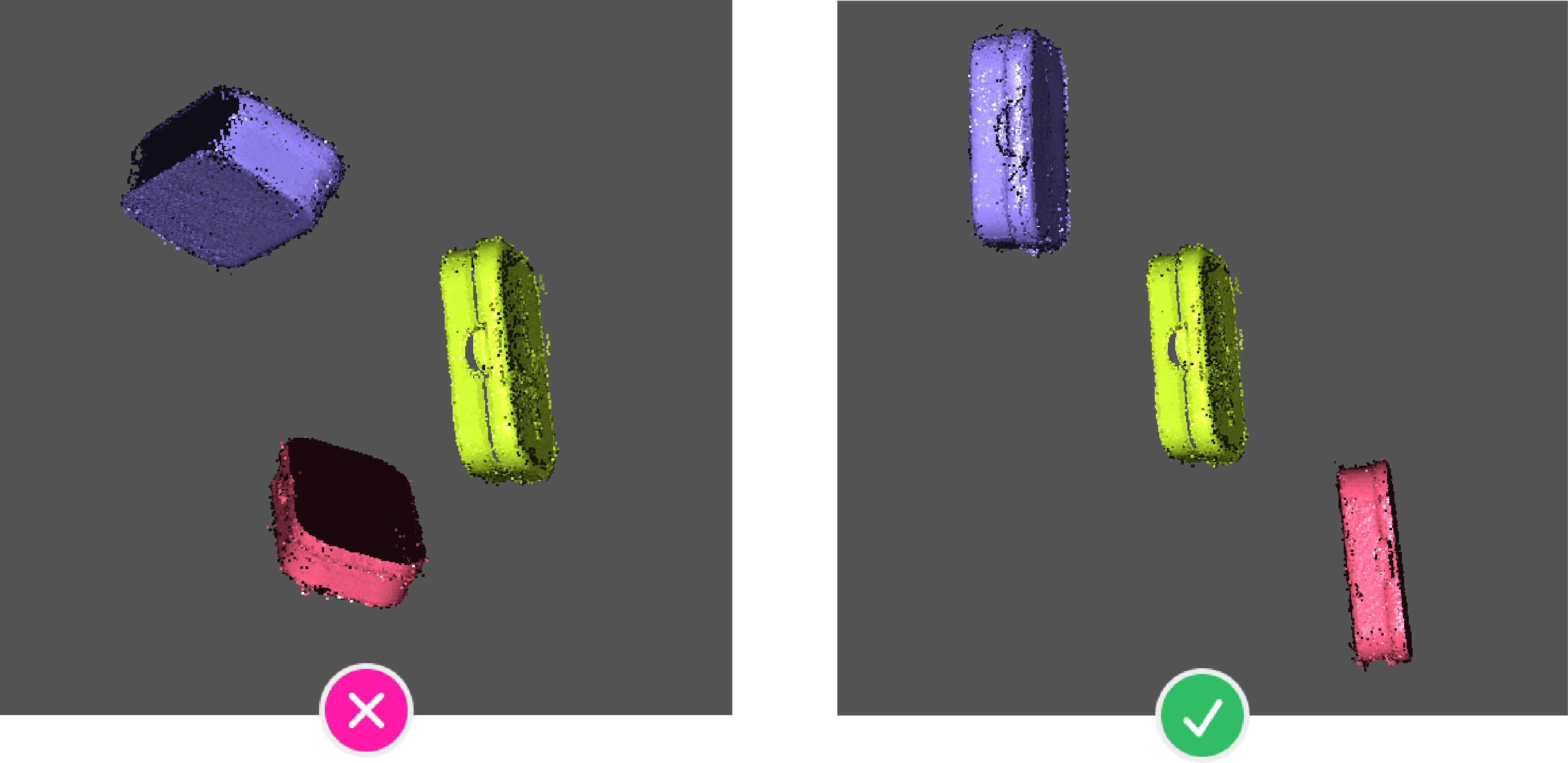
Before alignment, it is recommended to manually turn the aligned layer to the same angle. Click "Align" to automate the alignment:

Manual Align
Please note that the model substrate is manually deleted before alignment, and for substrate deletion, please refer to*Plane Selection.
- Manual alignment will automatically turn off the texture display, so that you can observe the alignment status of the model, if you need to turn on the texture display, you can click the
 icon in the "Tool bar" to turn it on.
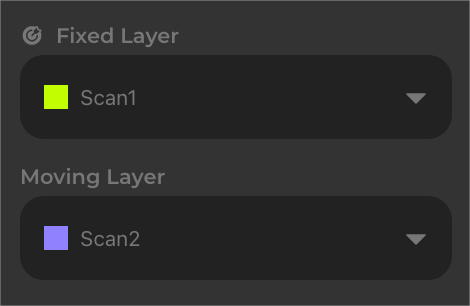
Select the scans that need to be aligned to in the “Work Panel”. In the Fixed Layer drop-down list, select the target data aligned to the target, and in the Moving Layer drop-down list, select the movement data aligned to the target.
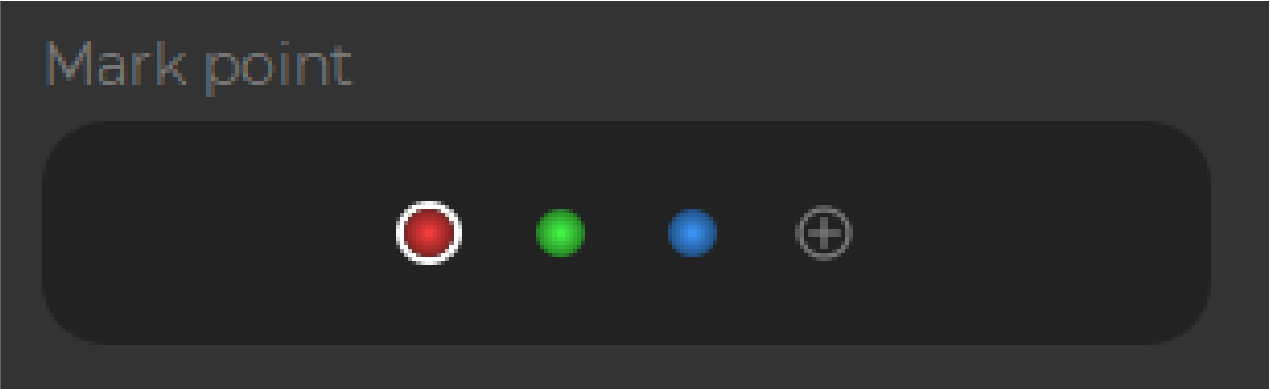
Three sets of marker pairs are automatically generated in the "Mark Point" information bar, and you can click  to add marker pairs, but up to five sets of marker pairs can be added. Right-click the selected marker point in the 3D Viewer, there is a white highlight around the selected marker point, and right-click again to modify the position of the selected marker point.
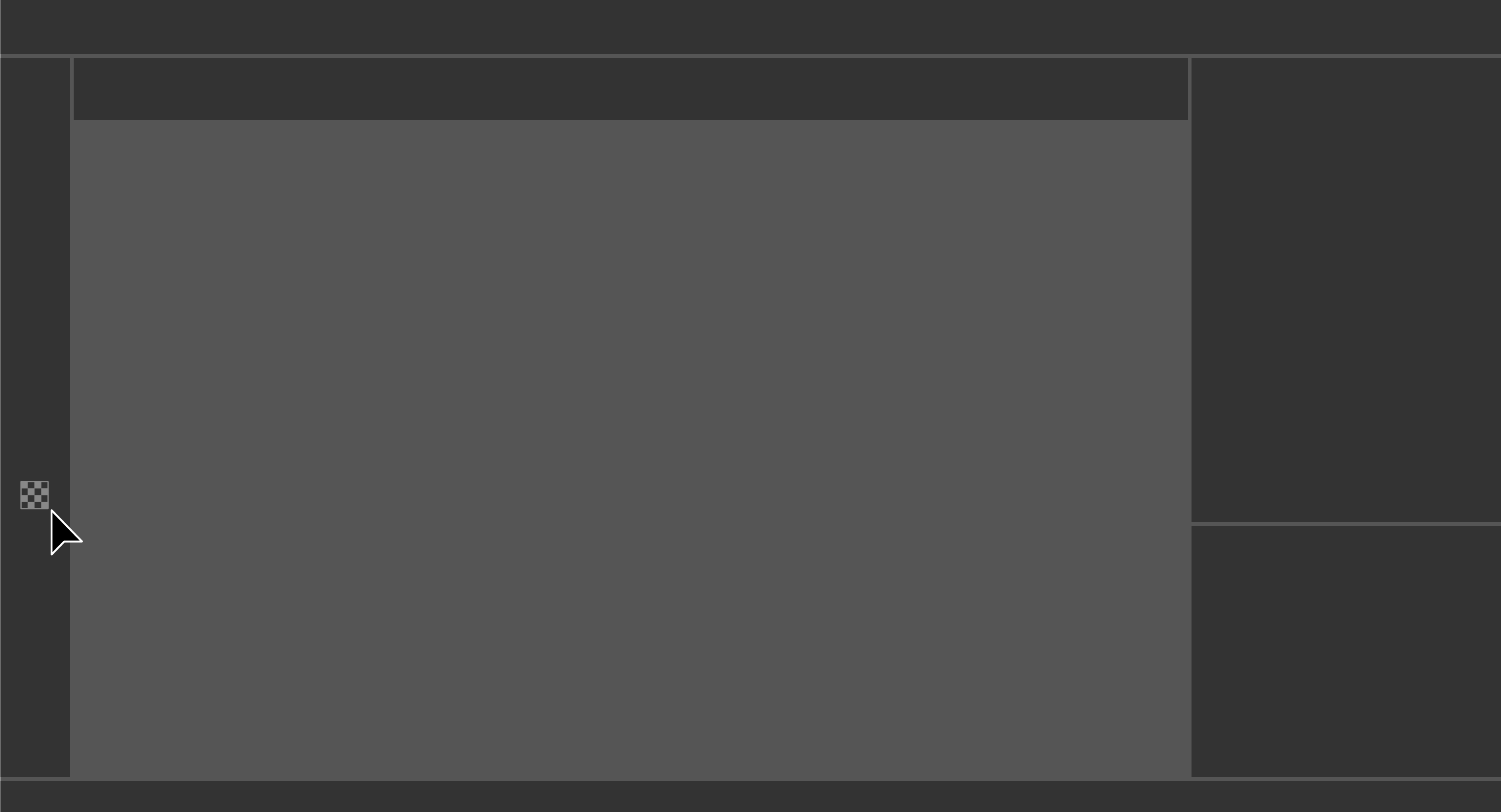
In the 3D Viewer, the upper-left view is a fixed layer, the upper-right view is a moving layer, and the bottom view is aligned to the result.
Drag and drop the left mouse button to rotate the model that needs to be aligned in the left and right views to the same viewing angle. Adjust the marker points of the corresponding numbers in the two views to the same position on the model, and click "Align".
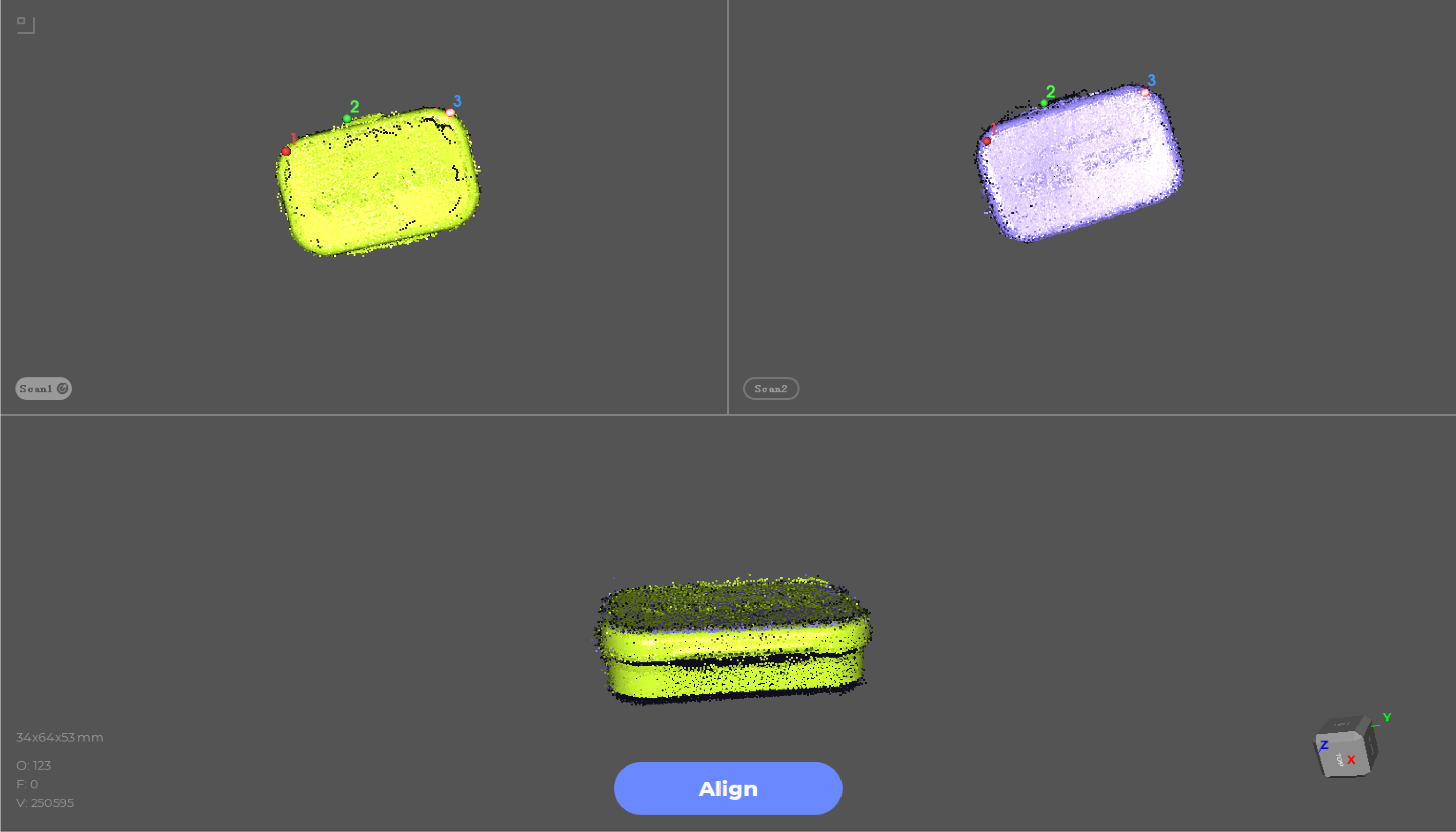
After the alignment is completed, you can check the alignment result in the bottom view, and if you are satisfied with the alignment result, click "OK"; If you're not satisfied, tap "Return" to adjust the position of the marker points and redo the alignment.

Once the alignment is complete, the data participating in the alignment is automatically grouped and uniformly displayed in a fixed layer color. Manual alignment can only align two layers of data at a time, and if you need to align three or more layers of data, you need to align the other layers of data with the group data.
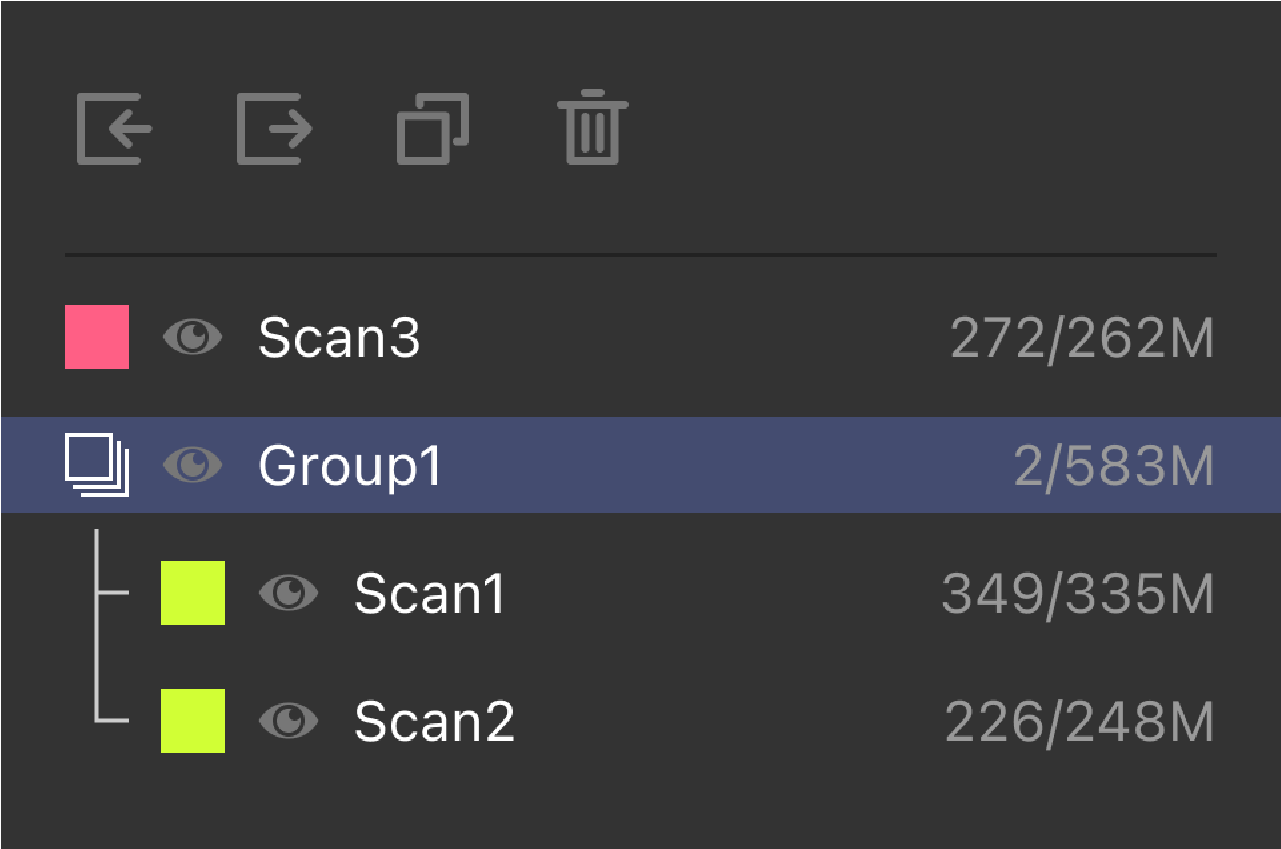
Process
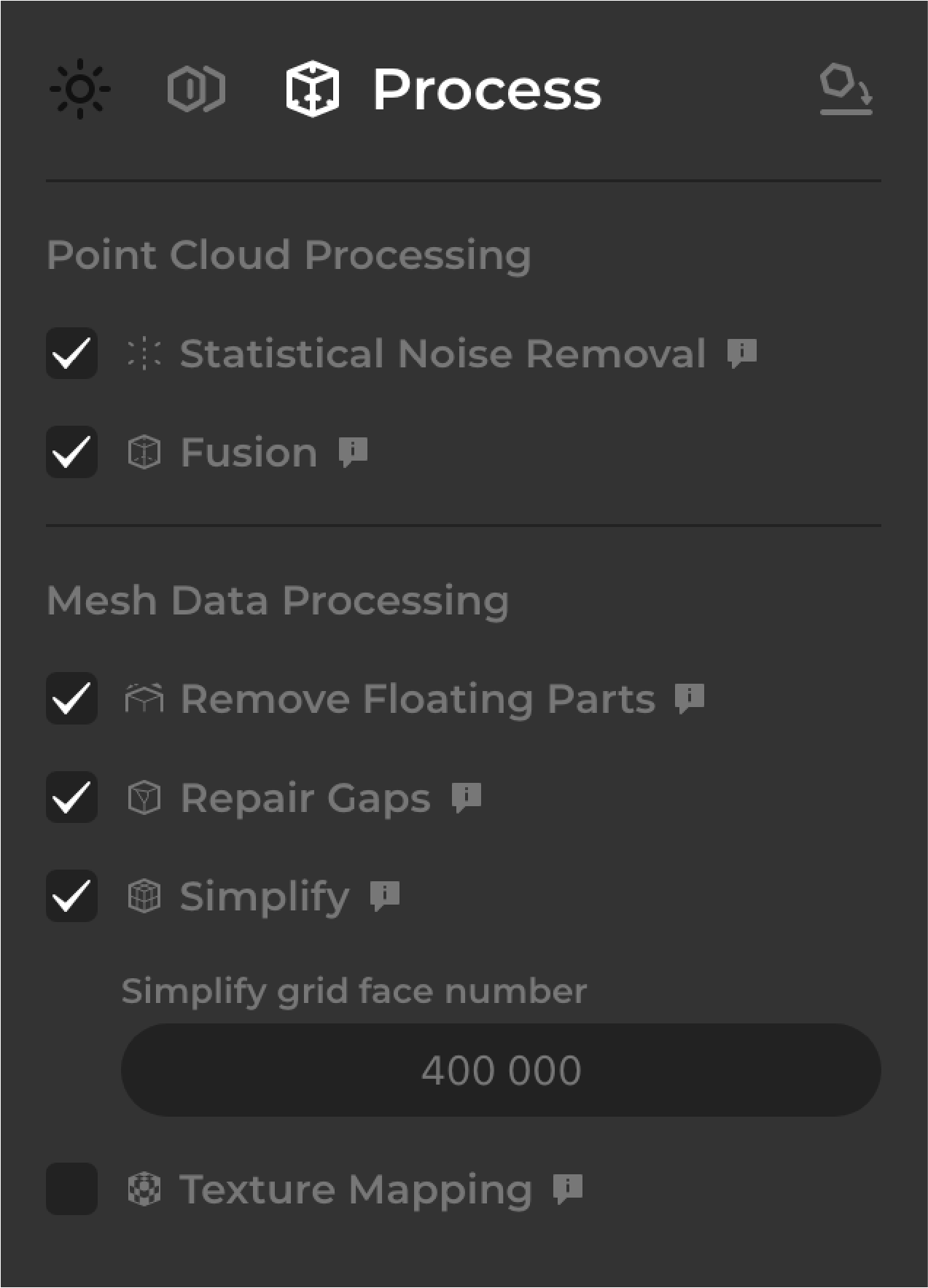
Check the processing steps needed for your point cloud data in the Work Panel_Process:
[Statistical Noise Removal] Clean up the isolated points in the cloud.
[Fusion] mesh the point cloud data by connecting the dots to produce a complete model.
[Remove Floating Parts] clean up the mesh by removing the floating noises from the scans.
[Repair gaps] fill the holes on the mesh to produce a watertight model.
[Simplify] narrow down the amount of mesh faces to reduce the data size.
[Texture Mapping] apply the texture or color information onto the mesh surface.(Colors only available for some of 3DMakerpro models.) Note: here “Texture Mapping” refers to the texture capturing by the scanner itself. If you need to do “External Texture Mapping”, please uncheck this step.
Statistical Noise Removal, and Fusion are the processing steps for point cloud data.
Remove Floating Parts, Repair gaps, Simplify and Texture Mapping are the processing steps for grid data, and the point cloud data must be fused into grid data before subsequent processing.
Click “Process” in the 3D Viewer after checking the needed steps.
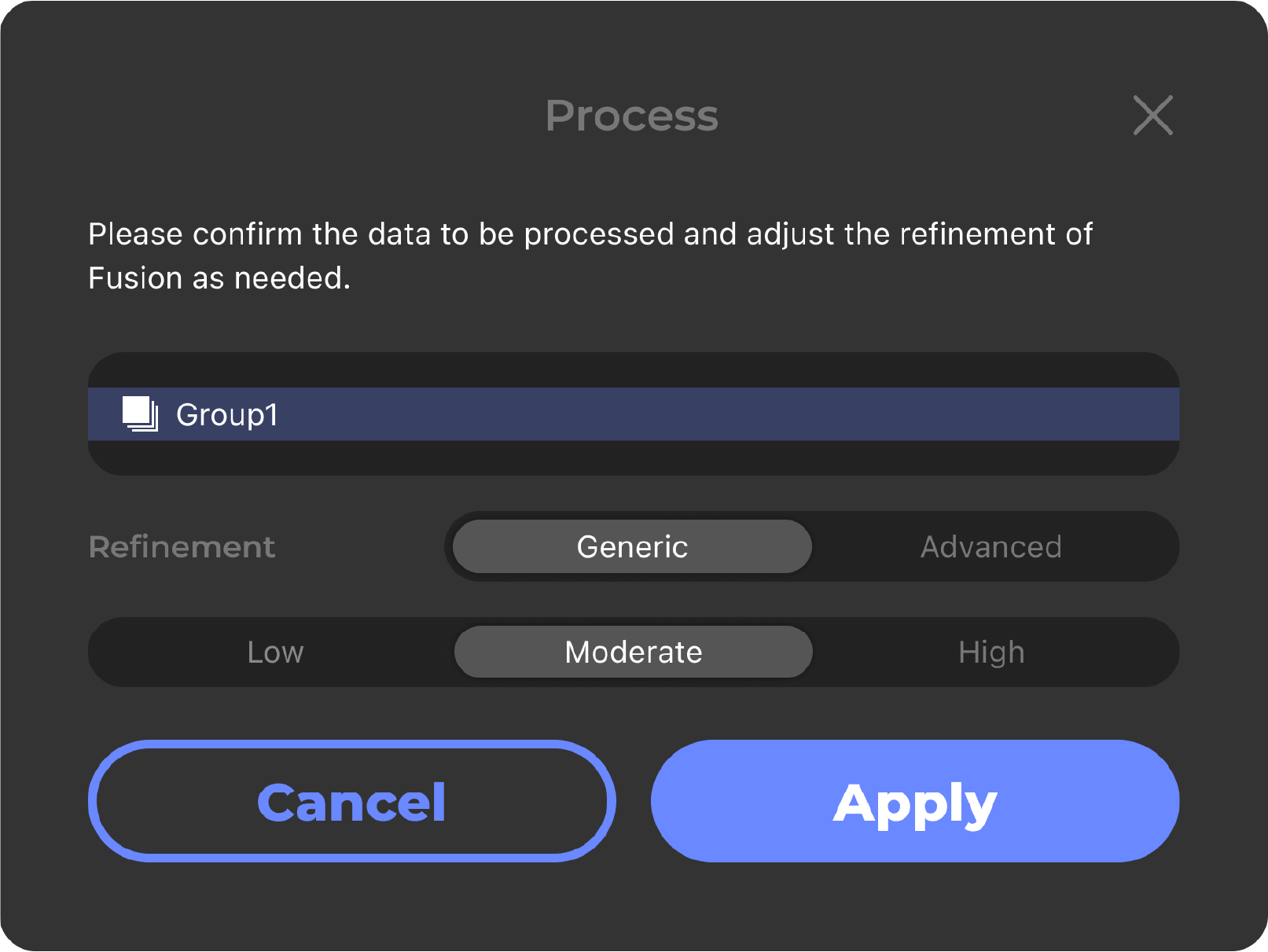
Select the data you want to synthesize and adjust the granularity of the fusion as needed. There are two types of granularity: "Generic" and "Advanced".
The general configuration is divided into three levels, and the default selection is "Moderate". If you select "High", the higher the fineness, the higher the number of faces in the model; If you select "Low", vice versa.
Advanced configuration, you can customize the configuration parameters.
Neighborhood Size:The number of domain points defines the number of neighboringpoints to consider when calculating local statistics.In point cloudprocessing, this means that the filter will examine a specifiednumber of nearest neighbors around each point to deteminewhether it is an outlierA smaller number of domain points maycause the filtering process to be overly sensitive to local detailsmaking it easy to misjudge nomal changes as outliers.A largernumber of domain points can provide more global statisticalinfomation, which helps filter out true noise, but may also blur outfine structure or edge infomation in the point cloud.
Standard Deviation Multiplier:The standard deviation coefficient is a multiple used to deteminethe threshold for identifying outliers. lt is calculated based on thestandard deviation of the average distance (or other statistics) ofpoints within the domain.A lower coefficient means that onlypoints that are far from the neighborhood average will beconsidered outliers, which may retain more points that may benoisy.A higher coefficient will result in more points deviating fromthe mean being identified as outliers and removed. While this caneffectively remove noise, it may also remove some points thatactually belong to data characteristics, especially when the data hasmore natural variability.
Resolution:The smaller the value of the grid resolution,the finer the model, andthe longer the grid construction time.
SamplesPerNode:The minimum number of sample points that should fall within anoctree node as the octree construction is adapted to samplingdensity.For noise-free samples,small values in the range[1.0 -5.0]can be used. For more noisy samples,larger values in the range[15.0 -20.0] may be needed.
TrimValue:The smaller the value, the more triangular surfaces are clipped,andmore holes may appear.
IsolatedRate:Remove isolated items as a percentage of total area.
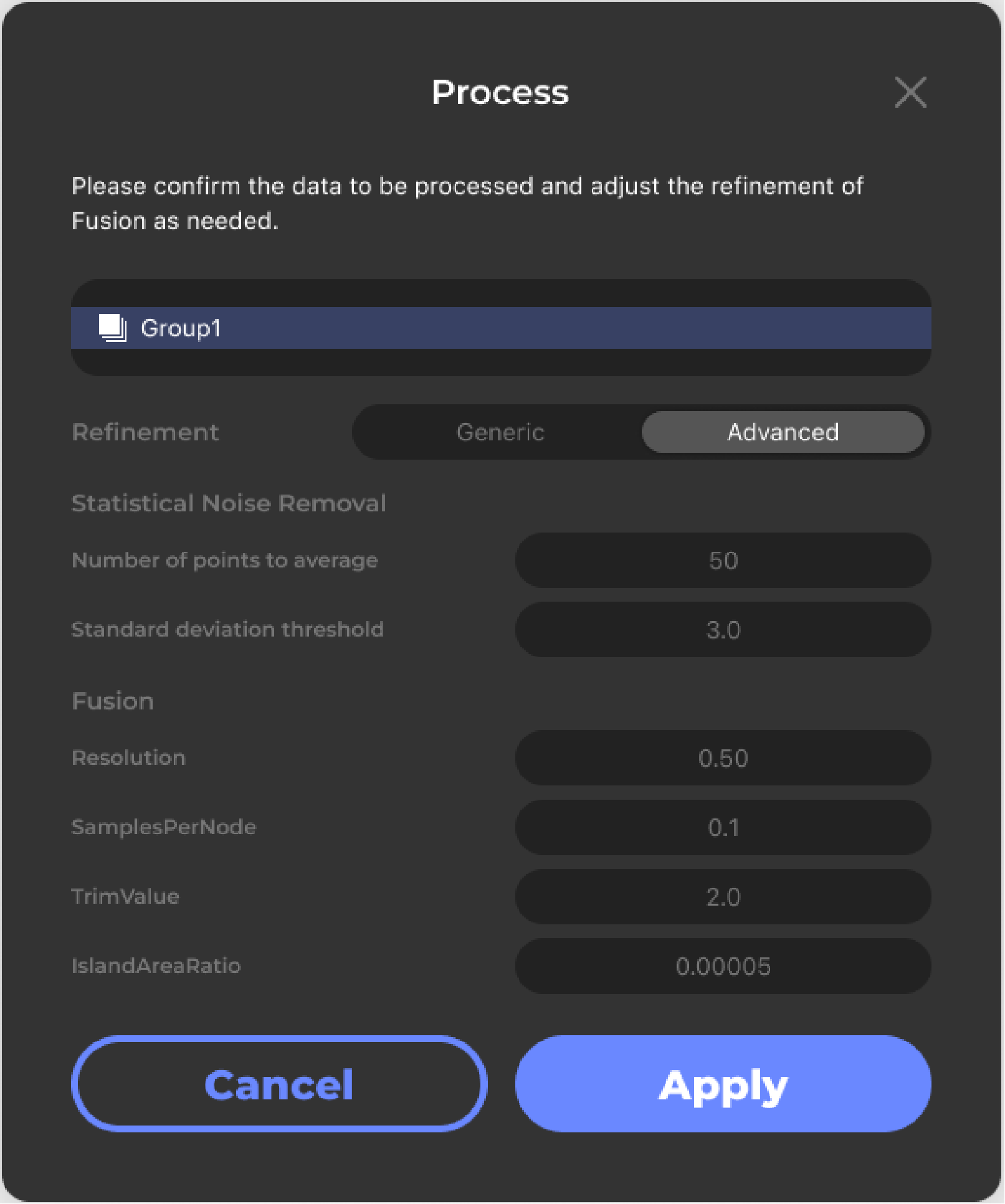
It is recommended to use the default configuration, and click "Apply" after adjustment. The data processing time is long, please be patient:
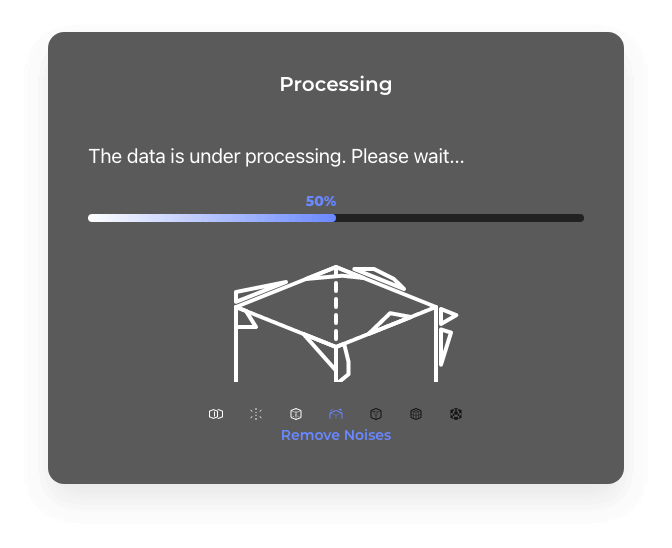
You can further edit on the mesh model to delete excess data with the selection tools available. For more information: Data Editing
Watch the tutorial below to learn more:
Reorientate
Adjust the model’s posture, align its base to XY axis of the coordinate system for further model editing and 3D printing.
Reorientate your 3D model by going into the Work Panel_Reorientate. Three mark points will be automatically created to generate a plane; right-click to reposition them but not make them in a line; flip directions of the normal line in the Work Panel_Reorientate; click “Reorientate”to execute it.
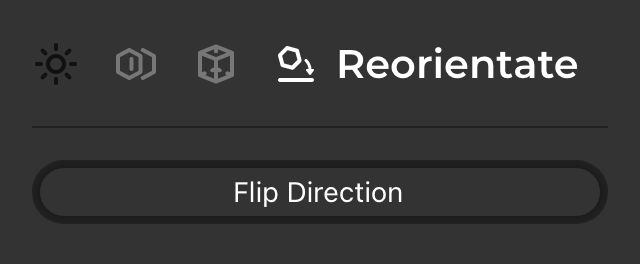
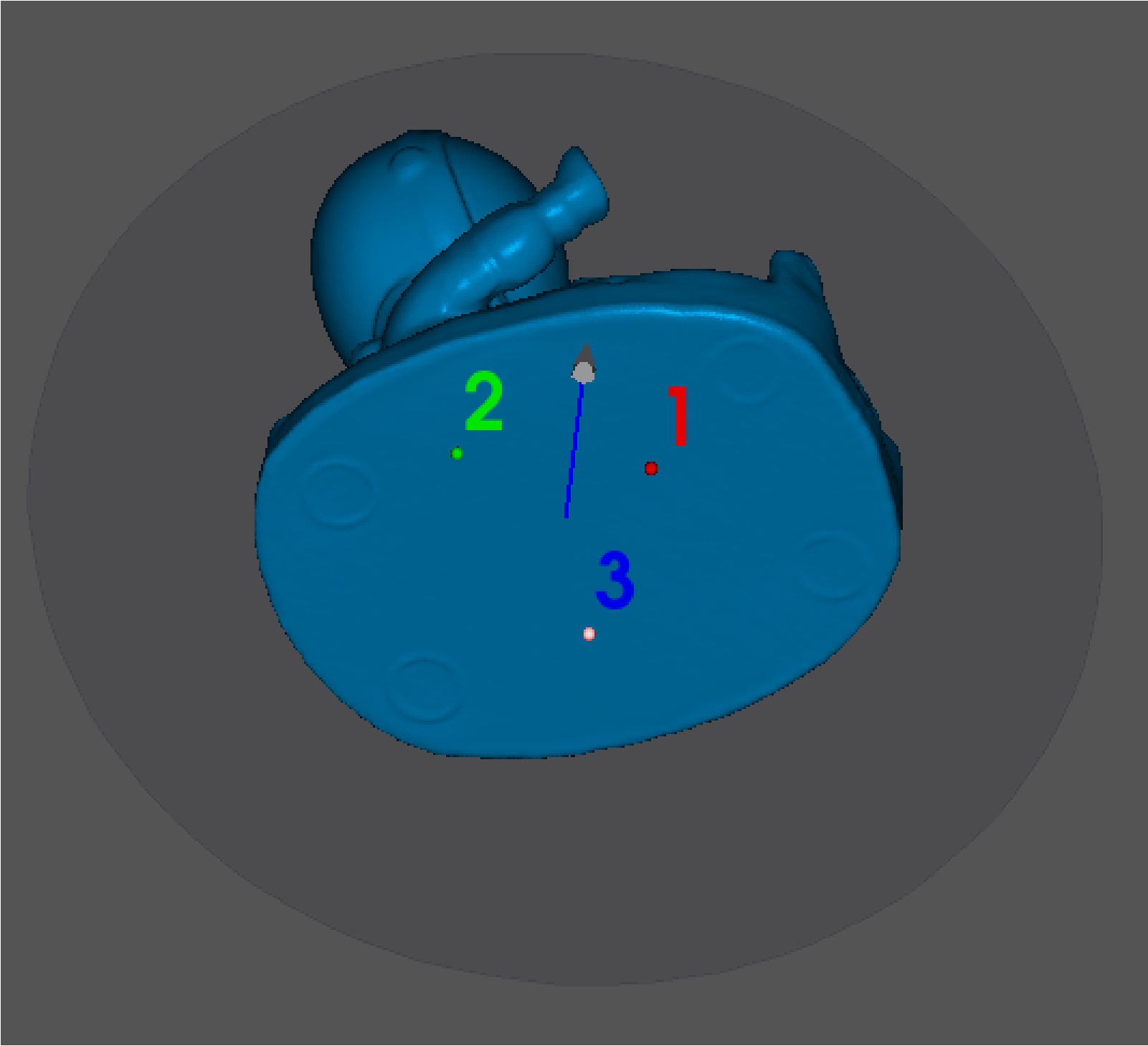

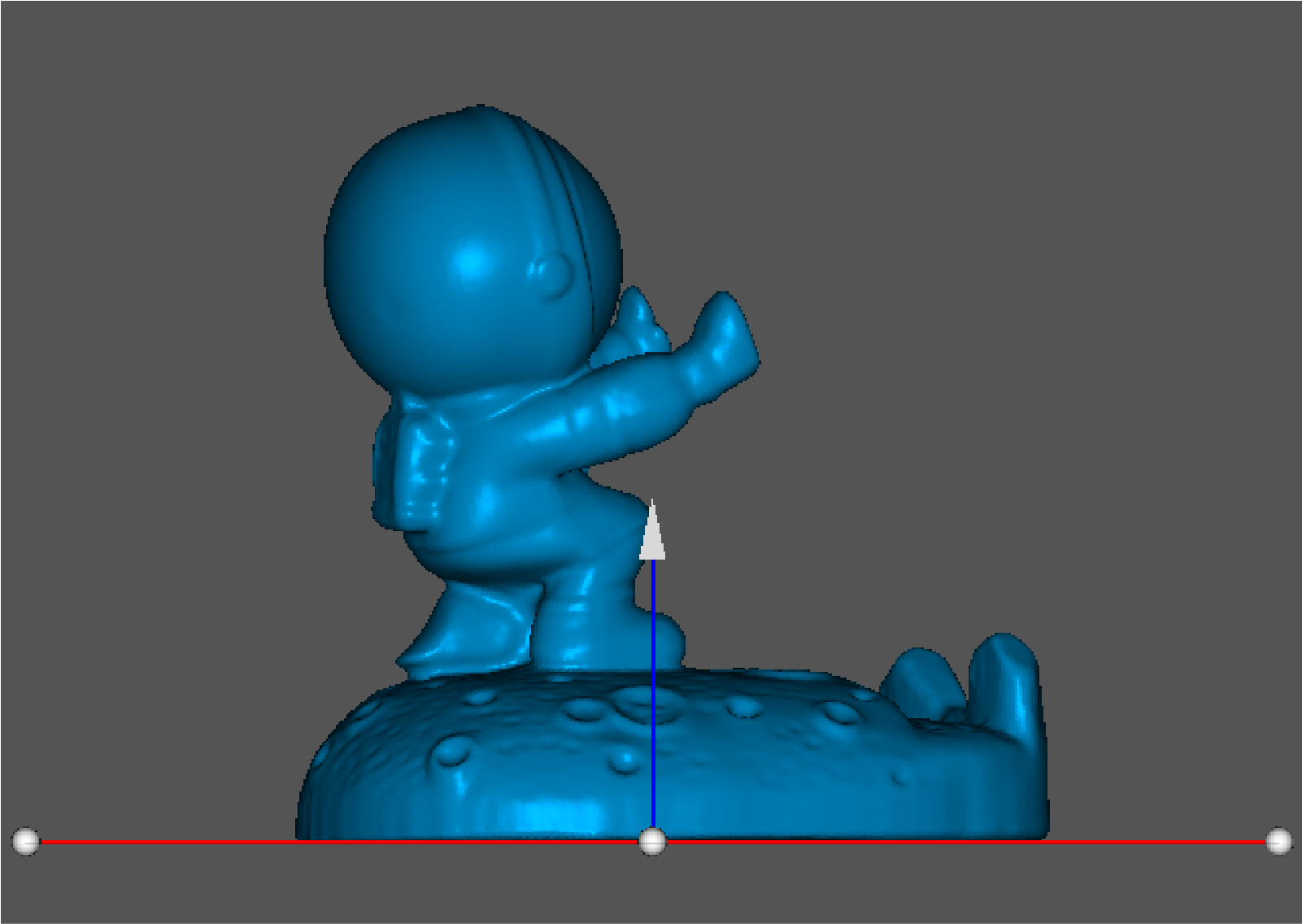
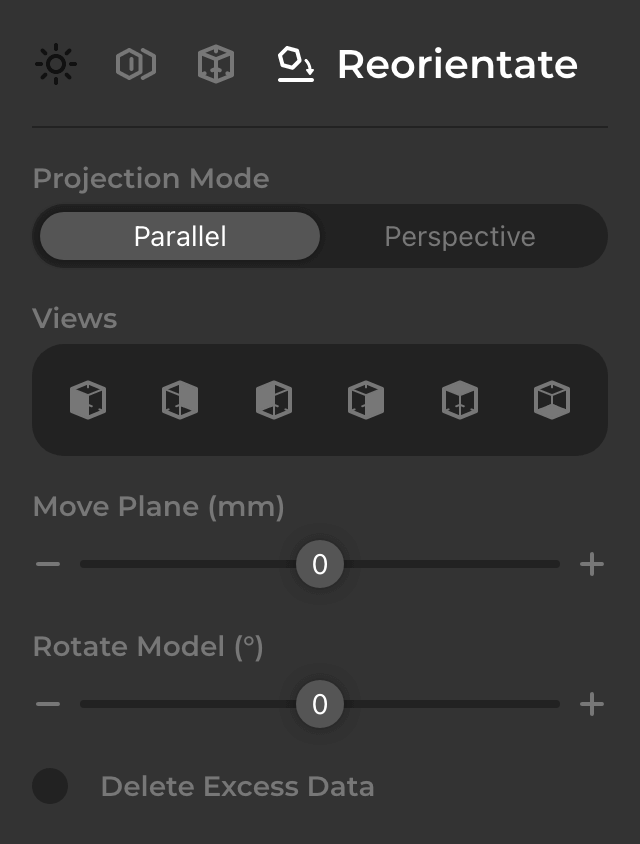
In the Work Panel_Reorientate, there are other settings such as changing the view types, moving the plane, rotating the model and deleting the highlighted excess data below the plane.
If you select Delete datum, the model may be damaged, so the repair base will be checked by default, or you can manually uncheck it.
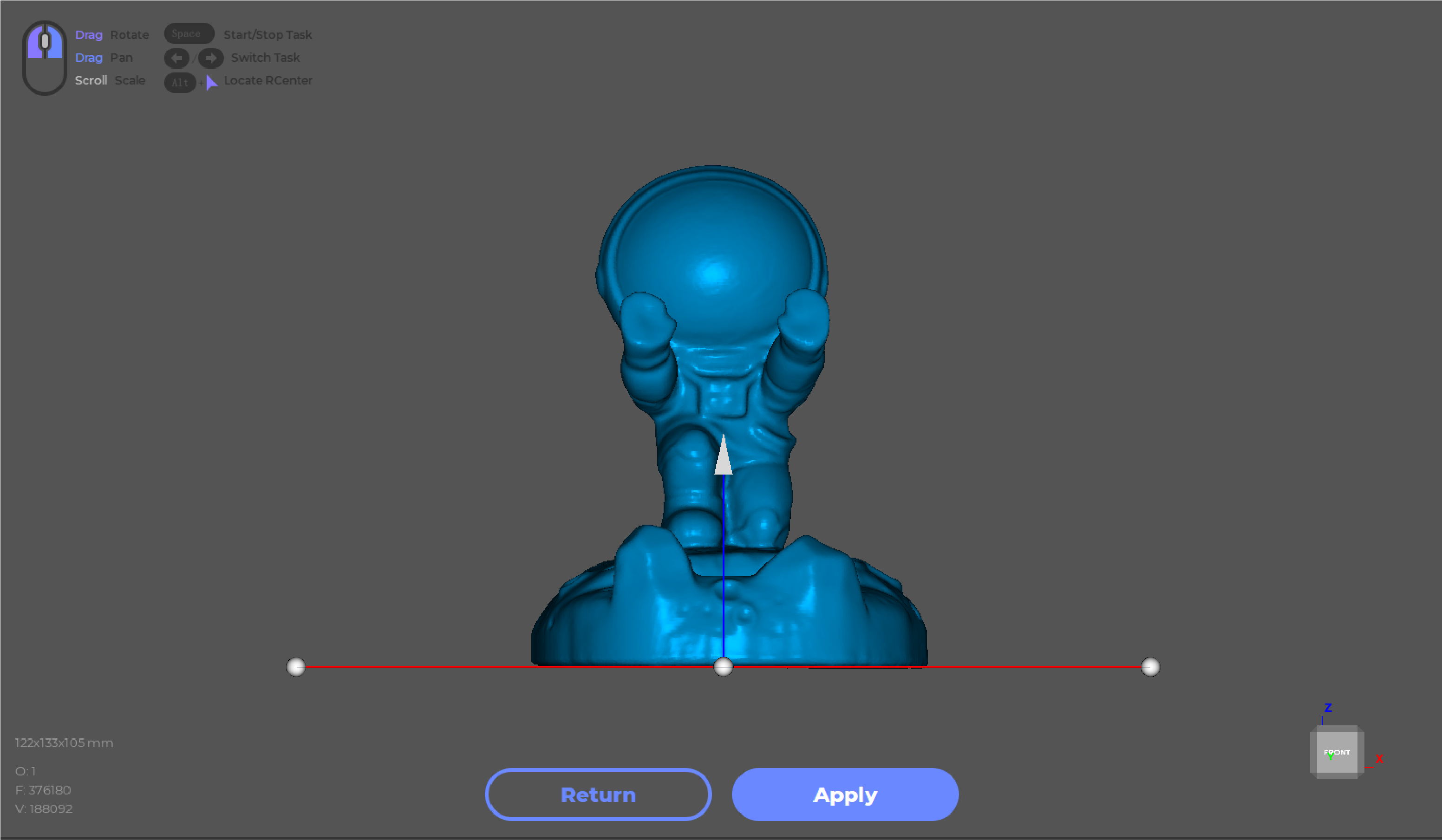
Drag four anchor points to reposition the plane, and drag the arrow in the middle to move the plane vertically; click “Apply” if you are satisfied.
Export the Model
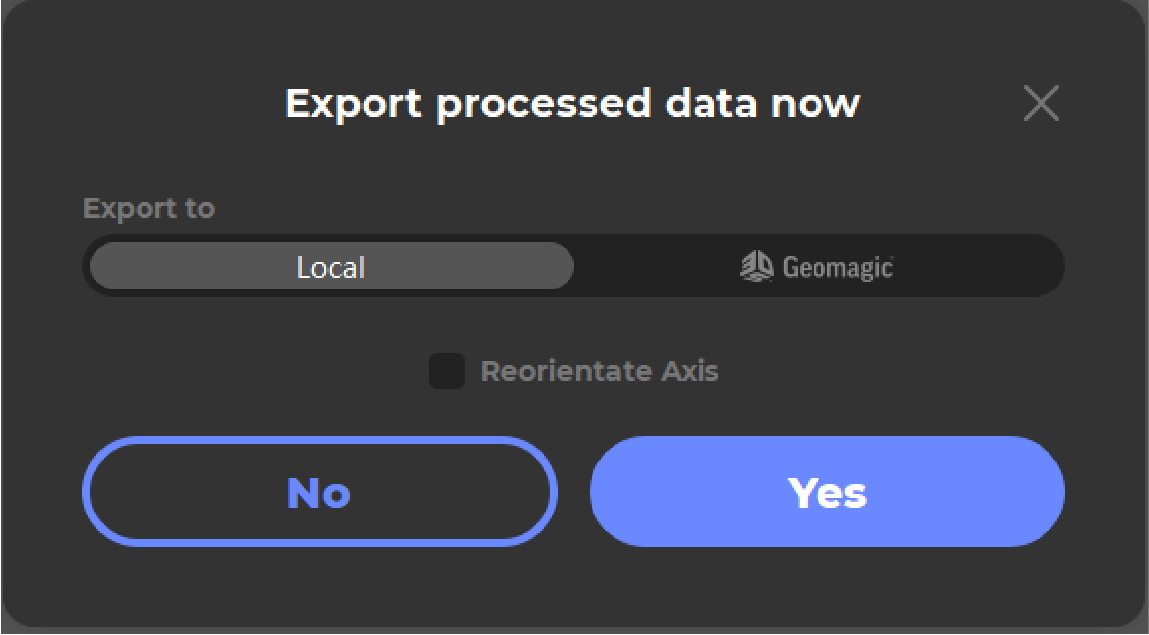
Click “Export” in the Title Bar_File or the export icon in the data panel to export the model.

Click “Yes” in the pop-up, will go to reorientate the model if checking “Reorientate Axis”. For more information: Reorientate
JMStudio now supports model exported in obj, stl, ply and rscan format, stay tuned for more available formats. Thank you for your time!