Packing List
The packing lists are as follows.
1 Scanner Body 2 Silicone Protective Cover 3 Tripod 4 Manual 5 Lanyard 6 Calibration Board 7 Calibration Board Holder*2 8 Manual Turntable 9 Power Adapter 10 Power Cable 11 Markers
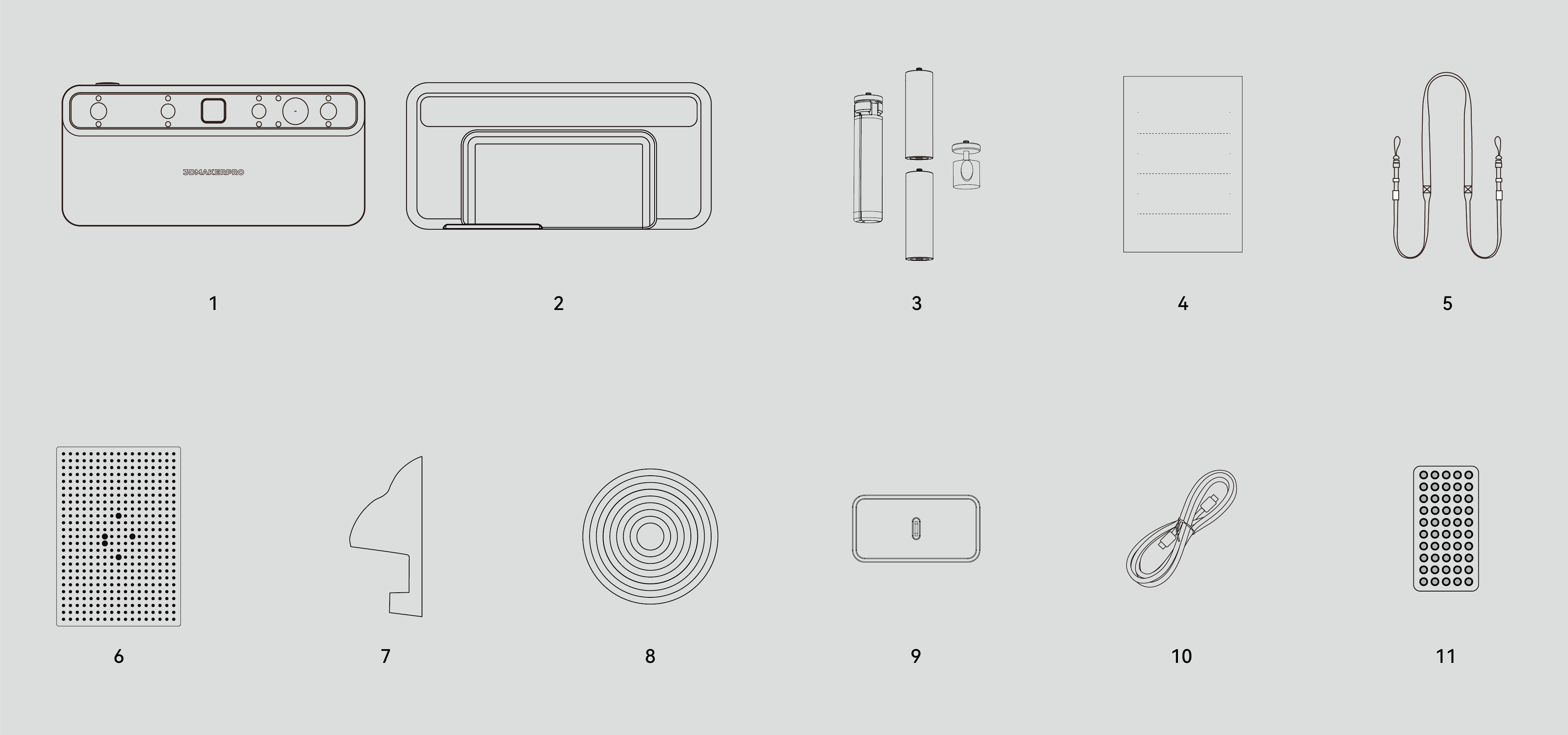
³Not included in the Standard Combo.
Product images are for illustrative purposes only! The actual product may vary.
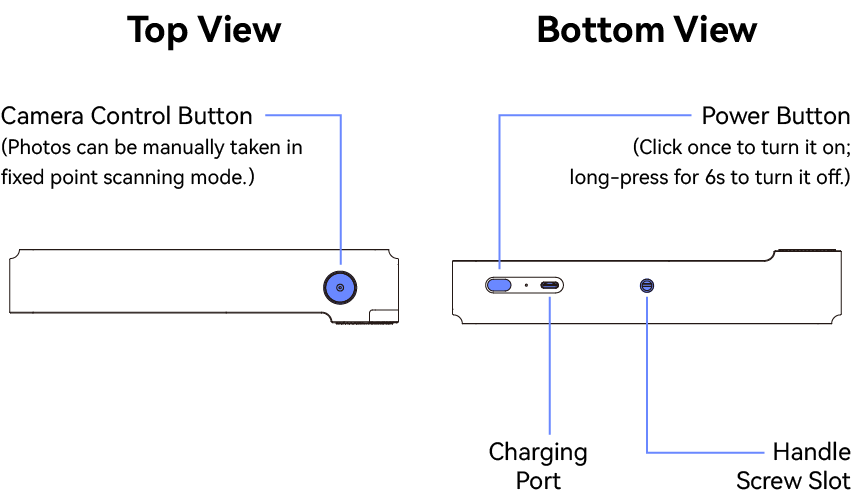
Scanner Components
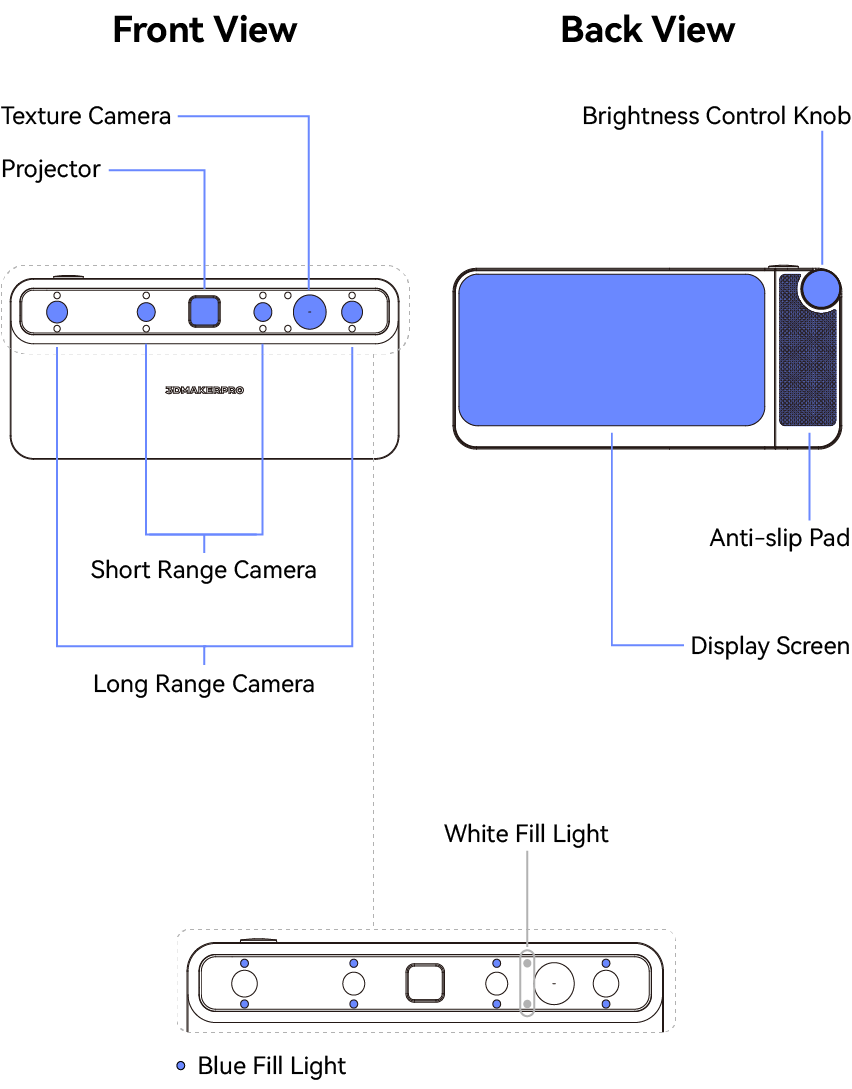
Hardware Assembly
Fixed Point Mode
Follow the image below to assemble the tripod when scanning in fixed point mode.
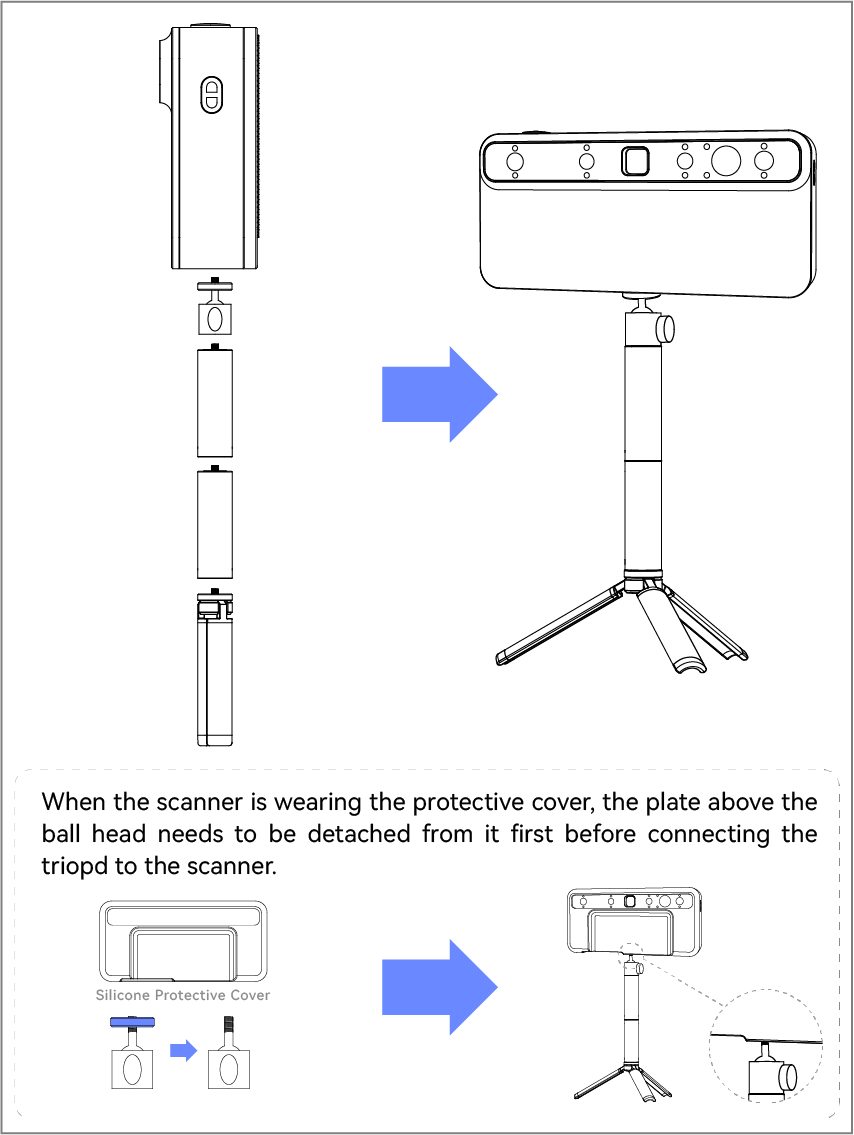
*Please connect the accessories according to the actual use!
Handheld Scanning
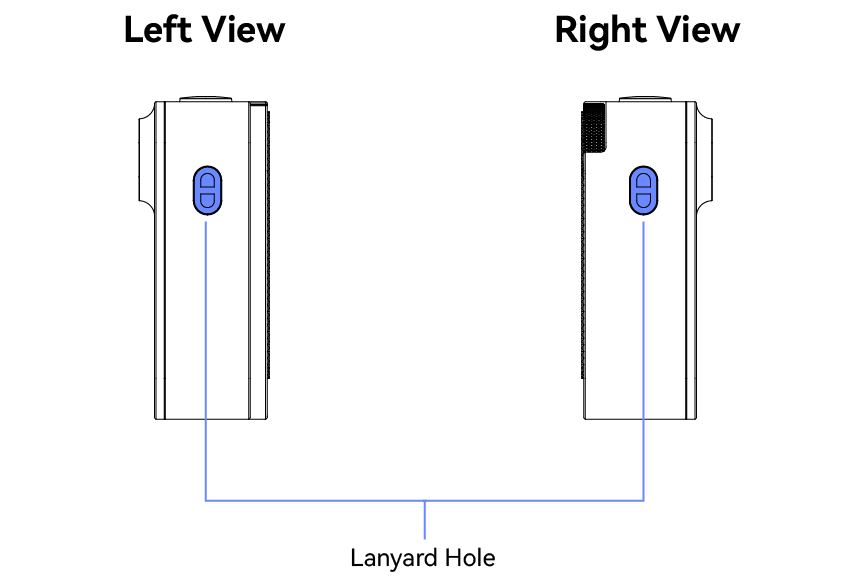
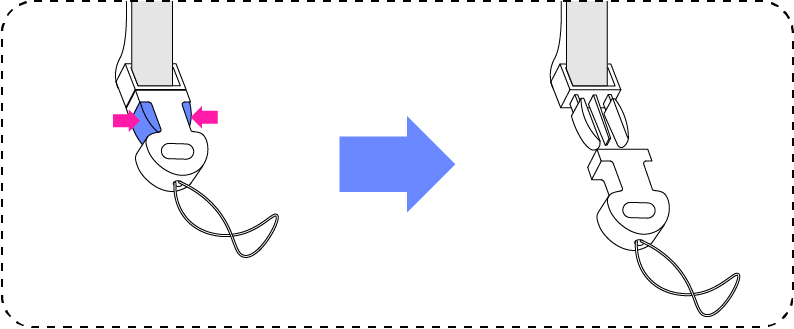
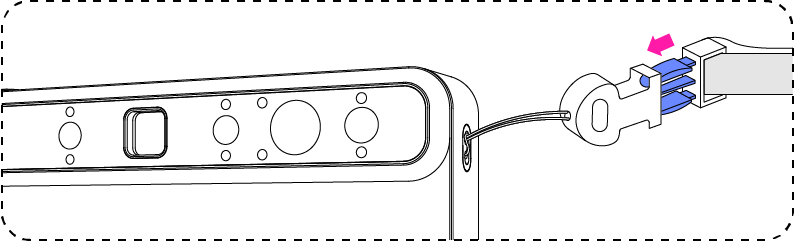
When doing handheld scanning, it is recommended to attach the lanyard to the scanner in case it drops and gets damaged.
*The images below only display one side. Both sides of scanner should be attached to the lanyard.
①Detach the fixtures from both sides of the lanyard.
②Put the loop through the lanyard hole, stretch the loop with your fingers, put the fixture through the loop, then pull tight.
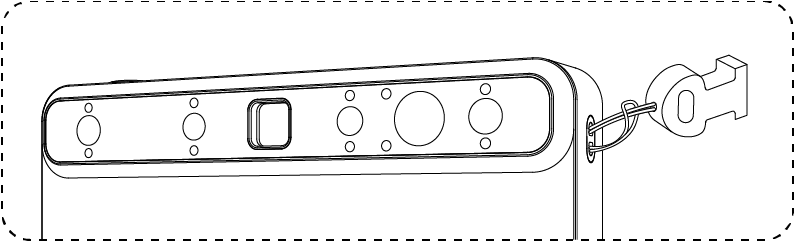
③Refer to step ① to connect the fixture with the lanyard.
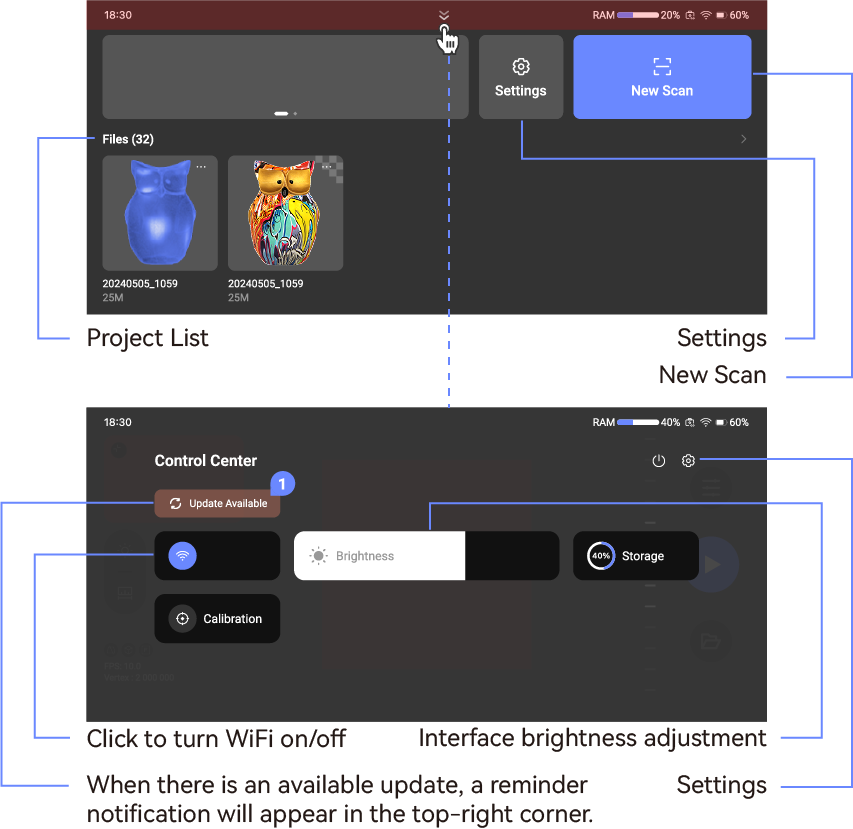
Homepage
① Press the button at the bottom of the device to turn it on.

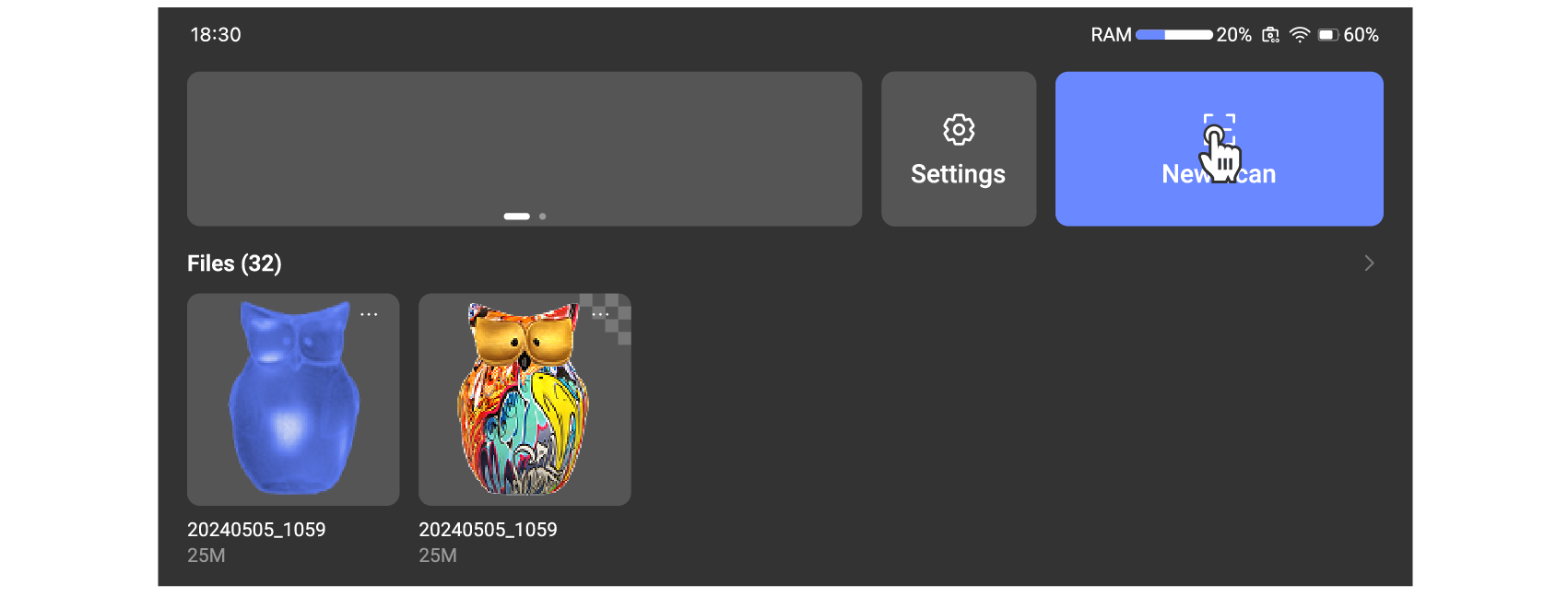
② On the homepage, you can create new projects, view the project list, and more. Swipe down from the top of the screen to access the control center.
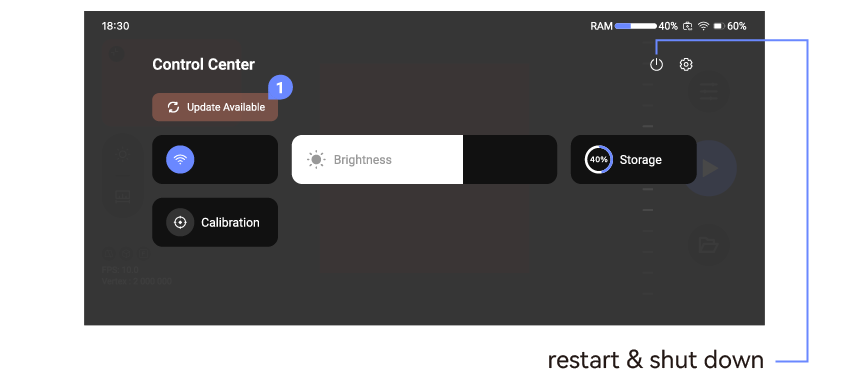
- Press the power button at the bottom of the device to choose restart or shutdown, or long-press for 6 seconds to force the device to shut down.



Settings
Software Update
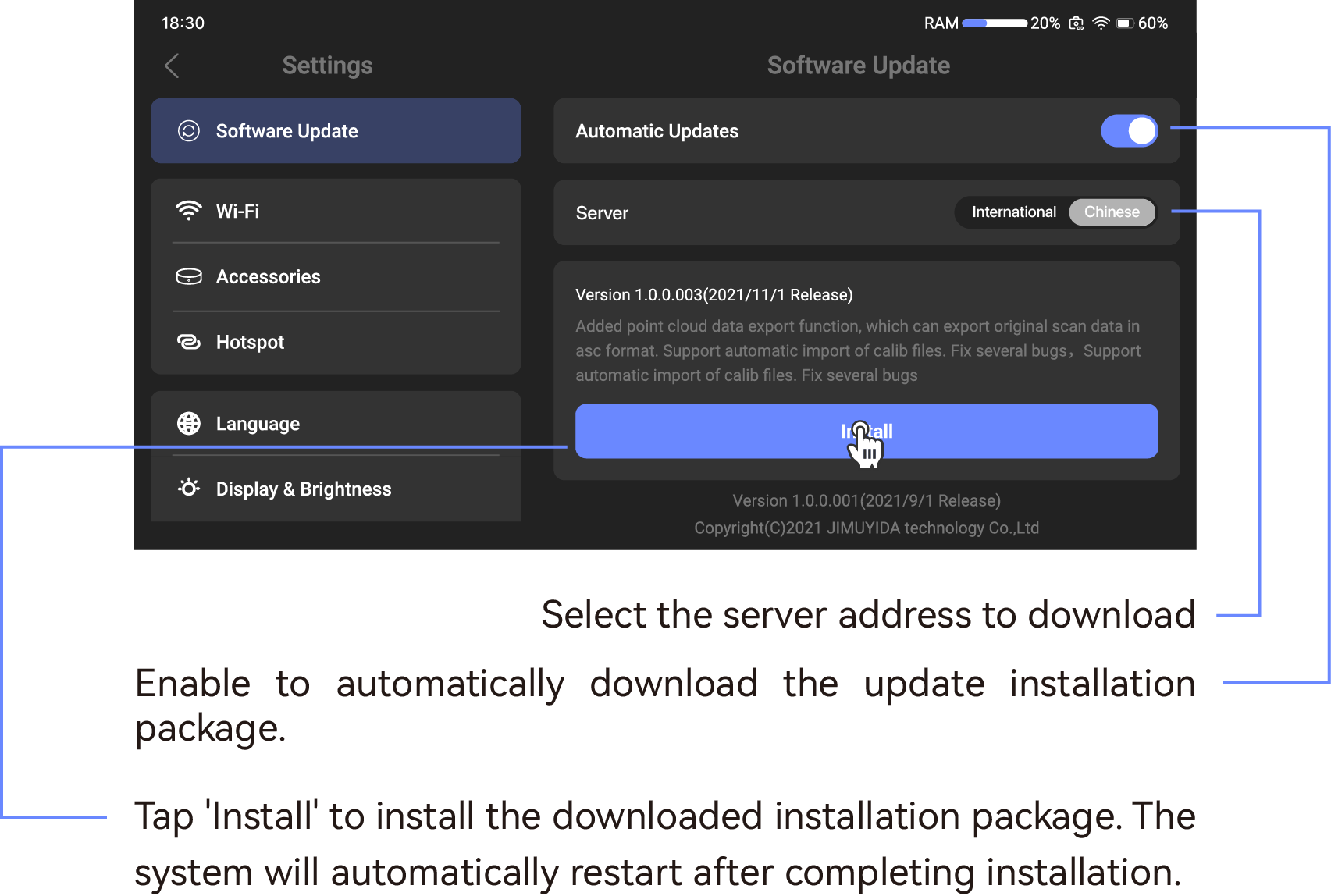
WiFi
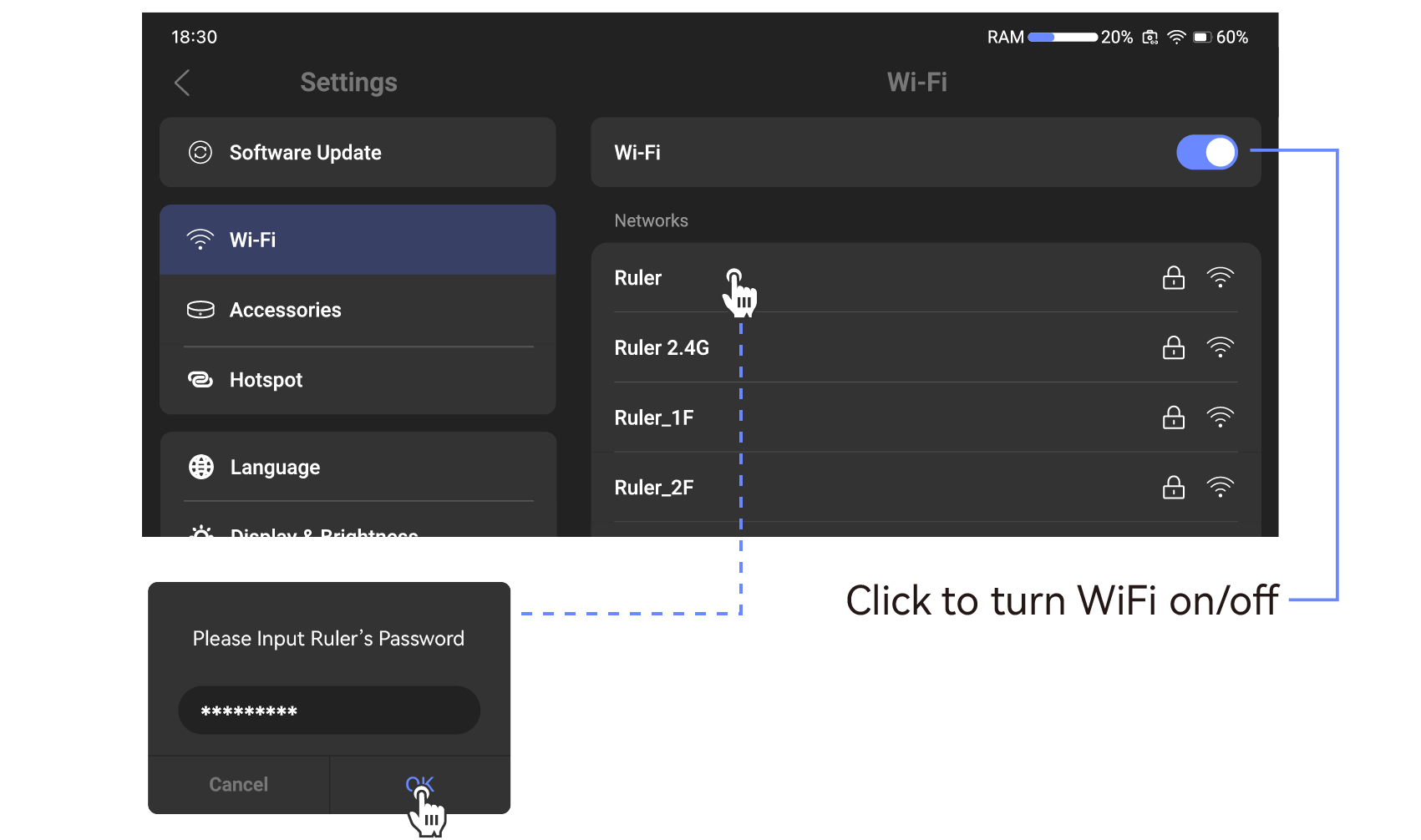
*When transferring data to a PC, TOUCAN and the PC need to be connected to the same Wifi network.
Accessories
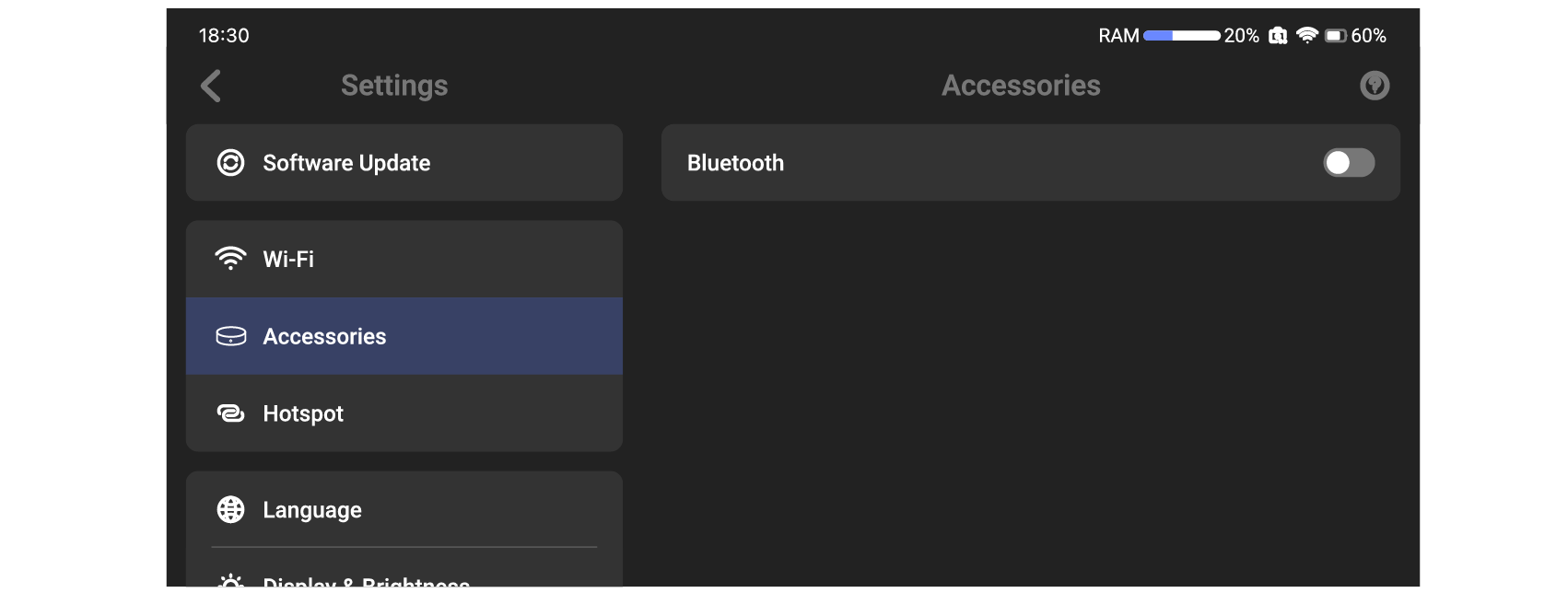
Used in conjunction with a Bluetooth turntable, it can be connected via wired or Bluetooth methods. For specific operations, refer to fixed scan.
Hotspot
Language
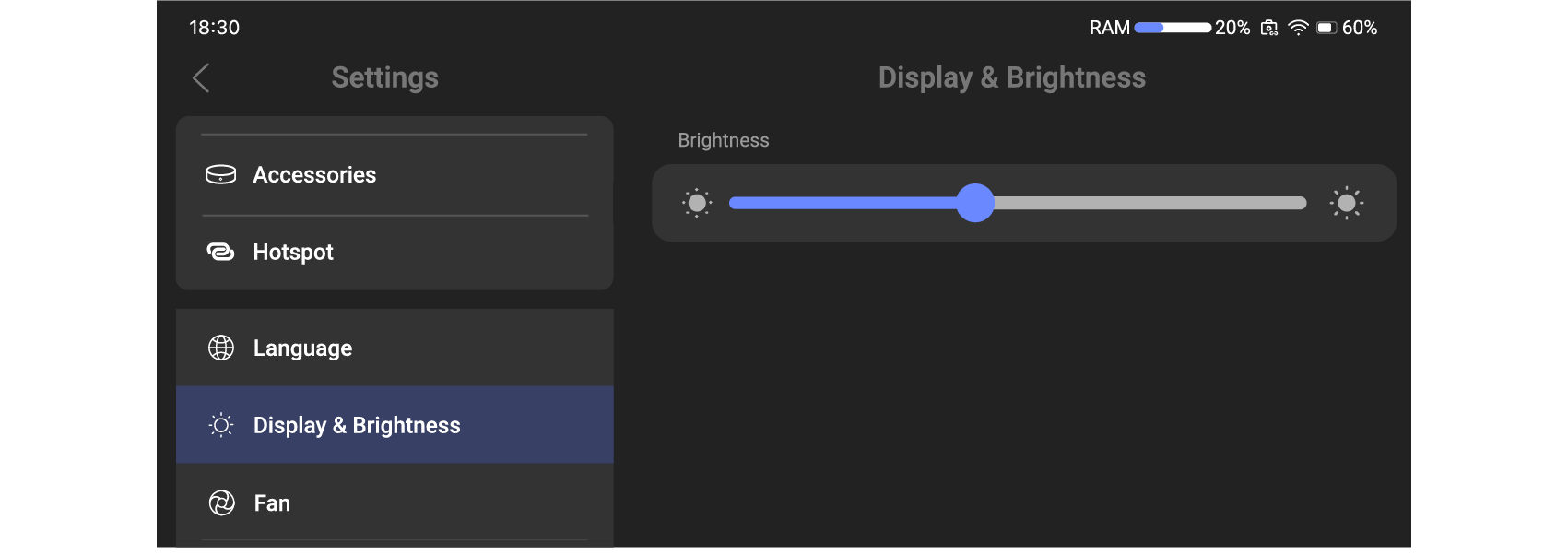
Display & Brightness
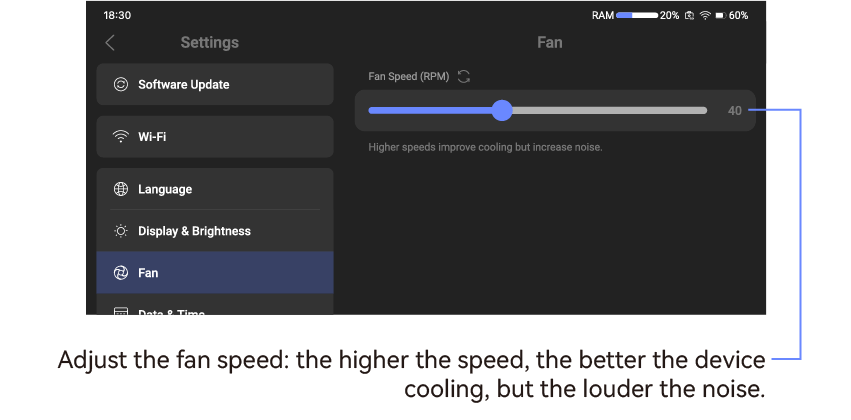
Fan
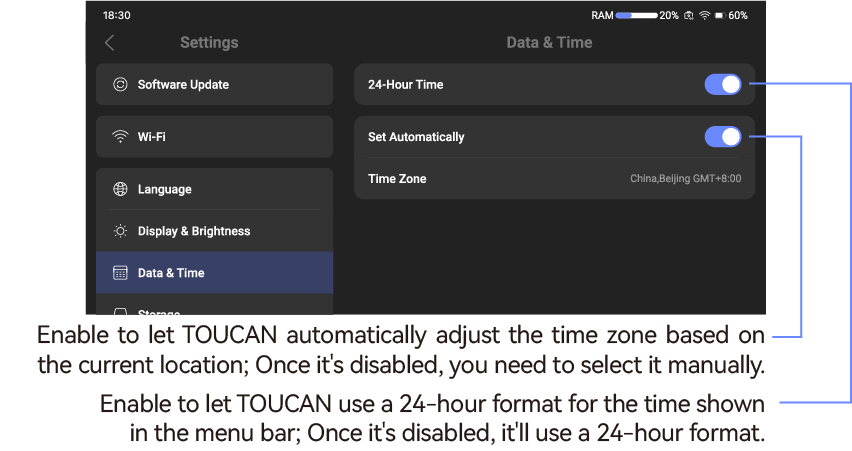
Date & Time
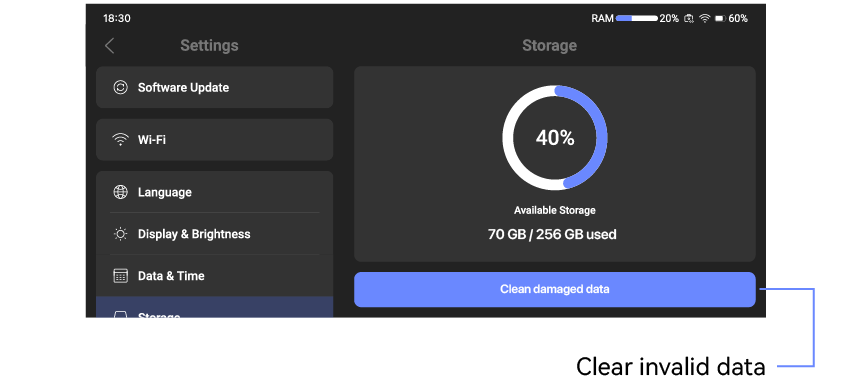
Storage
Calibration
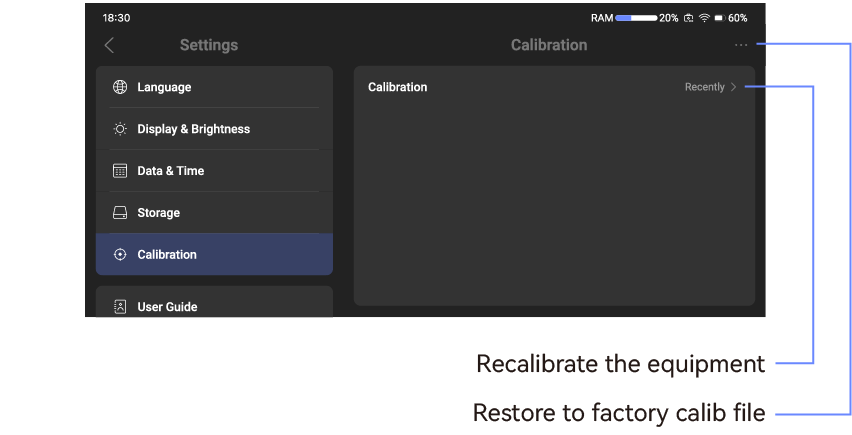
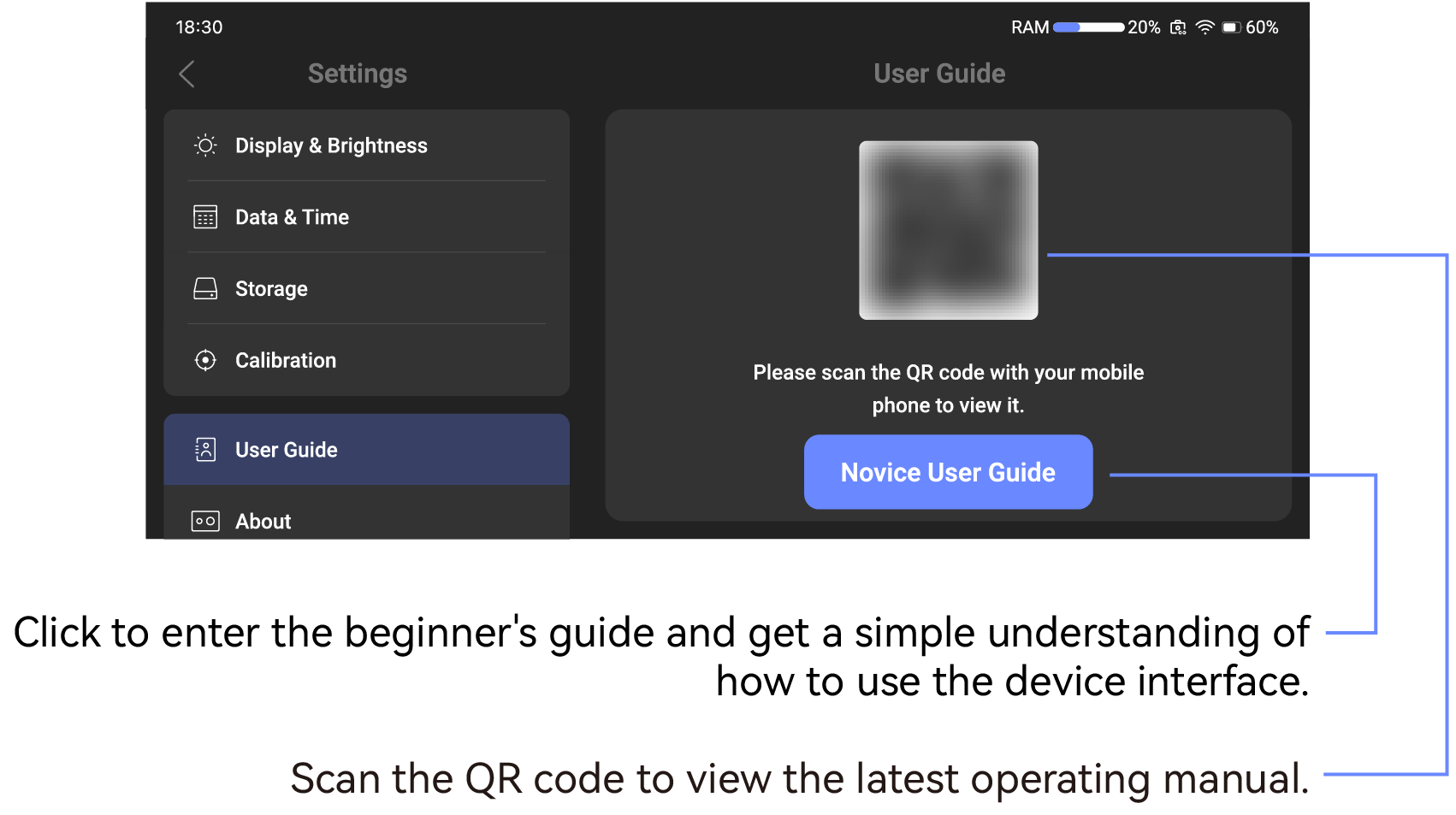
User Guide
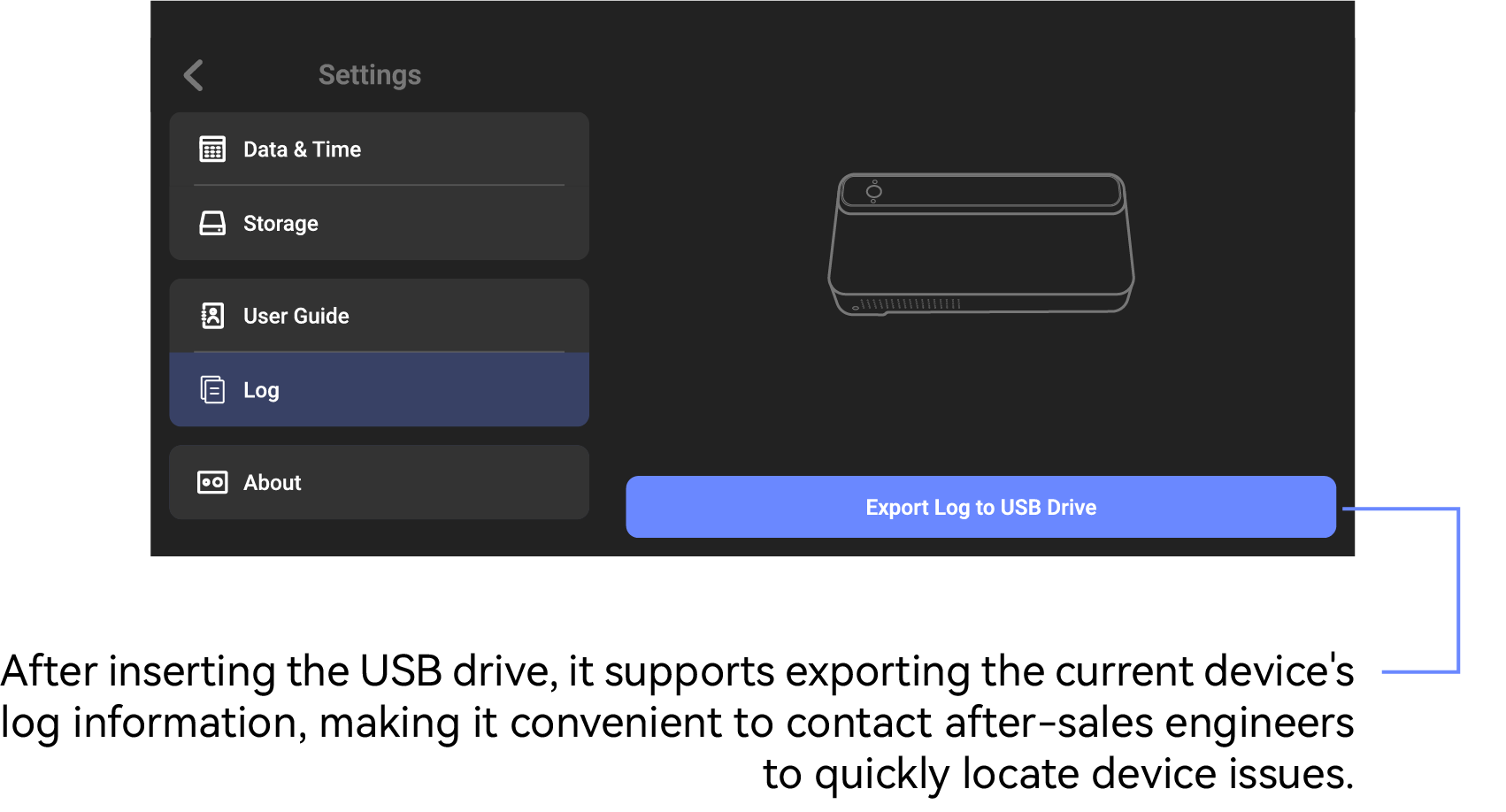
Log
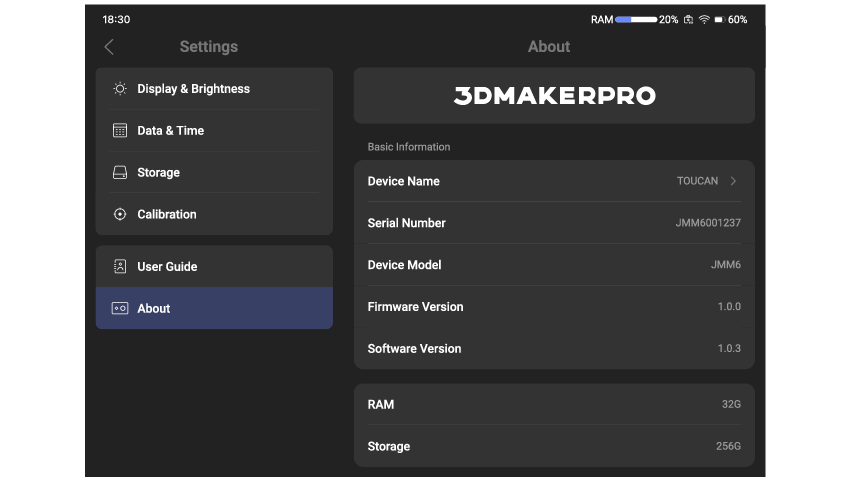
About
Preparation before scanning
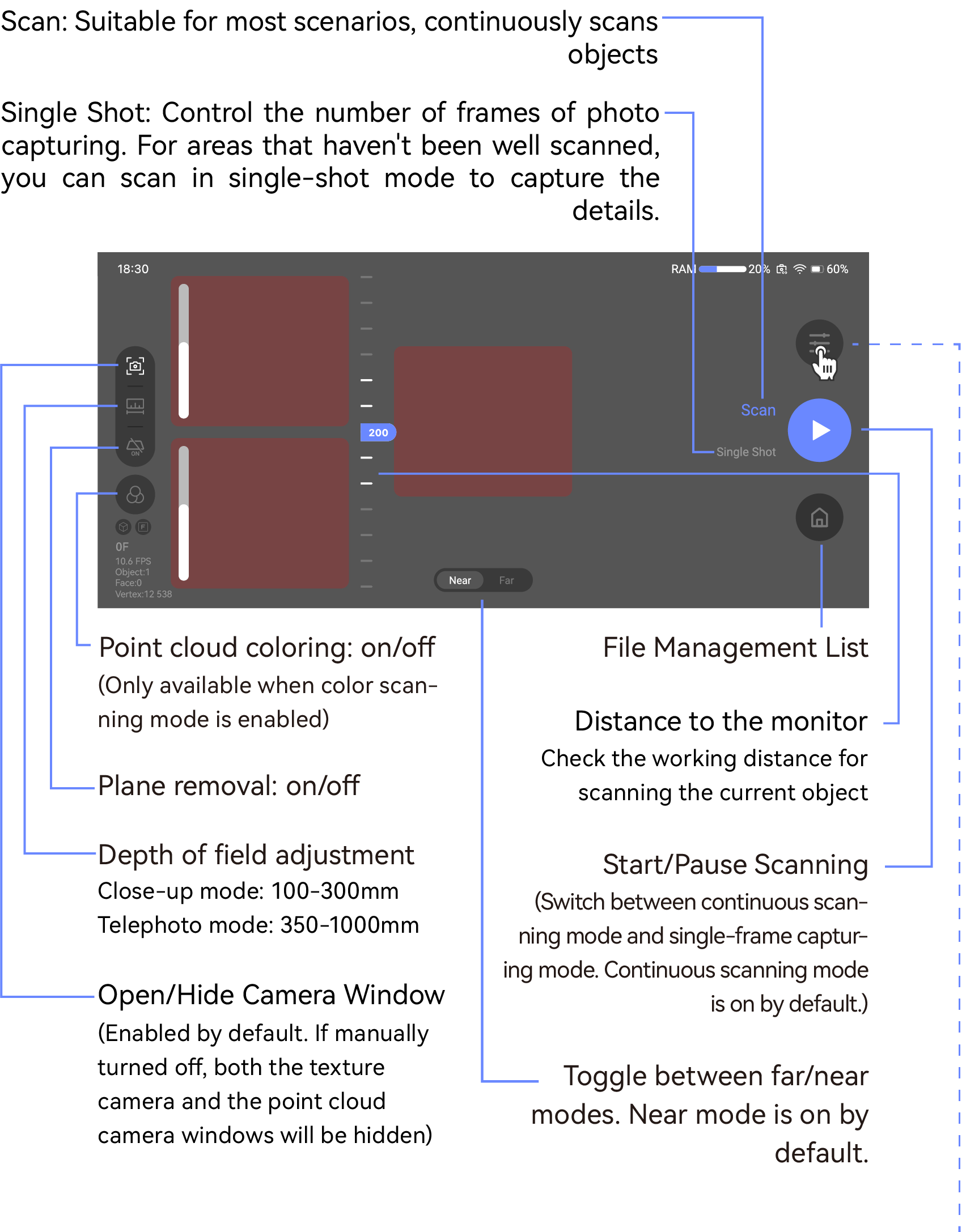
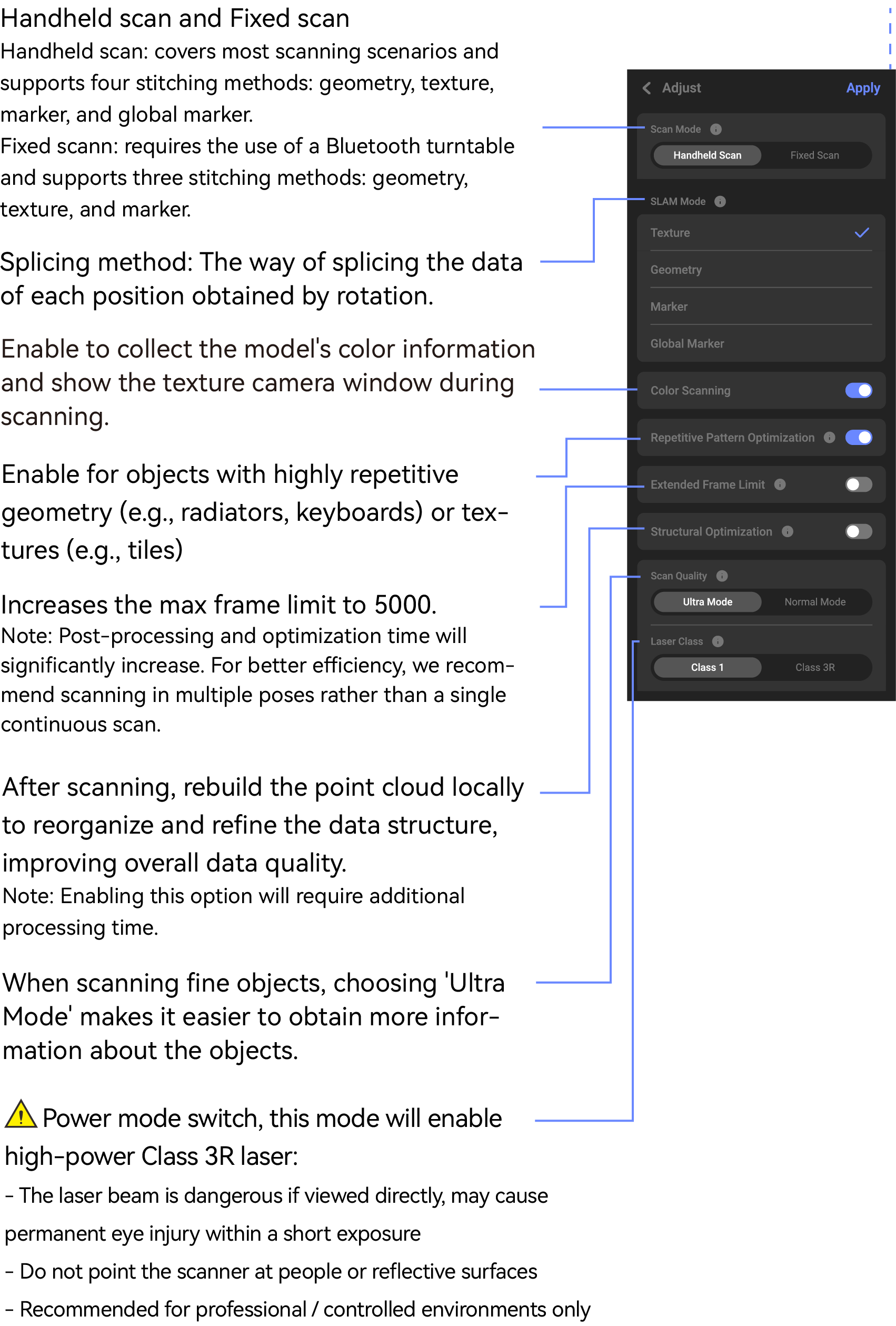
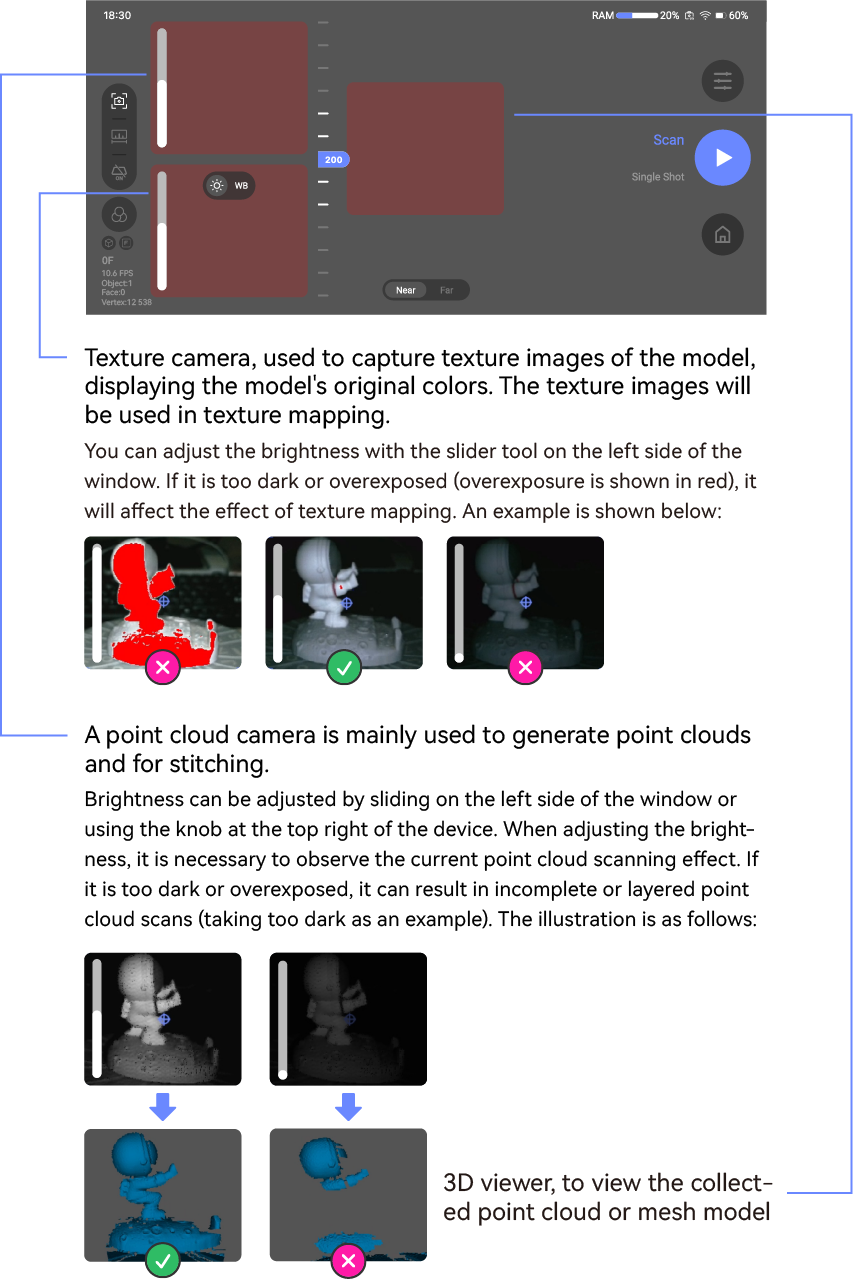
Adjust the scan settings in the scan preview interface
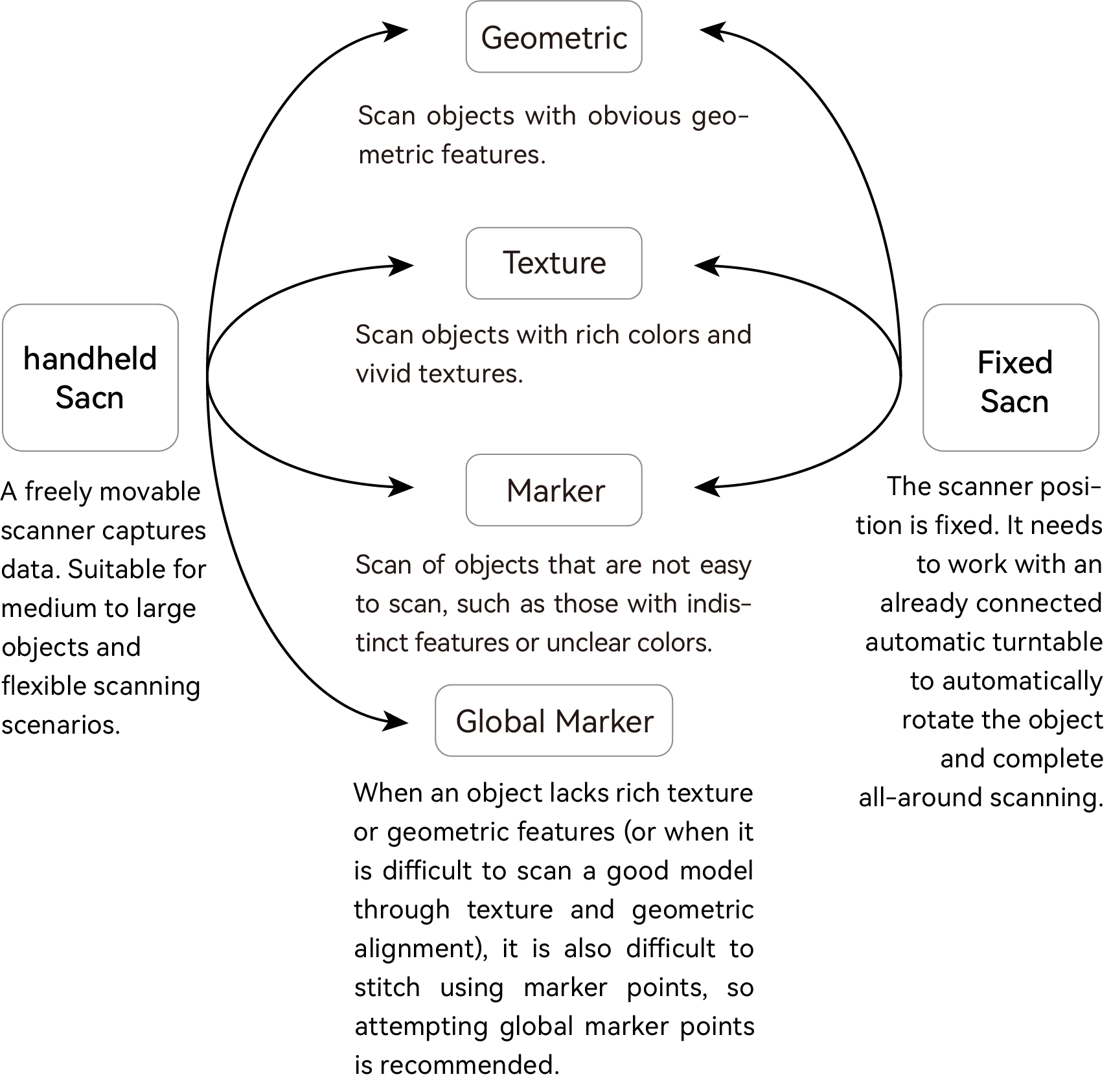
Explanation of Scan Mode & SLAM Mode
Scanning is divided into handheld mode and fixed mode, corresponding to four SLAM modes respectively. The specific correspondence is as follows:
Scan
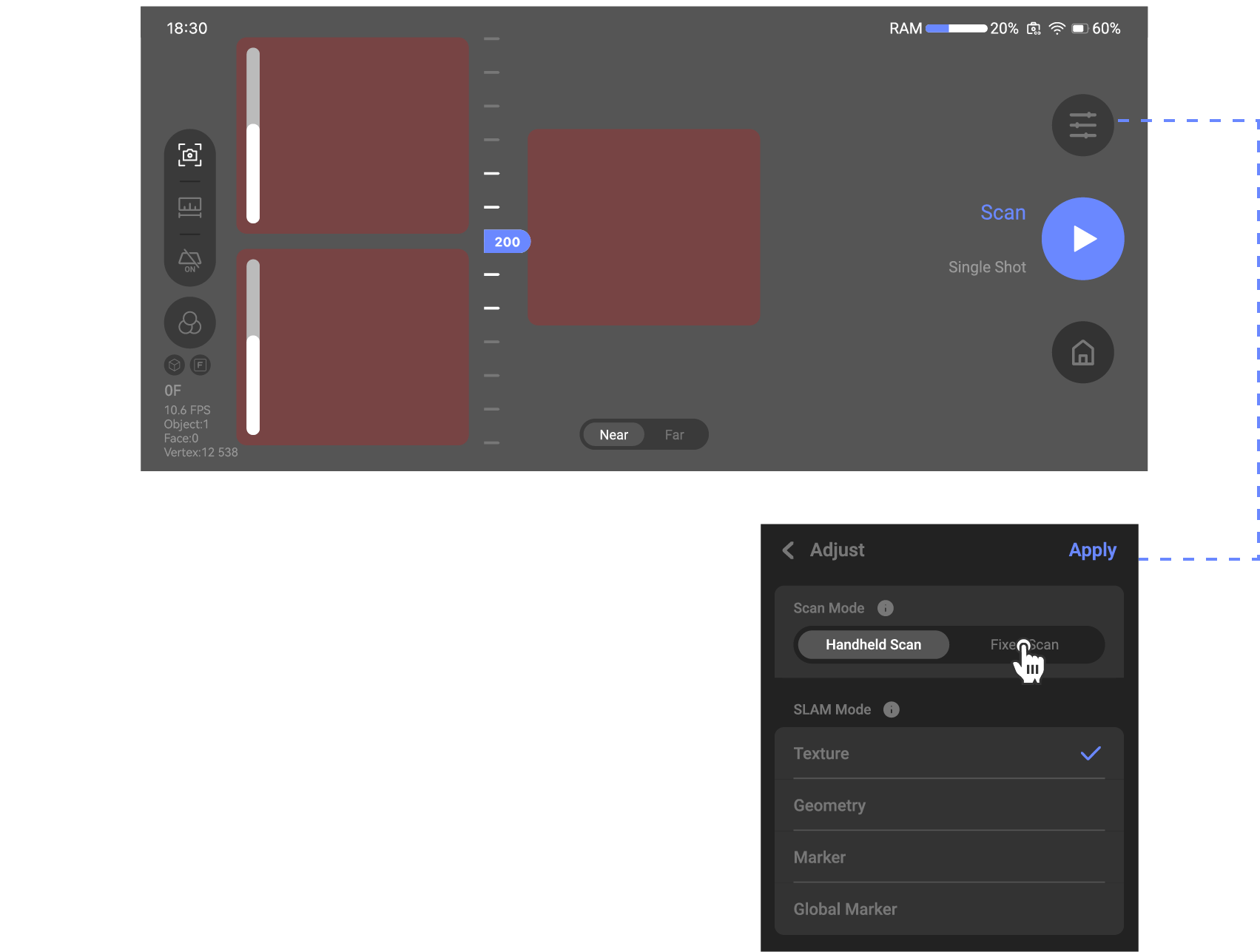
Scan mode
Scanning supports handheld scan and fixed scan.
Handheld scan: When scanning an object, the scanning angle can be manually adjusted for more detailed and comprehensive scanning.
Fixed scan: Must be used with a Bluetooth turntable, scanning is less likely to miss details, but once the scan starts, the scanner needs to remain stationary.
Handheld scan
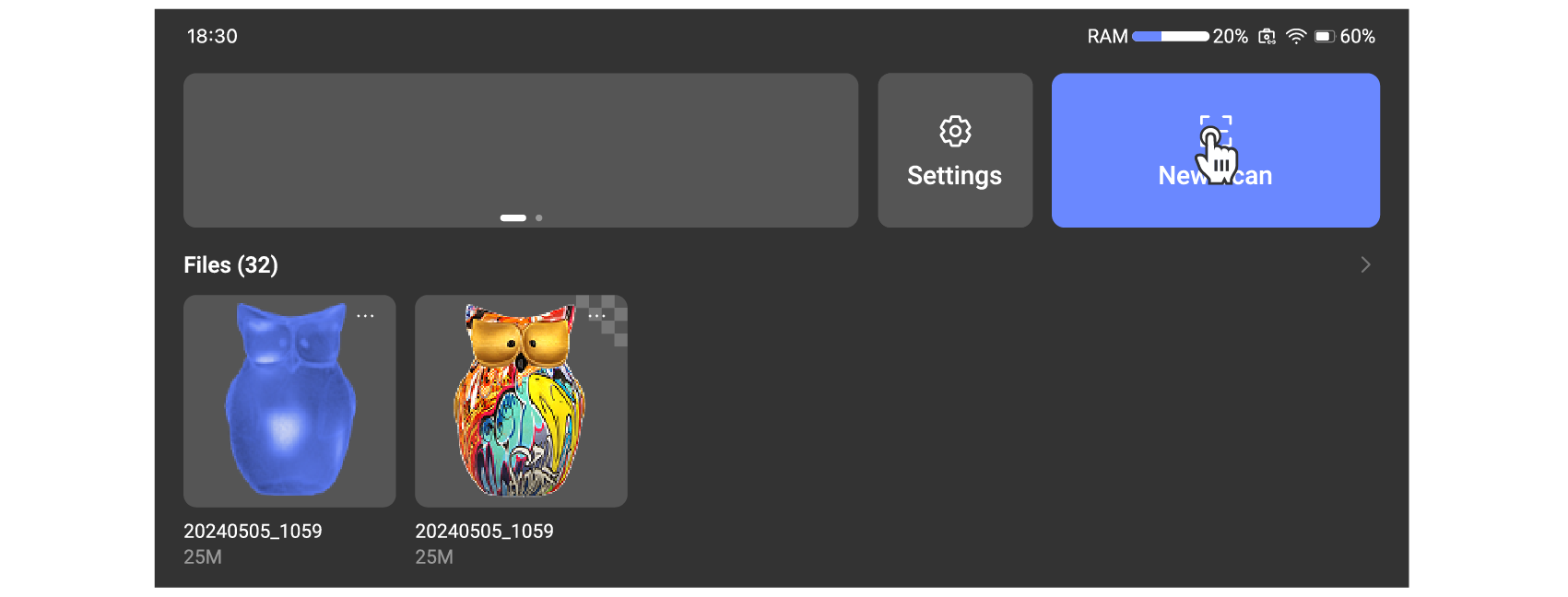
Directly enter the scanning interface and select handheld scanning mode.
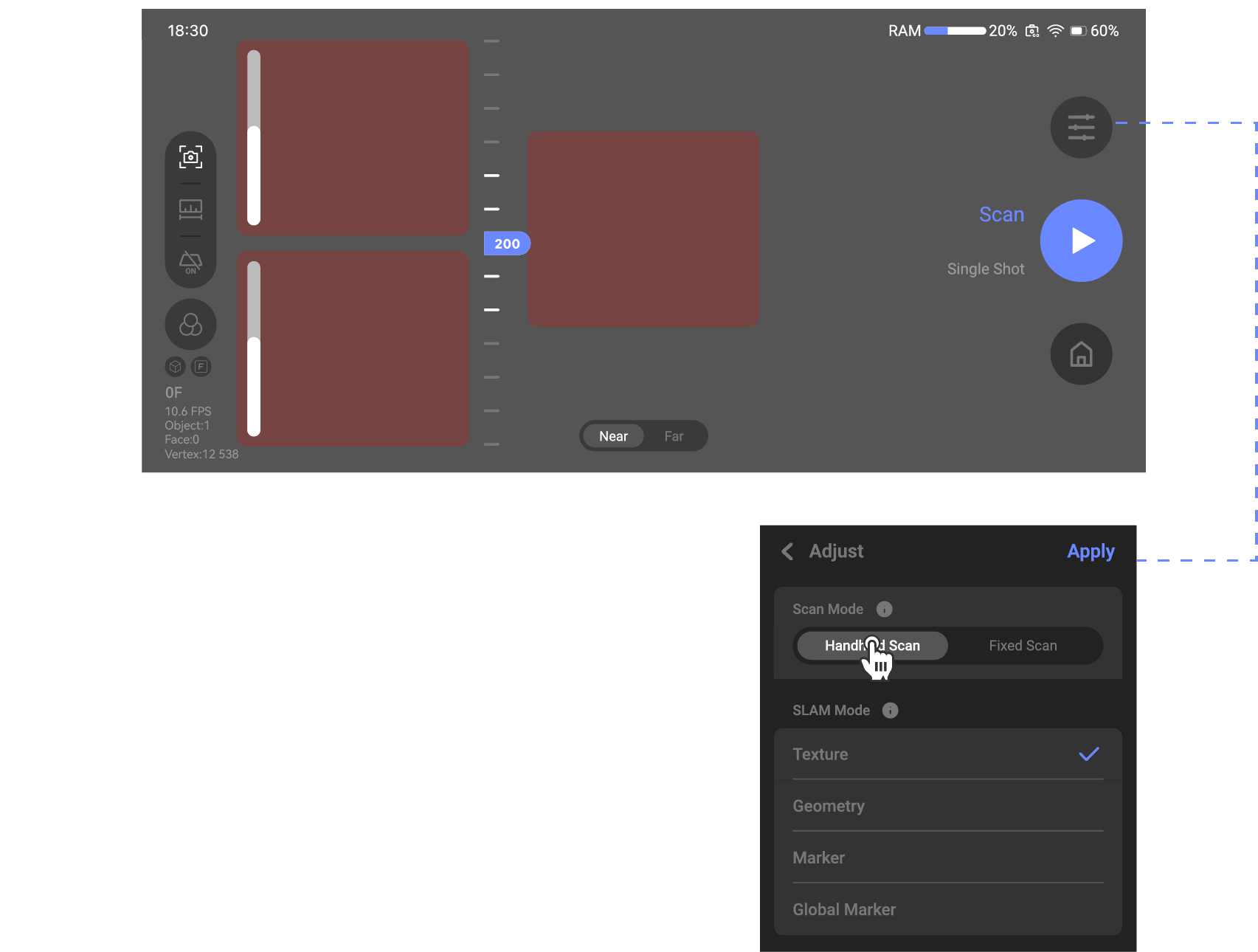 Fixed scan
Fixed scanning requires a Bluetooth turntable. There are two ways to connect the Bluetooth turntable: one is wired connection, and the other is Bluetooth connection. When connected, if the scanner is not operated for 15 minutes, the Bluetooth turntable will automatically shut down.
●Wired connection
- Please press and hold the automatic turntable to power on before connecting. After it is powered on, the indicator light will remain steadily on.
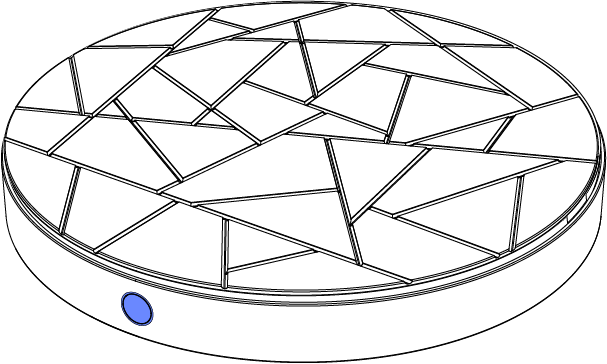
- Use the cable that comes with the device, inserting one end into the socket at the back of the automatic turntable and the other end into the socket at the bottom of the TOUCAN.
*When using the compatible Bluetooth turntable, it is necessary to keep the TOUCAN stationary during shooting. It is recommended that users purchase the matching tripod, or they can use their own tripod for operation.
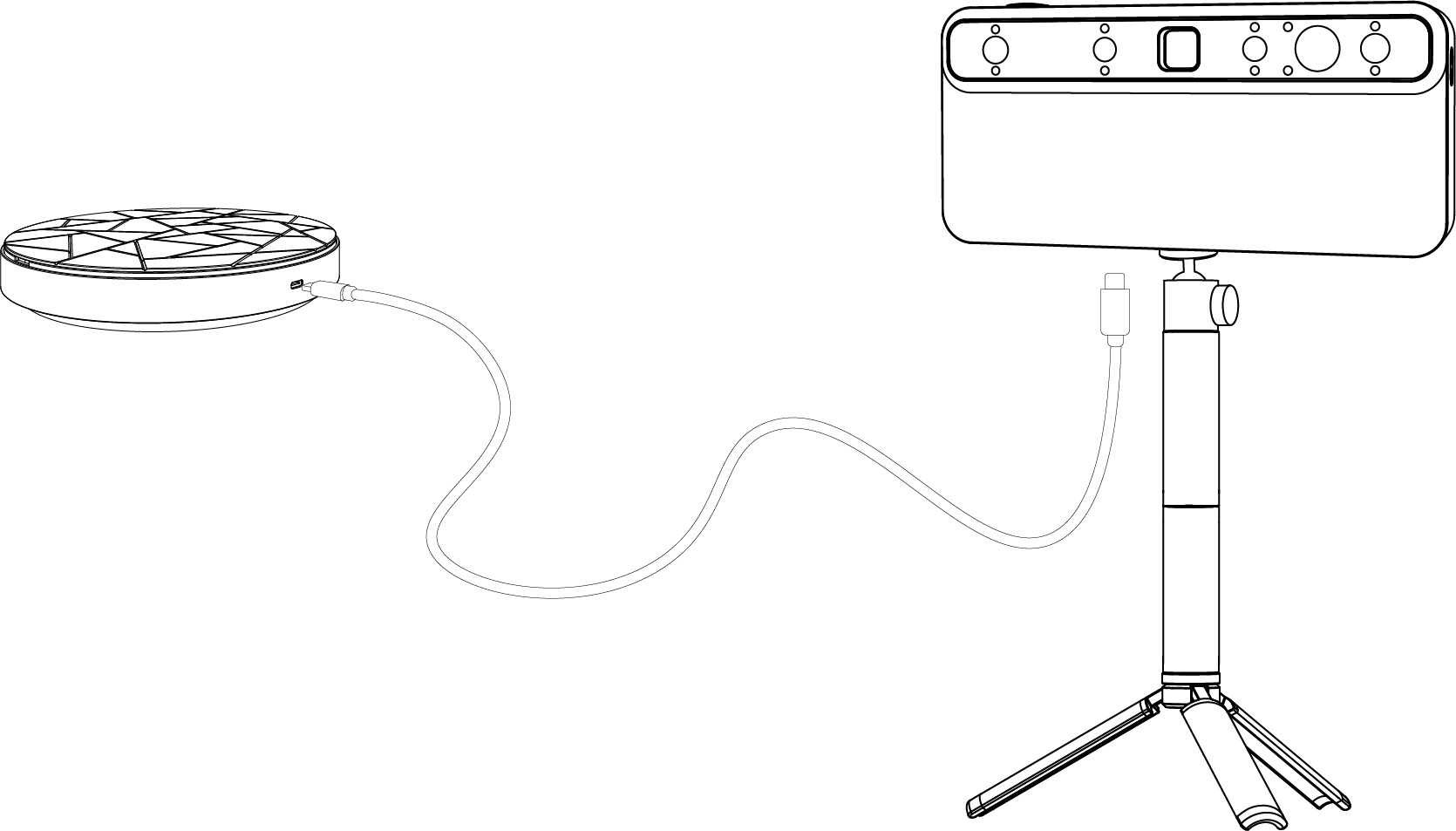
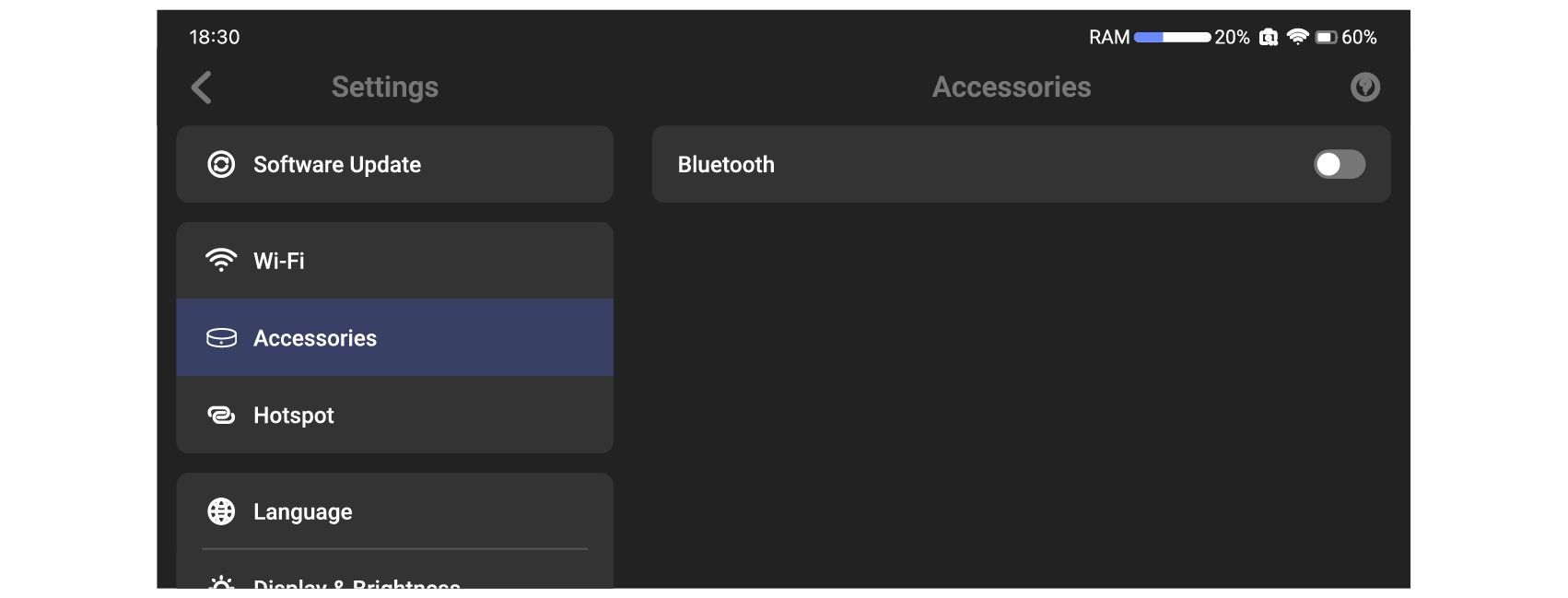
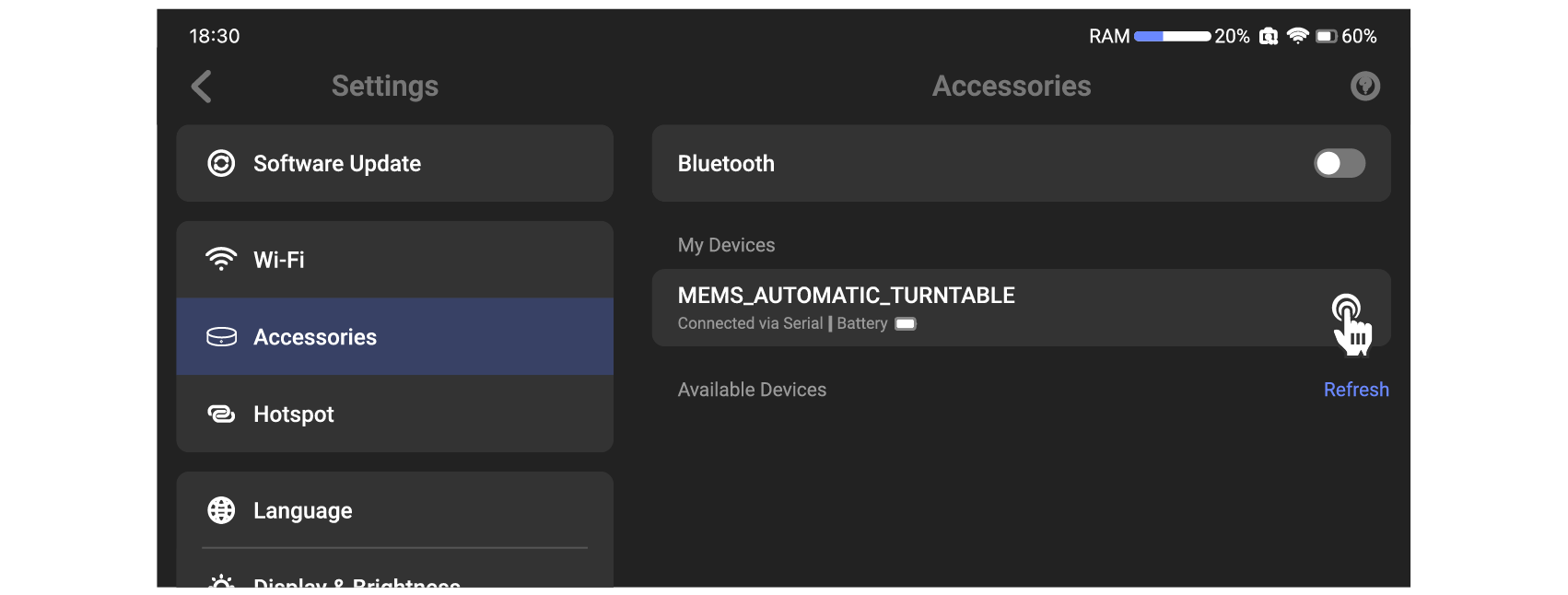
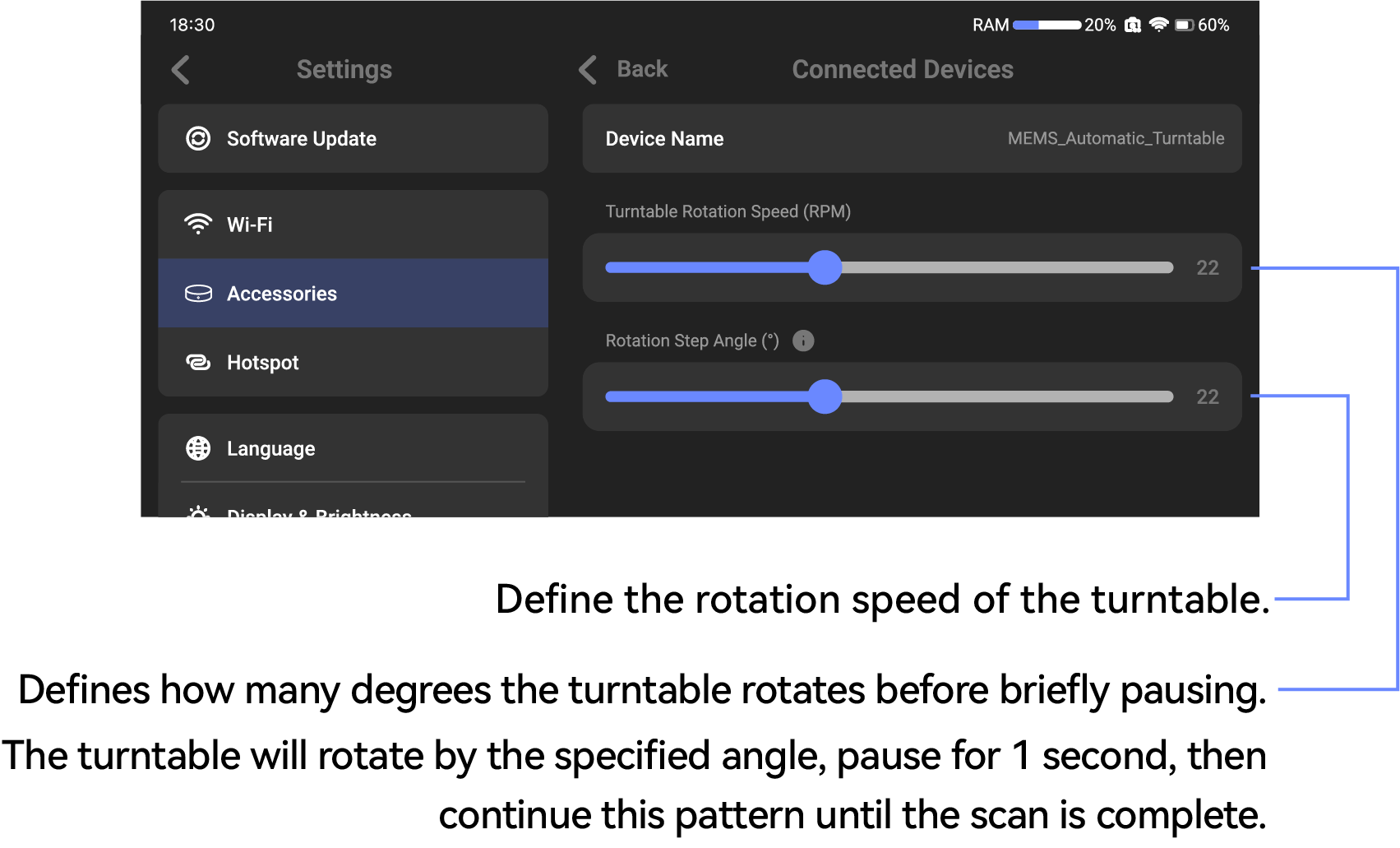
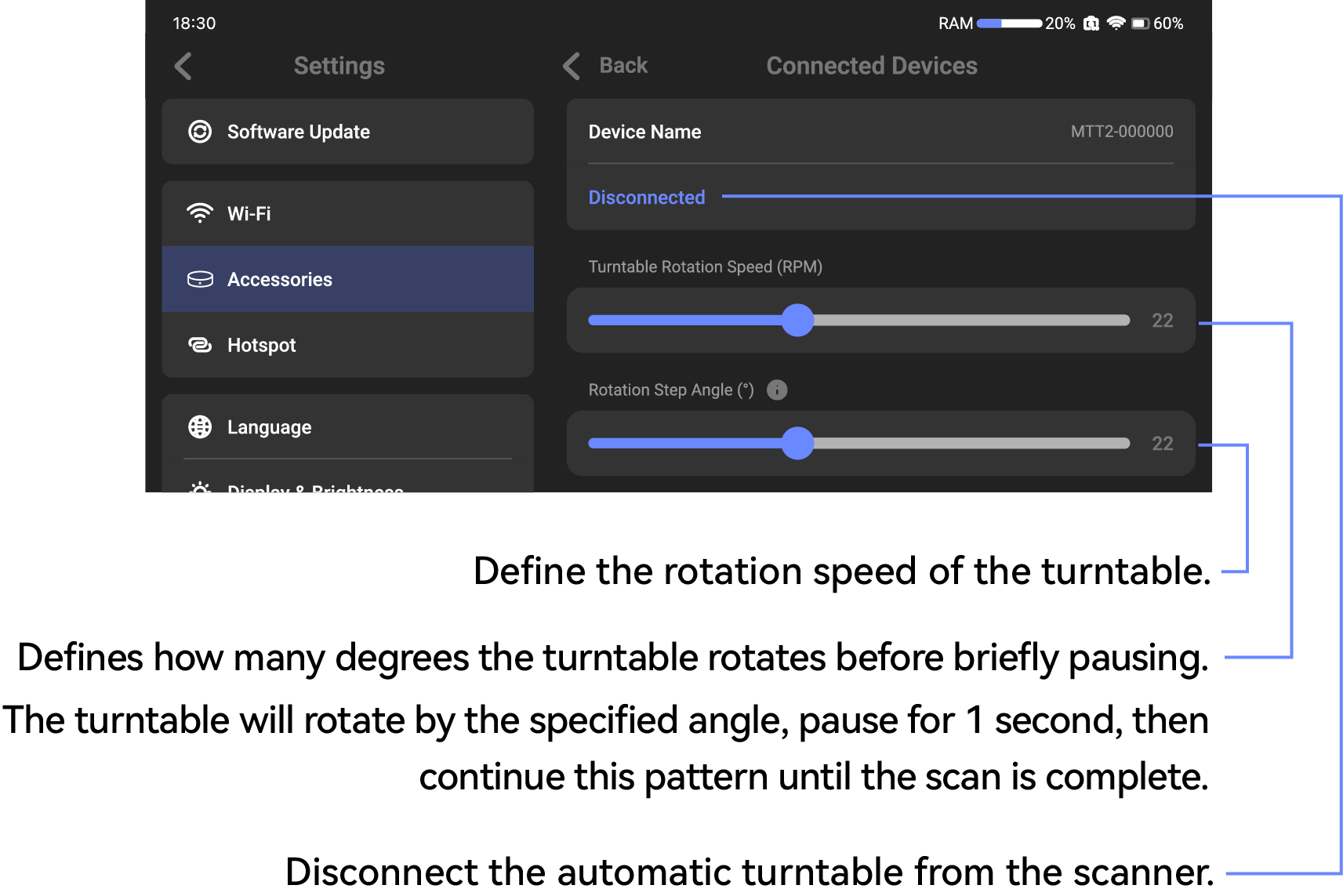
- After connecting the cable, confirm on the scanner accessories interface whether the connection was successful. Once the connection is successful, Click the icon on the right to modify the details of the Bluetooth turntable.
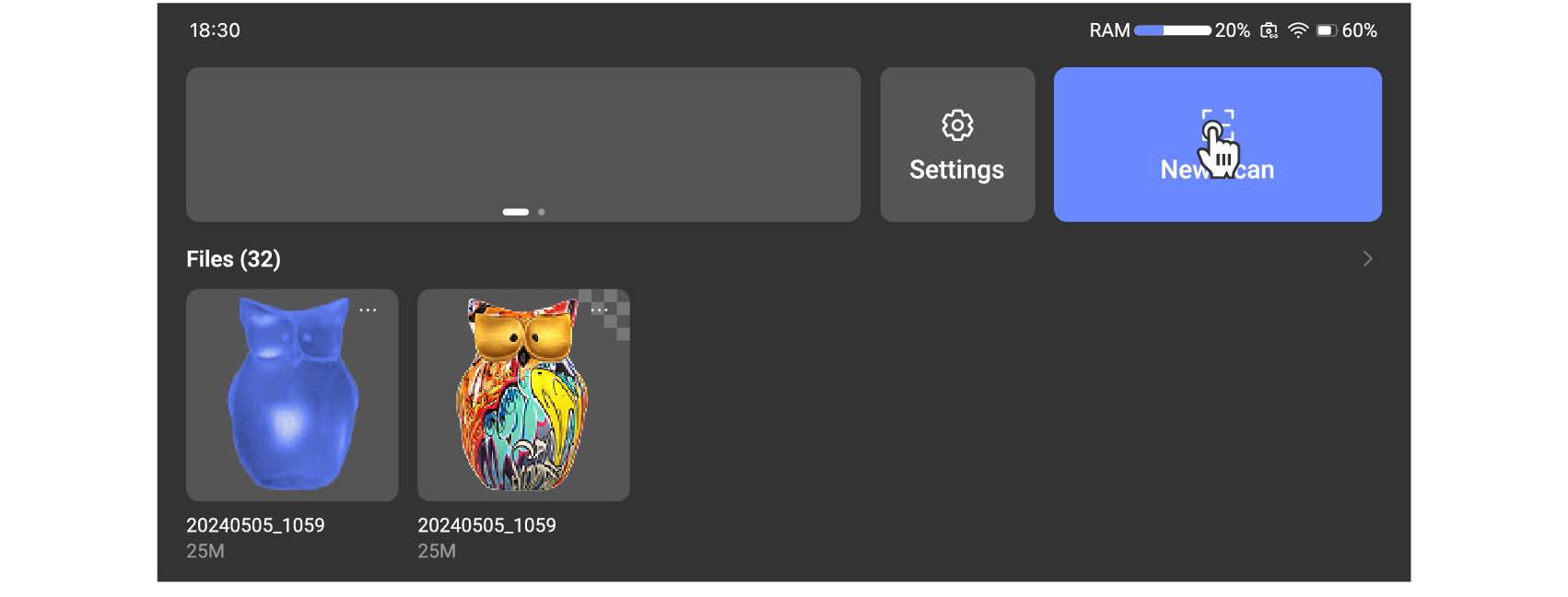
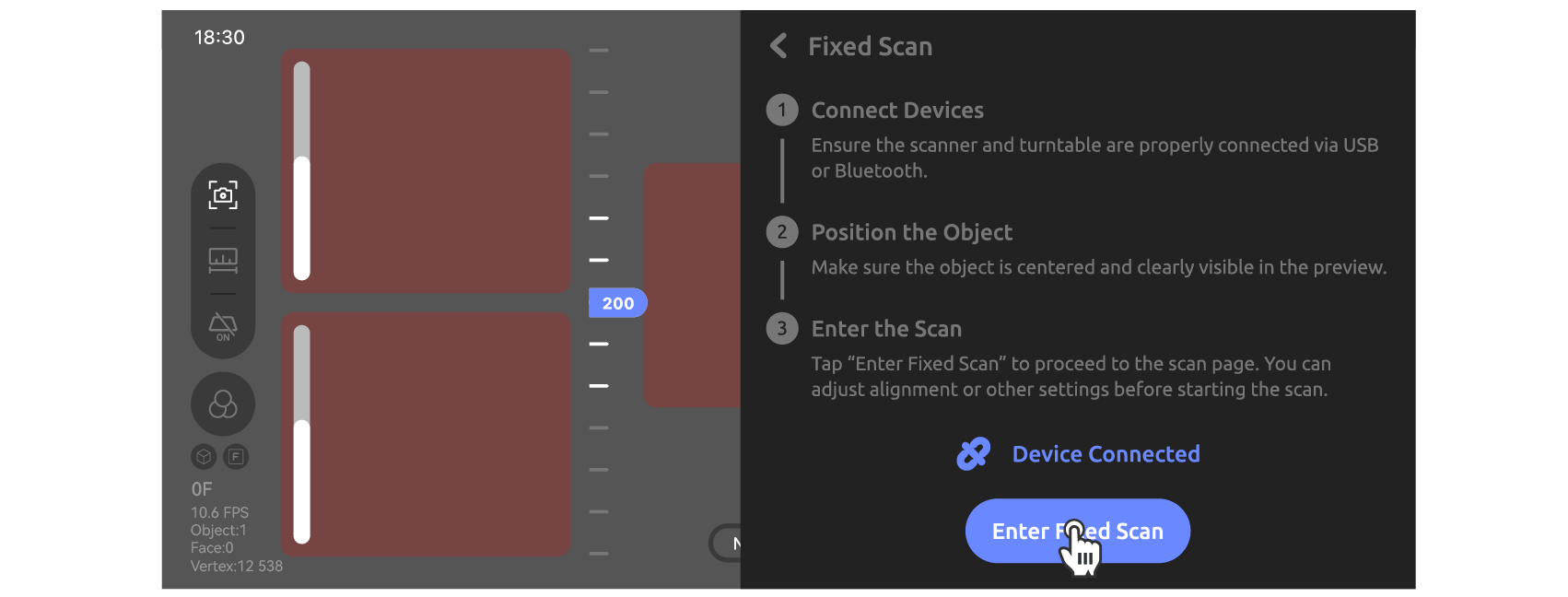
- Enter the scan interface and select the fixed scan mode.
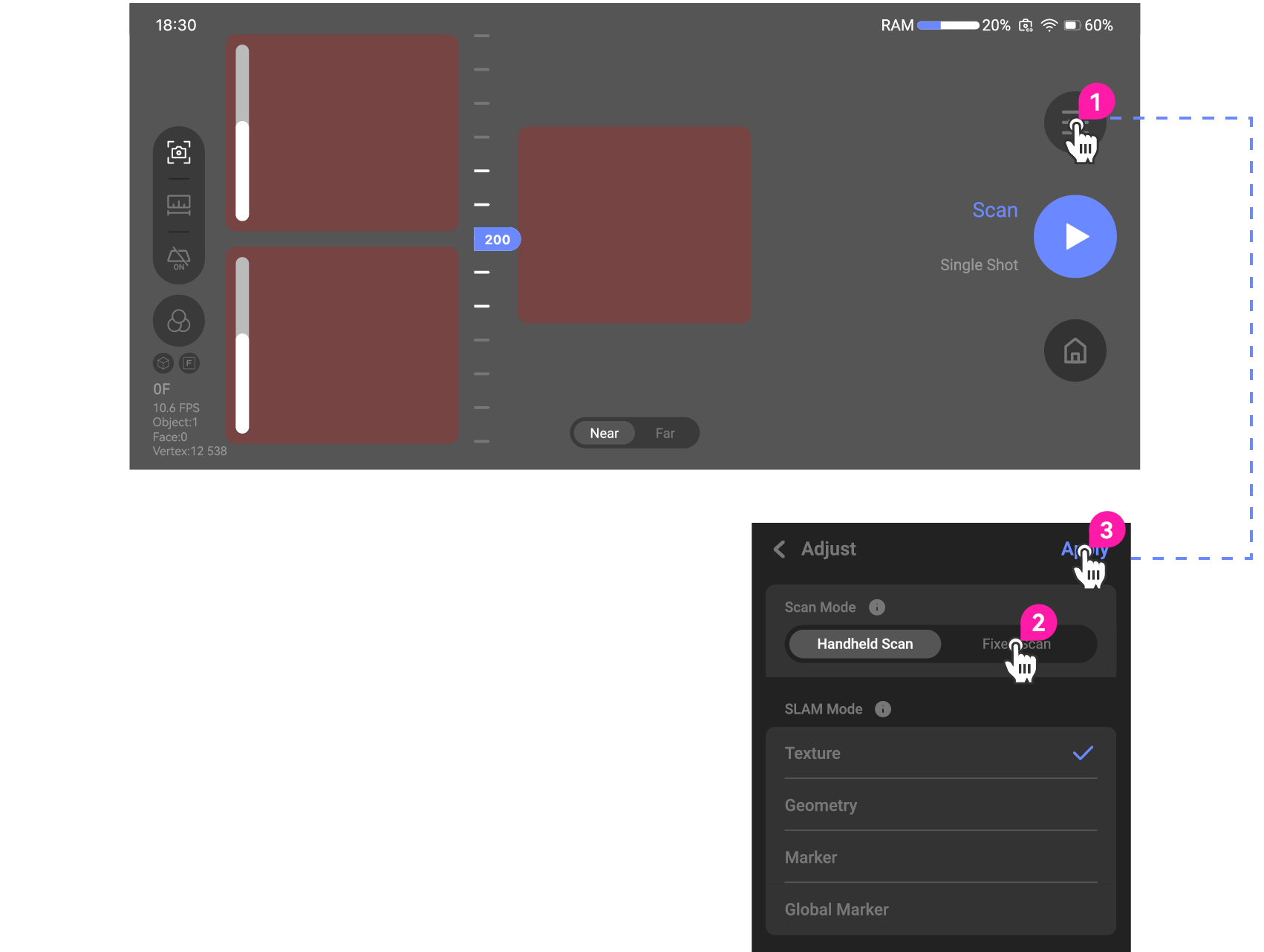
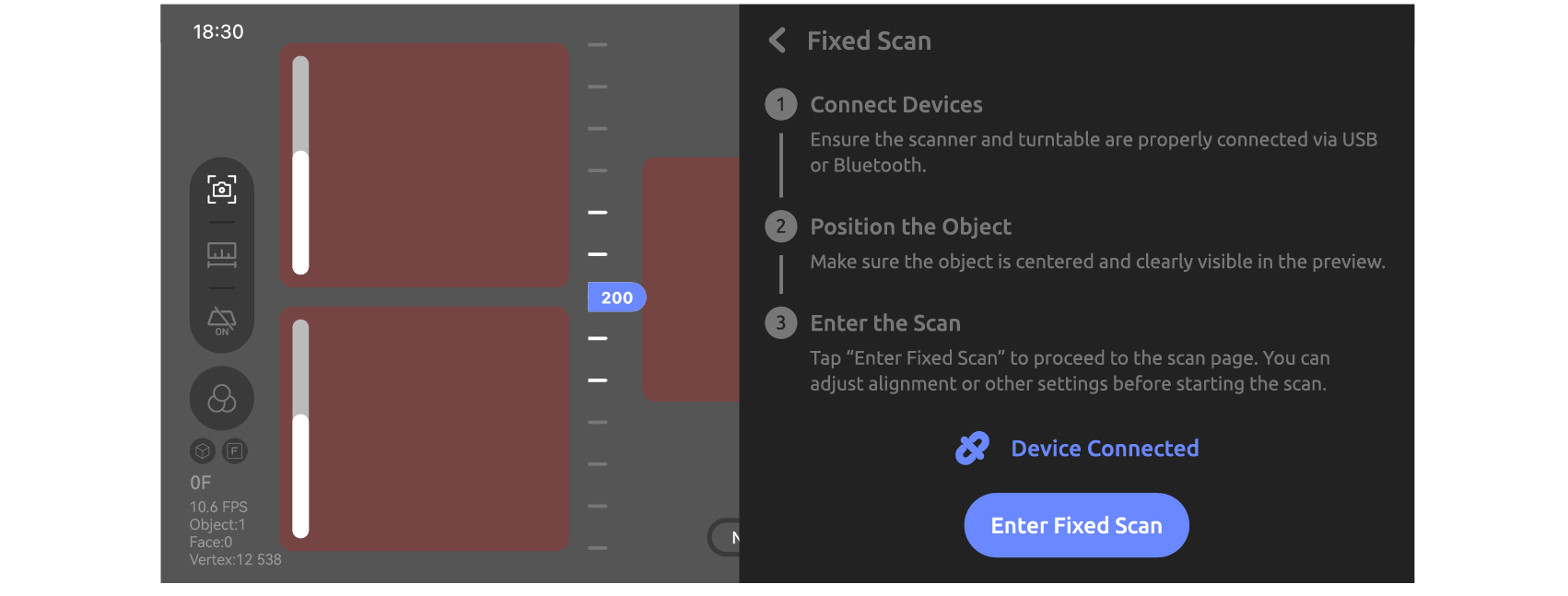
●Bluetooth connection
- Please press and hold the automatic turntable to power on before connecting. After it is powered on, the indicator light will remain steadily on.
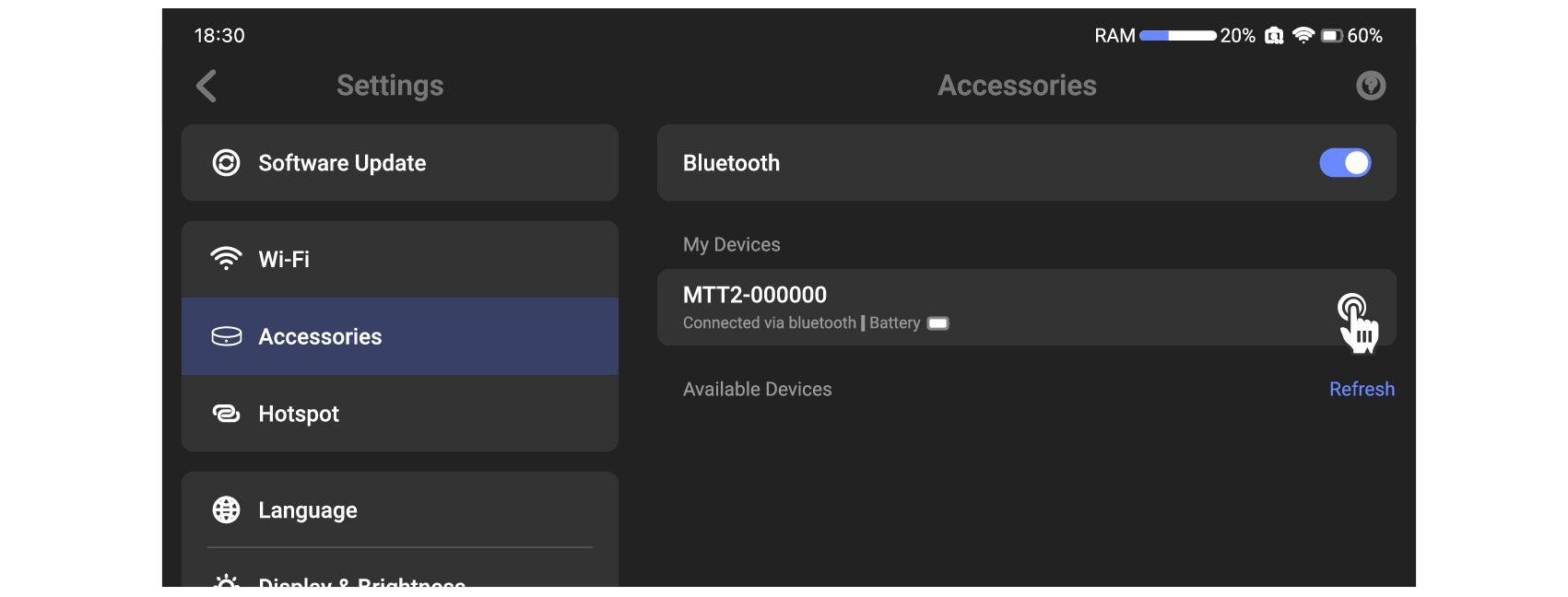
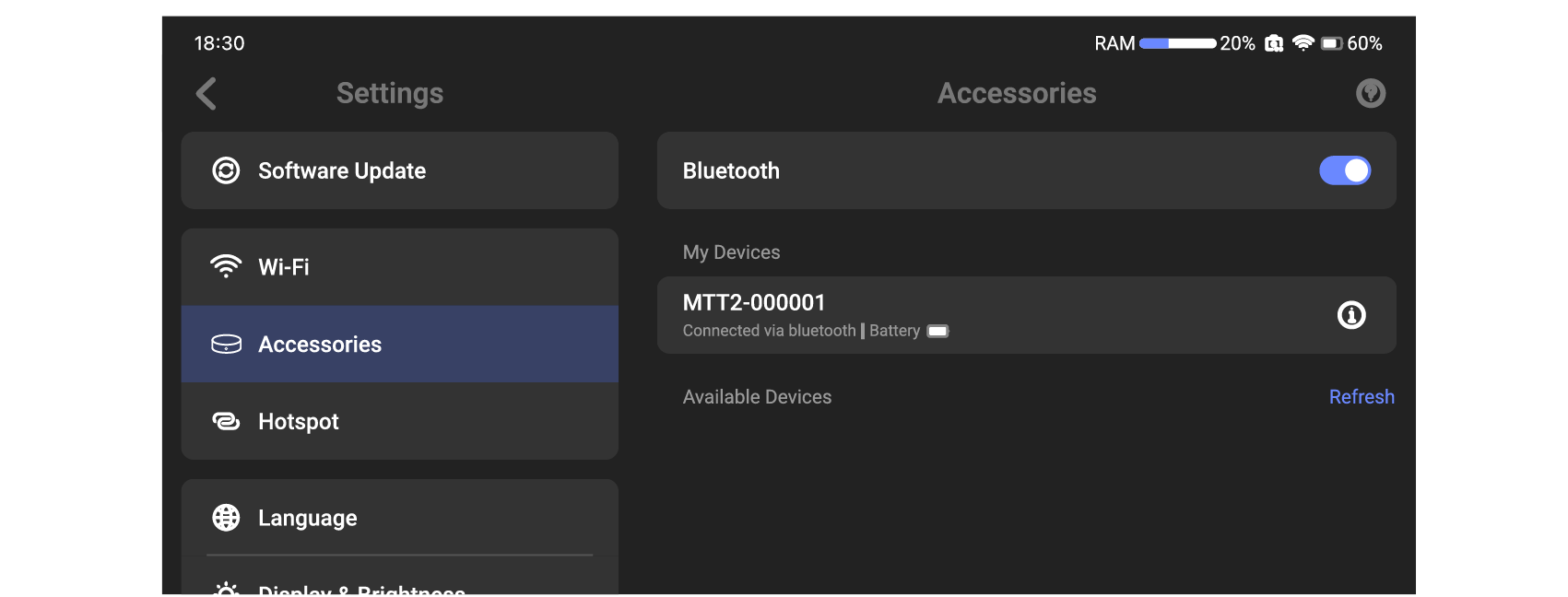
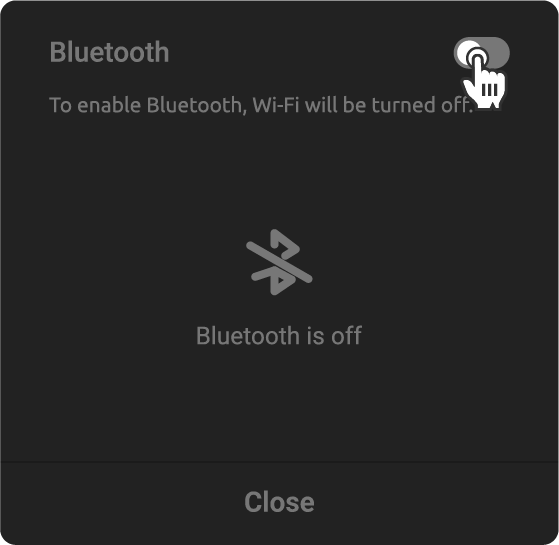
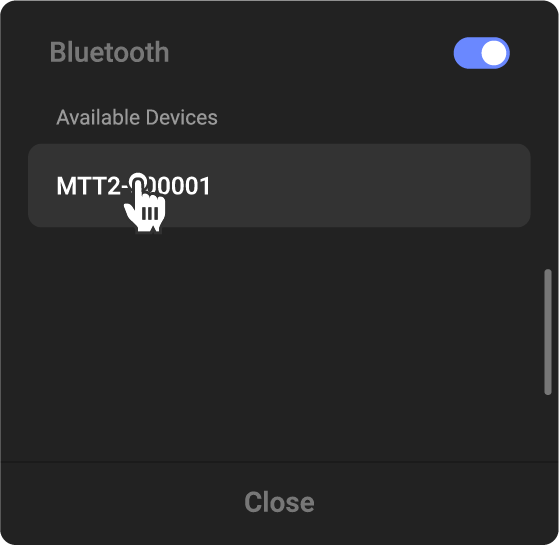
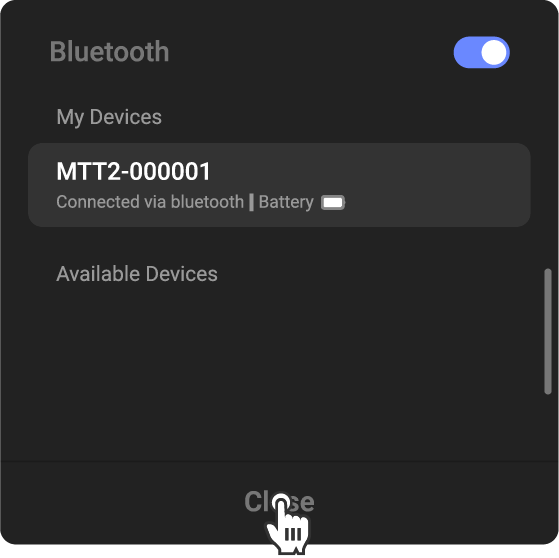
- Turn on Bluetooth on the device to automatically search for the current automatic turntable. Once connected successfully, you can click the icon on the back of the device to modify the detailed information of the Bluetooth turntable.
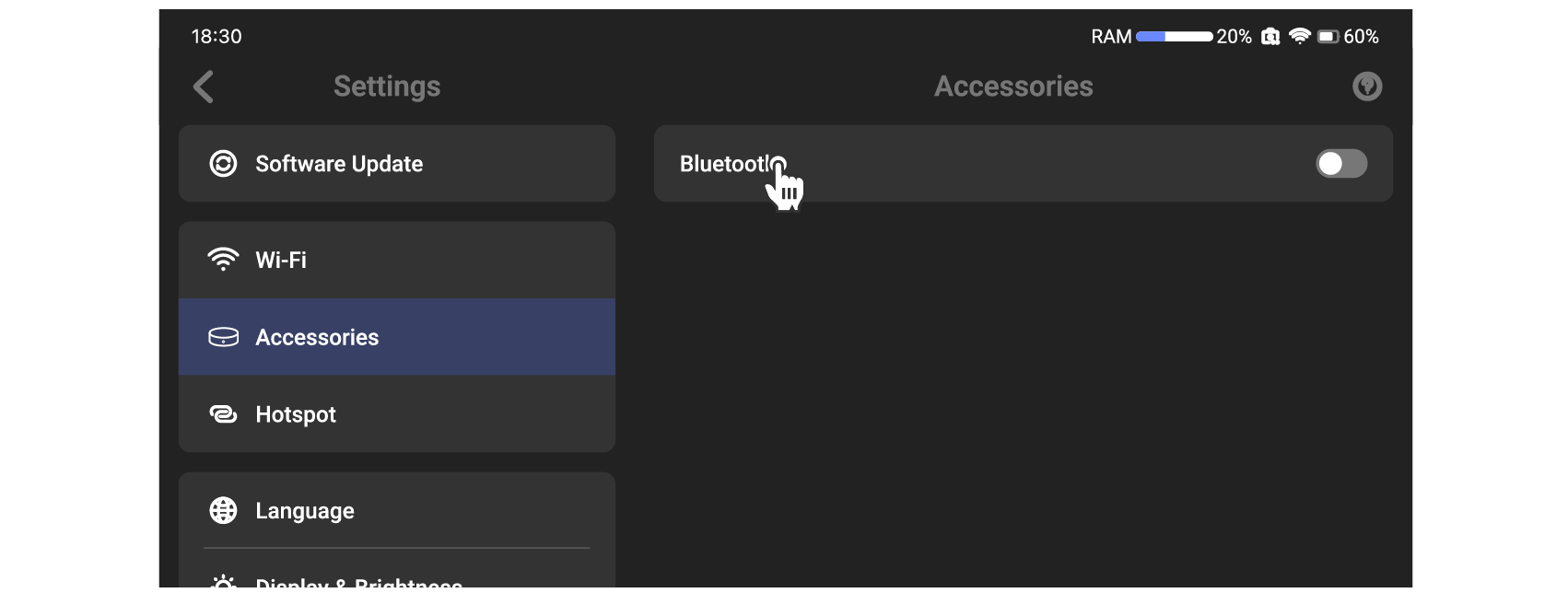
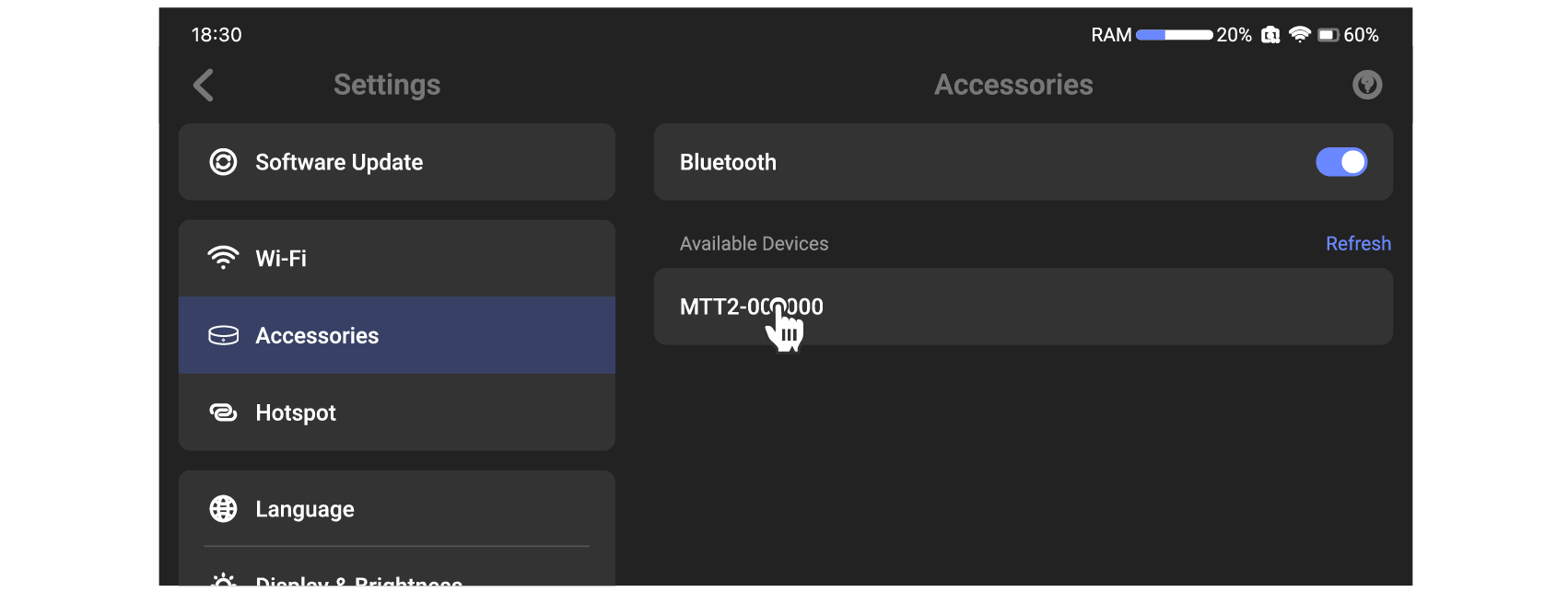
- Enter the scanning interface and select the fixed scan mode.
*When using a Bluetooth connection, you can click on the Bluetooth name on the scanner interface to rename the Bluetooth name of the automatic turntable. The default Bluetooth name is MTT2-XXXXXX. Enter 6 characters of information to automatically replace the content after "MTT2-".
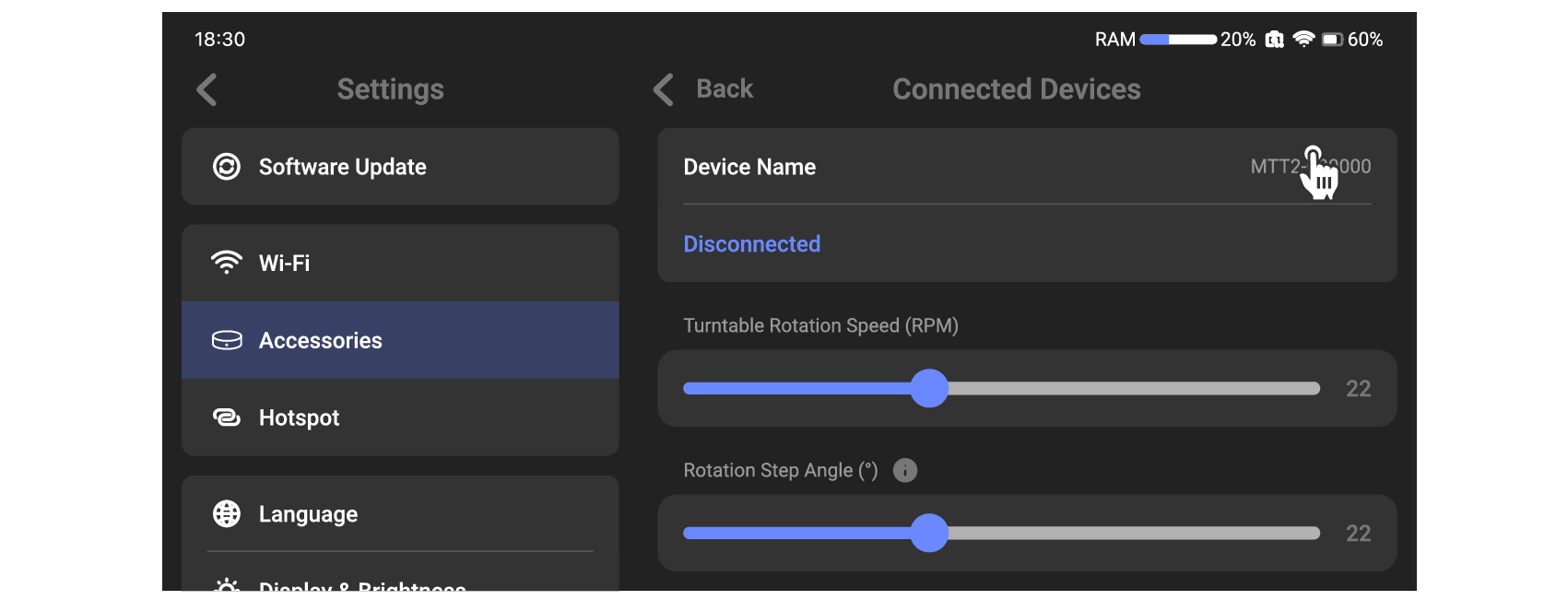
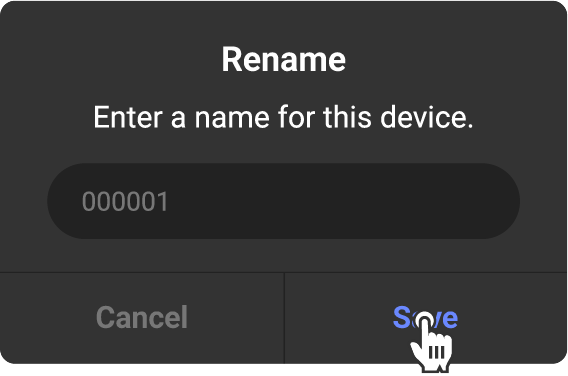
After renaming, the Bluetooth turntable will automatically shut down. You need to restart the Bluetooth turntable, and after powering on, it will be updated to the new name and connect automatically.
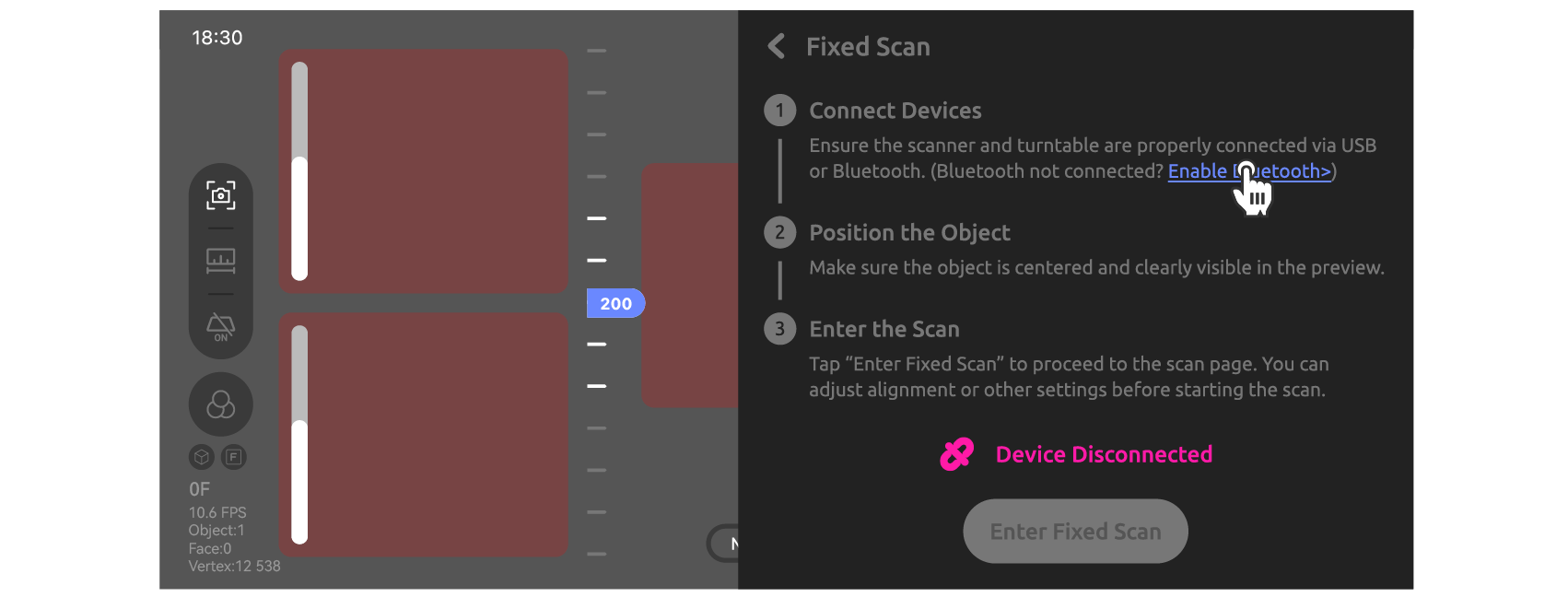
●Forgot to connect before scanning
Only after entering the scanning interface did I realize I forgot to connect the automatic turntable, which can be connected within the scanning interface.
SLAM Mode
Splicing modes are divided into two main categories: general splicing mode and global marker points. Handheld scanning supports all splicing modes, while fixed scanning only supports general splicing mode.
General SLAM Mode
The general SLAM modes are divided into geometric mode, texture mode, and marker point mode (all of which only require a single scan). All three SLAM modes can use either Nornal Scan or Single Shot; for example, the geometric mode.
Note: The marker point mode requires attaching marker points to the object before scanning to enhance the object's scanning features.
●Normal Scan
① Click to start scanning
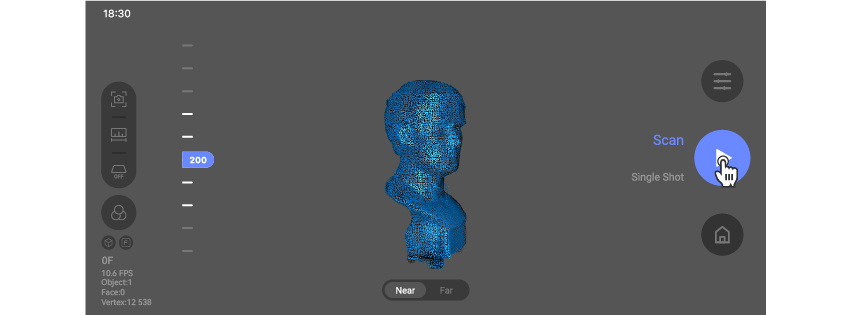
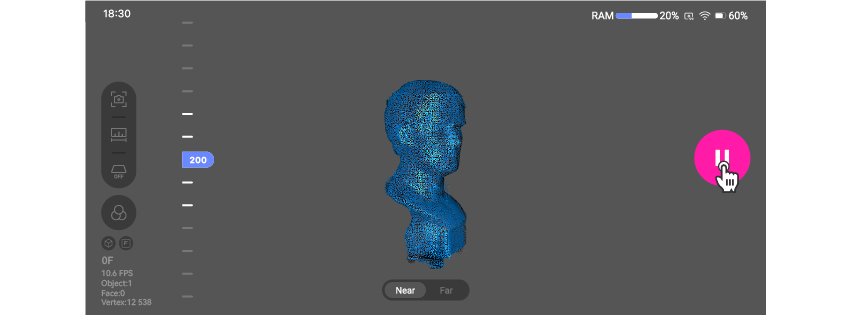
② After the scan is complete, tap to stop the scan.
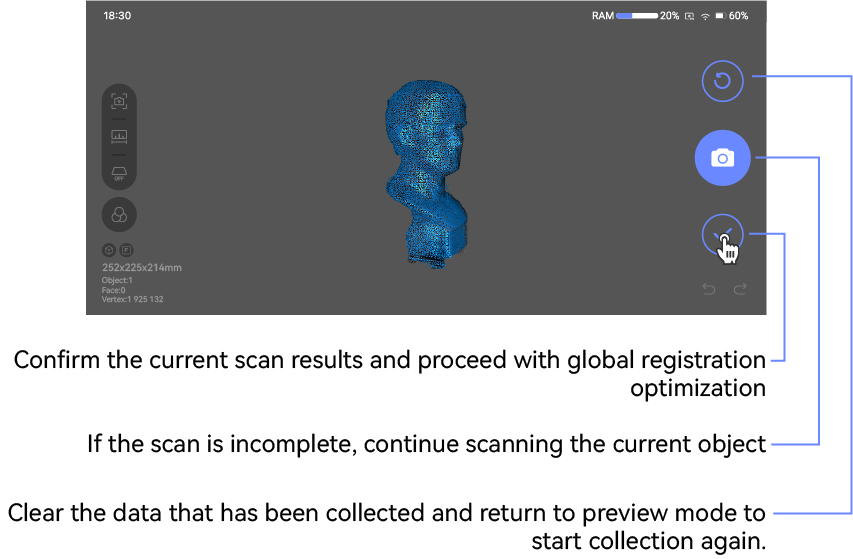
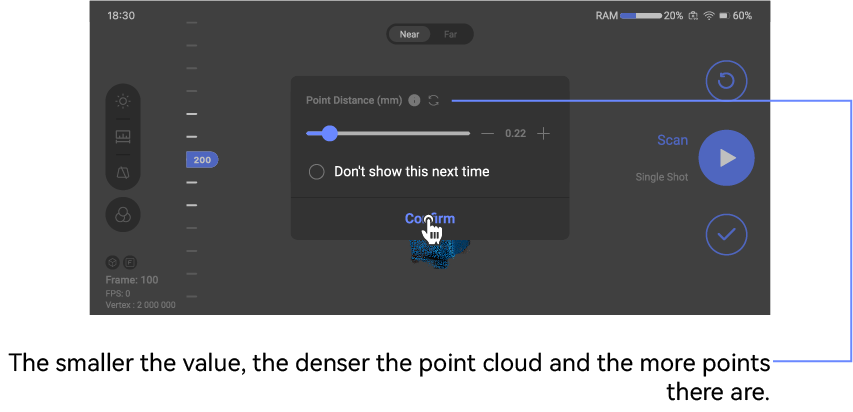
③ You can swipe to rotate or use two fingers to zoom the model to observe the current scan. It supports continuing the scan or rescanning. After the scan is complete, click confirm to automatically perform offline stitching, which will optimize the model as a whole.
●Single Shot
① Click Single Shot
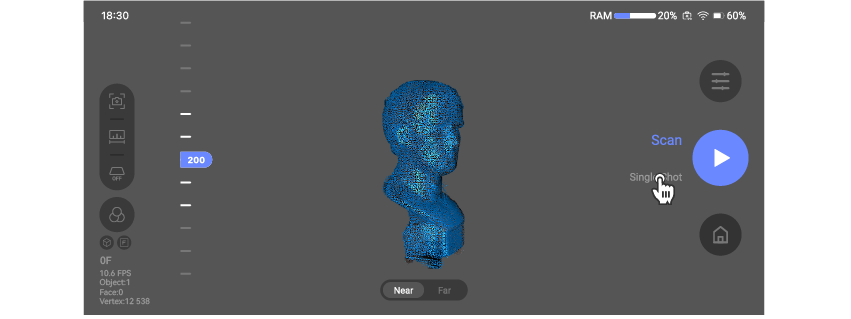
② Tap the on-screen camera button or the camera button at the top right of the device to take a photo scan of the object. It is recommended to tap the button once every second.
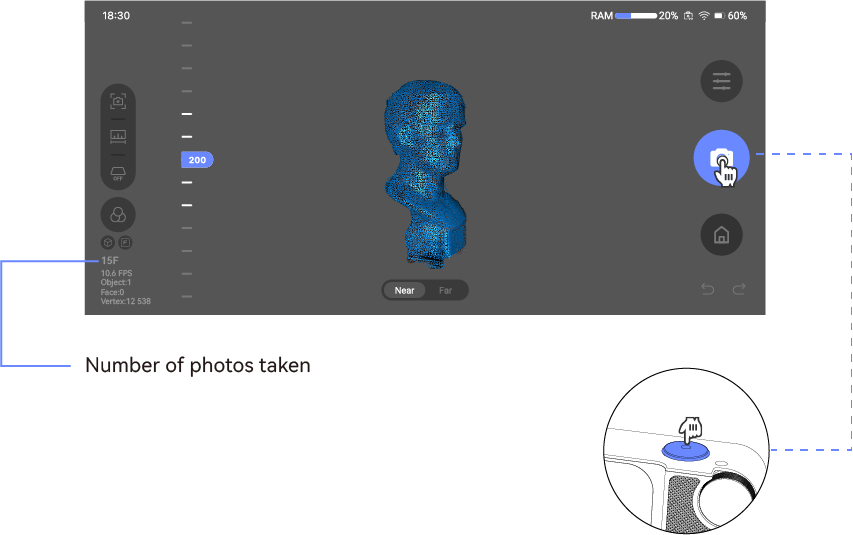
③ You can swipe to rotate or use two fingers to zoom the model to observe the current scan. It supports continuing the scan or rescanning. After the scan is complete, click confirm to automatically perform offline stitching, which will optimize the model as a whole.
Global Marker
Before starting the scan, markers need to be attached to the surface of the model. It is recommended to use the factory-supplied marker stickers (10mm outside, 6mm inside) for the first scan (marker point scanning). This stage will collect and record the position information of the markers on the model. Once the marker point scan is completed, the model can then be scanned. When scanning the model, the marker points collected in the first stage will help align the model data collected during this stage.
When scanning, it is important to ensure that at least more than 5 points can be recognized within a single frame (for the first frame, at least 7 points need to be recognized). The more marker points that can be recognized, the less likely the scan will be lost.
Note: 1. When scanning global markers, only continuous scanning mode can be used. 2. When scanning the model, the near and far view cannot be adjusted; the default is to use the distance selected when scanning global markers.
It is recommended that when scanning large objects, a marker point should be placed every 10 cm. For small objects, the spacing can be adjusted according to actual use.
① Select global marker points for scanning
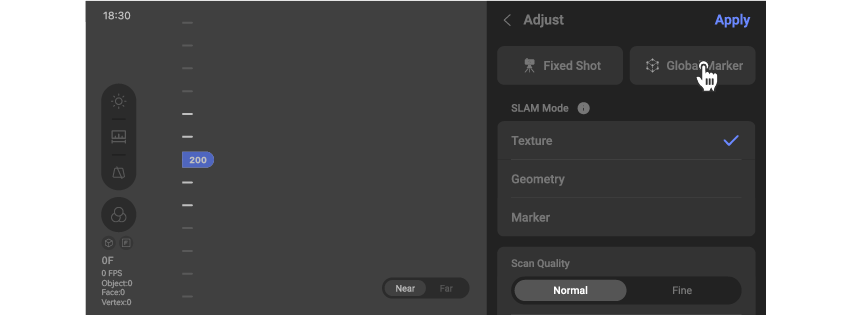
② Add a new global marker
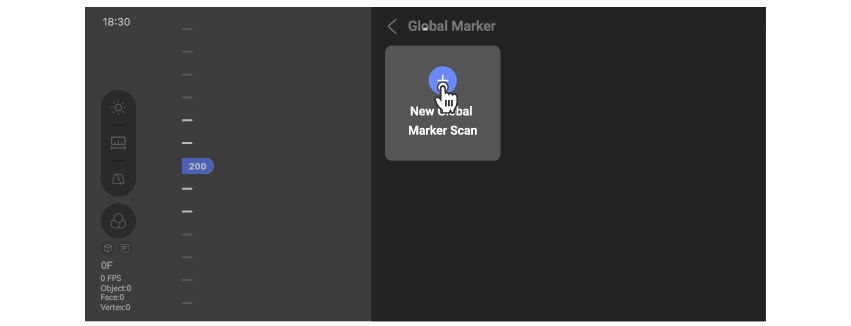
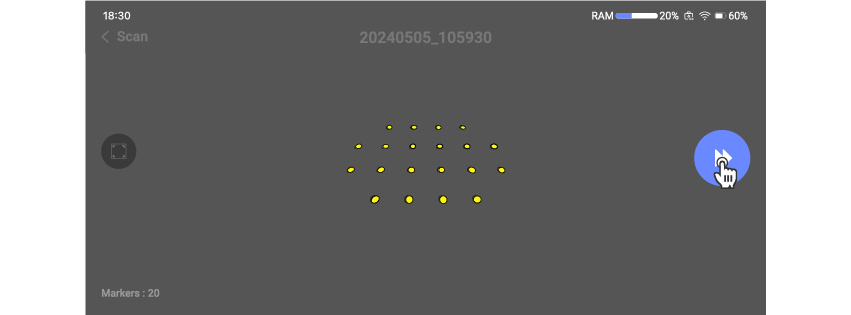
③ Start the first scan (record the marker points)
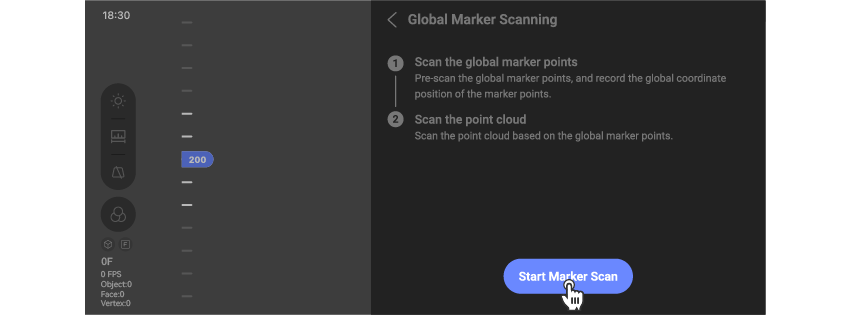
④ Click to start marker point scanning (supports continuous scanning only)
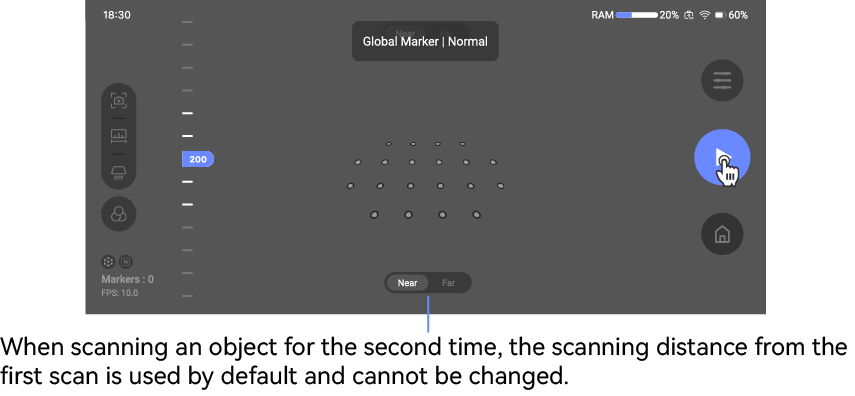
⑤ After the scan is complete, tap to pause the scan.
Yellow indicates recognized markers, green indicates markers that are currently being recognized, and red indicates lost markers.
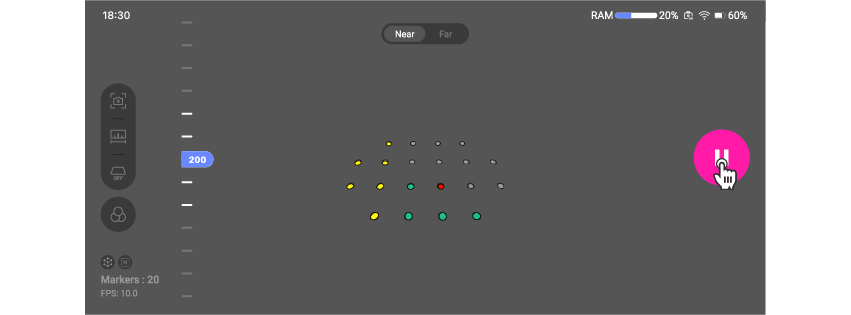
⑥ You can swipe to rotate or use two fingers to zoom the view to observe the global marker point collection status. It supports continuous scanning or rescanning. If the marker point collection is complete, you can click confirm to proceed to the next step.
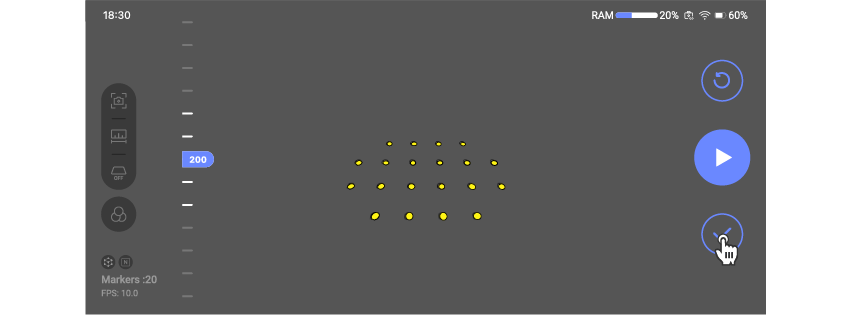
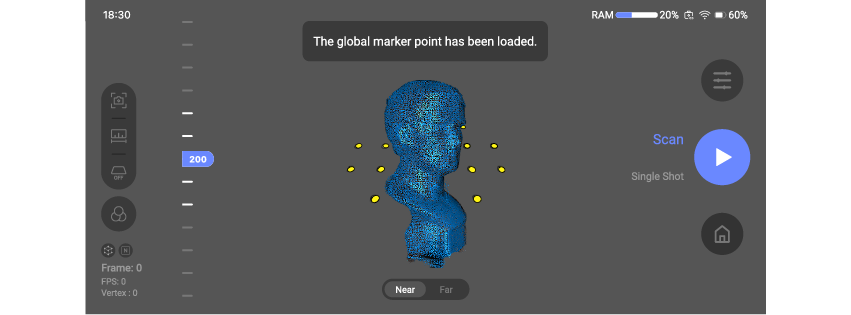
⑦ Click to perform a second scan (scan the object)
⑧ Objects can be scanned according to actual needs, and specific operations can be found in the manual about Normal Scan and Single Shot.
When scanning a model, you cannot switch between long-range and close-up views. The configuration used will default to the one selected during the first marked point scan. To change it, you need to exit the current scanning process and rescan the marked points after setting the scanning parameters.
Clipping
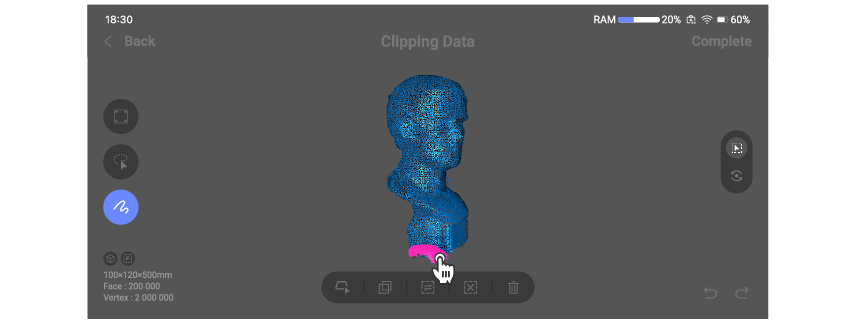
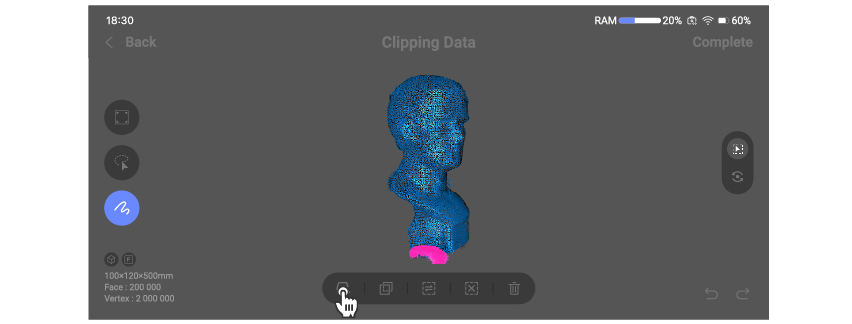
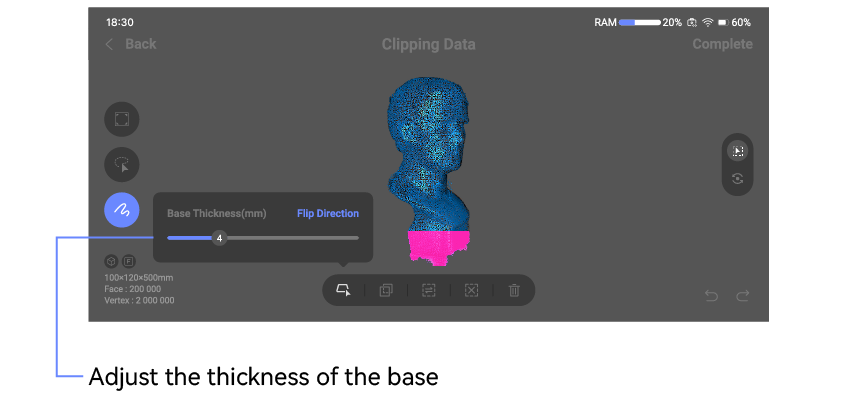
Clip the data accroding to your needs.
① Tap to enter the clipping interface
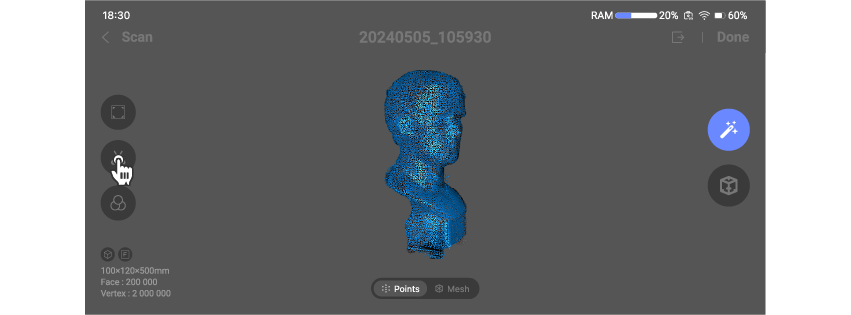
② Start the data clipping
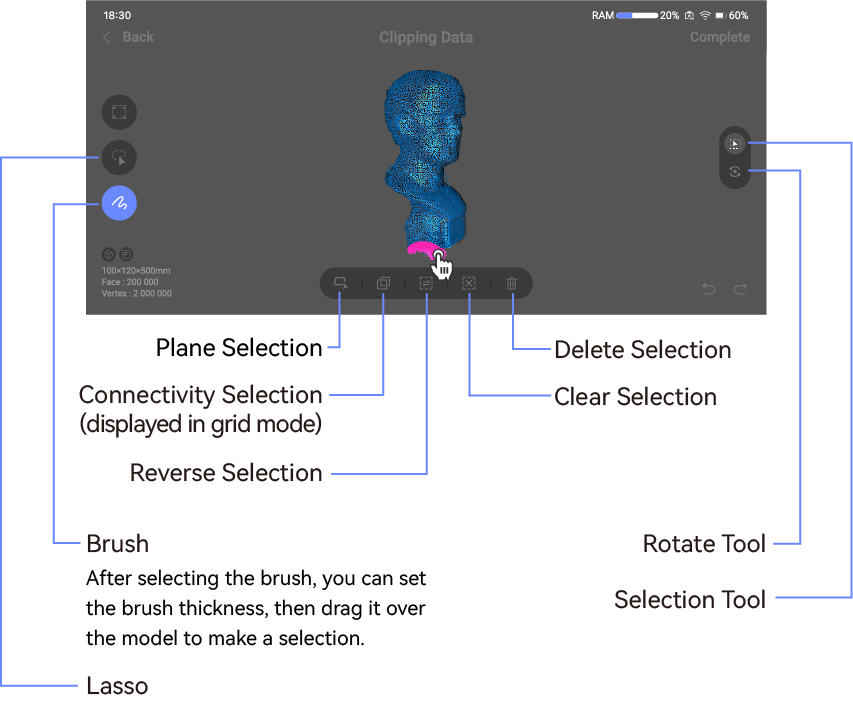
③ Check the processed data and confirm by clicking 'Complete'; if unsatisfied, you can click 'Back' to not save the current operation.
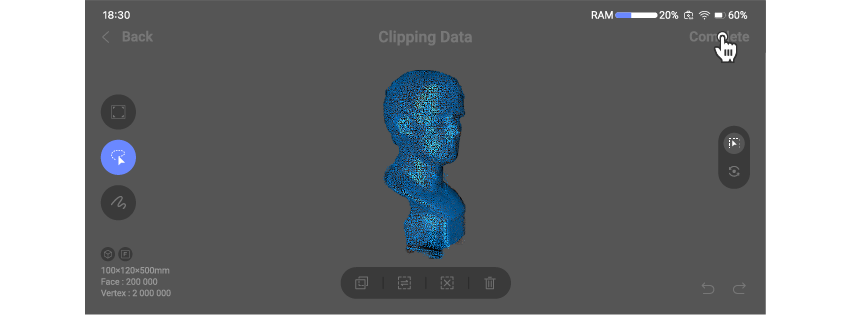
*Plane Selection: Manually select a portion of the data using Brush or Lasso. The plane data corresponding to the selected data is automatically calculated, which can be used to select and delete planar areas such as table surfaces or the ground.
Align
It is possible to scan a model in multiple poses, then align the data from these poses to obtain a more complete model.
① Enter the alignment interface in file managemen
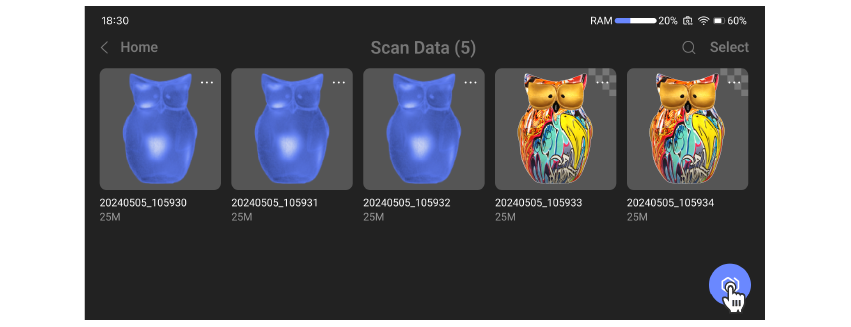
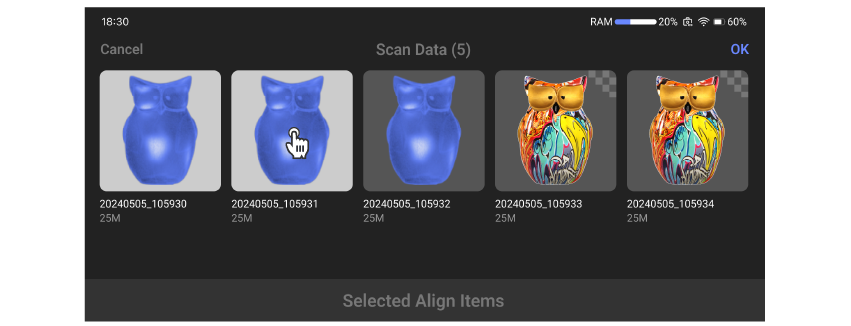
② Select the data that needs to be aligned and click confirm.
The first selected data will default as the reference alignment object. It is recommended to use the more complete scanned model data as the reference alignment object. The reference alignment object can be modified later in the data list.
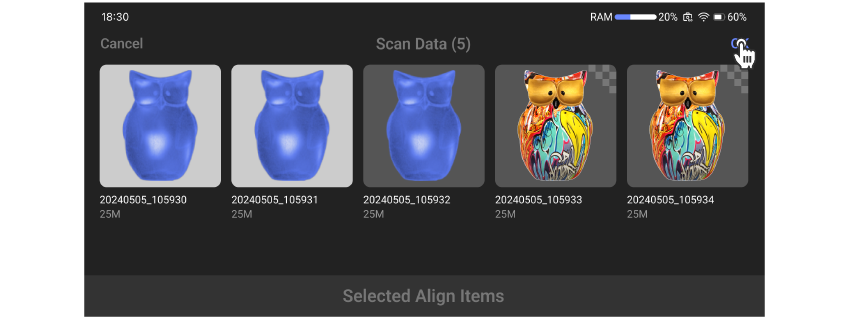
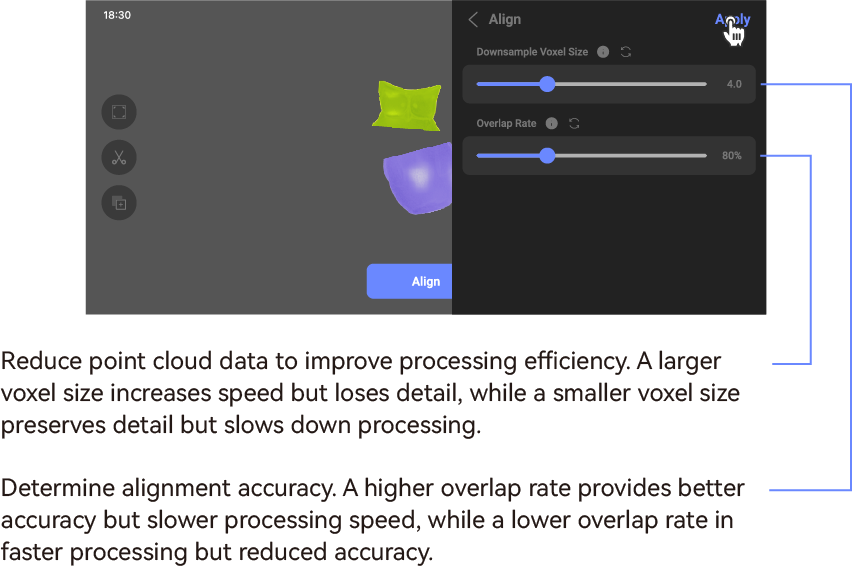
③ Configure alignment parameters according to the requirements, then tap Align.
If the data to be aligned to still has noise before alignment, you can tap the corresponding file to clip out the noise. (Please note that the selected point cloud will turn red and won't be aligned to.) You can also tap the configuration button next to the Align button to configure the alignment parameters.
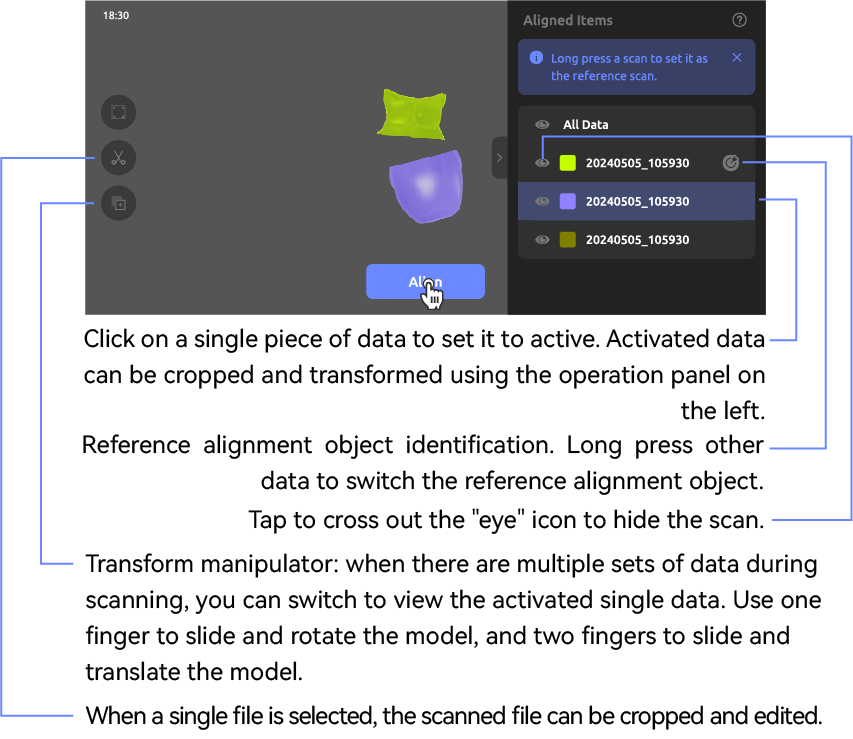
④ After configuring the alignment parameters according to your needs, tap "Apply".

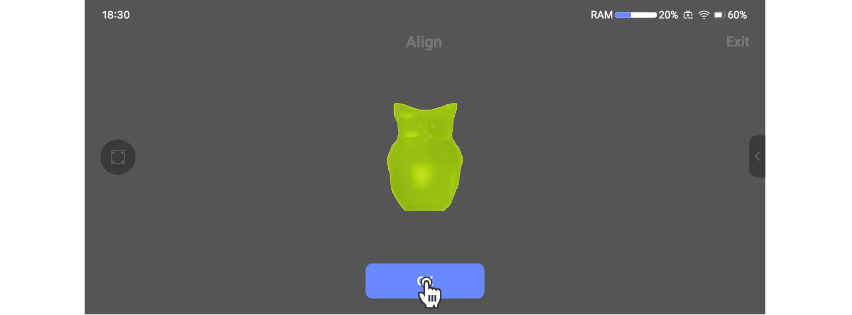
⑤ View the alignment results, tap "OK" to save the alignment results and generate a new data file; if the alignment is unsatisfactory, you can tap exit.
*If the alignment result is unsatisfactory, you can go back and manually adjust all the scanned data to the same angle before trying the alignment again.
Process
The scanned point cloud data can be denoised to remove redundant noise, and be converted into a mesh with the fusion function. Finally, you can edit the mesh by removing floating parts, repairing gaps, simplifing grids, and excuting texture mapping.
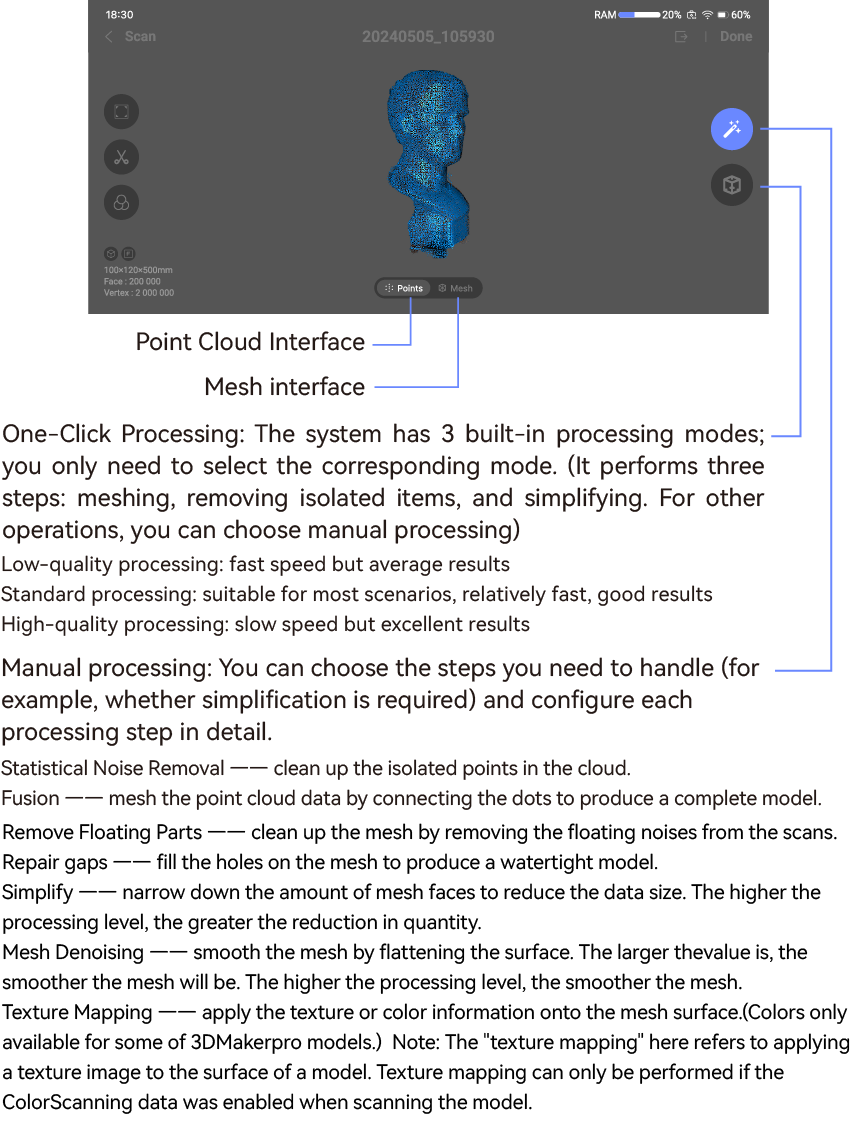
One-click processing
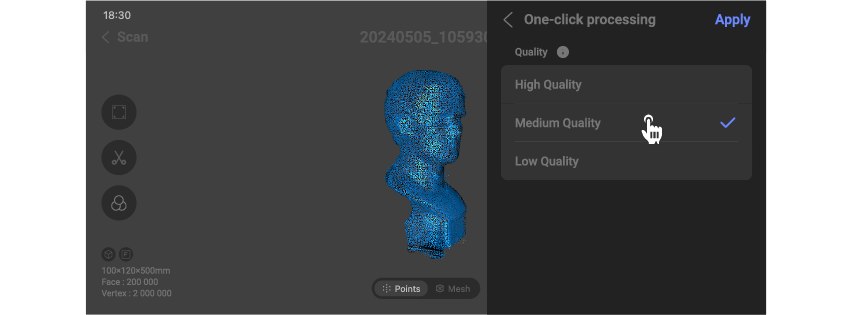
① Select one-click processing
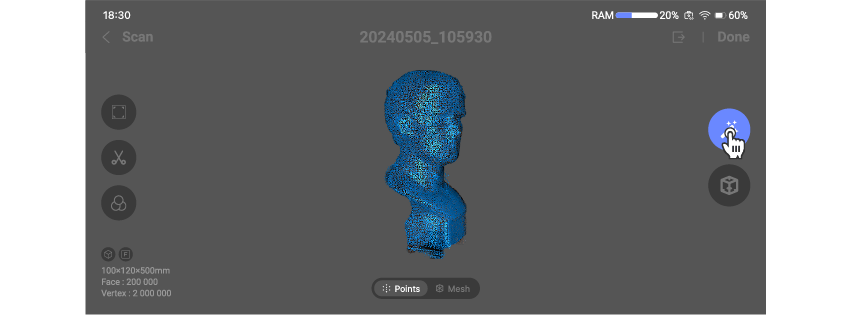
②Select the processing quality according to actual needs, then tap Apply.
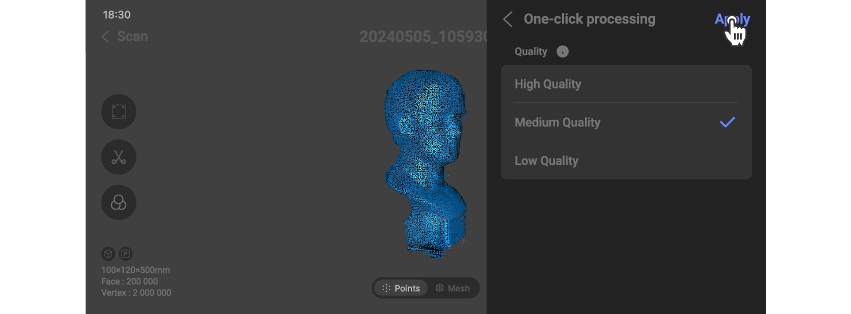
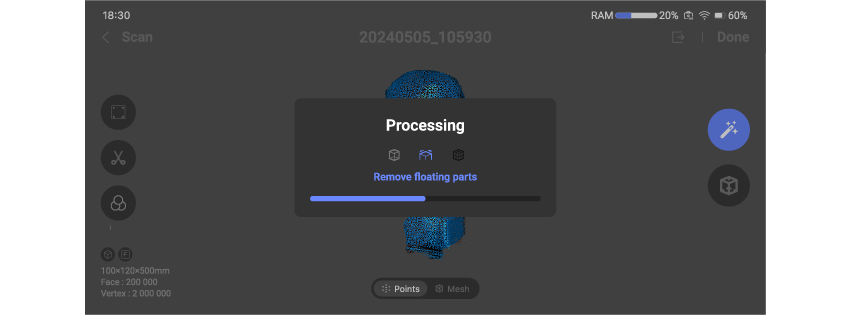
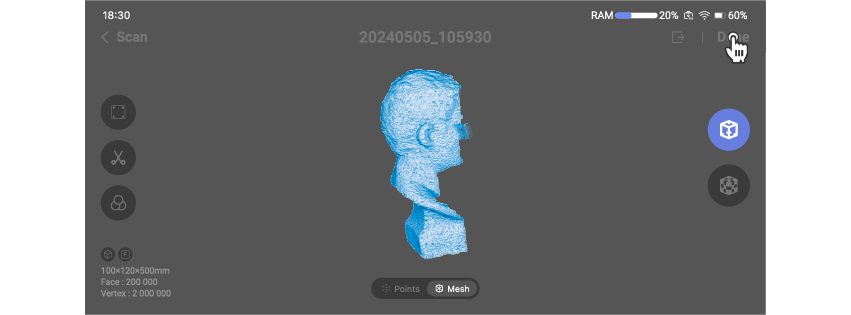
③ After the processing is complete, tap 'Done' to save the project; if the results are not satisfactory, you can process it again.
Manual processing
① Choose manual processing
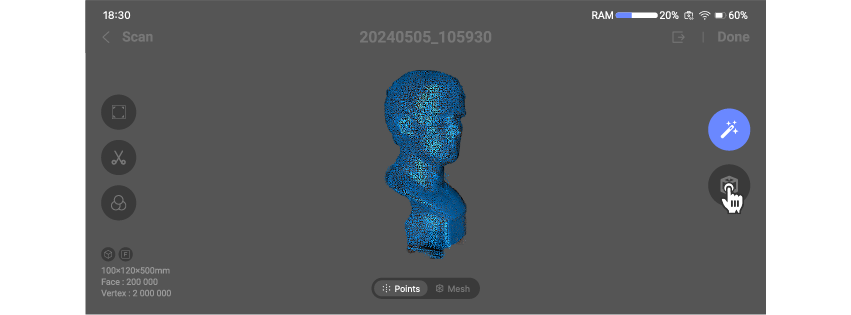
② Configure the processing workflow according to actual needs, then tap Apply.
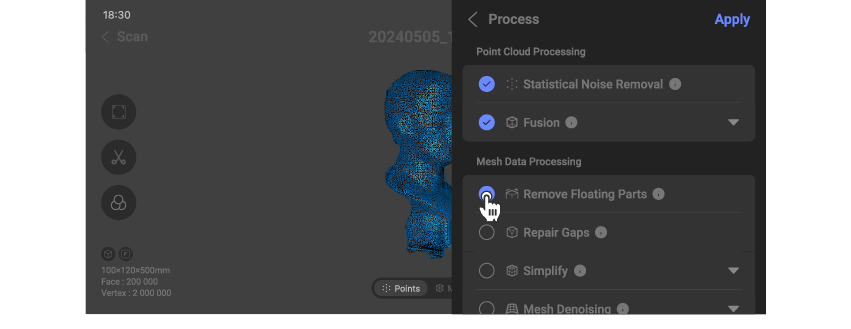
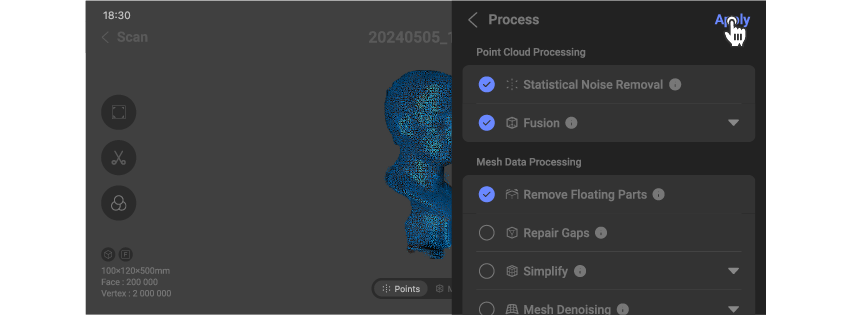
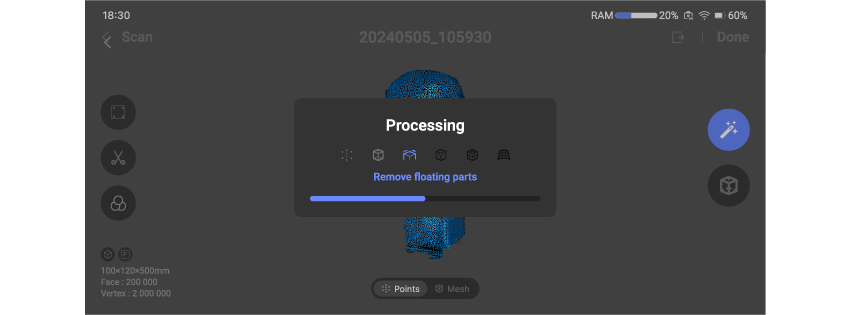
③ After the processing is complete, tap 'Done' to save the project; if the results are not satisfactory, you can process it again.
Project Management
Support exporting, renaming, and deleting files on the project homepage or the project management interface.
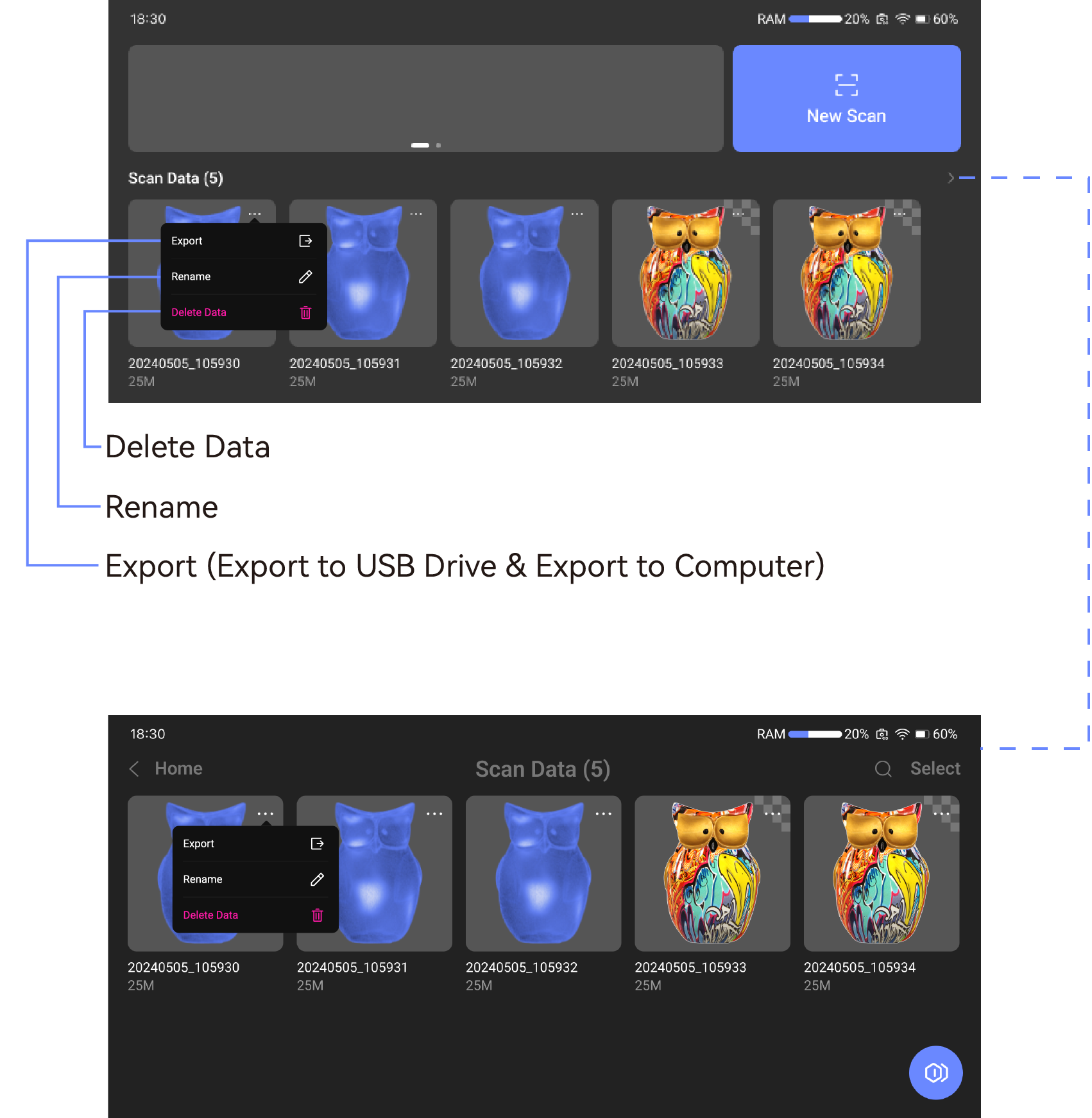
Export
The export function supports exporting a single project (single export) or multiple projects (batch export) at a time. For single exports, you can export from the project's homepage or the processing interface; for batch exports, you need to enter the project list management interface, select the projects to be exported one by one, and then proceed with the export.
Export Method
Single Export
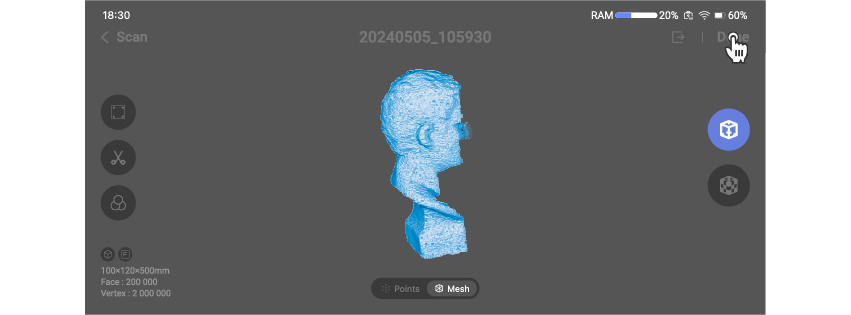
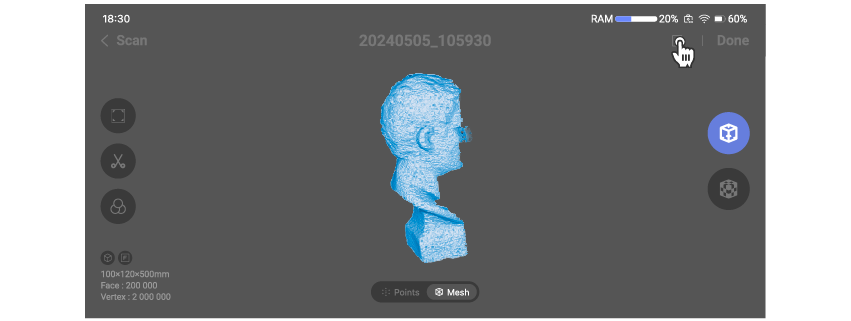
• In the processing interface (point cloud or mesh data), it supports directly exporting the current project
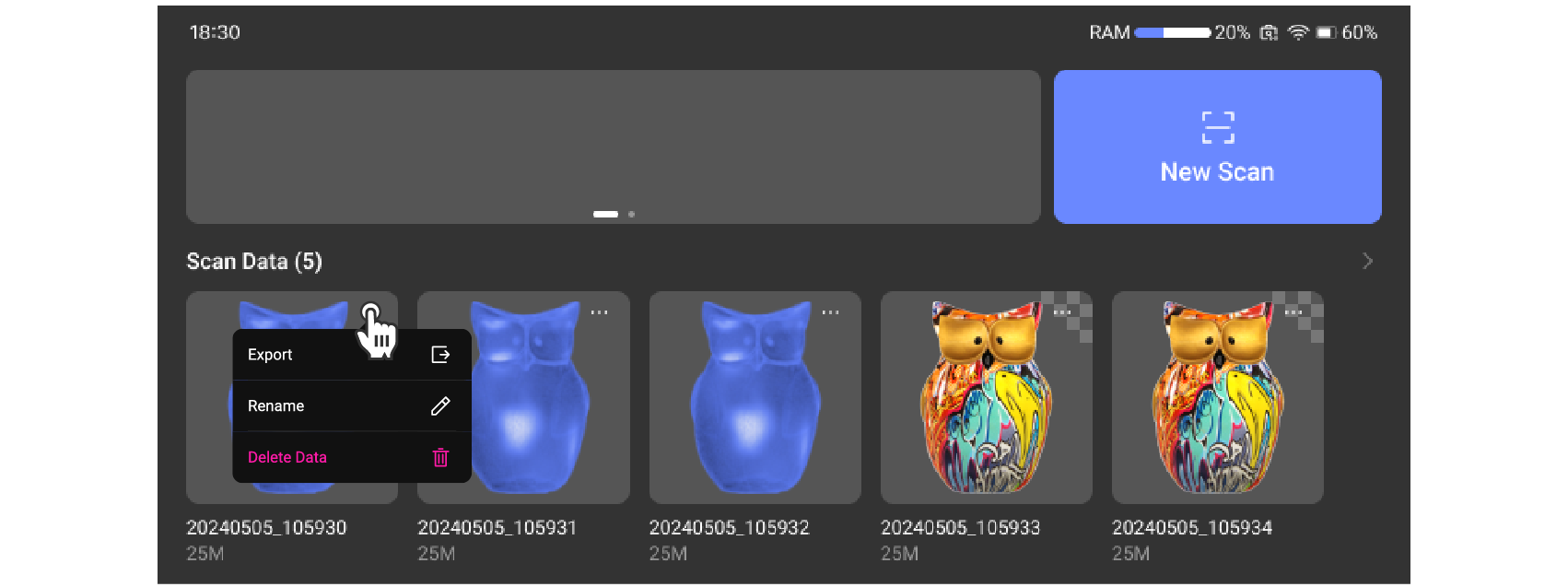
• On the homepage, it supports directly exporting a single project
Batch Export
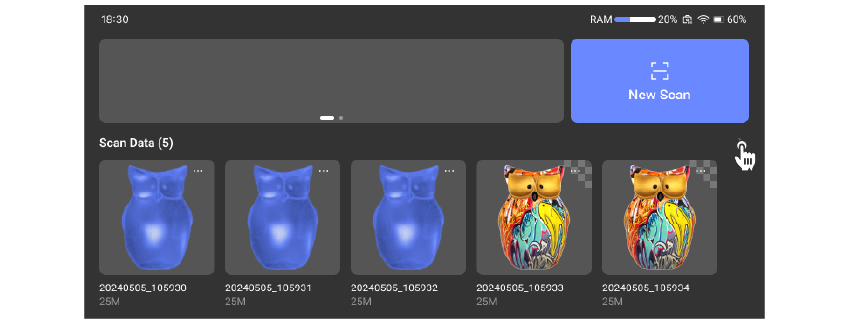
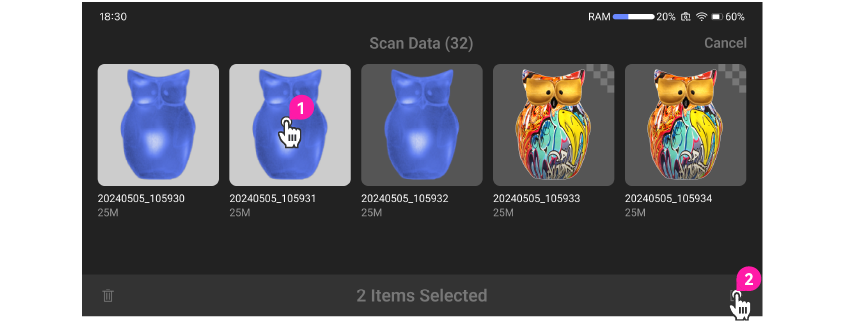
Enter the project management interface, select multiple projects to export, and click Export.
Export Instructions
Procedure
Export to Computer Option 1: Connect the computer to the device hotspot
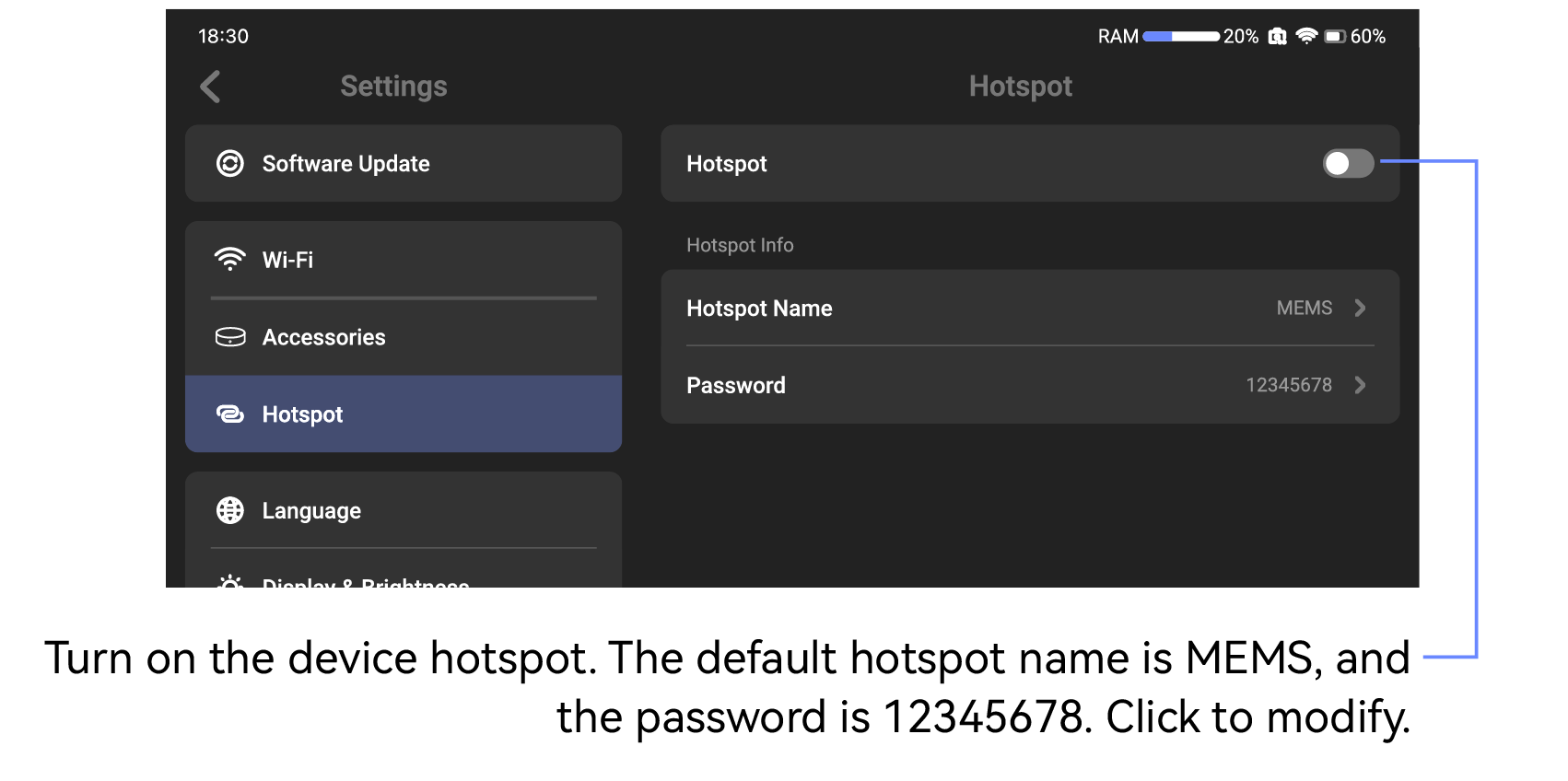
① Turn on the hotspot on the device
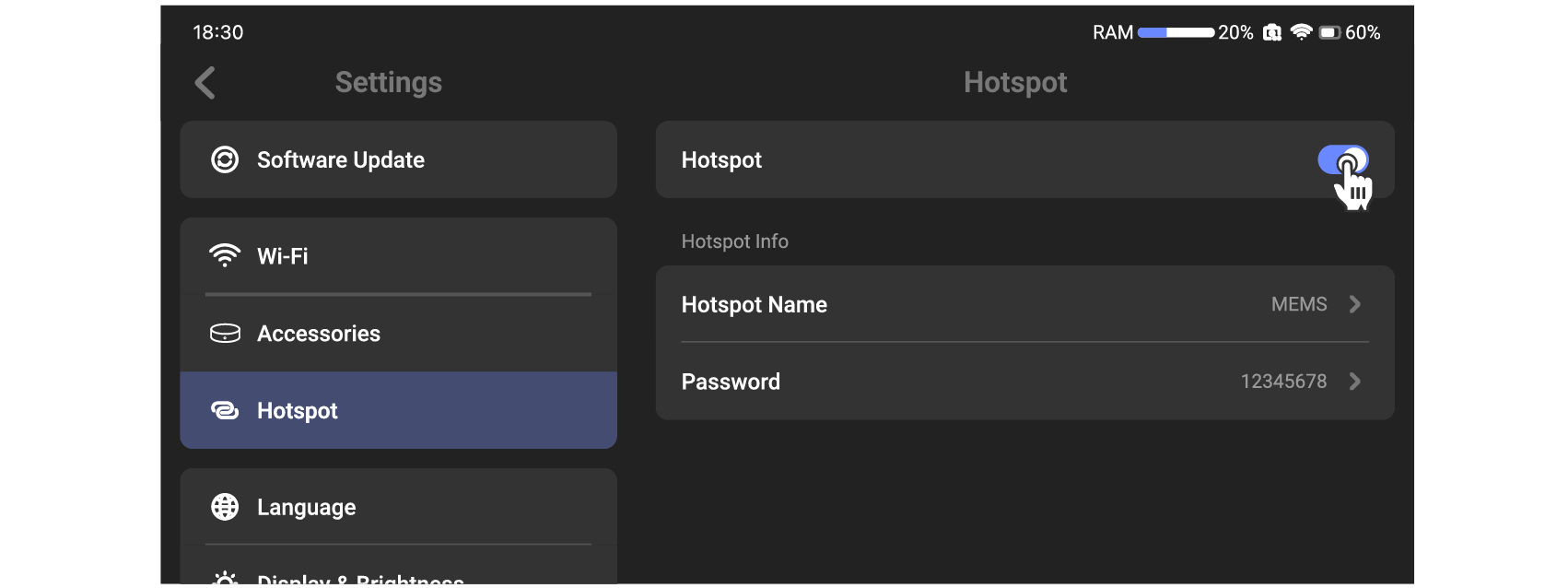
② On the PC, open WiFi and find the device's hotspot to connect
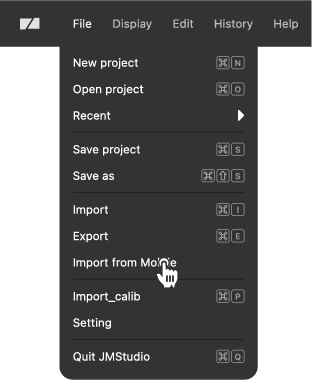
③ Open RayStudio, click 'File_Import from Mobile' in the menu bar at the top of the interface to open the mobile import window. Your computer's IP address will be displayed on the right side of the interface:

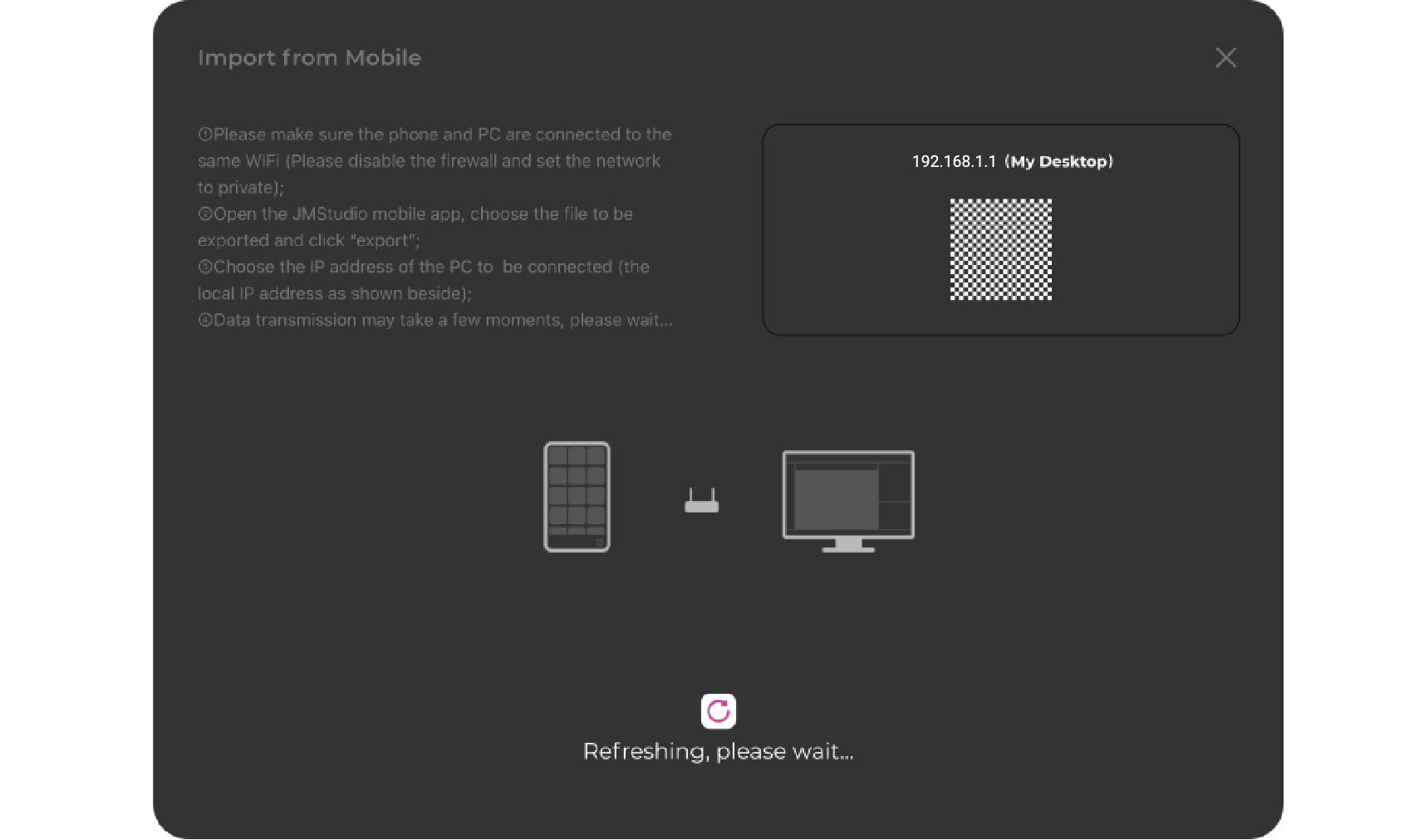
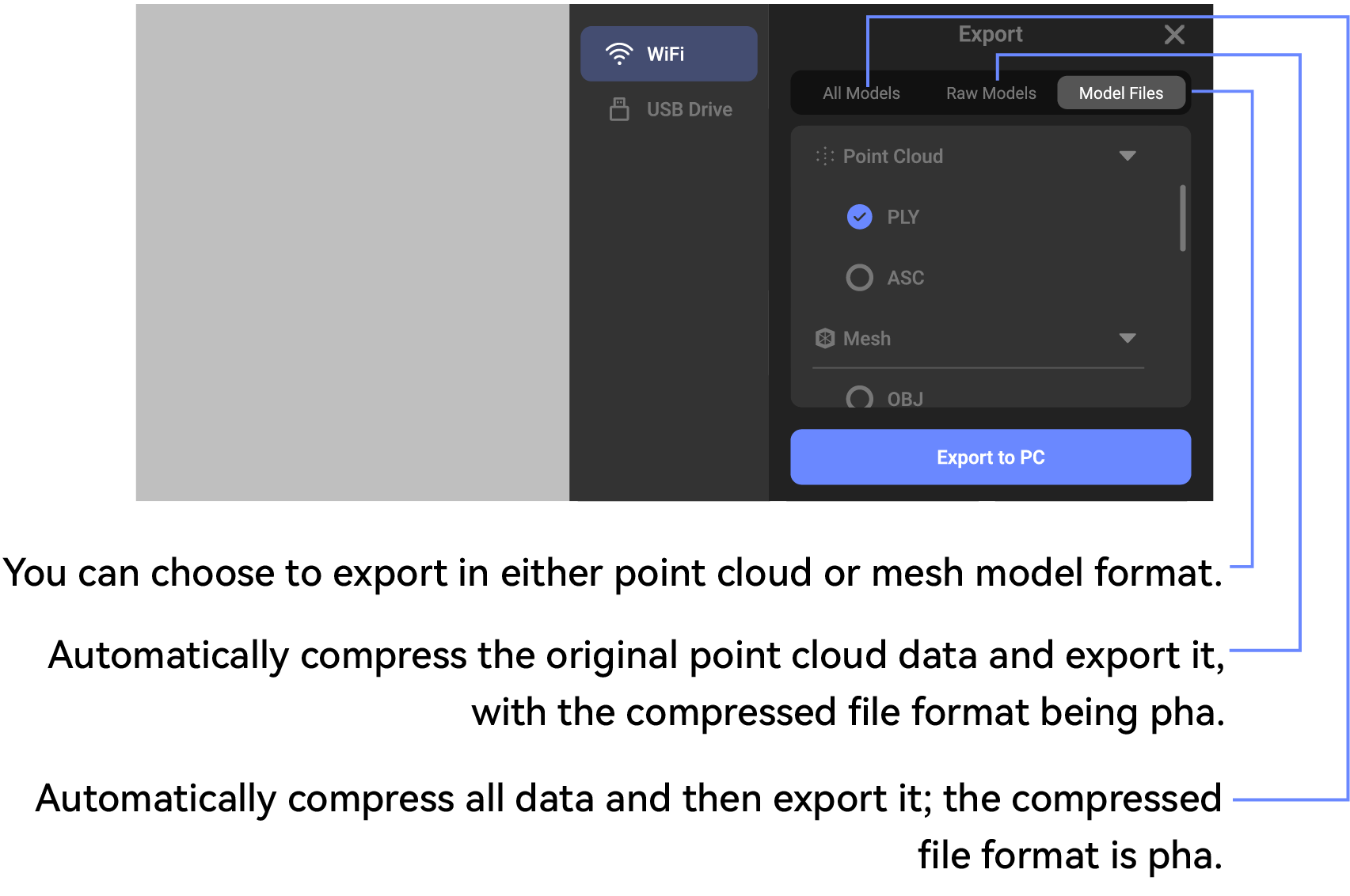
② View the various exportable modes supported by the current model, and select the required data model according to your needs (supporting export of a single model or packaging the current project files). On the device, click 'Export to PC,' enter the IP obtained from the PC, and connect.
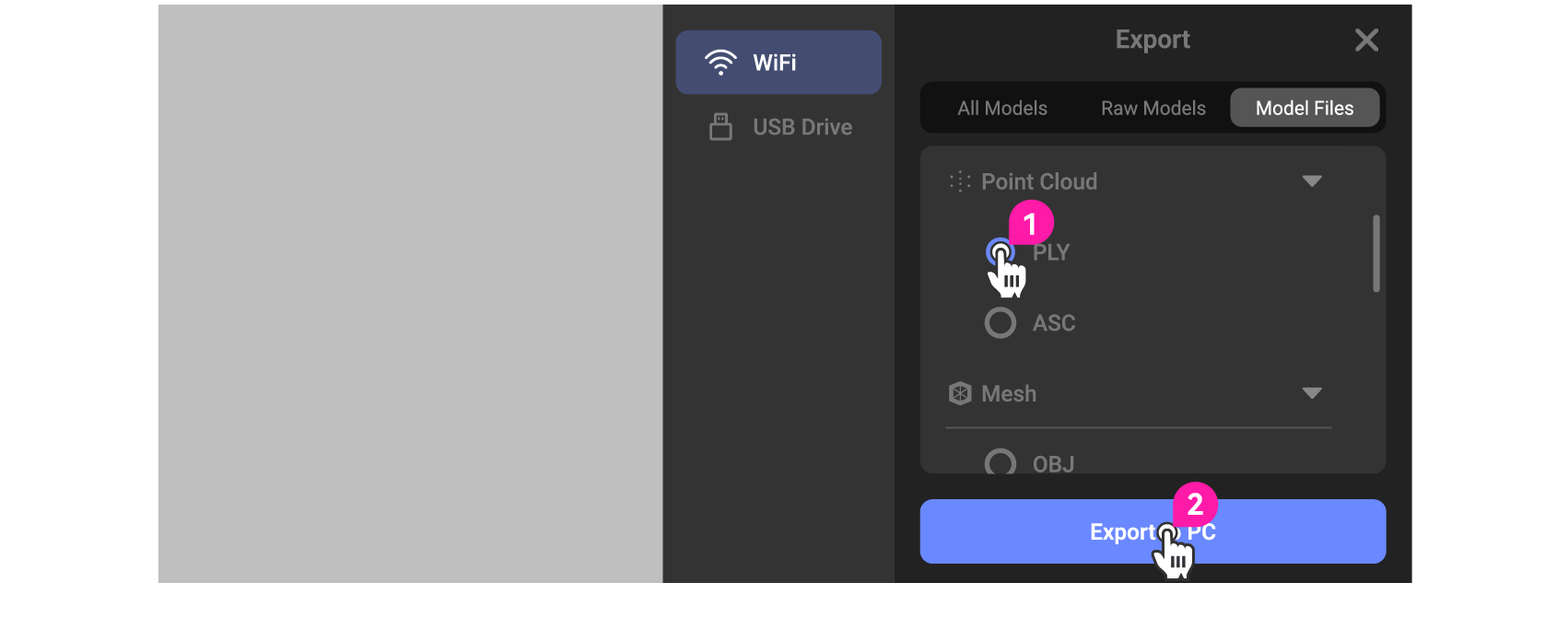
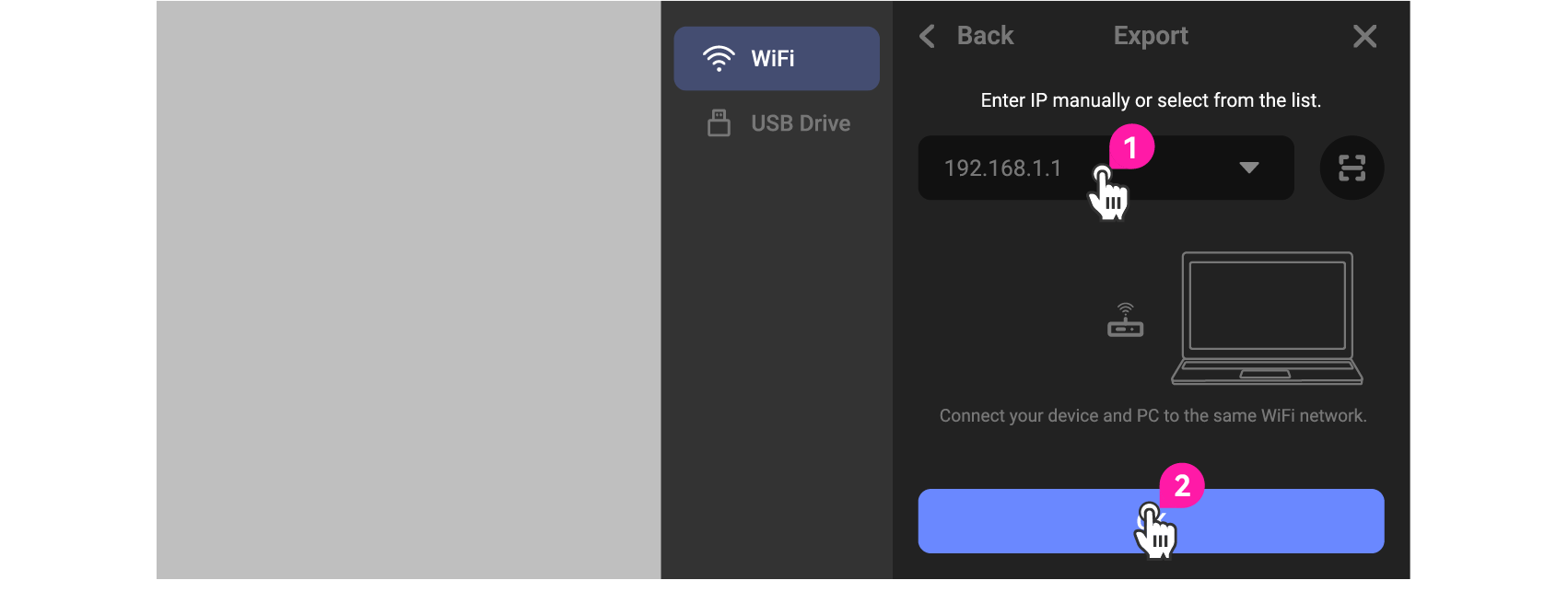
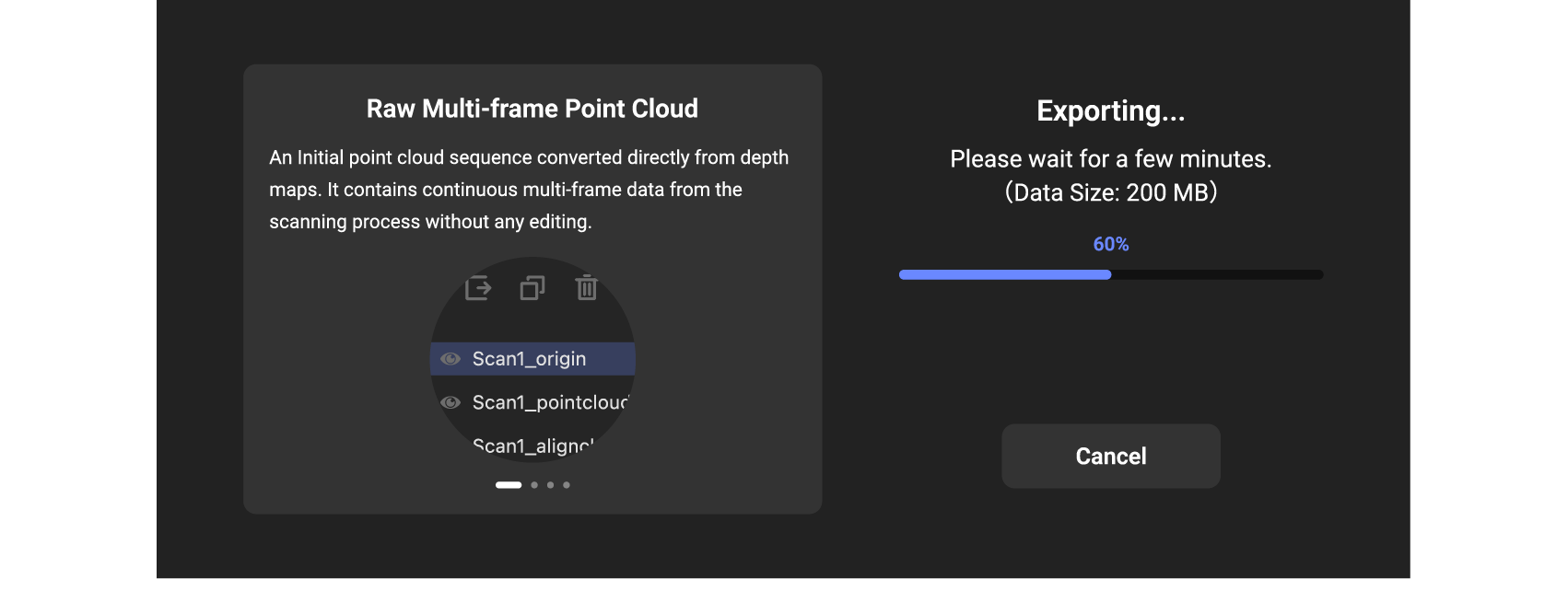
③ After a successful connection, the device will transfer data to the PC.
(If exporting a project file, the data will be automatically compressed and transferred to the PC)
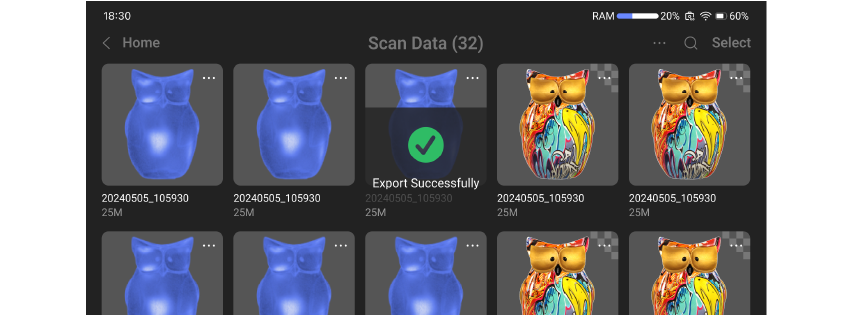
Option 2: Export while the device and computer are connected to the same network
① On the computer, click 'File_Import from Mobile' in the 'Menu Bar' at the top of the interface to open the mobile import window. Your computer's IP address will be displayed on the right side of the interface.
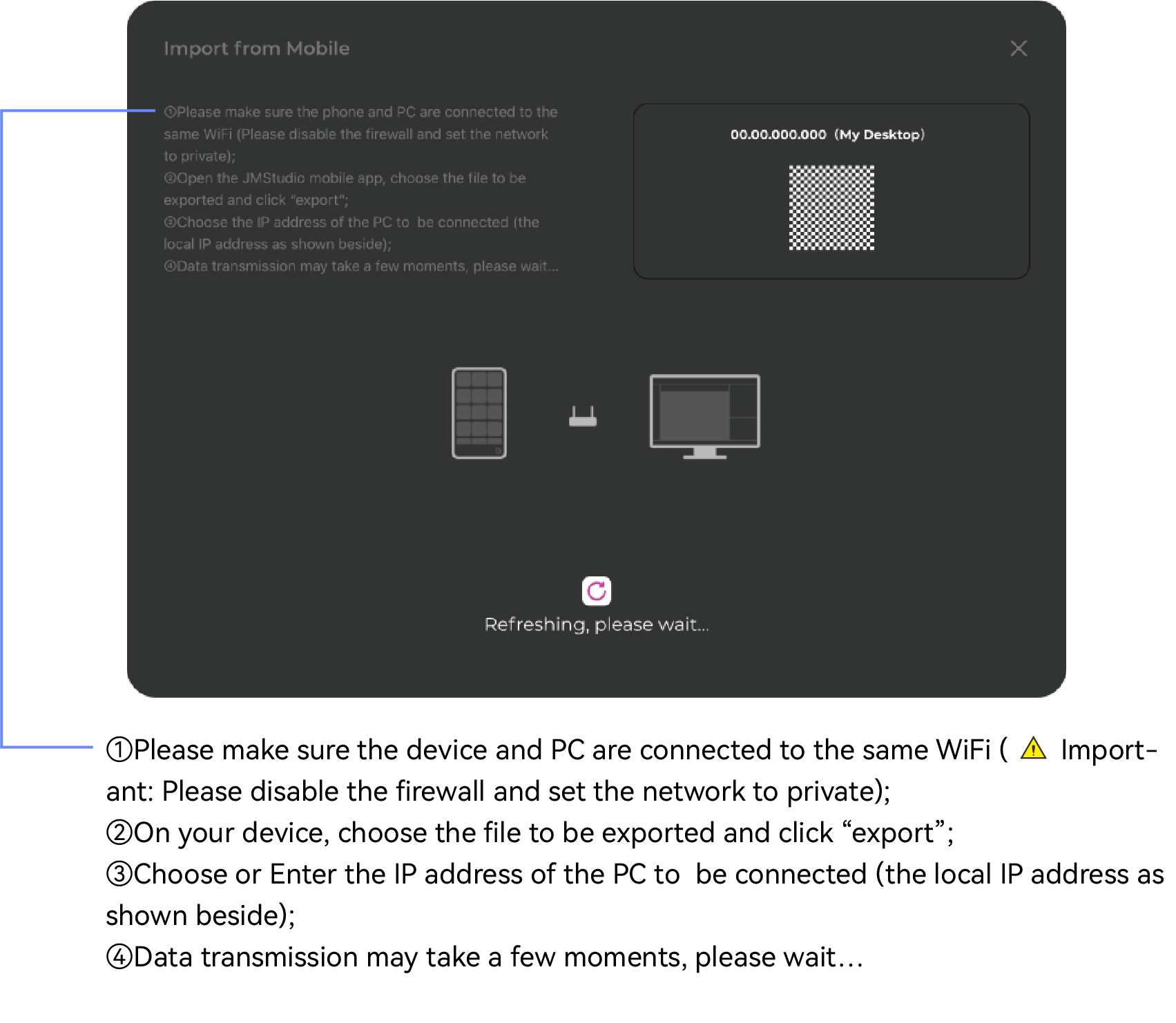
② View the various exportable modes supported by the current model, and select the required data model according to your needs (supporting export of a single model or packaging the current project files). On the device, click 'Export to PC,' enter the IP obtained from the PC, and connect.
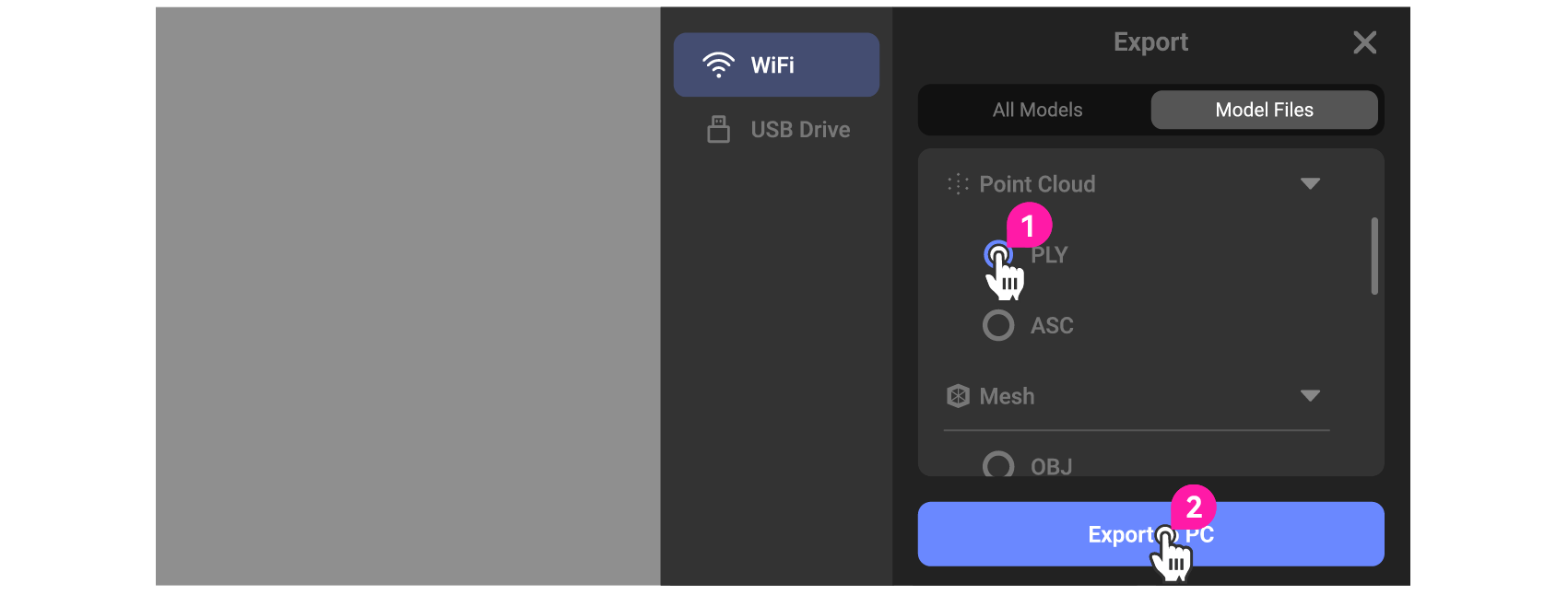
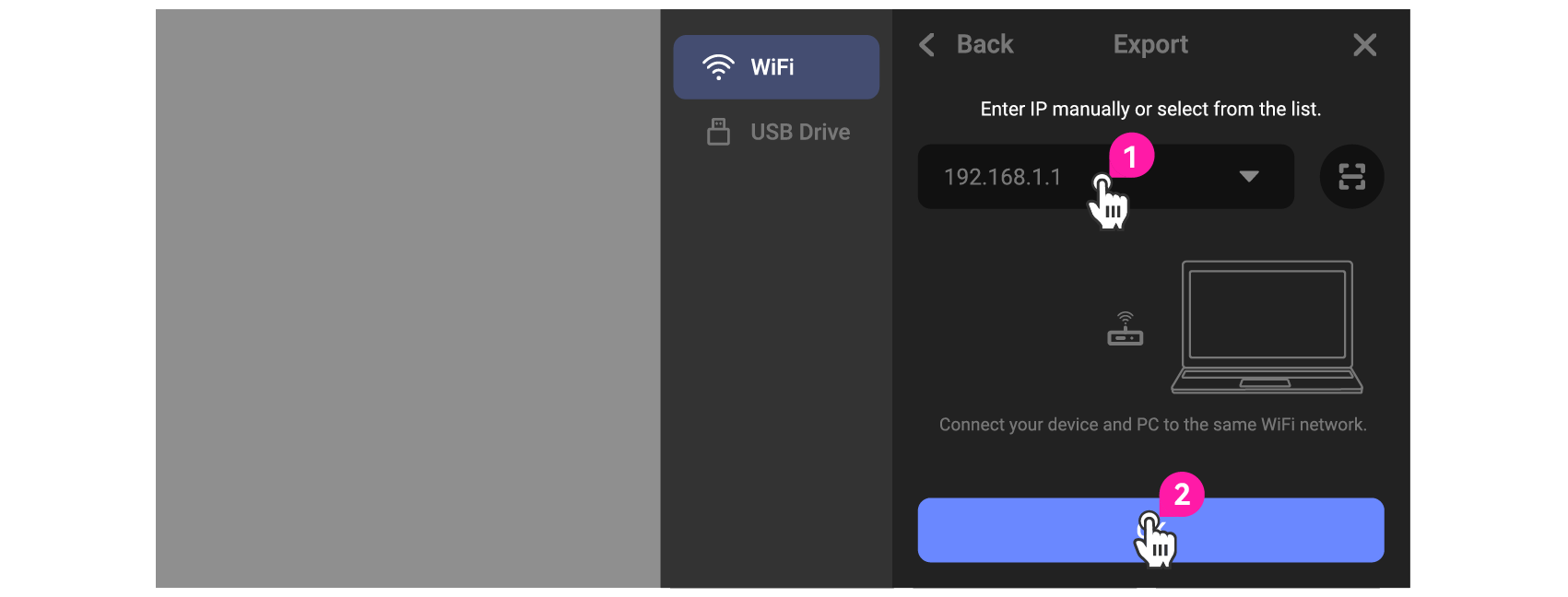
③ After a successful connection, the device will transfer data to the PC.
(If exporting a project file, the data will be automatically compressed and transferred to the PC)
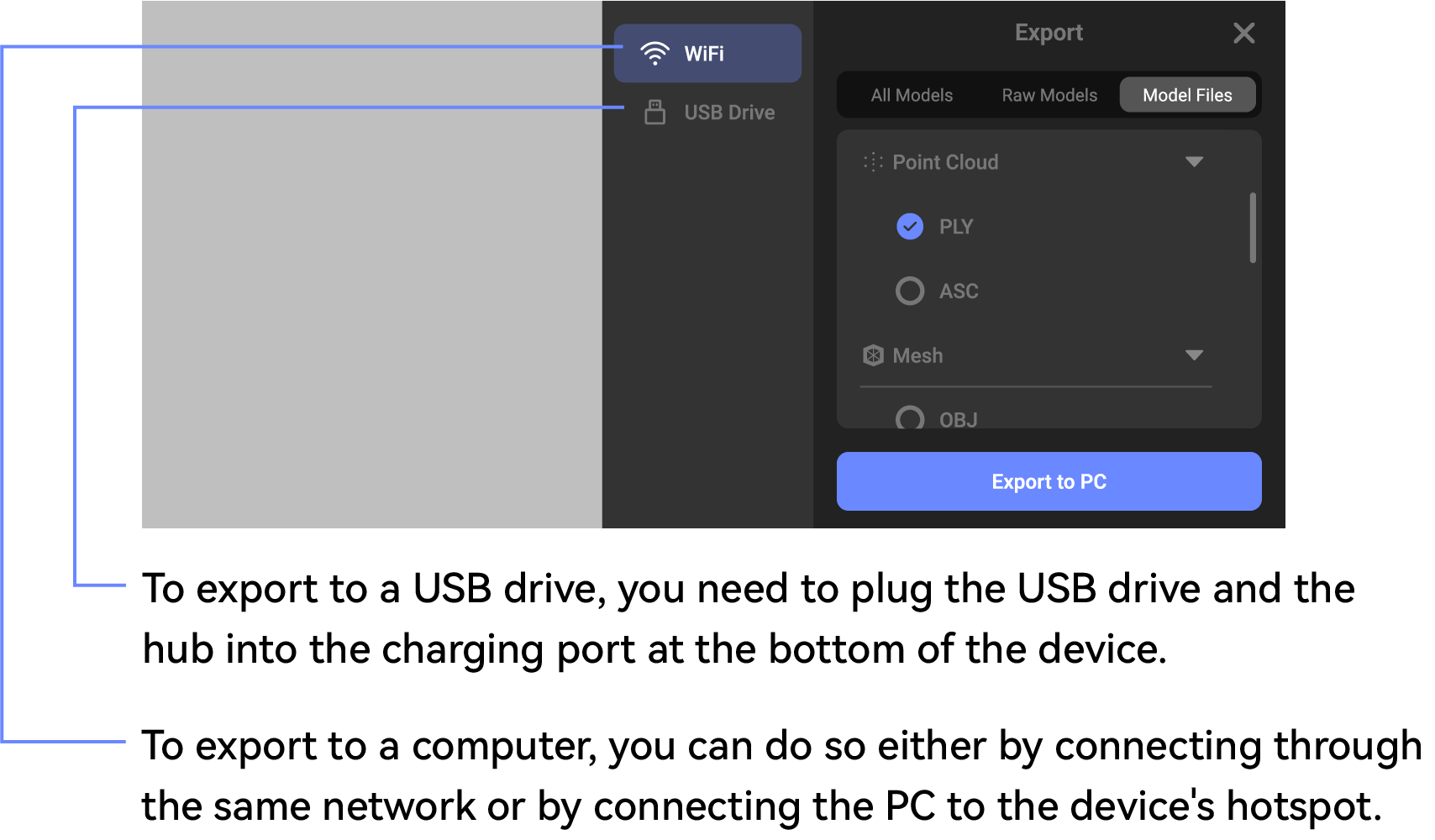
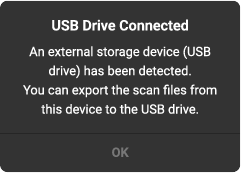
Export to USB Drive To export to a USB drive, you need to provide your own hub and USB drive. Connect the hub and USB drive (ThinkPlus TPU301 recommended), and insert them into the device's bottom charging port. A pop-up notification will indicate that the device has successfully connected to the USB drive:
① Select 'USB Drive' on the export interface
• If the prompt indicates that the USB drive is not recognized, you need to check whether the USB drive is properly inserted.
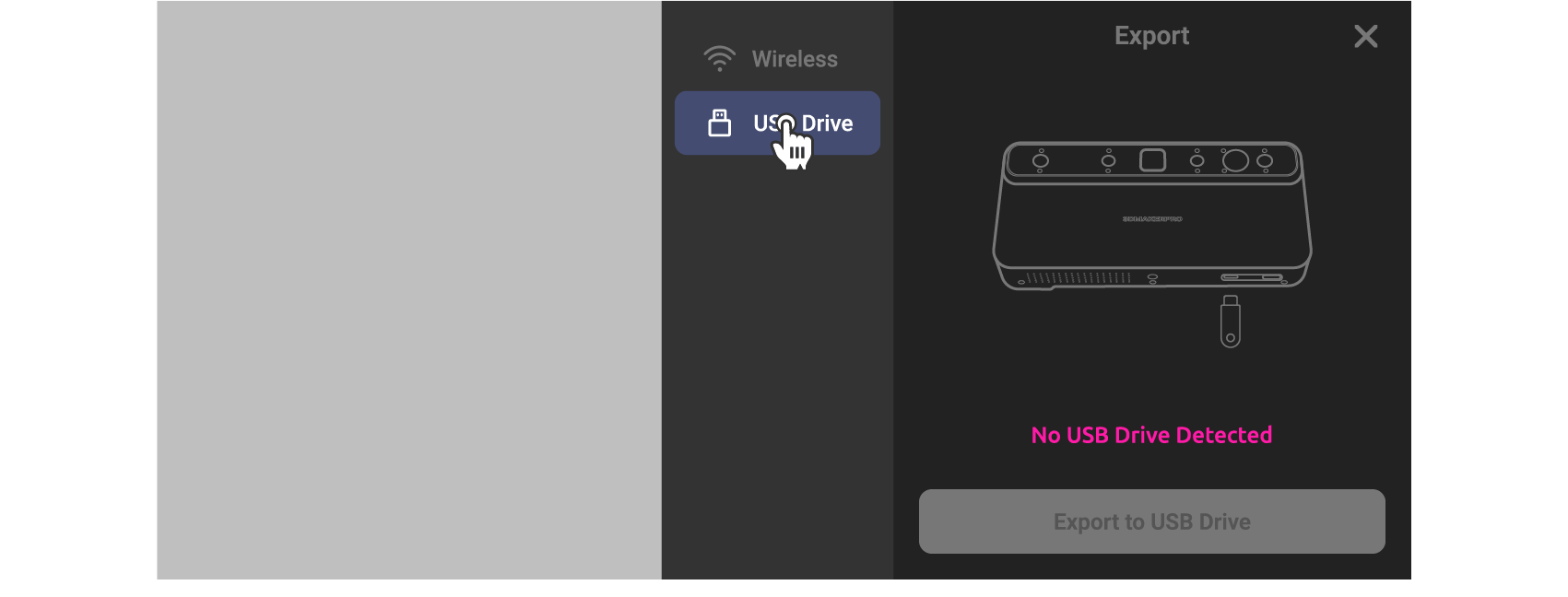
•After successful recognition, you can view the various export modes supported by the current model and select the required data model according to your needs (supports exporting a single model or packaging the current project file). Then, click 'Export to USB' on the device.
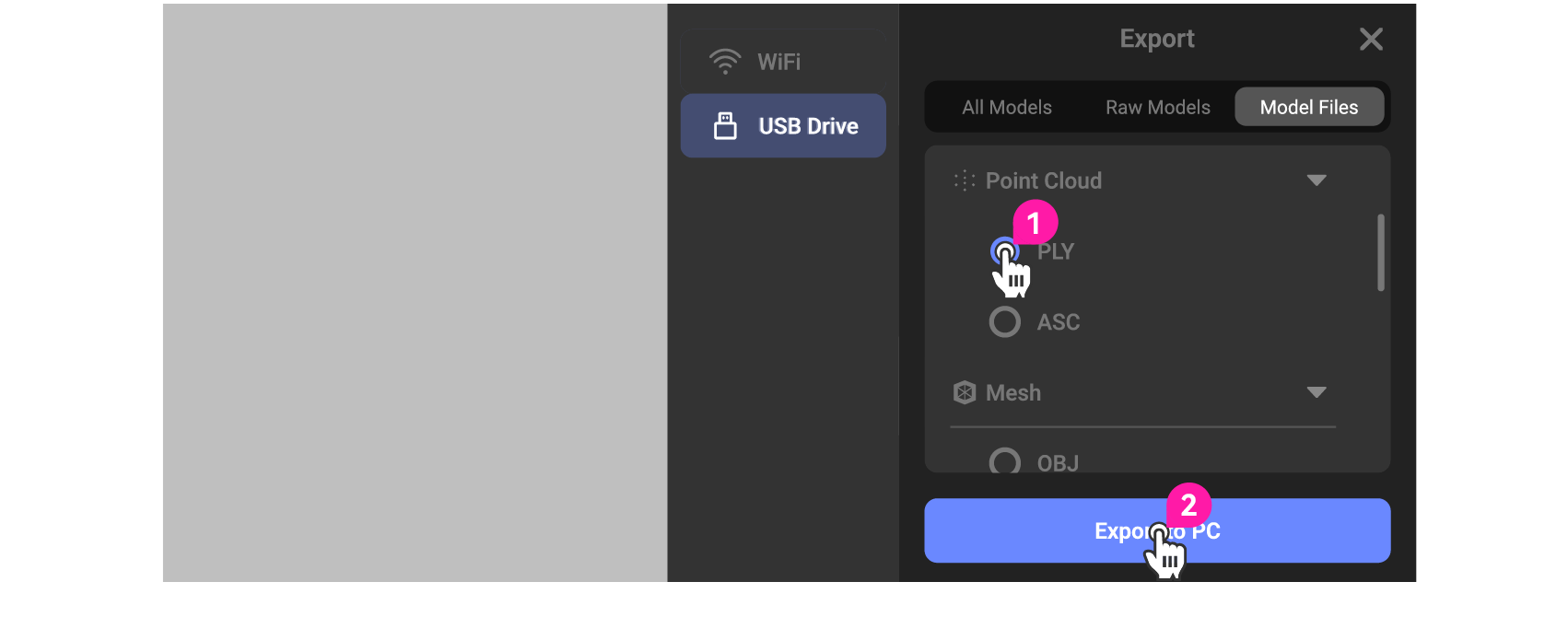
② After a successful connection, the device will transfer data to the PC.
(If exporting a project file, the data will be automatically compressed and transferred to the PC)
Calibration
Toucan can be recalibrated, but if not necessary, please do not recalibrate it. It'll involve far and near mode calibration, and each calibration requires five scans.
① Enter the calibration interface in settings.
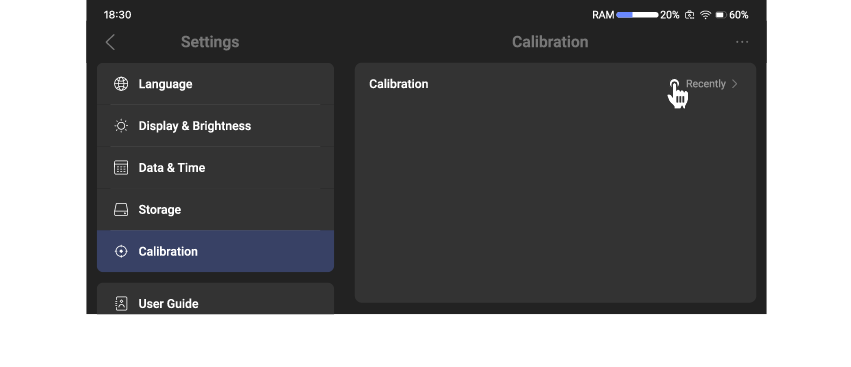
② Follow the instructions on the left, place the calibraion board accordingly (move it leftward or rightward, forward or backward), and collect the data from the calibration board.
After scanning in near mode, the system will automatically switch into far mode scanning. Please pay attention to the progress indicators on the left. During scanning, ensure the scanner center is aligned with the center of the calibration board, and reduce the brightness setting to a proper level. Placing the calibration board against a black background will make scanning easier.
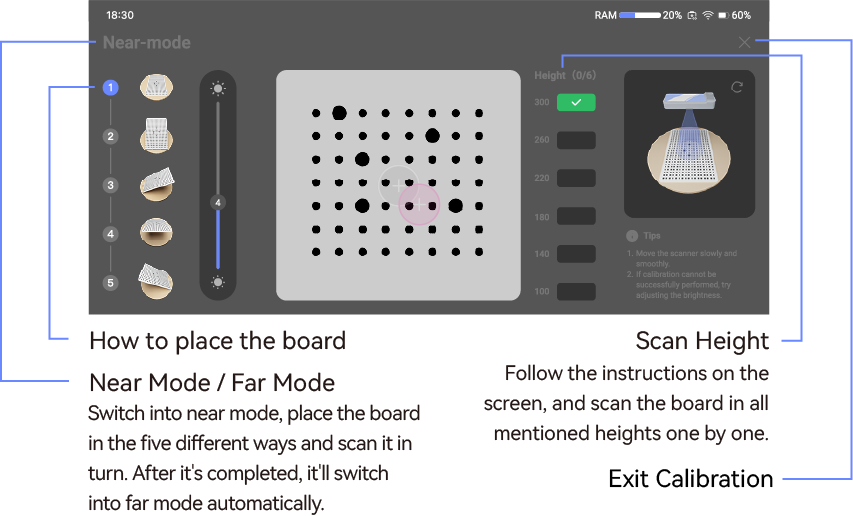
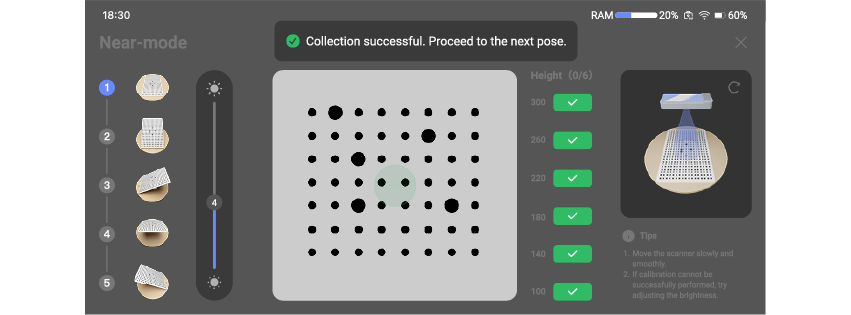
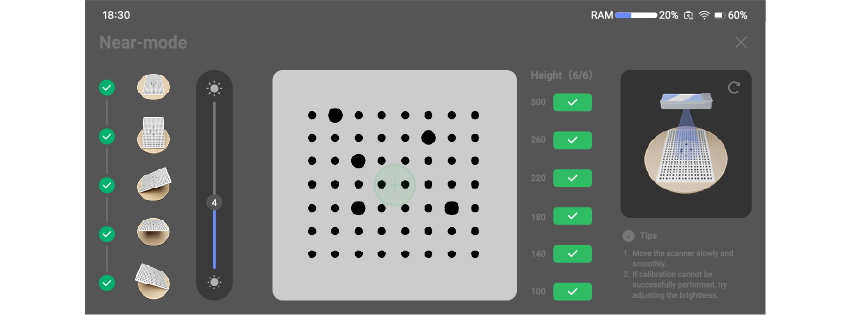
③ Similar to the scanning operation in near mode, perform another 5 scans in far mode.
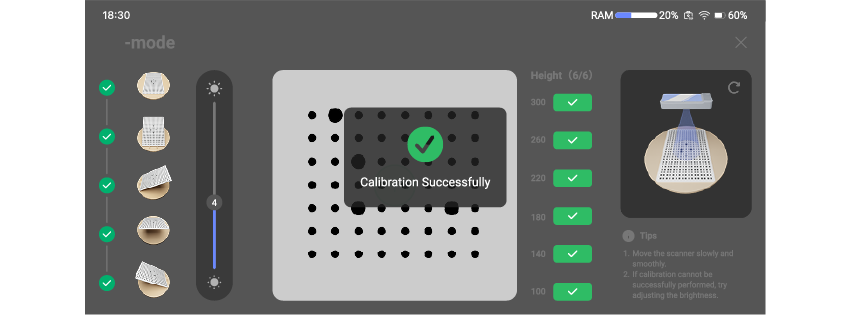
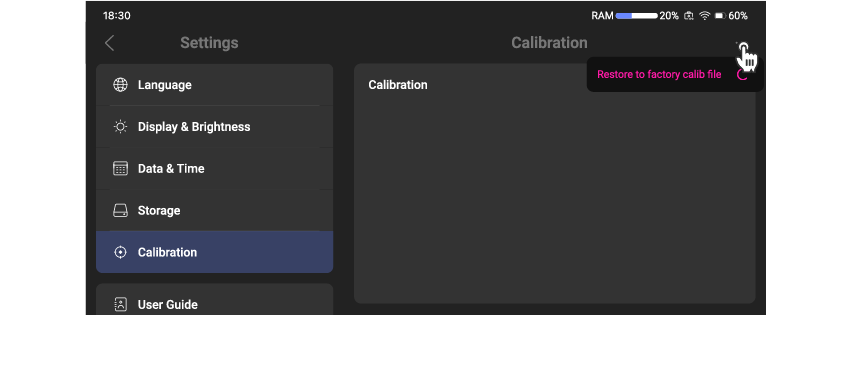
- TOUCAN has a built-in calibration file inside. You can reset it to factory settings.