Application Installation
The JMStudio mobile app is 3DMakerPro’s exclusive application for its 3D scanning devices focusing on 3D data acquisition. The app is a free download and works with your 3D scanning devices by 3DMakerPro for the convenience of mobile scanning. The subsequent 3D data processing and editing can be completed in the JMStudio desktop app by connecting the two ends via Wifi.
Compatible Models
JMStudio app currently is compatible with Lynx, Mole, Seal and Seal Lite, Moose and Moose Lite.
There will be more available models, please sign up on JMMeta with your email address to stay tuned on us: Sign up/bind your email
Operating System Requirement
iOS
The app requires iOS 15.0 or later. It's recommended to use iphone 12 or a higher upgrade.
Android
The app requires Android 10.0 or later. It is recommended to use mobile phones with 8G running memory or above. Please notice the available storage space must be more than 2G.
Installation and Updates
You can search JMStudio in app store or visit JMMeta to download the app: Click here to download
Please make sure you're using the lastest version so that we can serve you better.
Log in to register
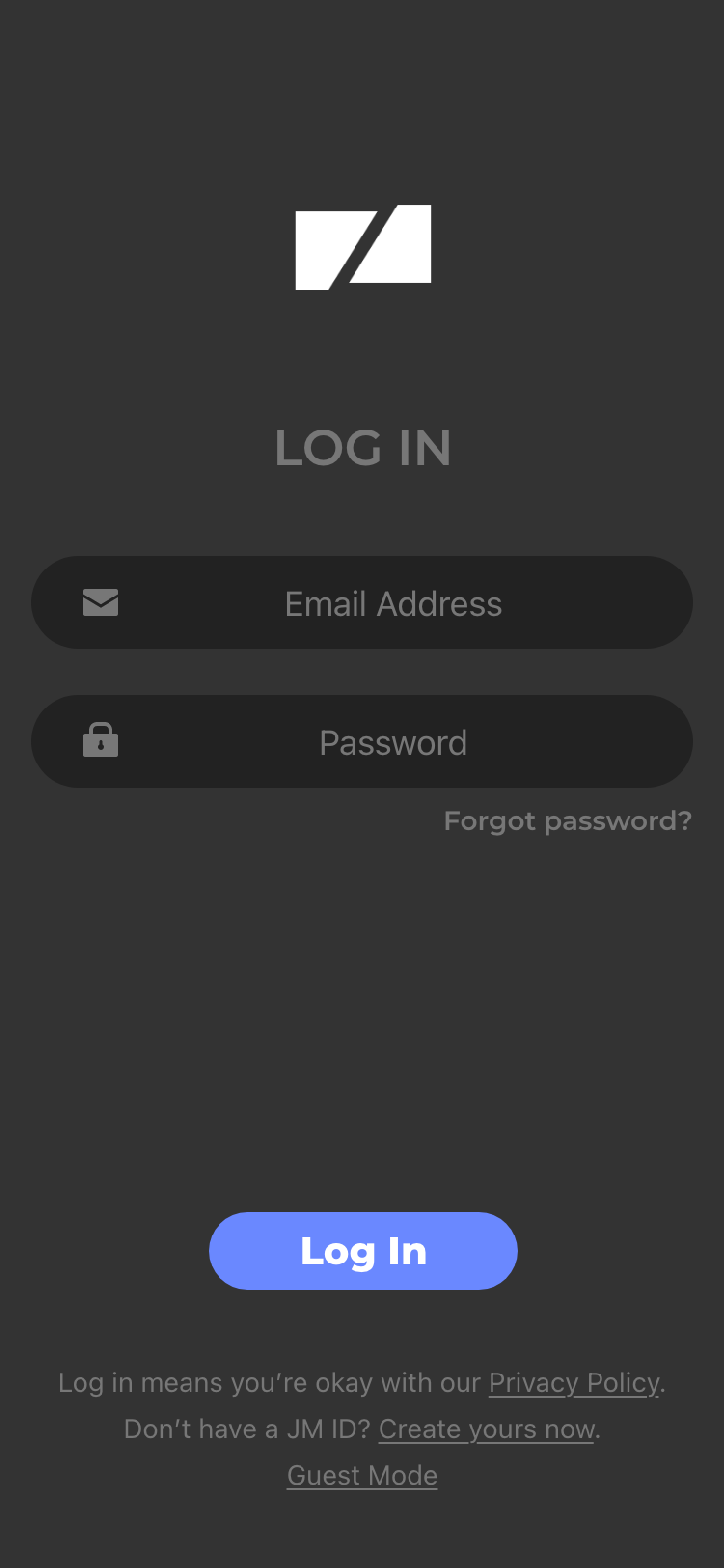
Log in with the account you have registered with us. If you have not registered, you can click "Create yours now." in the lower right corner to jump to the official website to register.
- It can also be used directly through the "Guest Mode" in the lower right corner.
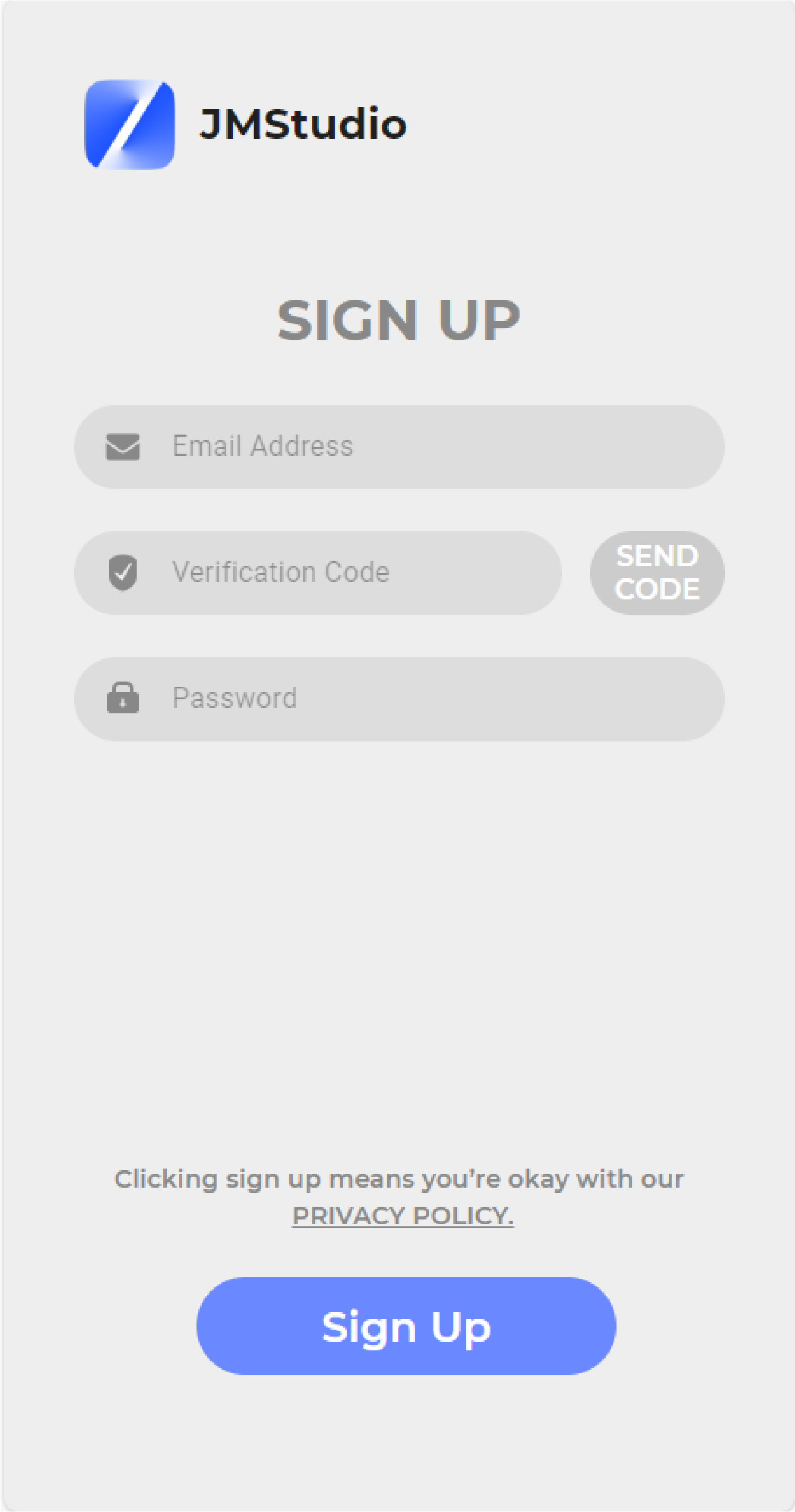
Enter the email information, click "SEND CODE", enter the verification code in the email and set the account password to register.
Scanner and Cellphone Connection
After the scanner is bound to the device on the desktop, the mobile terminal can directly log in to the account to use it.
*In the following scenarios, you need to connect the device to the desktop first, and then scan the QR code of the desktop device through the mobile terminal to obtain the calibration before using it (please refer to Not binding devices): 1. Guest mode login 2. The account is not bound to the device
Bind devices
If your scanner has been bound to the device on the desktop, you can log in to the account directly on the mobile terminal. The binding operation on the desktop side is as follows (if the binding fails, please refer to Manual Binding):
For Windows
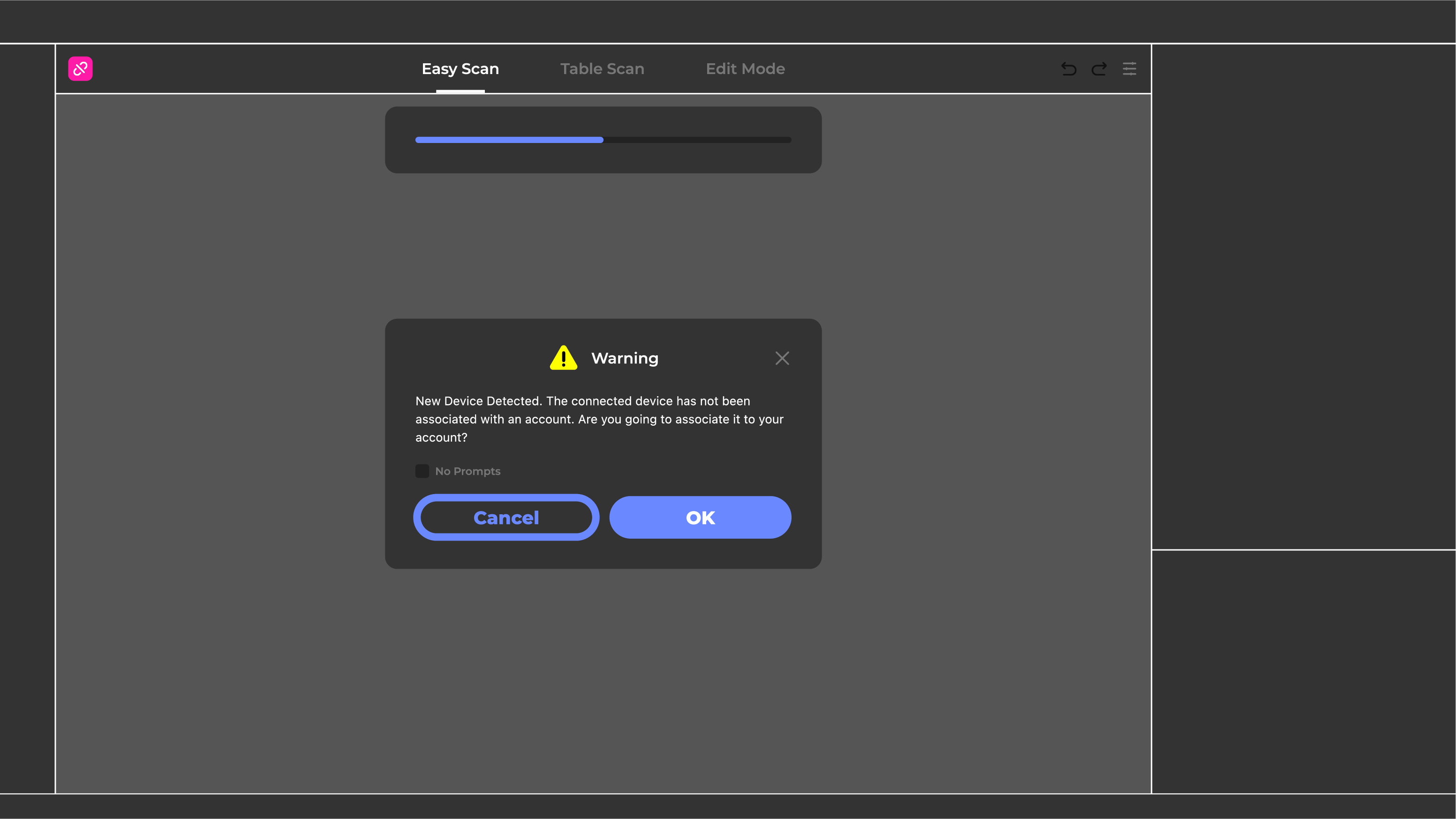
When the device is properly connected and connected to the Internet, the calibration file is automatically downloaded. When you download the calibration file, click OK in the pop-up box to bind the device to the current account. If you do not need to bind the device, you can simply click Cancel.
*If you log in as a guest, the device will not prompt for binding.
For macOS
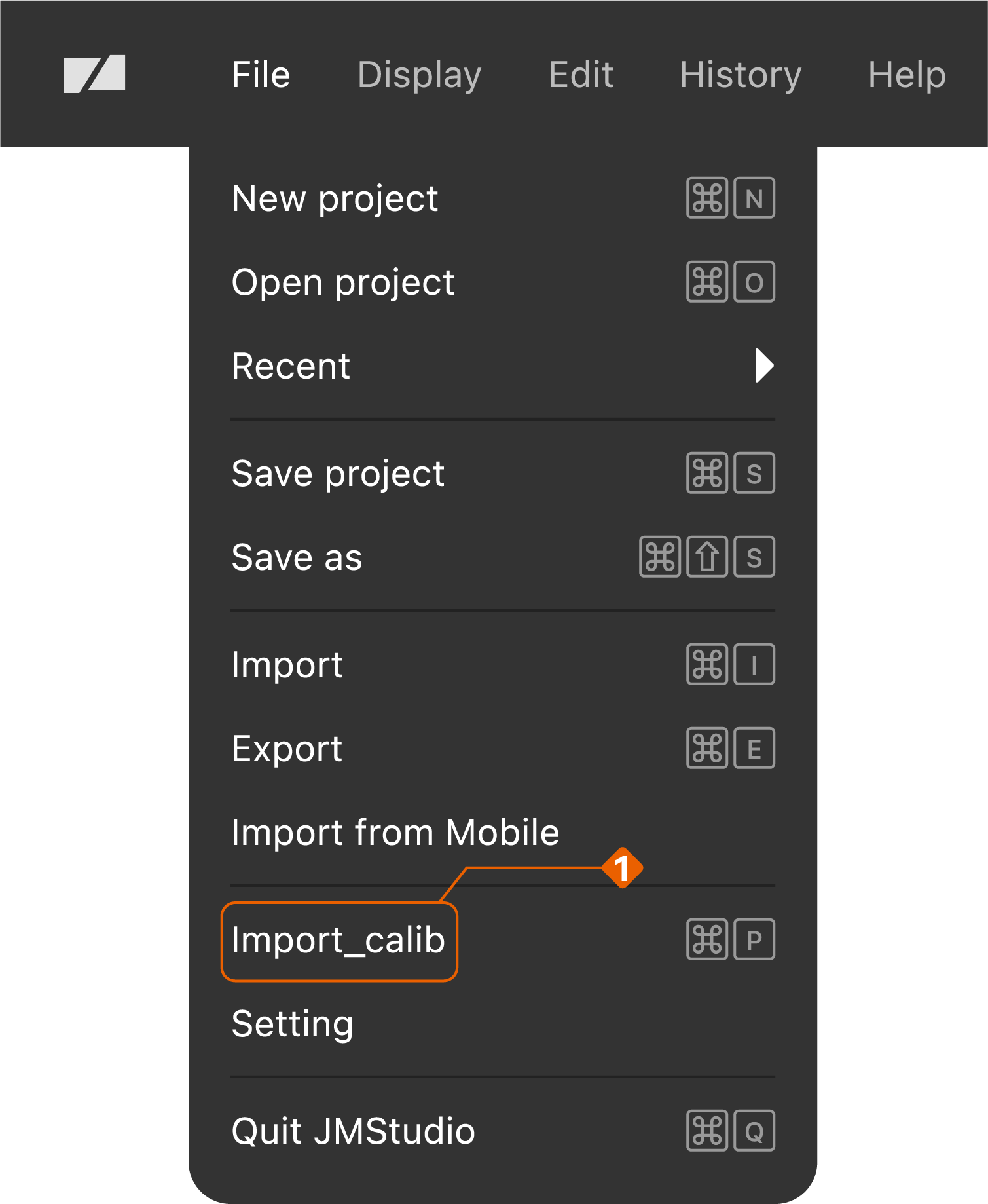
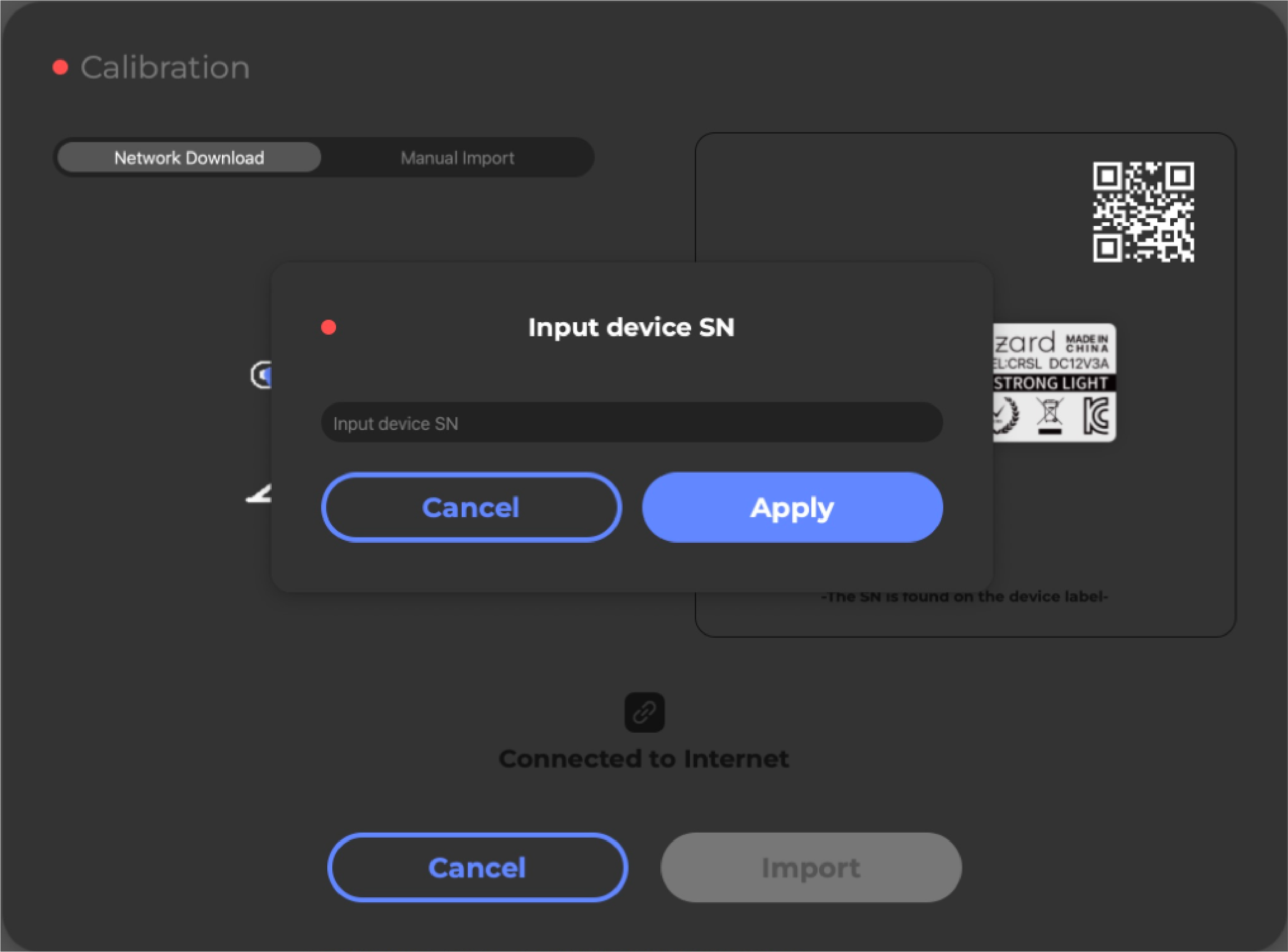
①In the Title Bar, click File_Import calib and go into Network Download, then input the device SN and click “Import”.
The device SN can be found at the buttom of the scanner body, then input the letters and numbers and apply to await the prompt “Import successfully”.
Note: Please enter the last 7 digits of "SN" for CR-Scan lizard; Moose and Moose Lite automatically recognize the serial number without the need to enter it

➁ When Moose & Moose Lite downloads the calibration file, click OK in the pop-up box to bind the device to the current account. If you do not need to bind the device, you can simply click Cancel.
*If you log in as a guest, the device will not prompt for binding.
③ After the prompt appears, the import is successful:

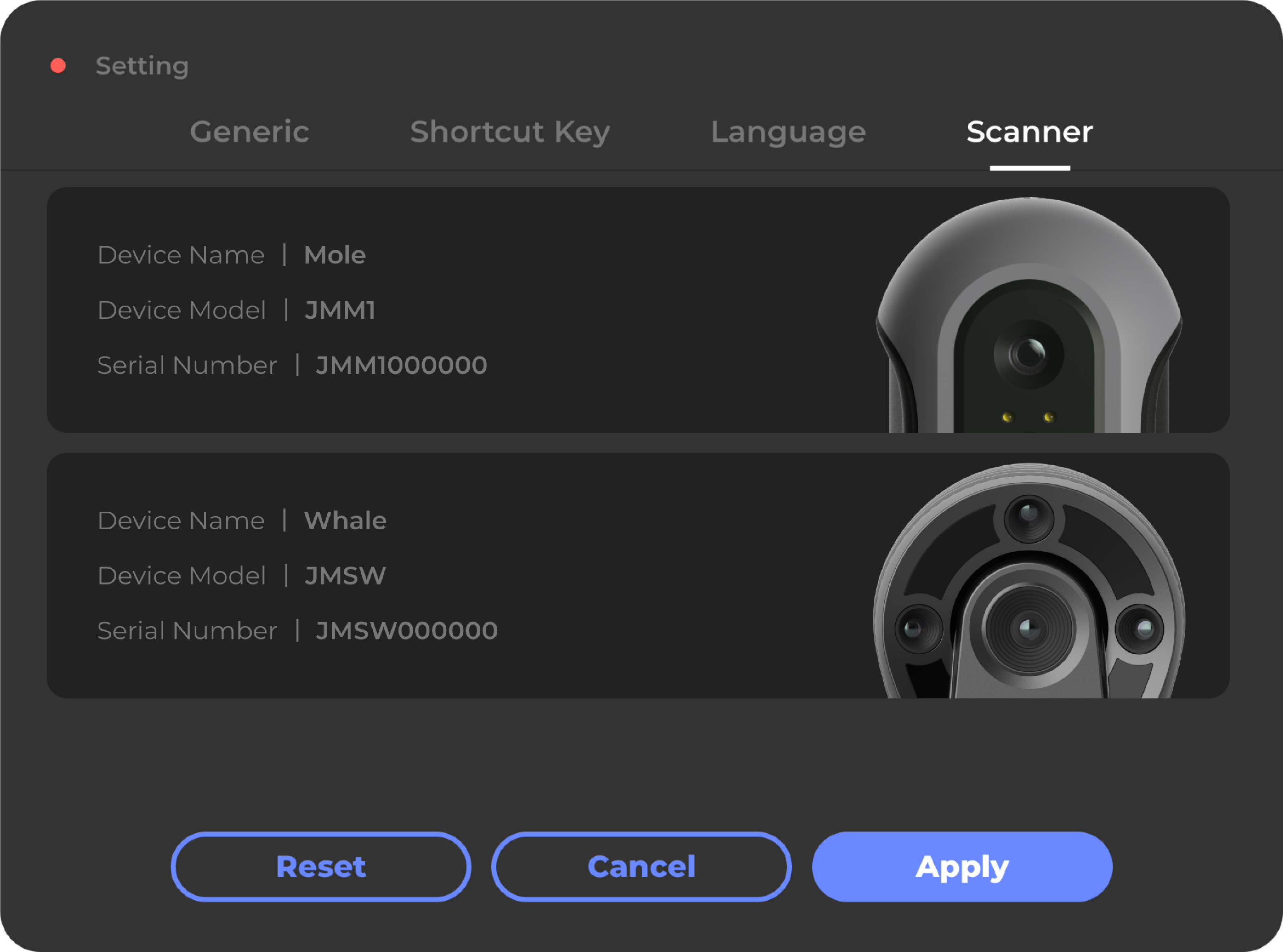
④ The models that have been added and selectable will show in the Settings-Scanner menu, right corner of the Work Mode panel.You can add multiple models once and for all for future reference.
Please make sure the selected calibration file matches your connected model.
*Manual binding
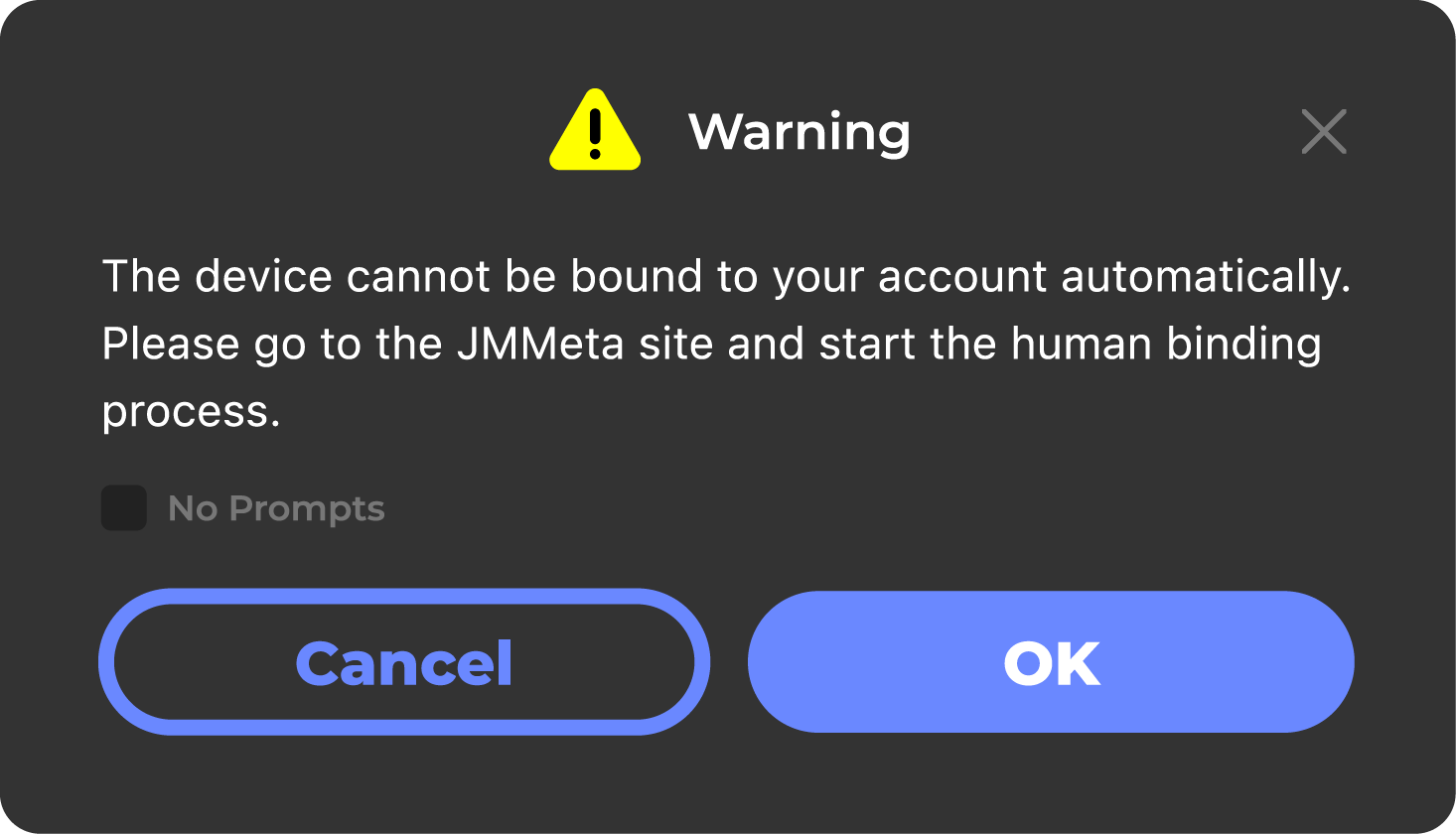
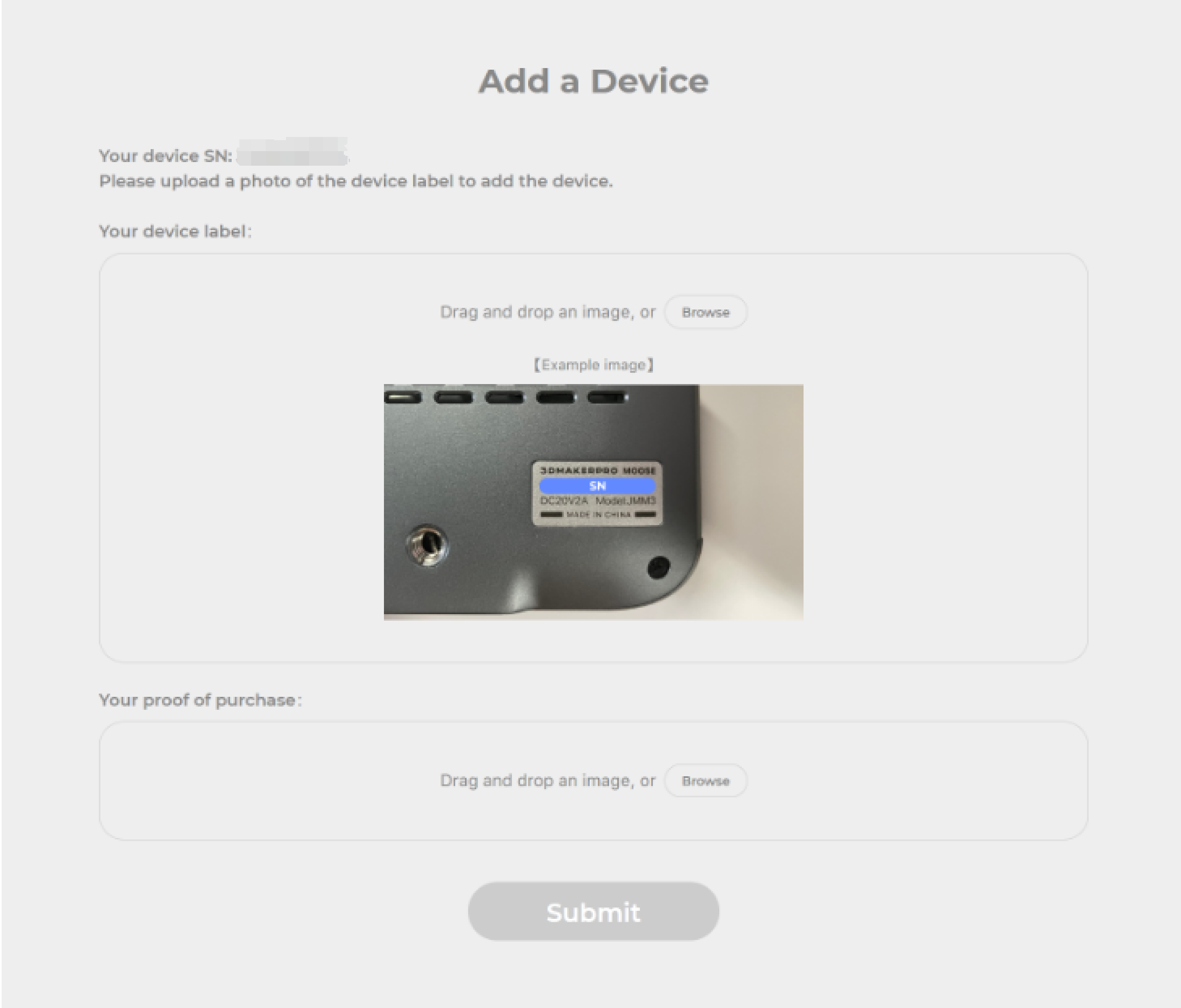
When the following pop-up window is prompted when binding the device, you can click "OK" to directly open the upload interface, upload your device information, and the human customer service will help you manually bind it in time after receiving your application.
Not binding devices
In the following scenarios, follow the steps to use the device without binding:
- Guest mode login 2. The account is not bound to the device
①Check the Scanner QR Code****
For a Brand-new Scanner
Before connecting the scanner to JMStudio app, please connect it to the JMStudio desktop and import the calib file. For more information: Import the Calibration File
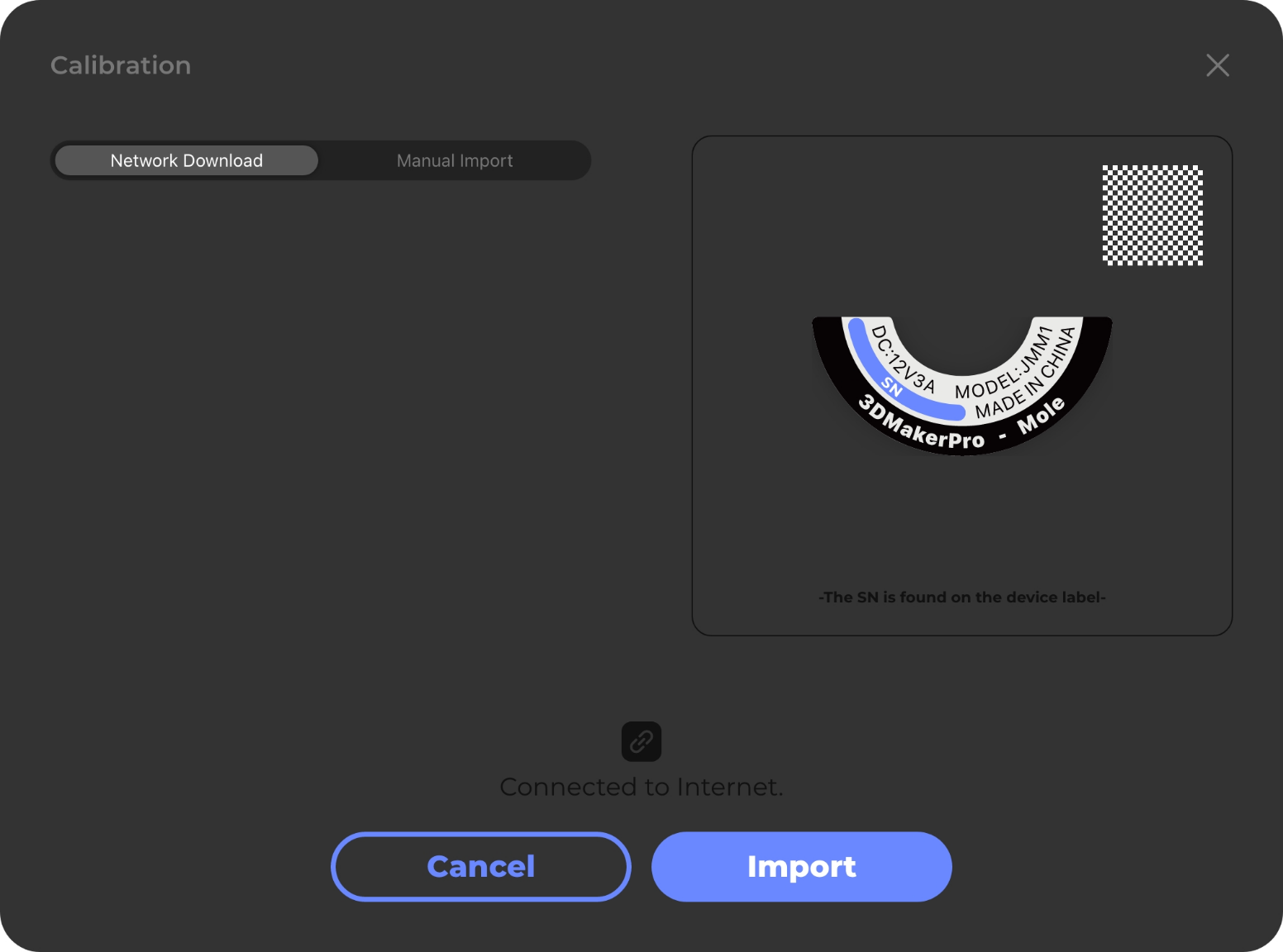
When it's done, the right side of the interface shows the scanner nameplate and its QR code:
For an Activated Scanner
If the scanner has been used on your PC before, please go to File-Import_calib in the Title Bar to open the calibration window. The right side of the interface shows the scanner nameplate and its QR code.
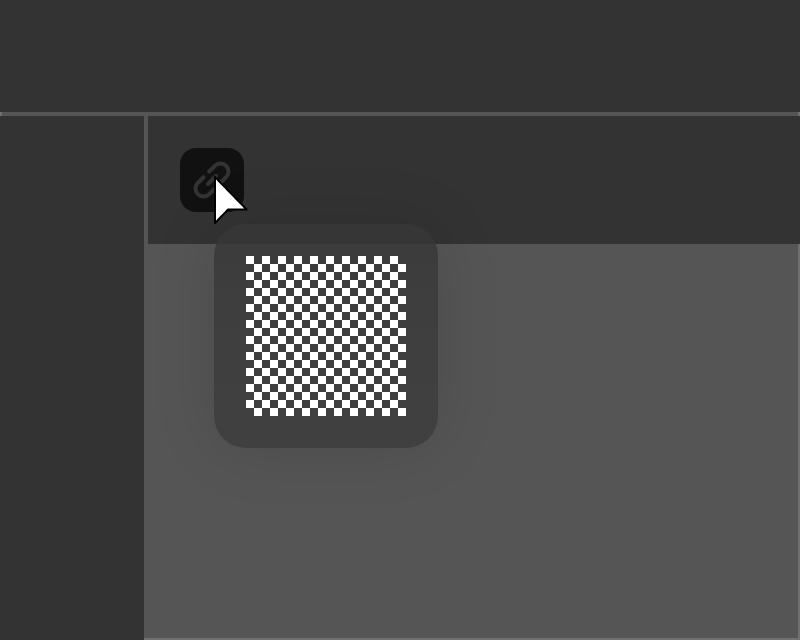
You can also find the code by hovering your mouse over the connection status icon if the scanner is successfully connected to your PC.
②Scan the QR Code
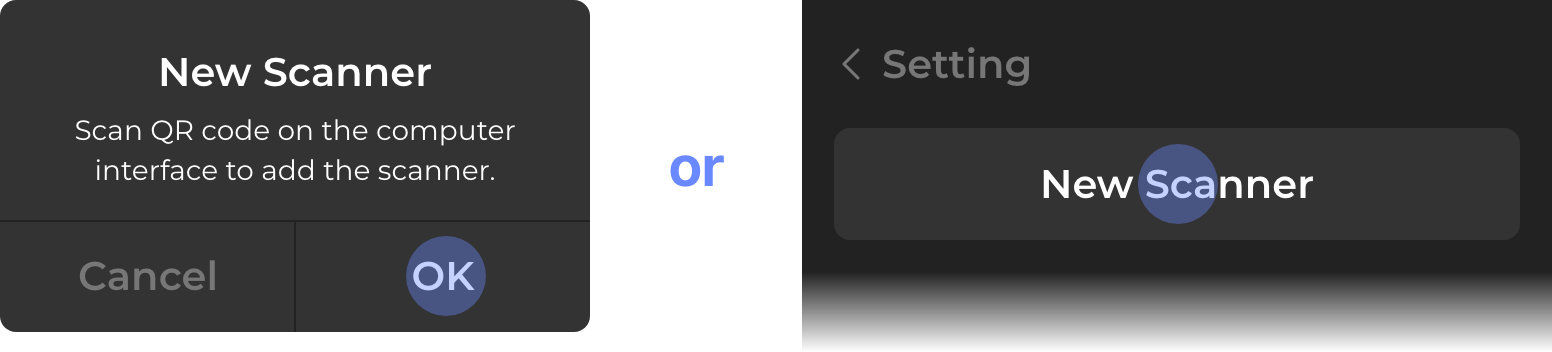
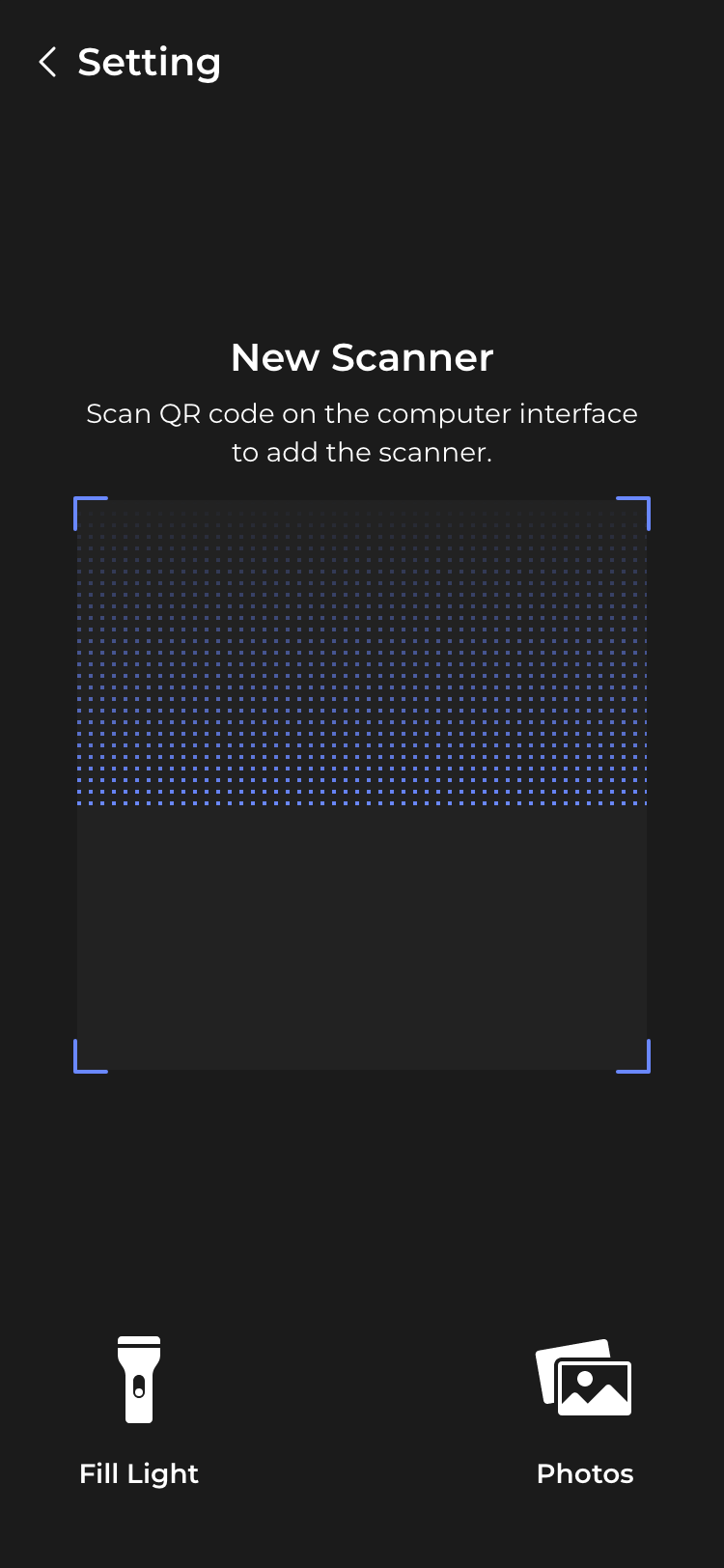
You'll be greeted with the New Scanner pop-up the first time you open the app, and choose "OK" to open QR code reader; to add a new model, please go to Settings-Scanner and select New Scanner to open QR code reader.
Read the QR code on the computer to add the model into your cellphone.
③ Select the Scanner
The models that have been added and selectable will show in the Settings-Scanner.
You can add multiple models once and for all for future reference.
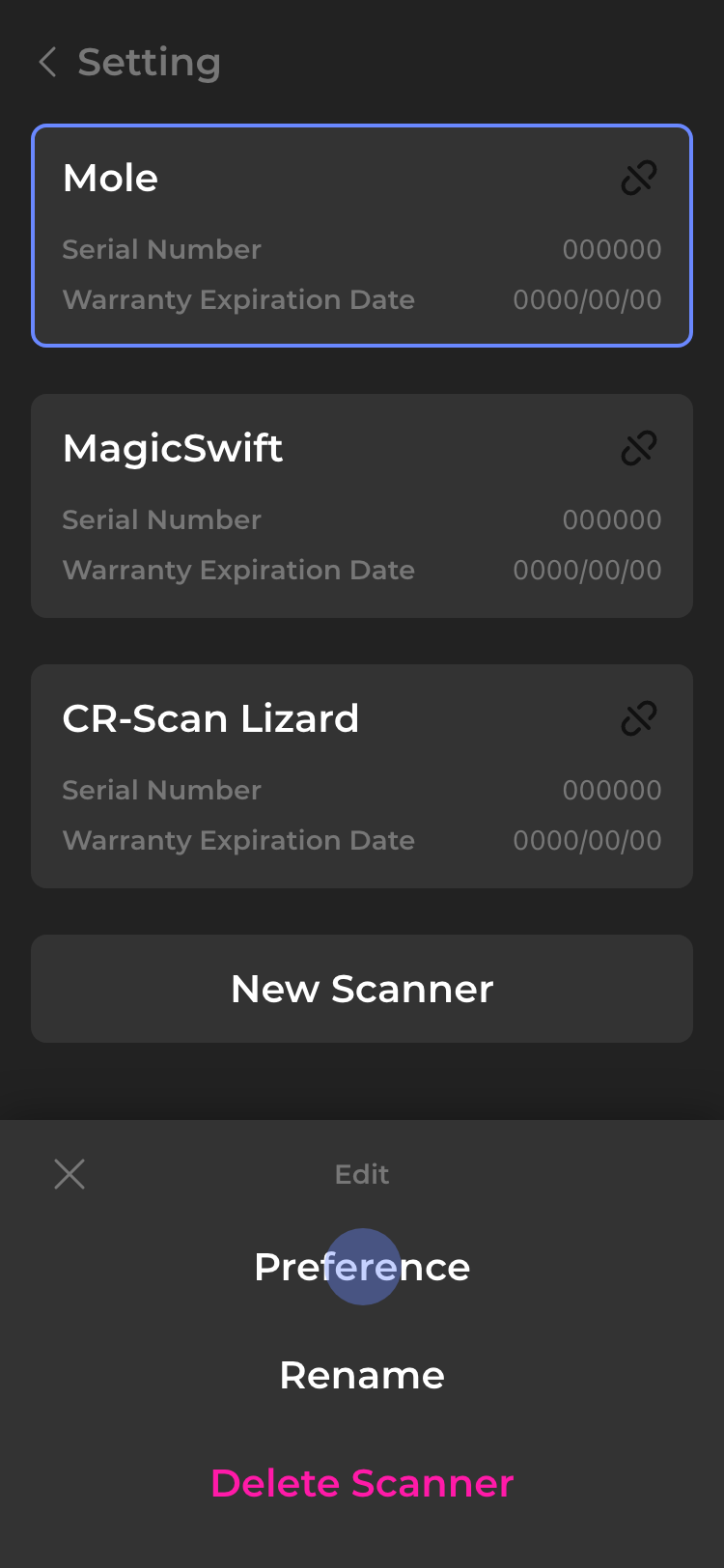
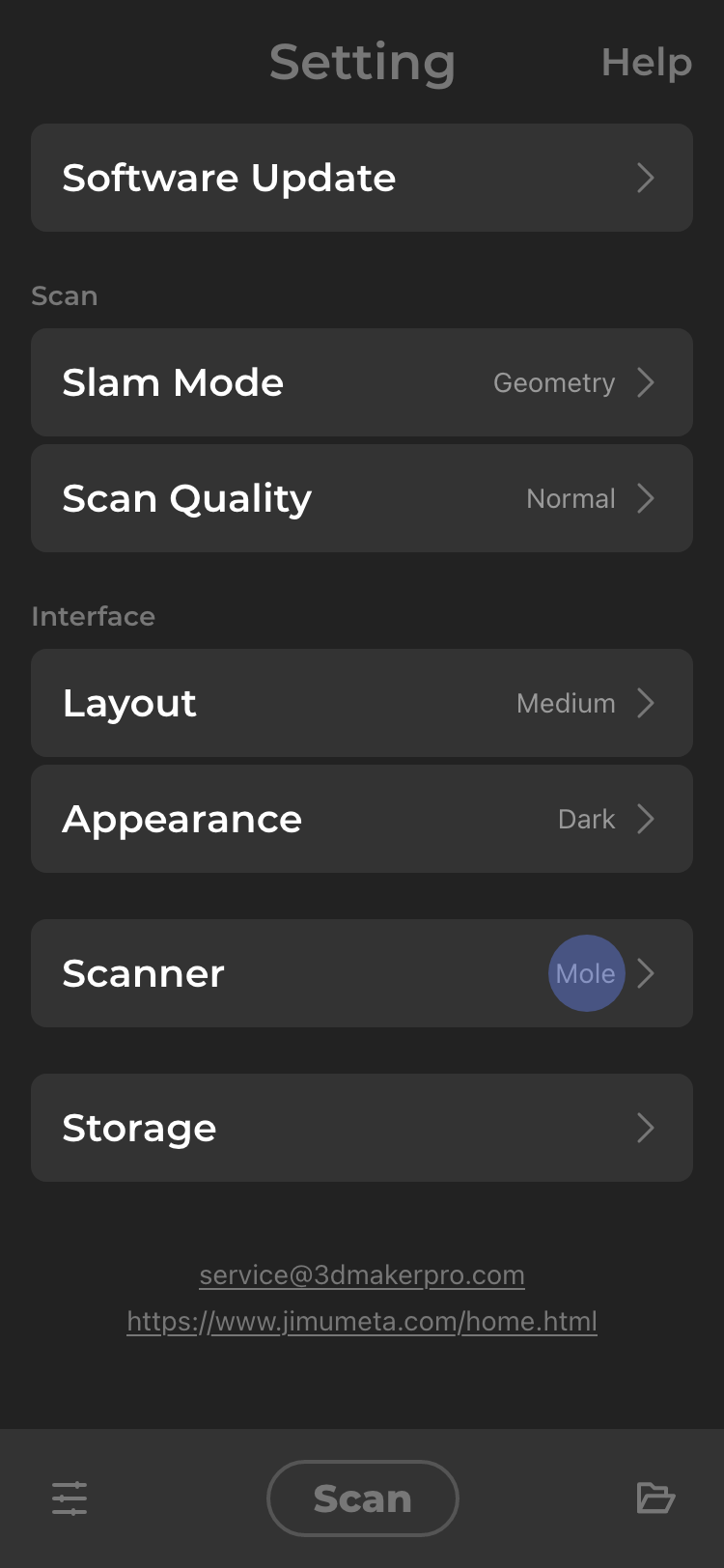
The selected scanner shows in Settings-Scanner, please make sure it's the same with the connected one.
Hardware Connection
Ater the software and app are all set up, you can connect the hardware.
Scanning Workflow
Preview and Adjustment
Tap on "Scan" in the bottom navigation bar, it'll automatically go into preview.
In preview, you can tap on the top tooltip or go into "Settings" to adjust the SLAM Mode, scan quality and Scanner.
Use the slider on the left side of the interface to adjust the brightness, for more information: Brightness
Scan and Stop
Tap on "Scan" or press the start/stop botton on the scanner(supported on specific models) to start scanning; the red counter shows the frames you've captured, tap on it again to stop scanning.
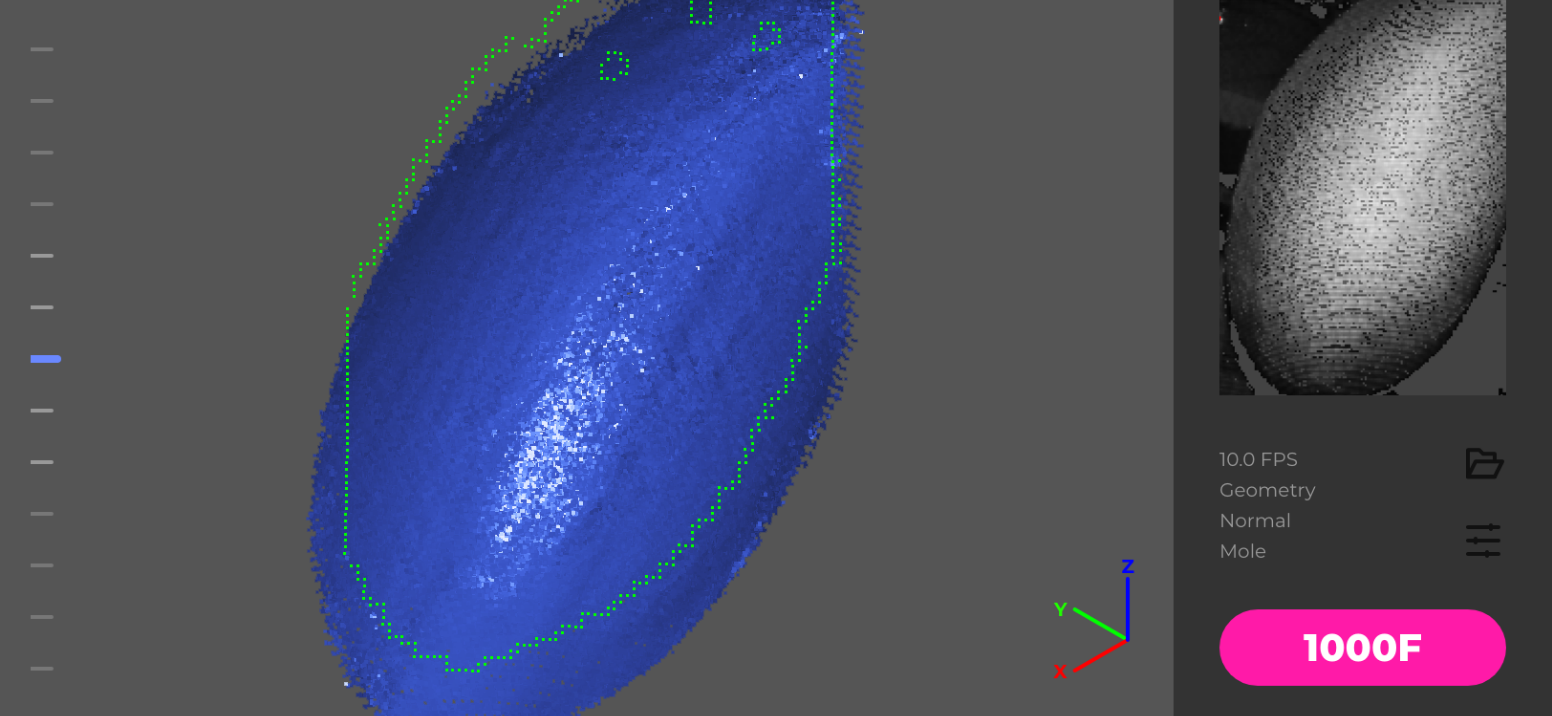
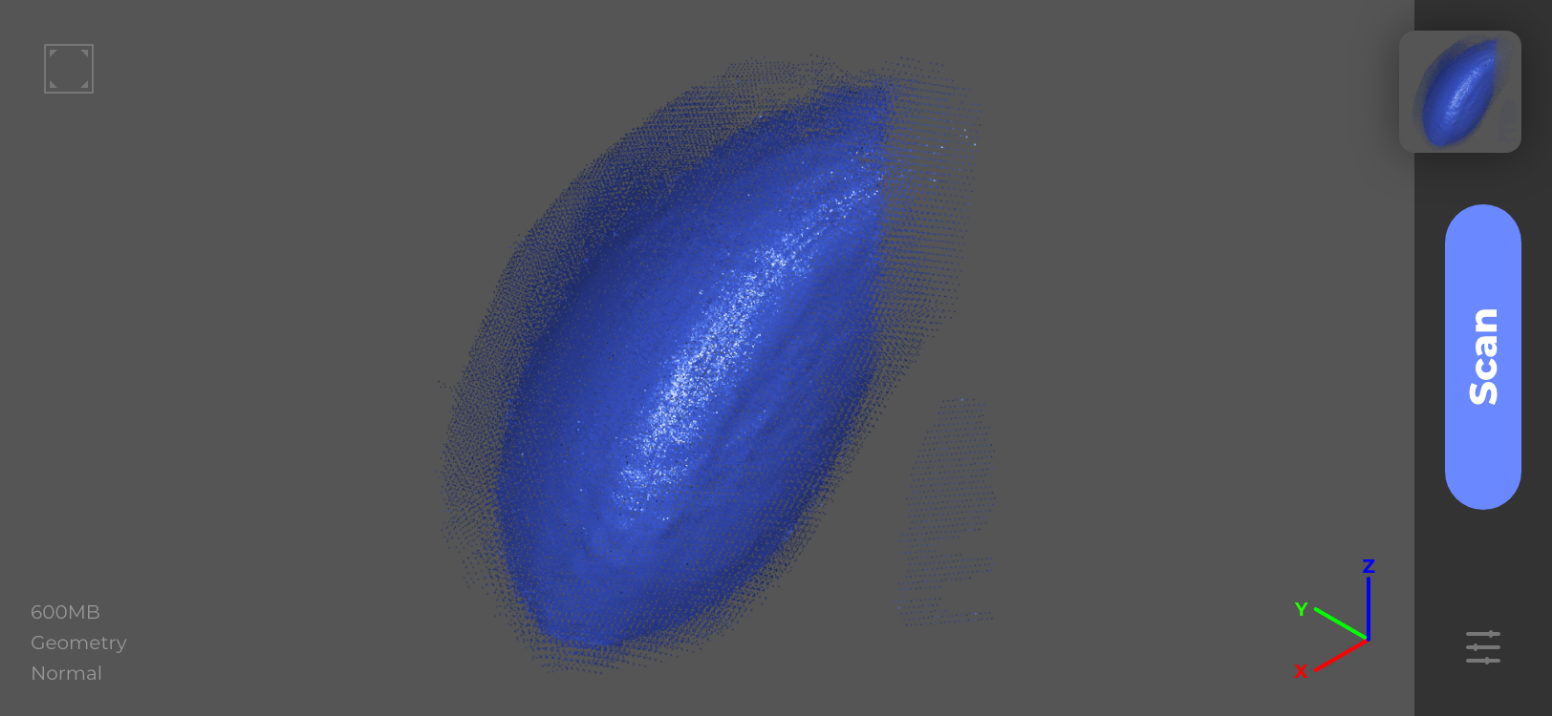
The scan result shows in the 3D viewer after you stop scanning, and the captured data will be automatically saved in the "File". Tap on "File" for followup actions or on "Scan" to add new scan.
Export Data to Desktop
The scan data needs to be exported into JMStudio desktop for further editing. Follow the instructions below:
①Check the Network Status****
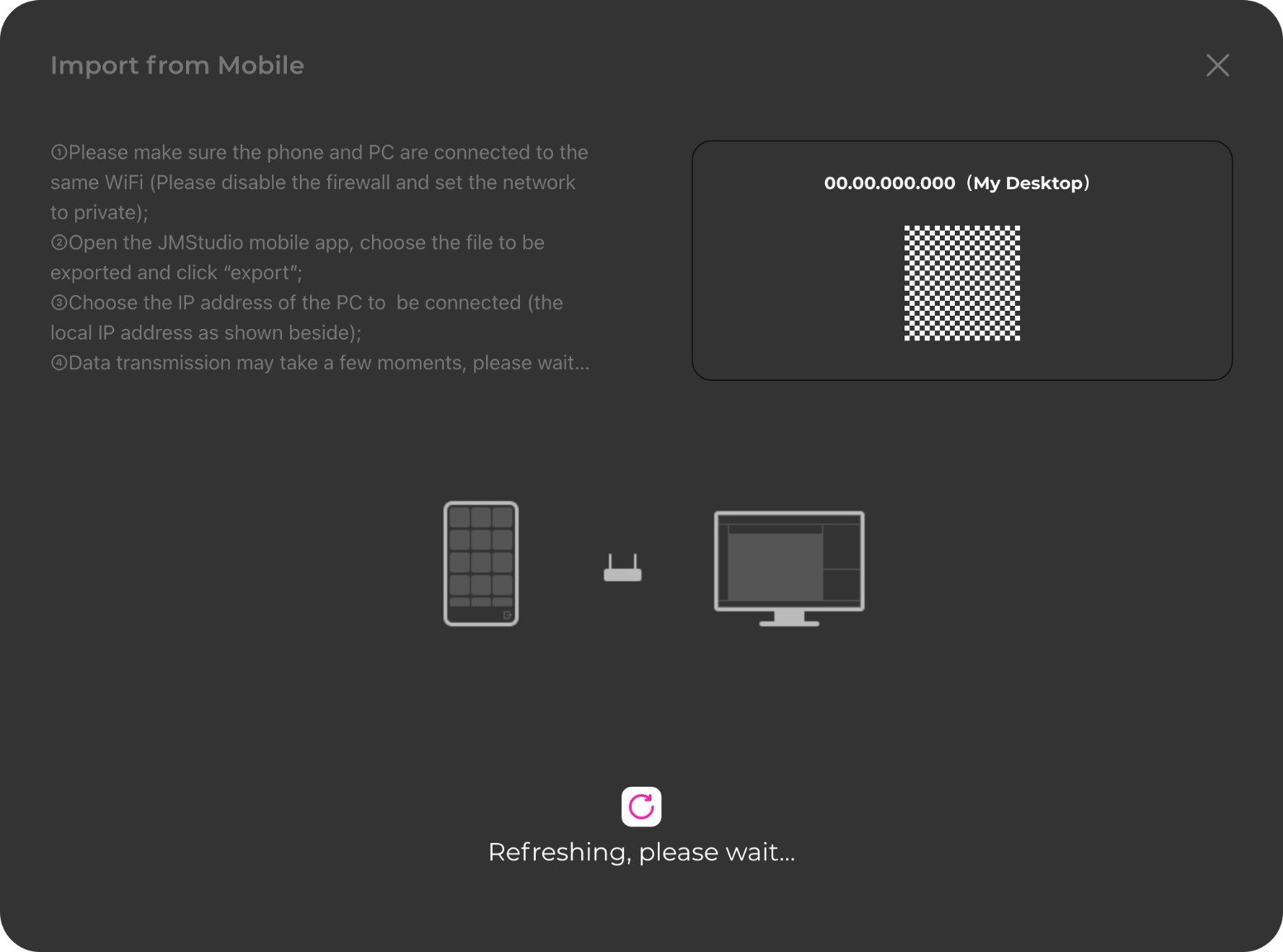
Please make sure the cellphone and PC are connected to the same WiFi, the firewall is disabled and the network is set to private.
②Open the Data Import Window****
Click on File-Mobile Import Widget in the Title Bar of the software and the data import window pops up; the right side of the window shows your desktop IP and a QR code.
③Export the Data****
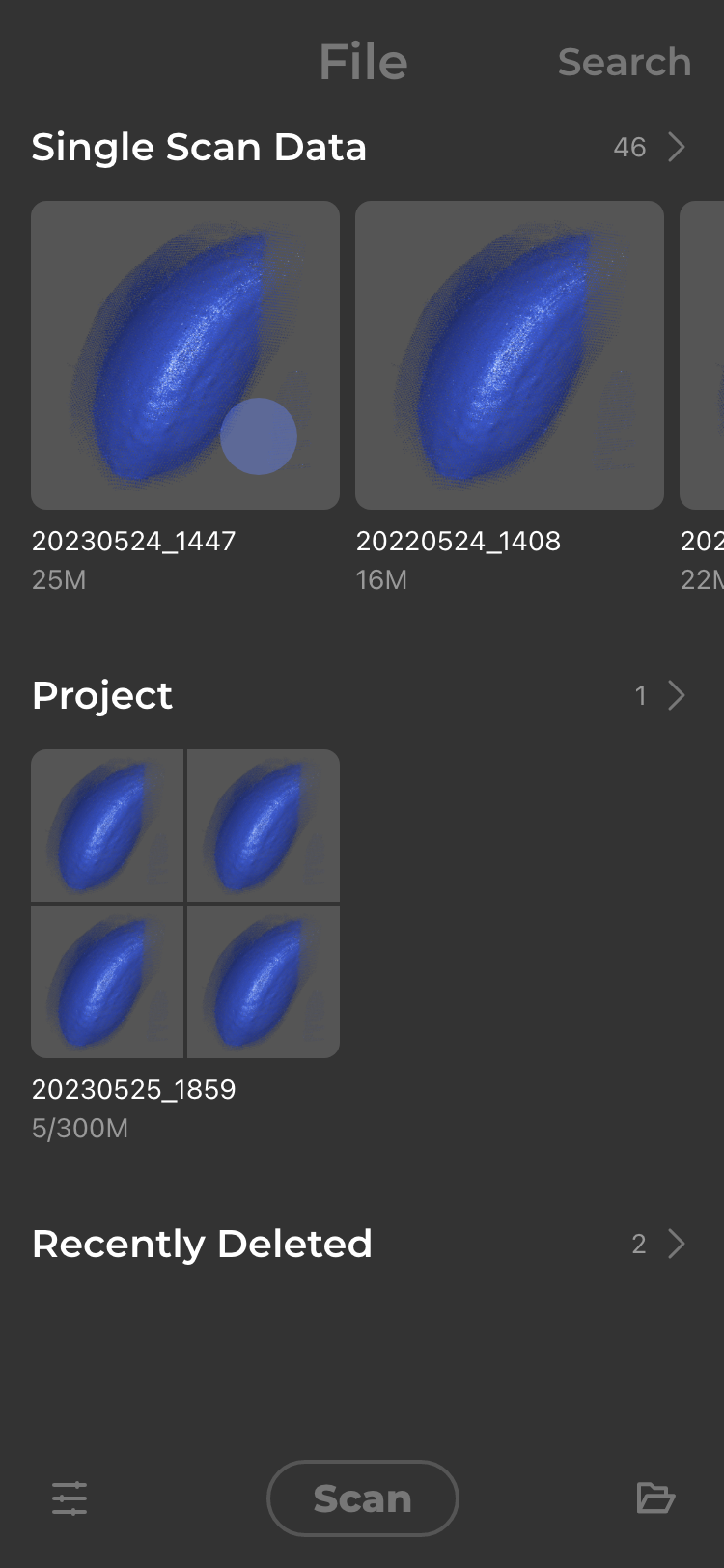
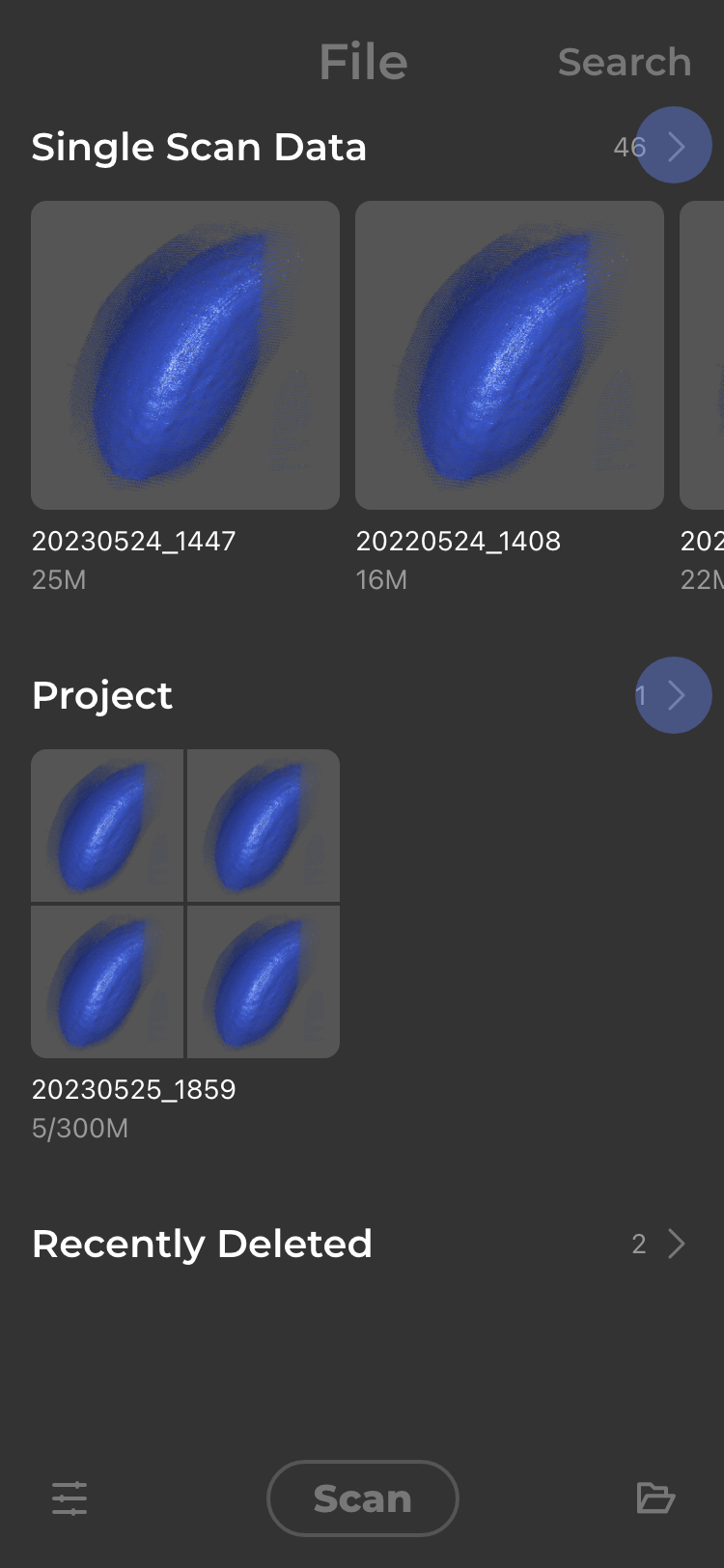
Open the JMStudio app, tap on "File" in the top navigation bar and check your data list.
Export Single Scan Data
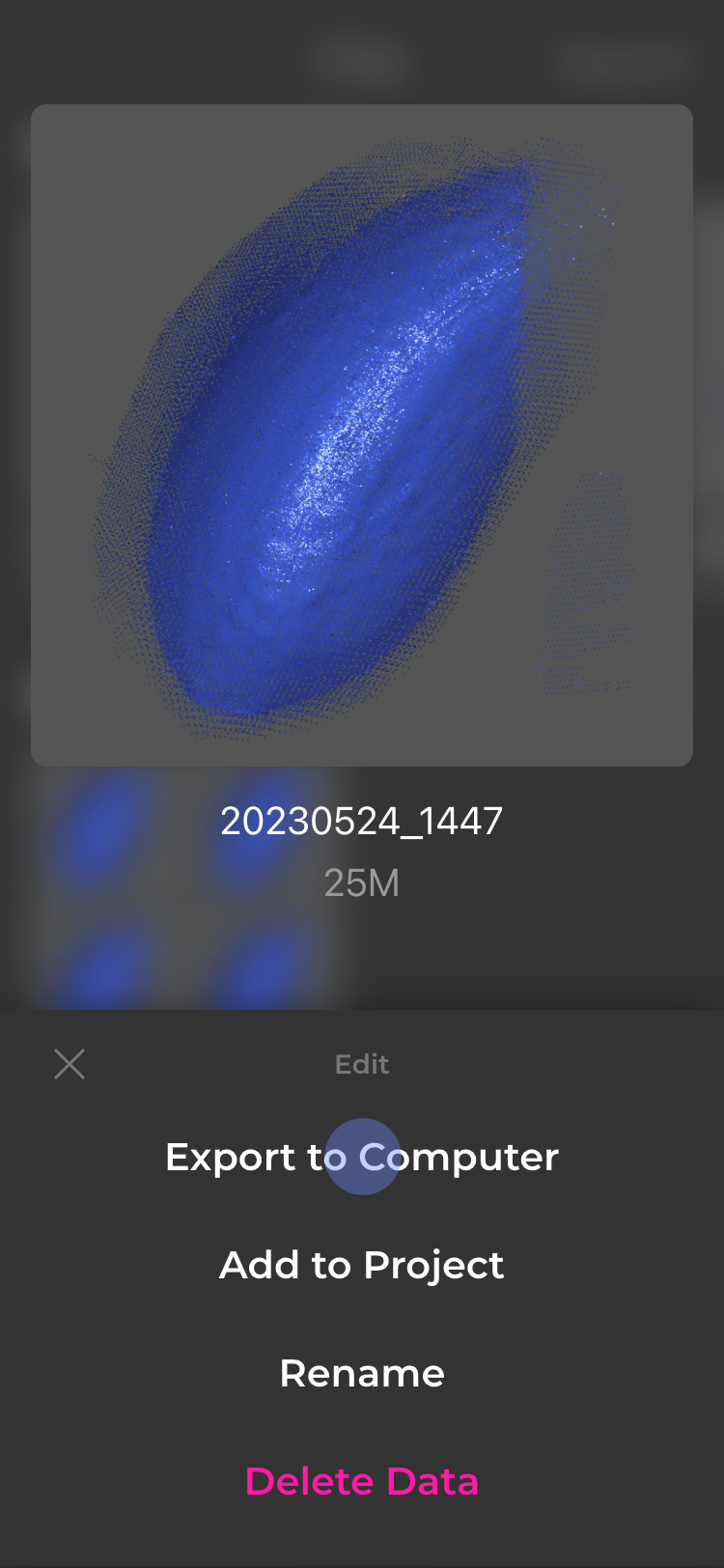
Press and hold the data to select and export it to computer.
Export Multiple Scan Data
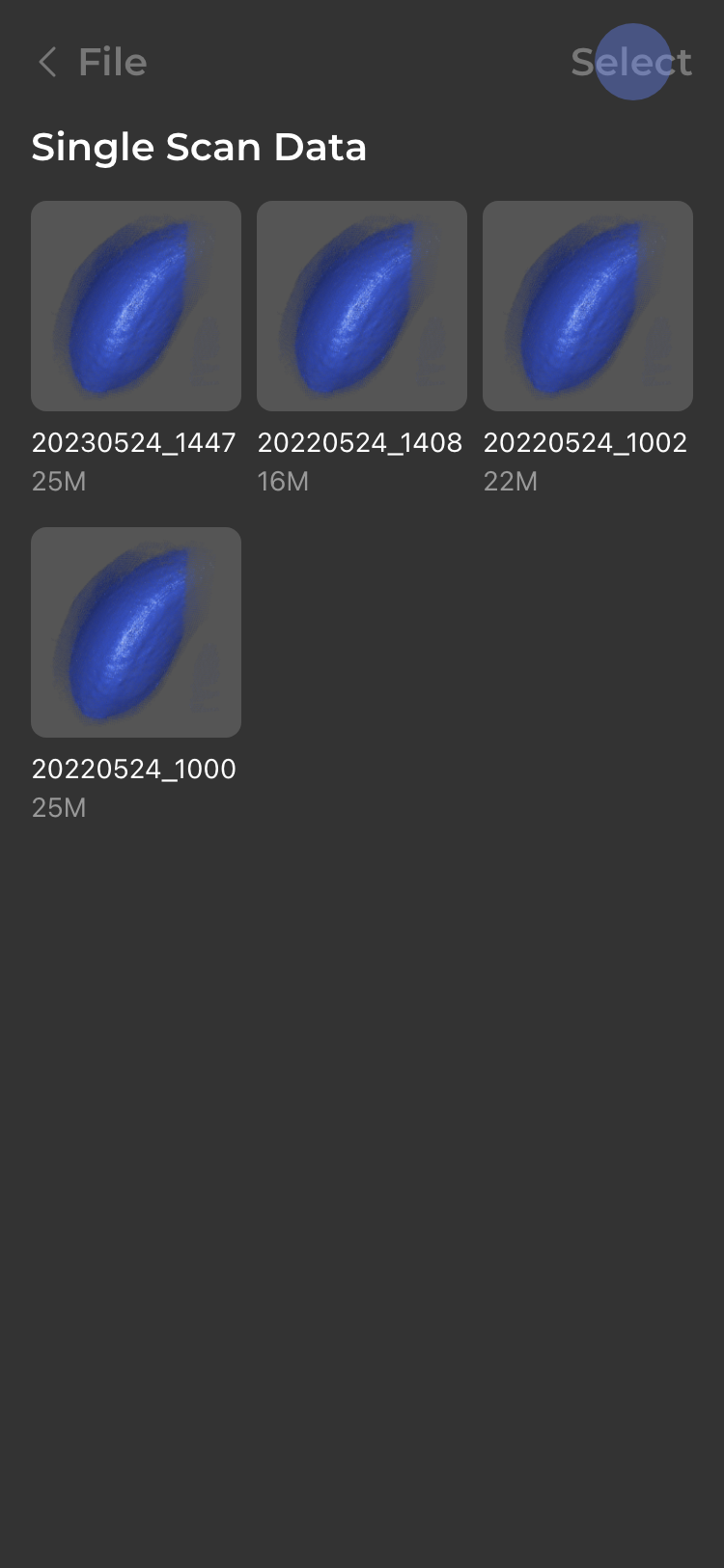
Tap on "Single Scan Data" or "More" to go into the secondary page; tap on "Select" in the top right corner to select the exported file and tap on "Export" button.
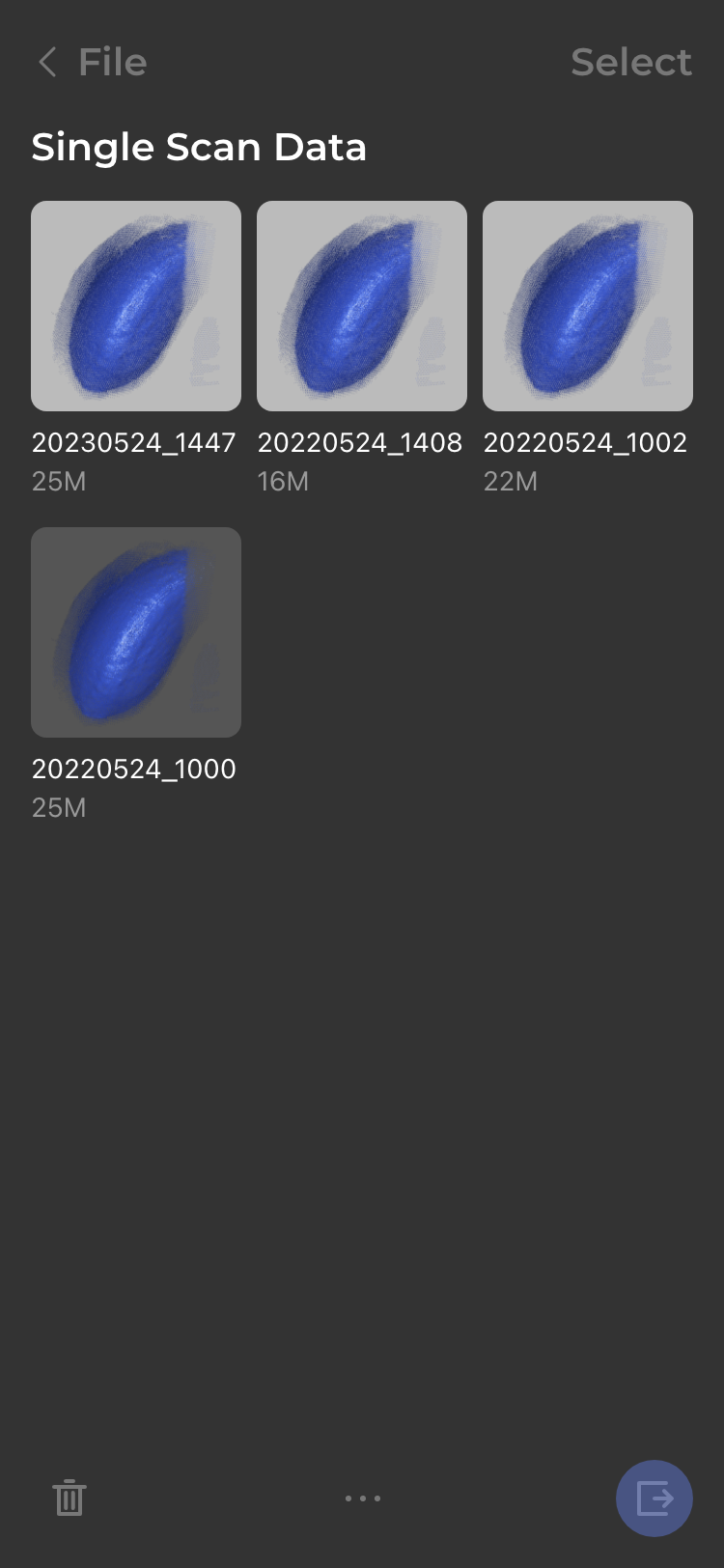
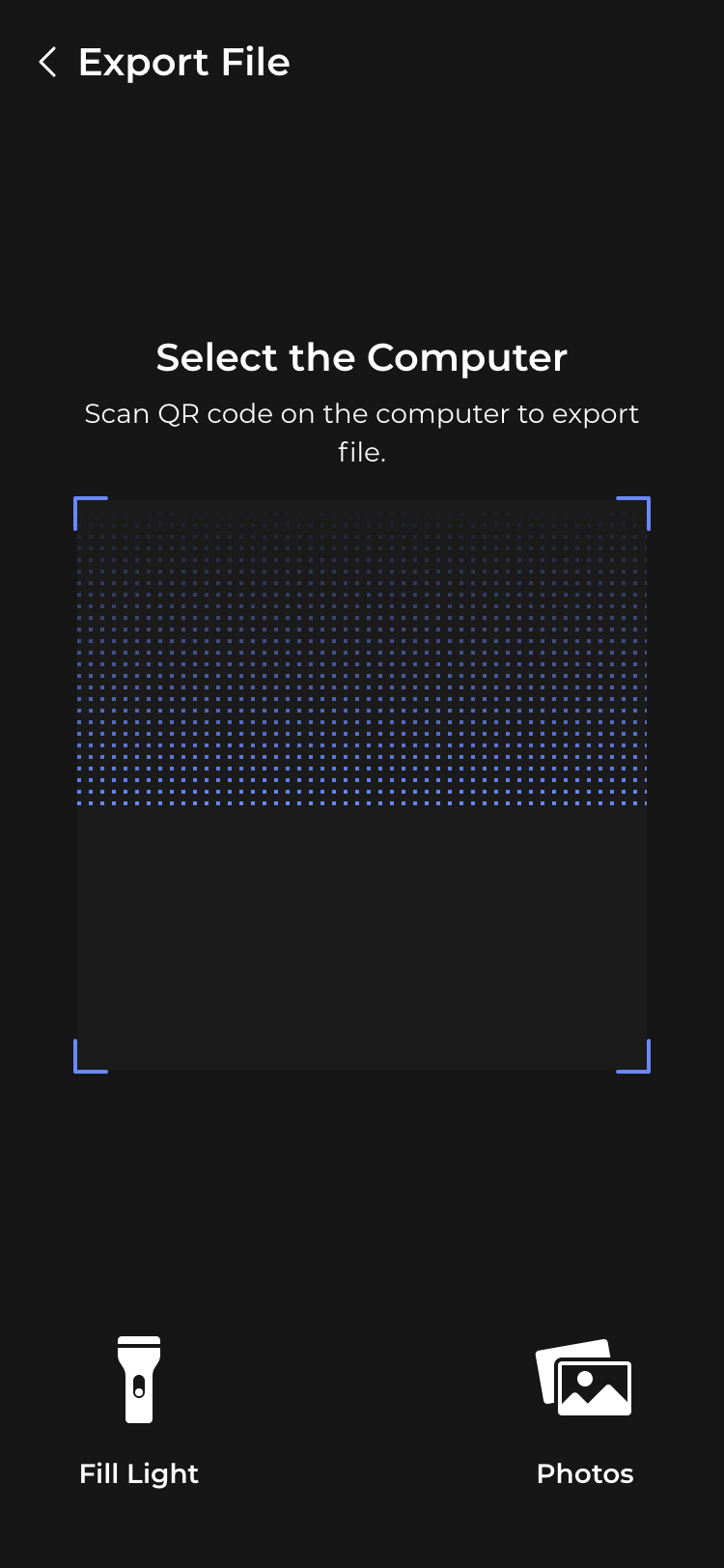
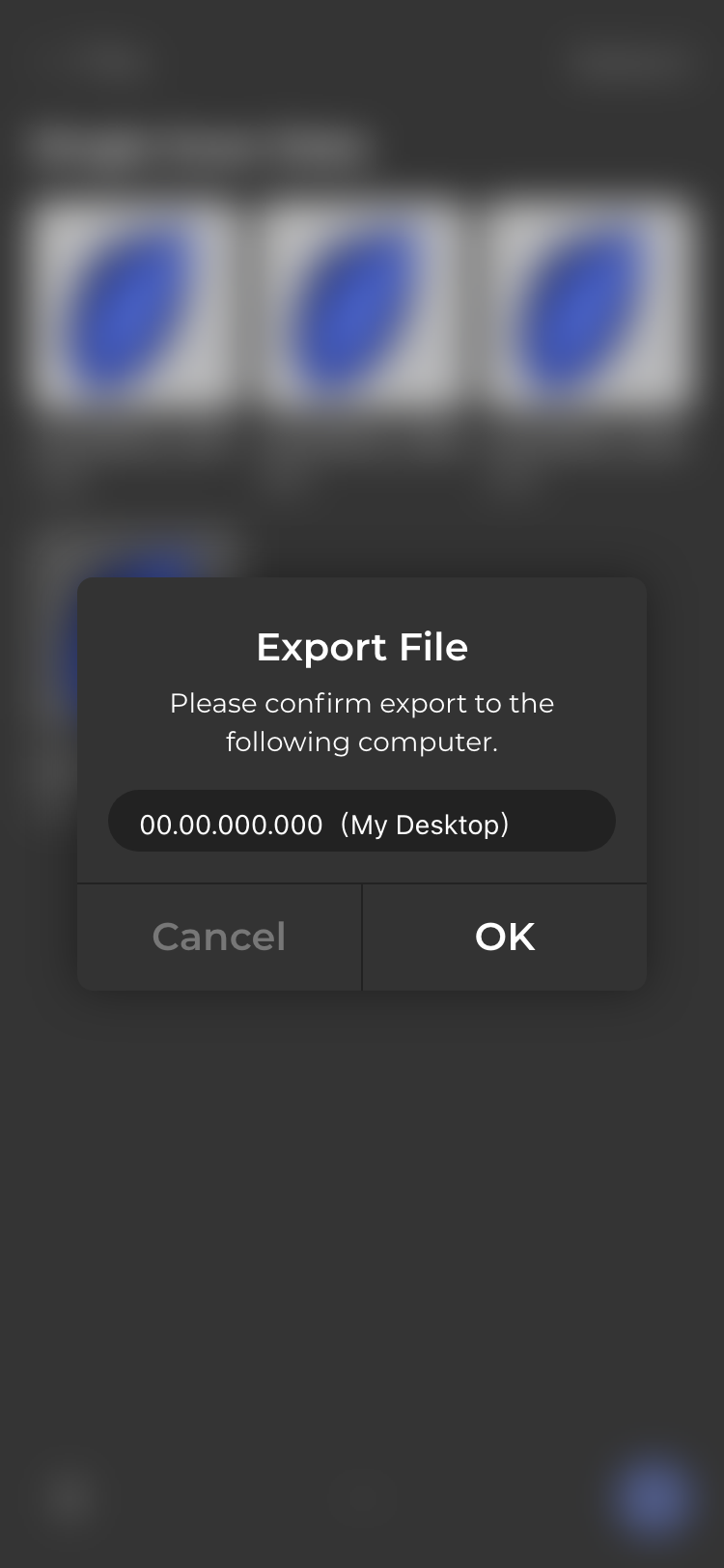
Use the QR code reader to read the code on your desktop;
you are prompted to confirm your desktop IP:
④Waiting for the Data Transfer
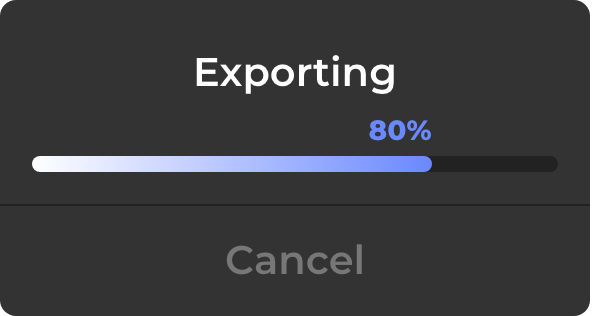
Please do not close the JMStudio desktop and app during the data transfer, and await the prompt "Export successfully".

Check and edit the exported file in the JMStudio desktop.
For more information: Editing