Software Installation
JMStudio, as the exclusive built-in software for 3DMakerpro 3D scanning equipments, comprehensively handles multi-mode data acquisition, high-definition real-time preview and texture mapping, as well as 3D model generation and processing. Furthermore, it also supports the export of 3D models in OBJ, STL, PLY, RSCAN and other common formats.
Operating System Requirement
Recommended Computer Configurations
Intel Core i7 8th, 16GB RAM, NVDIA1060 GPU with 4GB VRAM
Minimum Computer Configurations
Intel Core i5 8th, 16GB RAM, MX250 GPU with 2GB VRAM
Software downloads
You can acquire the application file by visiting our website: Click here to download
How to Install
Follow the steps below to install the software.
For macOS
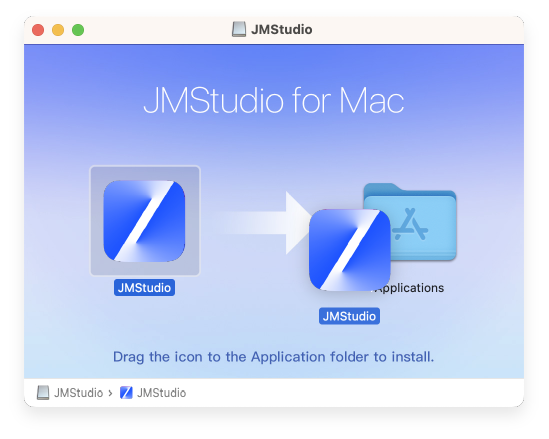
①Double-click the application file and drag it to the Applications folder.
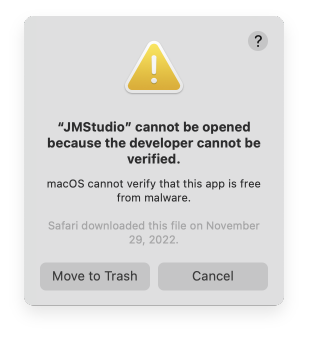
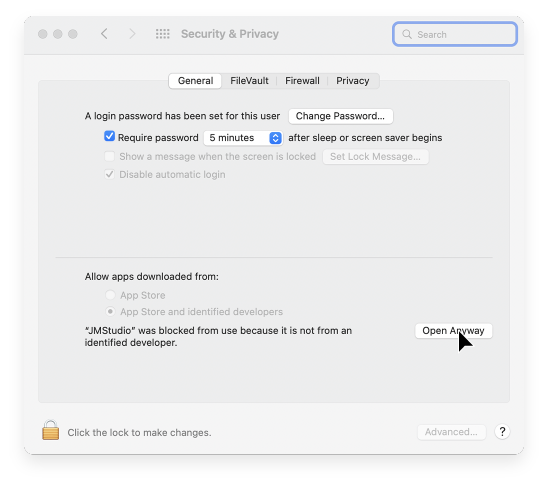
②When this erro occurs, please go into your Security & Privacy,check the App Store and Identified Developers radio button, and click Open Anyway.

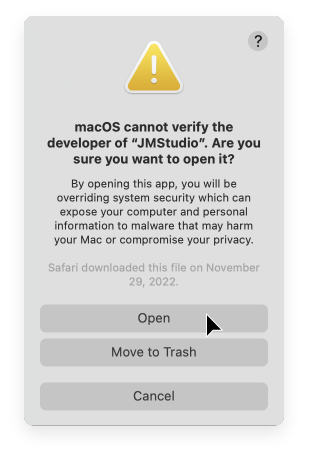
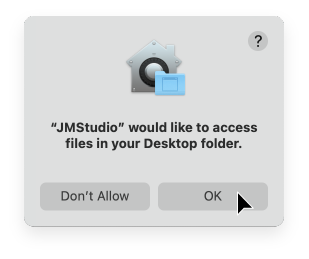
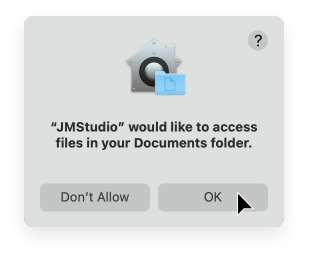
③Allow JMStudio to access files in your Desktop folder.
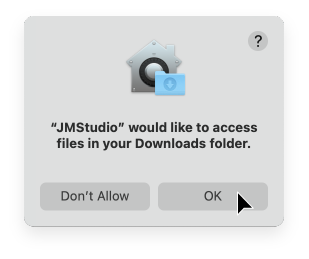
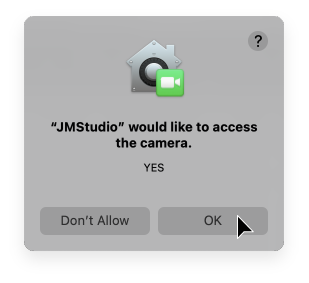
④Run JMStudio, allow it to access the camera, now the installation is completed.
For Windows
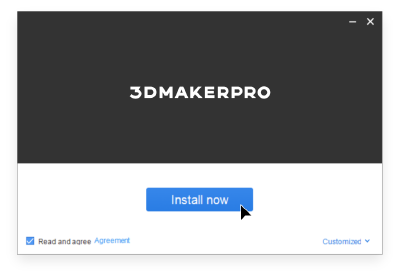
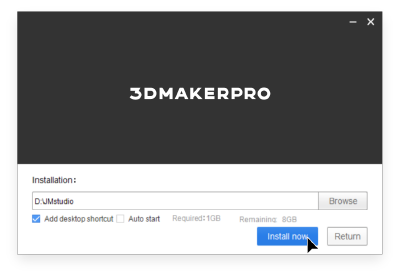
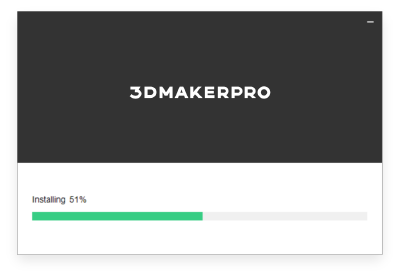
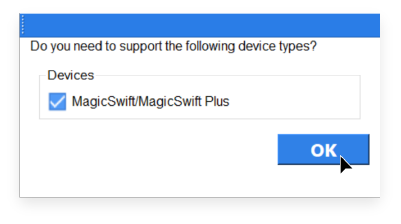
①Click on the application file, follow the intallation wizard and click Next to install the software.
Software Upgrade
Please make sure you're running the lastest version of software, or visit here to get one: Click here to download
Log in to register
① Log in with the account you have registered with us. If you have not registered, you can click "Create yours now." in the lower right corner to jump to the official website to register.
- It can also be used directly through the "Guest Mode" in the lower right corner.
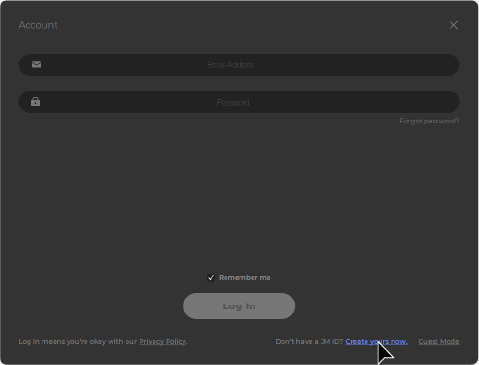
② Enter the email information, click "SEND CODE", enter the verification code in the email and set the account password to register.
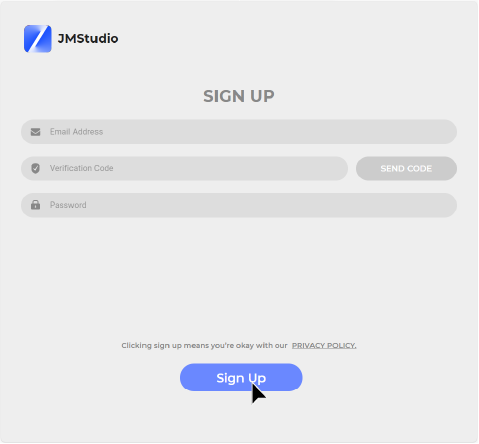
Start page
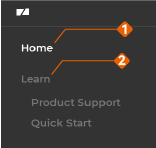
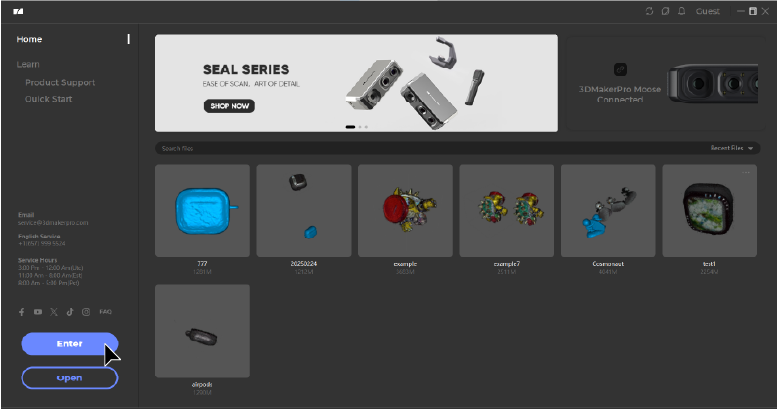
The start page is divided into two parts:
① Home ② Learn
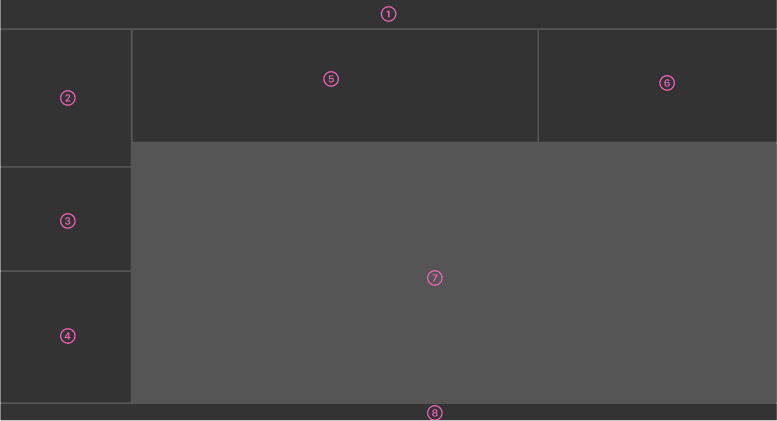
The Home function is seperated into the parts below:
①Title Bar ②Navigation Bar ③Official Information Bar ④Main Operation Area ⑤Bulletin Board ⑥Device Status Bar ⑦File List ➇Status Bar
The Learn function is divided as follows:
①Title Bar ②Navigation Bar ③Official Information Bar ④New Project ⑤Study Area ⑥Status Bar
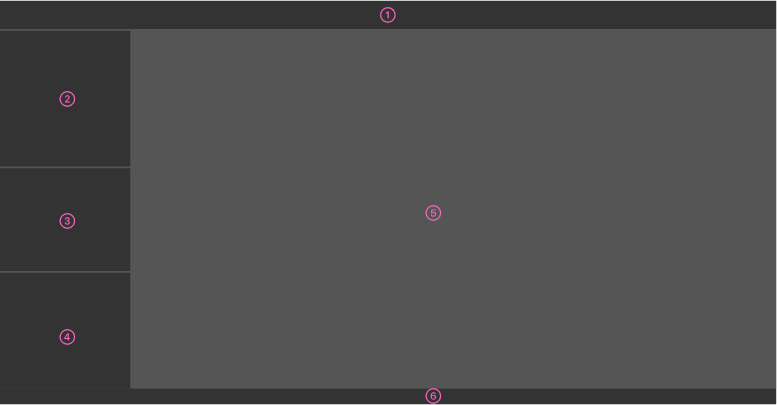
You can directly understand the general operation content in "Learn", and then enter the main interface from 'Home'.
Main Interface
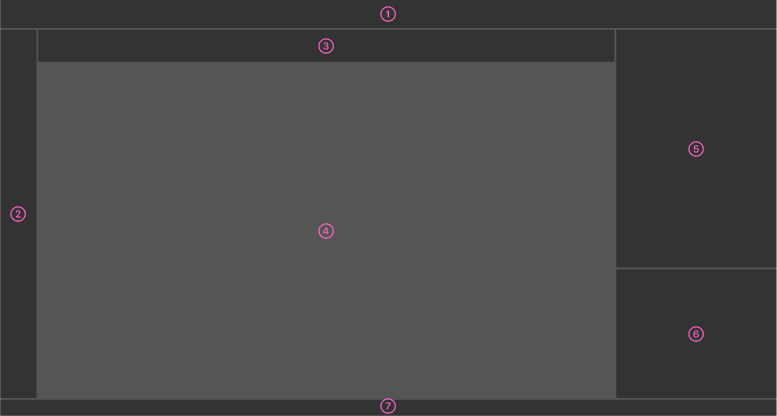
The user interface consists of the following parts:
①Title Bar ②Tool Bar ③Work Mode ④3D Viewer ⑤Work Panel ⑥Data Panel ⑦Status Bar
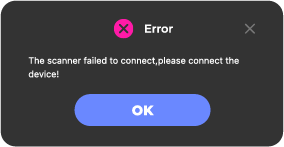
*Projects imported into TOUCAN do not require a scanner connection; you can directly close the scanner connection prompt on the main interface.
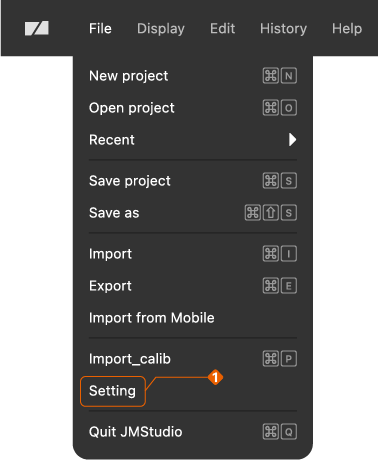
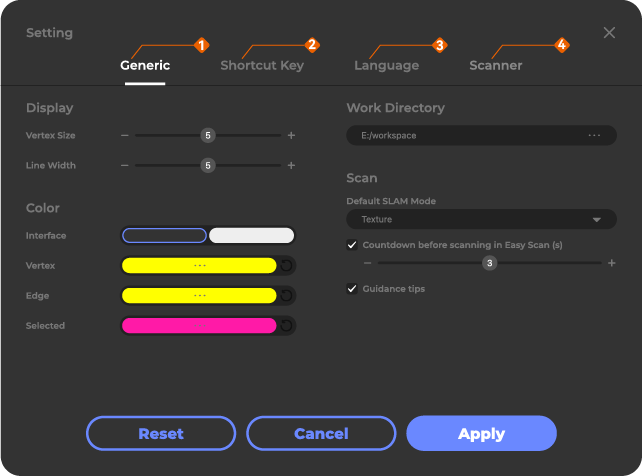
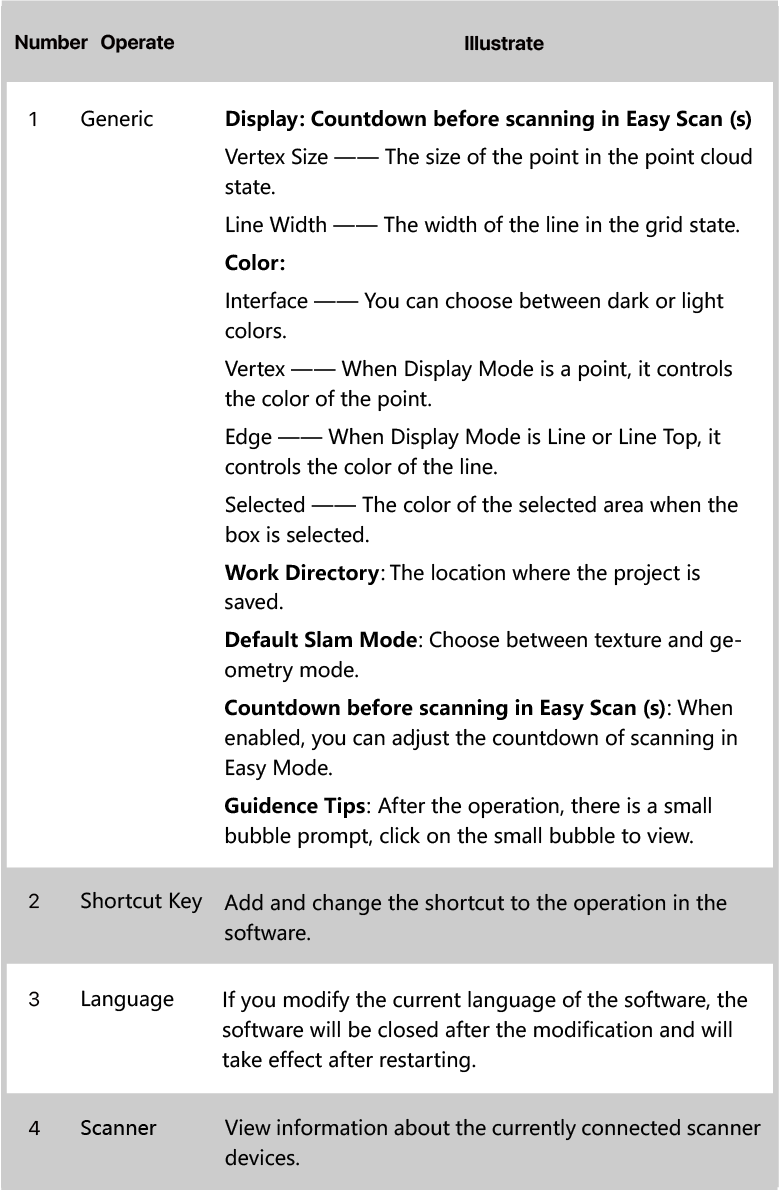
*Settings Panel
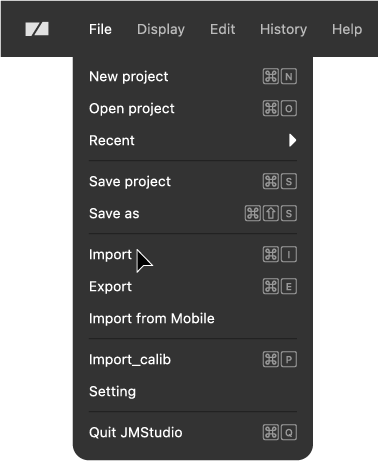
If you need to modify the language, storage location, scan information, and other related configuration information, click File_Settings in the Title Bar at the top of the page
The details are as follows:
Import File
After importing the data to the PC, you can perform detailed processing on the data, or export it in other formats.
TOUCAN offers simple operations for editing, aligning, merging, and mapping scanned data. For more detailed operations, processing can be done on the PC. For example, if the model alignment in TOUCAN is not ideal, you can sequentially import scan data from multiple poses and manually align them on the PC.
TOUCAN supports users in selecting the type of data to export, and also allows compressing and exporting all data (the compressed file format is pha). In both cases, the file can be opened directly with JMStudio.
① The software interface supports directly importing pha format files scanned and exported by TOUCAN devices.

② After the data is imported, you can view all the imported data information in the Data Panel.
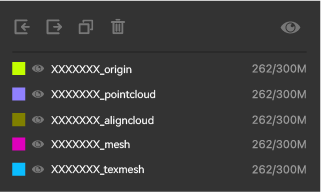
_origin: Original point cloud data
_pointcloud: Single-frame point cloud, data edited on the device
_aligncloud: Point cloud data generated through the alignment function
_mesh: Mesh data obtained by merging point cloud data on the device (without texture mapping)
_texmesh: Mesh data obtained by merging point cloud data on the device (with texture mapping)
Editing
Data Editing
Before meshing the point cloud data, you can do simple editing on it to delete excess data and ensure the quality of the model.Although the model can also be trimmed after the model is generated, the large amount of redundant data may slow down the processing speed, so it is recommended that you perform simple preprocessing of the point cloud data first.
The toolbar is described in detail as follows (some tools are only active for the mesh, so we take the mash data as an example):
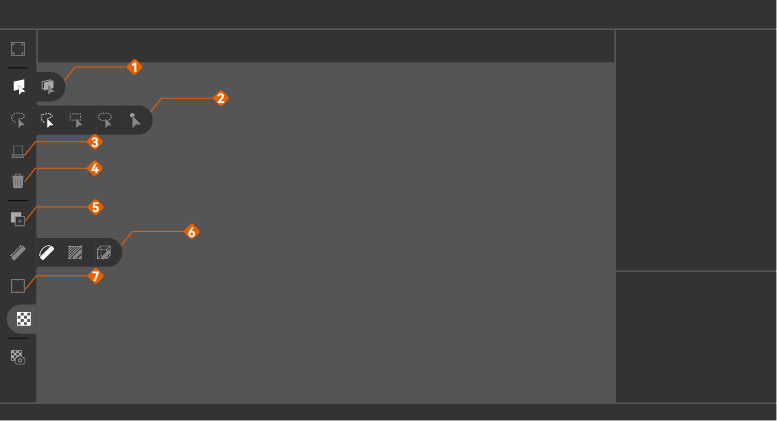

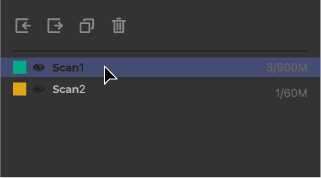
①Select the object****
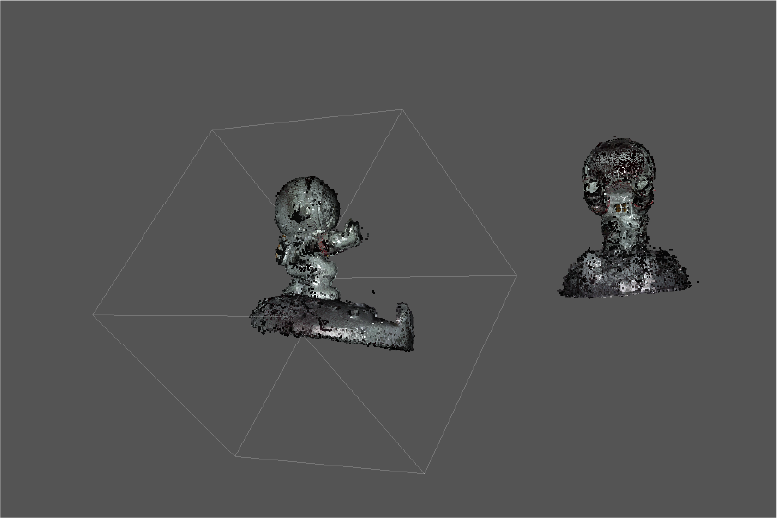
Click the object you want to process in the Data Layer List and the selected object appears in the three-digit viewport:
② Select Tools
Hover your mouse over the Tool Bar on the left side of the interface, here are a few selection tools available.

③ Select the Data
Hold Ctrl and press left mouse button in the 3D Viewer to select an area, the selected place will turn red.
④ Process the Data
Hover your mouse in the 3D Viewer and right click or click on “Edit” in the Title Bar to show the menu then edit your data.
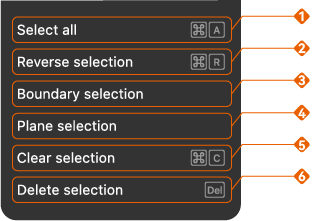
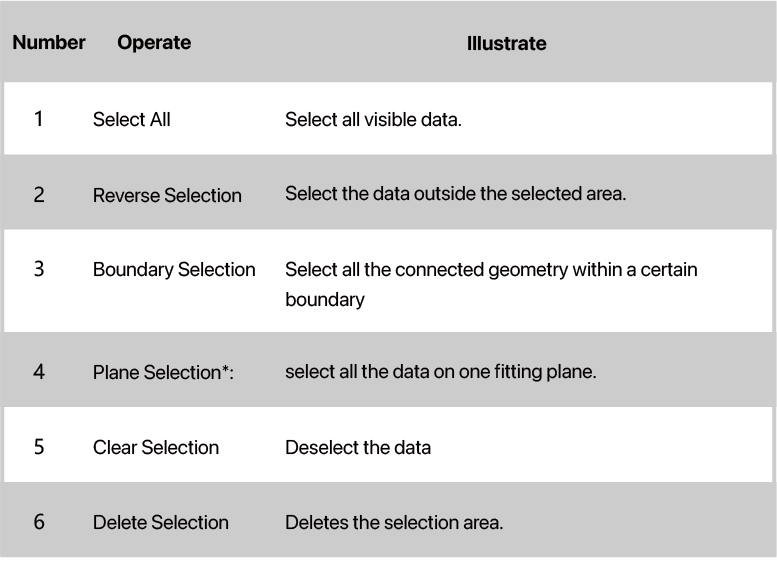
*Plane Selection
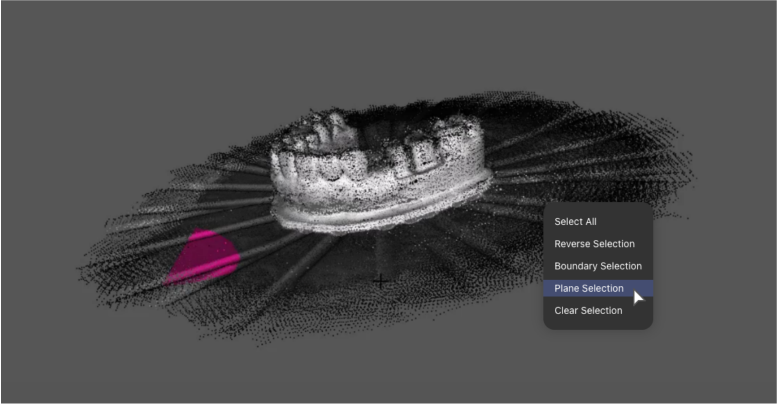
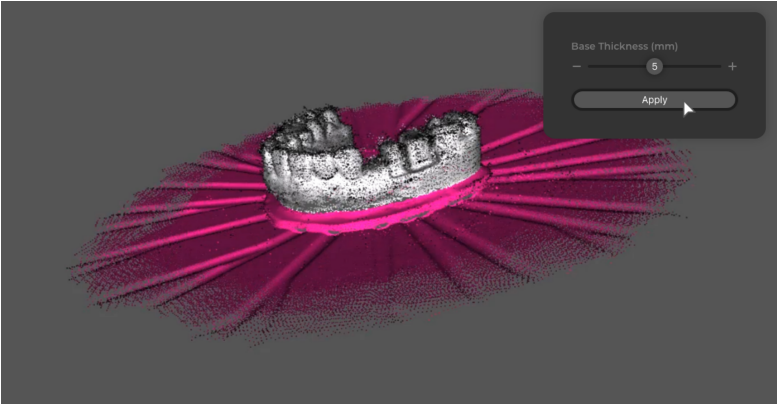
Plane Selection is for selecting and deleting the turntable top, floor, wall and other flat surfaces.
Watch the tutorials below to learn more:
Firstly, use the Select Tools to select part of the plane (no need to select the entire plane); right click your mouse and select “Plane Selection” in the menu to automatically recognize the entire plane;
the top right pop-up window allows you to adjust the plane thickness.
Align
Watch the tutorial below to learn more about Manual Align:
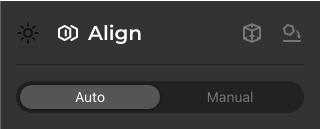
Go into “Align” in the work panel and select the align mode.
If the data is not needed, it is recommended to delete the data that is marked in red.
Auto Align
Select the scans that need to be aligned to in the “Work Panel”.Click the display icon  of the data layer list, and the icon will be displayed as
  , and the checked data will be automatically added to the aligned data. Click “Align” to merge them togerther.It is recommended to remove the substrate before automatic alignment.
In Align Data, double-click the mouse to select a fixed layer, and the  icon will be displayed on the right side of the fixed layer, and select the more scanned data as the fixed layer for easier alignment.
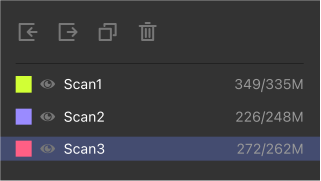
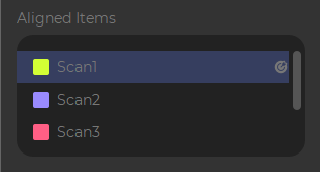
Before alignment, it is recommended to manually turn the aligned layer to the same angle.
Click "Align" to automate the alignment:
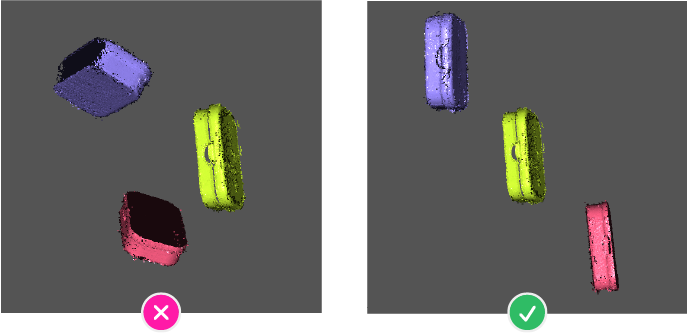

Manual Align
Manually delete the plane/turntable before the alignment. For more details, please refer to*Plane Selection.
- Manual alignment will automatically turn off the texture display, so that you can observe the alignment status of the model, if you need to turn on the texture display, you can click the
 icon in the "Tool bar" to turn it on.

Select the scans that need to be aligned to in the “Work Panel”. In the Fixed Layer drop-down list, select the target data aligned to the target, and in the Moving Layer drop-down list, select the movement data aligned to the target.
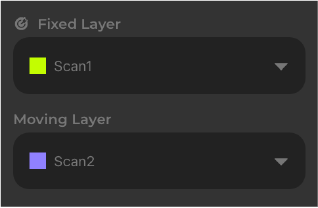
Three sets of marker pairs are automatically generated in the "Mark Point" information bar, and you can click  to add marker pairs, but up to five sets of marker pairs can be added. Right-click the selected marker point in the 3D Viewer, there is a white highlight around the selected marker point, and right-click again to modify the position of the selected marker point.

In the 3D Viewer, the upper-left view is a fixed layer, the upper-right view is a moving layer, and the bottom view is aligned to the result.
Drag and drop the left mouse button to rotate the model that needs to be aligned in the left and right views to the same viewing angle. Adjust the marker points of the corresponding numbers in the two views to the same position on the model, and click "Align".
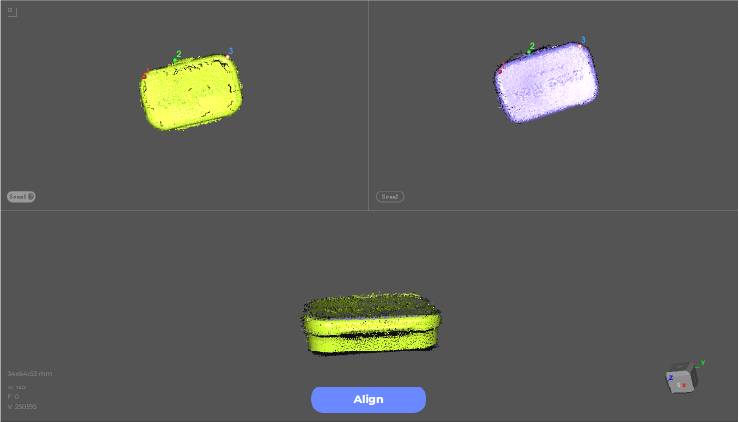
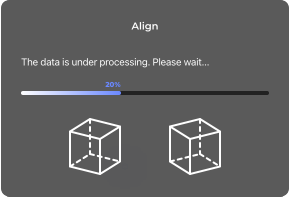
After the alignment is completed, you can check the alignment result in the bottom view, and if you are satisfied with the alignment result, click "OK"; If you're not satisfied, tap "Return" to adjust the position of the marker points and redo the alignment.

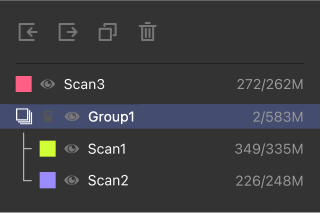
After the alignment is completed, the data participating in the alignment will be automatically grouped, and the  can be clicked to display it as a fixed layer color. Manual alignment can only align two layers of data at a time, and if you need to align three or more layers of data, you need to align the other layers of data with the group data.
Process
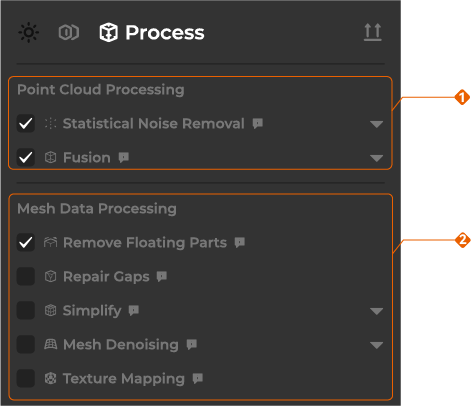
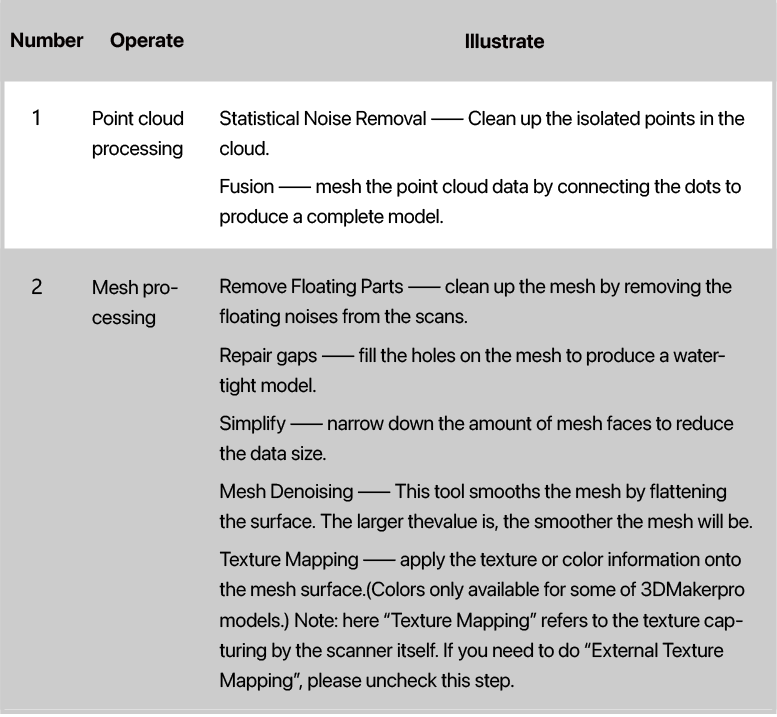
The redundant noises arround the point cloud can be removed through Statistical Noise Removal. Then, the point cloud data can be converted into mesh data through fusion, and finally the mesh data can be deisolated, repaired, simplified, texture-mapped, and other operations.
Point Cloud: A dataset of a series of 3D points plotted on x, y, and z coordinates, recording the surface bumps and color information of the scanned object. Point clouds can be divided into single-frame and multi-frame data (frame: the unit of measurement of a photograph).
◆ Single frame: A complete still image and picture
◆ Multi-frame: A series of sequential images and pictures arranged in chronological order
*F: Frame, the unit of measurement of the photograph. The larger the number of frames, the larger the amount of data and the more complete the collected data, but when processing data, the higher the requirements for computer performance and the longer it takes to process.
Mesh: Combines massive 3D point cloud data into a single mesh to form a polygon collection connected by polyhedral vertices.
① In the Edit Panel_Compositing section on the right side of the main interface, select the steps you want to take
② Click "Process":

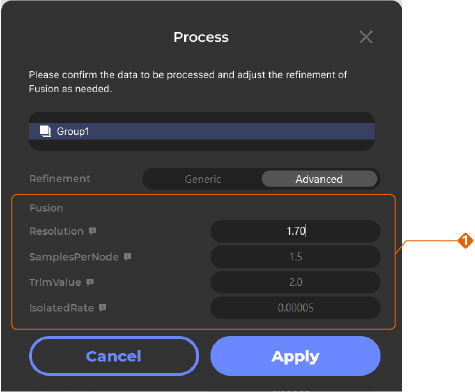
③ Select the data you want to synthesize and adjust the granularity of the fusion as needed.
There are two types of refinement: "General" and "Advanced". For "Advanced" configurations, please refer to Advanced Configurations
The general configuration is divided into three levels, and the default selection is "Moderate". If you select "High", the higher the fineness, the higher the number of faces in the model; If you select "Low", vice versa.
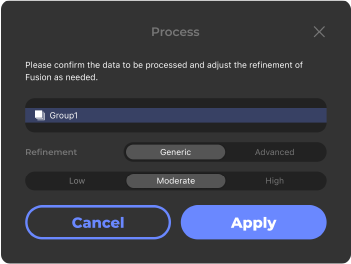
It is recommended to use the default configuration, and click "Apply" after adjustment. The data processing time is long, please be patient:
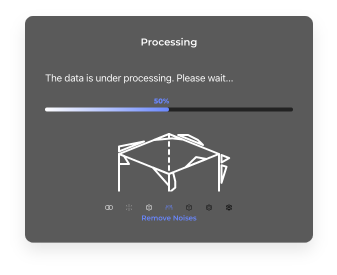
④ You can further edit on the mesh model to delete excess data with the selection tools available. For more information: Data Editing
Watch the tutorial below to learn more:
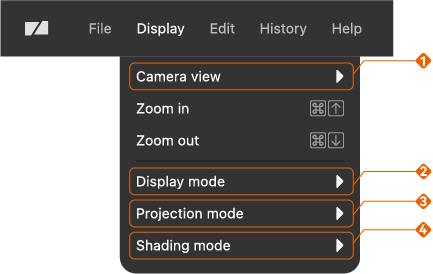
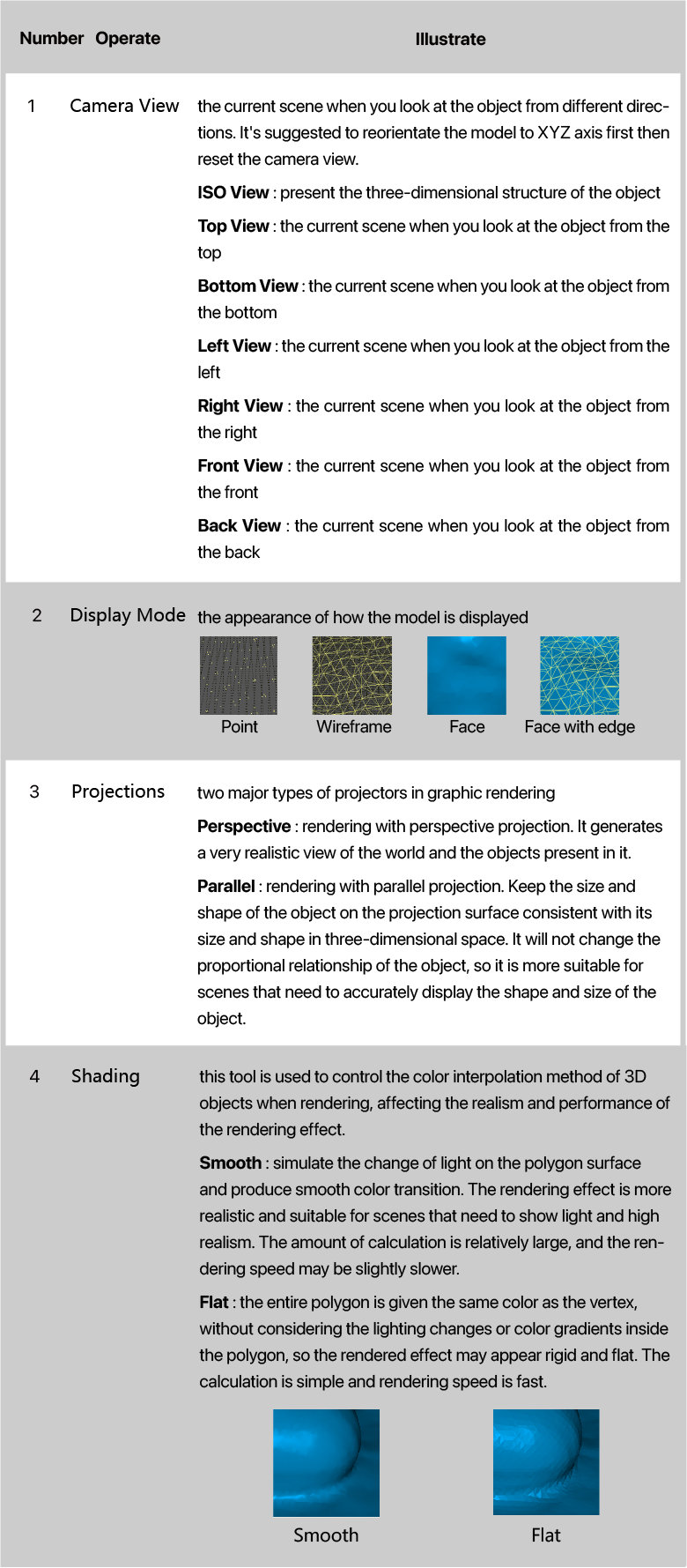
⑤ According to the requirements of the model, you can modify the display form of the model in the "Tool bar" at the top of the main interface.
The detailed functions are as follows:
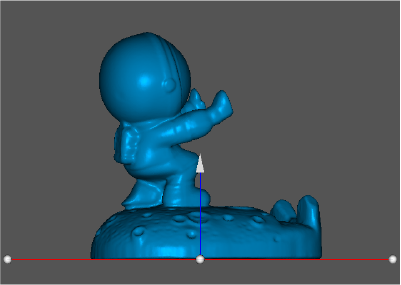
Reorientate
Adjust the model’s posture, align its base to XY axis of the coordinate system for further model editing and 3D printing.
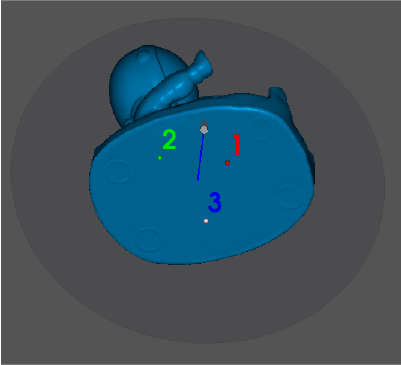
Reorientate your 3D model by going into the Work Panel_Reorientate. Three mark points will be automatically created to generate a plane; right-click to reposition them but not make them in a line; flip directions of the normal line in the Work Panel_Reorientate; click “Reorientate”to execute it.
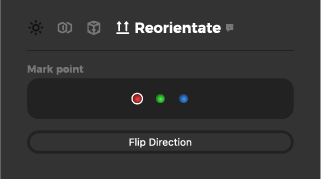

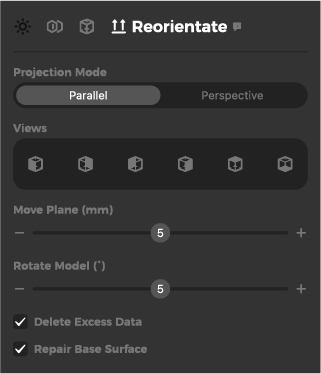
In the Work Panel_Reorientate, there are other settings such as changing the view types, moving the plane, rotating the model and deleting the highlighted excess data below the plane.
If you check Delete Excess Date, the model may be damaged, so the repair base will be checked by default, or you can manually uncheck it.
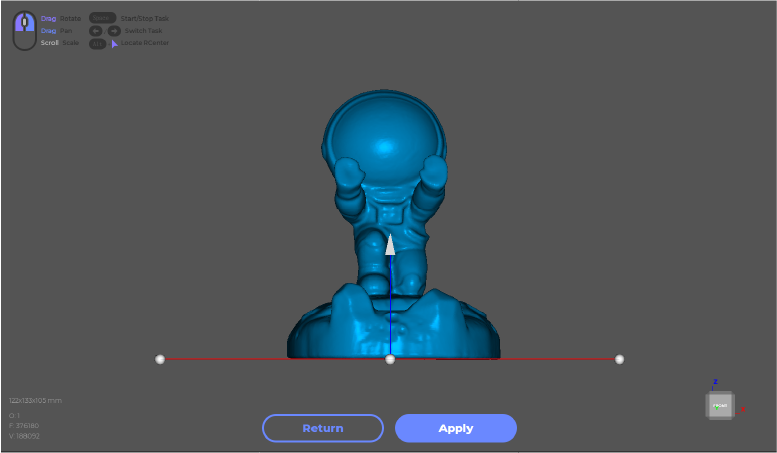
Drag four anchor points to reposition the plane, and drag the arrow in the middle to move the plane vertically; click “Apply” if you are satisfied.
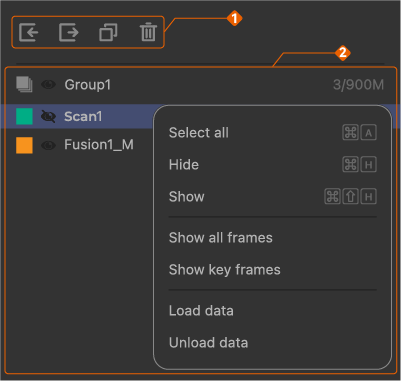
*Scan file management
In the date panel at the bottom right of the main interface, you can manage the point cloud or mesh data, and the detailed operation instructions are as follows:
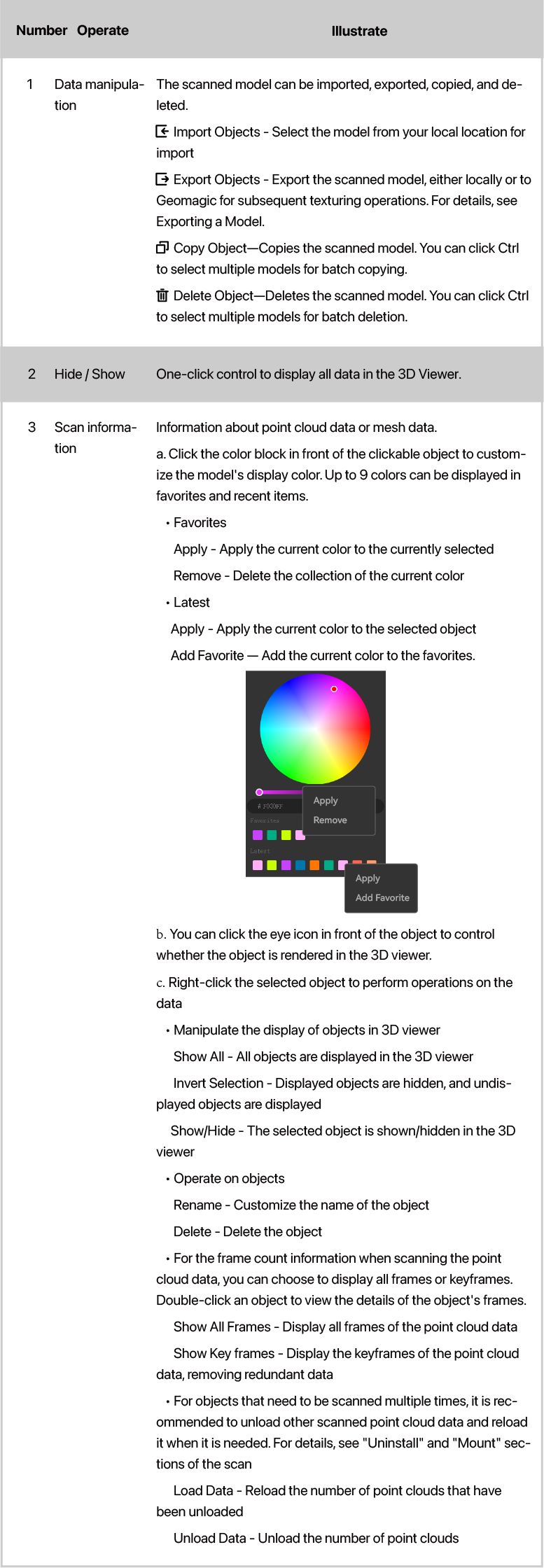
Export the Model
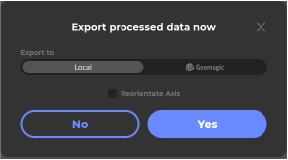
Click “Export” in the Title Bar_File or the export icon in the data panel to export the model.

Click “Yes” in the pop-up to export the data.Will go to reorientate the model if checking “Reorientate Axis”. For more information: Reorientate
JMStudio now supports model exported in obj, stl, ply and rscan format, stay tuned for more available formats. Thank you for your time!
*Other
Shortcut Key
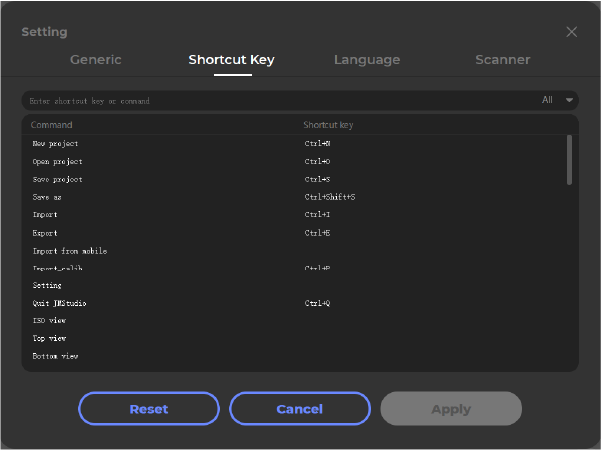
Click  in the lower-left corner of the toolbar to expand and view all commonly used shortcut actions.


You can also view or modify more shortcuts in Settings > Shortcuts.
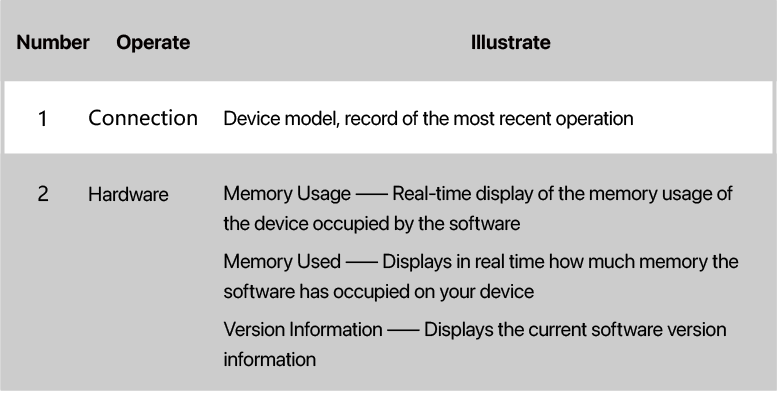
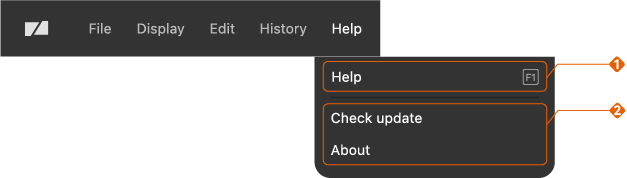
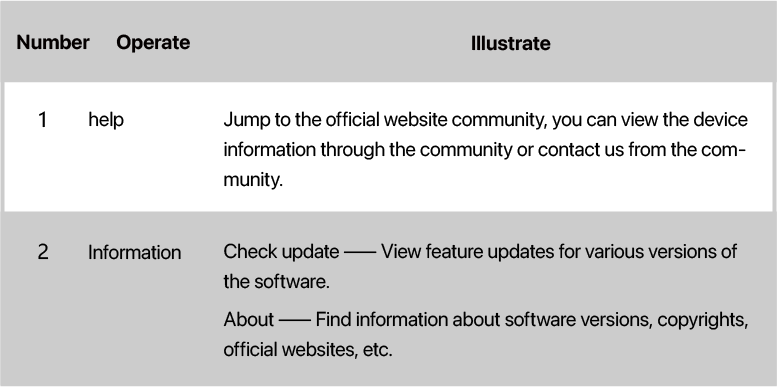
Info bar

Help
Advanced configuration
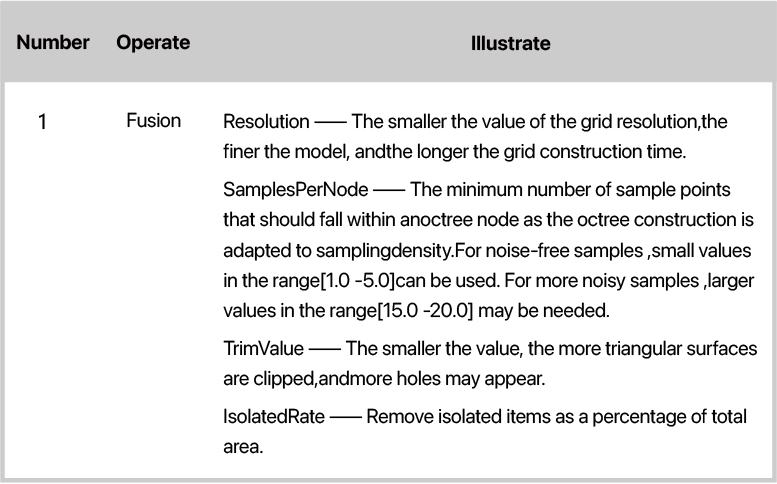
During the Process operation, you can perform custom advanced configurations for point cloud denoising and synthesis (you can click the small explanation icon after the operation to view the corresponding graphic explanation). The specific configuration information is as follows: